
Newsletter
Overview
It provides tools for managing recipient lists, organizing recipients into groups, configuring sender information, and using newsletter templates.
The module consists of the following sections:
-
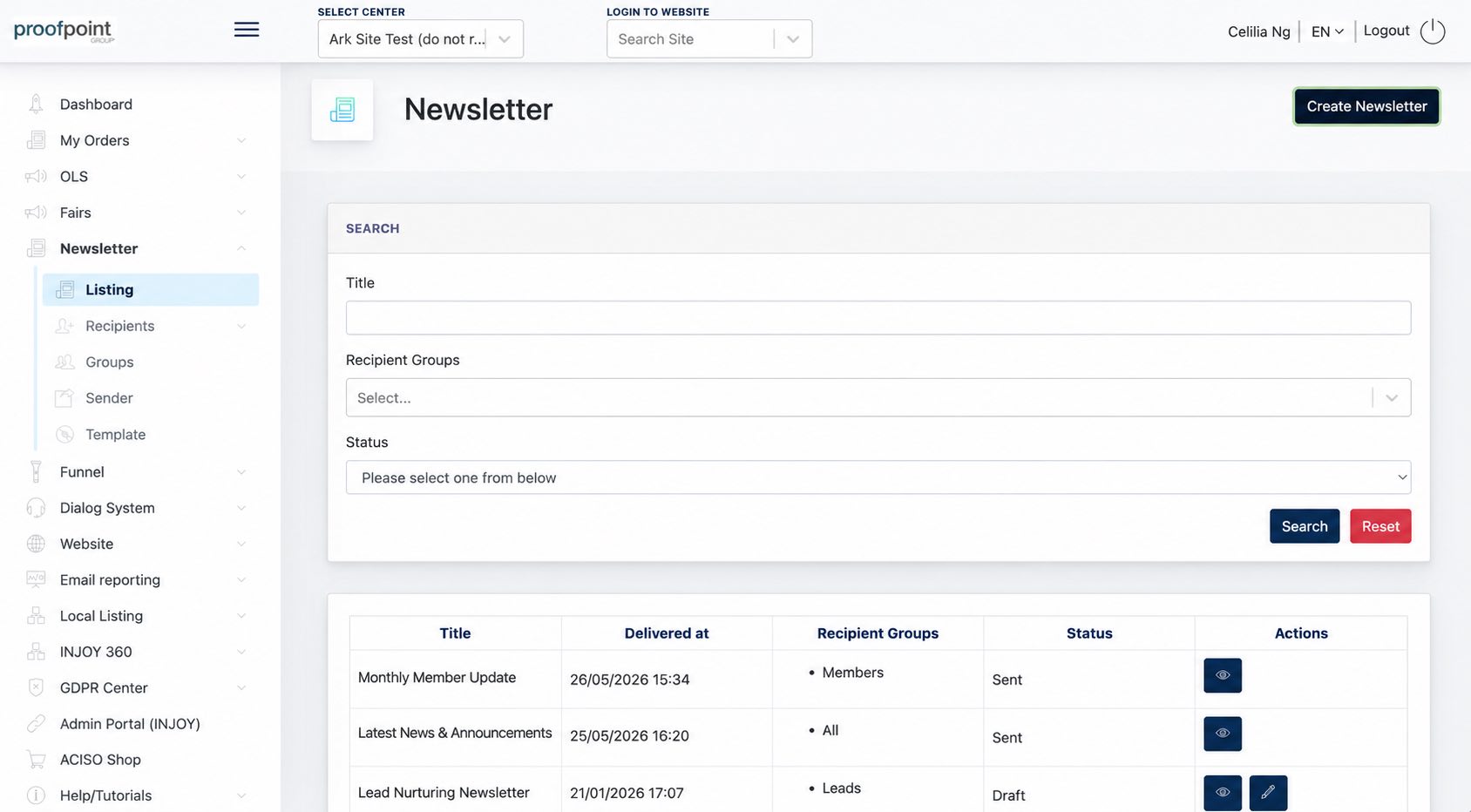
Listing: Create and manage newsletters, including viewing their delivery status.
-
Recipients: Manage newsletter subscribers and their subscription status.
-
Groups: Organize recipients into groups for targeted newsletter distribution.
-
Sender: Manage the sender information used for newsletters.
-
Template: Manage reusable newsletter templates.
1. Newsletter Listing
The listing allows Center Admin to see which Recipient Groups each newsletter is assigned to and whether its status is Sent or Draft.
1.1 Creating a Newsletter
The creation process consists of two steps: entering the newsletter details and designing the newsletter before saving, sending, or scheduling it.
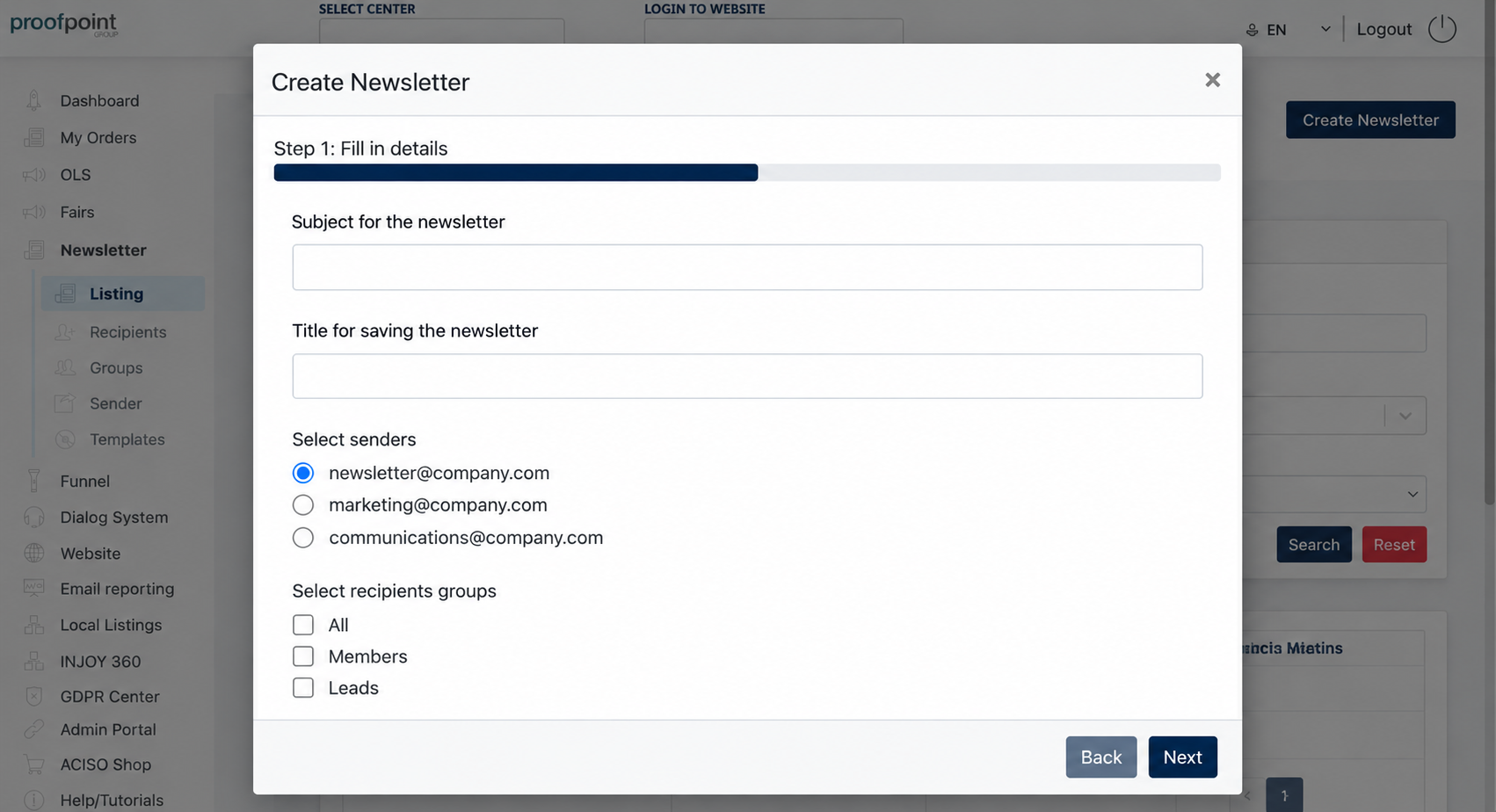
Step 1: Fill in Details
Enter the following information:
-
Subject for the newsletter: Enter the email subject that recipients will see in their inbox.
-
Title for saving the newsletter: Enter an internal title to identify the newsletter in the Cockpit listing.
-
Select senders: Choose the email address that will be used to send the newsletter.
-
Select recipients groups: Select the recipient groups that should receive the newsletter, or choose All to include all recipients.
Click Next to continue.
Step 2: Design and Schedule Your Newsletter
Create the newsletter content using the drag-and-drop editor.
Click Choose a template to use an existing newsletter template, or design the newsletter from scratch by adding elements such as text, images, buttons, and columns.
The editor also supports recipient placeholders, allowing personalized information such as the recipient's name or email address to be automatically inserted when the newsletter is sent.
Saving the Design as a Template
Select Save template for future use? if you want to save the newsletter design as a reusable template for future newsletters.
Sending Options
Once the newsletter is ready, select one of the following options:
Send now: Send the newsletter immediately.
Is draft?: Save the newsletter as a draft to continue editing and send it later.
Is scheduled?: Schedule the newsletter for a future date and time. Select the desired delivery date and time in the Deliver at field.
Testing and Submitting
Before sending, click Send Test Email to preview how the newsletter appears in an email inbox.
Click Submit to complete the process according to the selected sending option.