Module : Admin & Settings
1. Company Data
This section allows the Client Admin to view, add, or edit company-related information.
All changes made here are automatically synchronized with the Global Admin > Client Listing, ensuring consistent and up-to-date data across both ends.
This page page displays default data set from GAP > Client data. Admin can freely update the data here.
2. Locations
Locations Management
Clients can add multiple locations here. A Location refers to a physical branch where employees work.
To create a new location, click [Add].
Action Required:
Fill in all required fields.
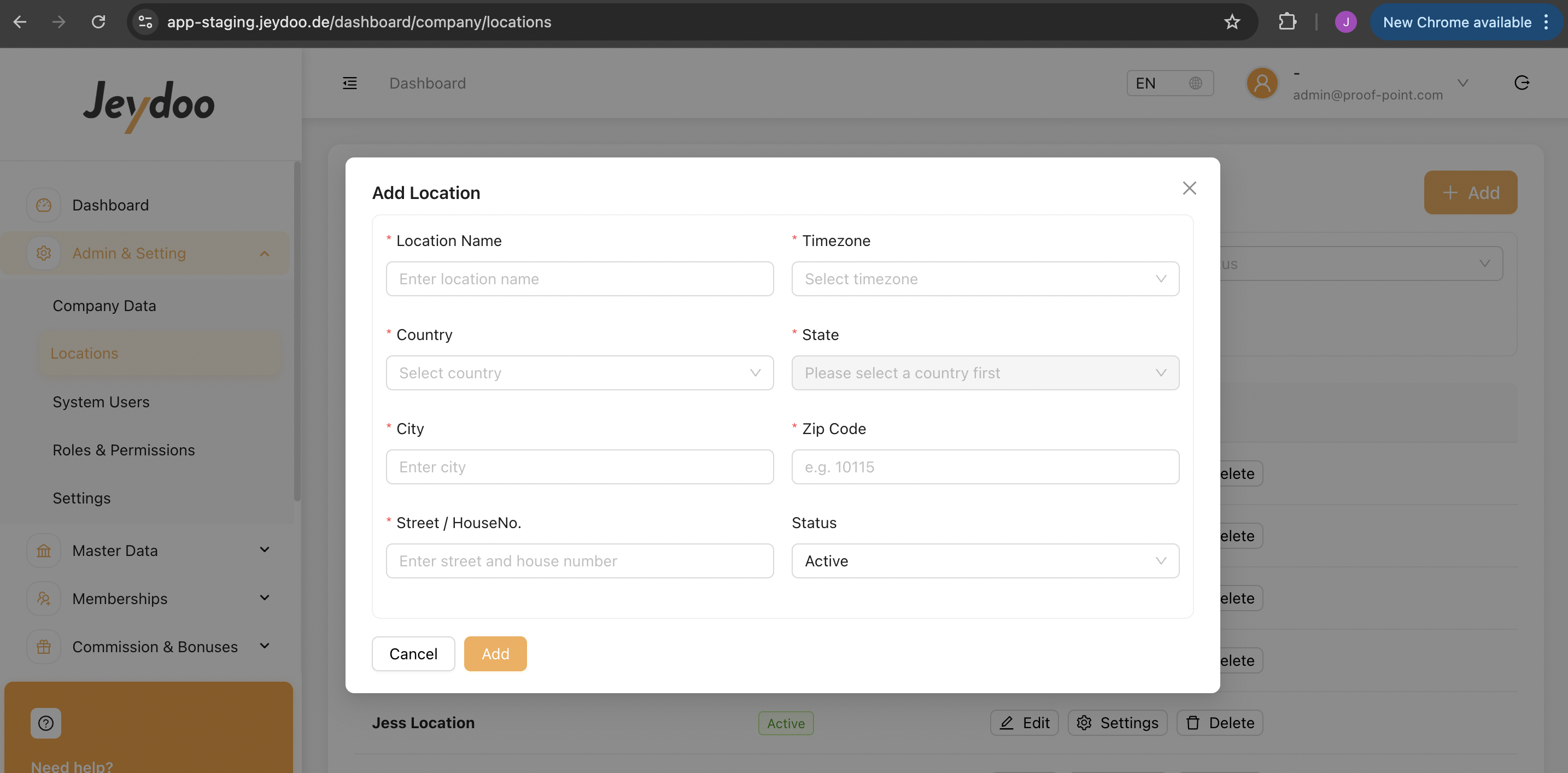
It is mandatory that Location is added first, before we can create any employees.
After Locations are created, Admin then configure location-related master data under Location Settings.
Timezone Settings
When Admin selects a timezone for a location, all employee time records associated with that location will follow the selected timezone.
For example, if Europe/Berlin is configured as the location’s timezone, any time booking made by employees under this location will be recorded according to the Europe/Berlin timezone. This means that when an employee books a time record at 2:00 PM, the system will store and display the time based on Europe/Berlin local time.
System Rules
All time bookings (Start Work, End Work, Breaks, etc.) are recorded according to the timezone configured for the location.
Employees working under the same location will have their time records stored using the same timezone setting, regardless of where the employee is physically located.
If the location’s timezone is changed, it will affect how future time records are interpreted and displayed.
[ Location Settings ]
-
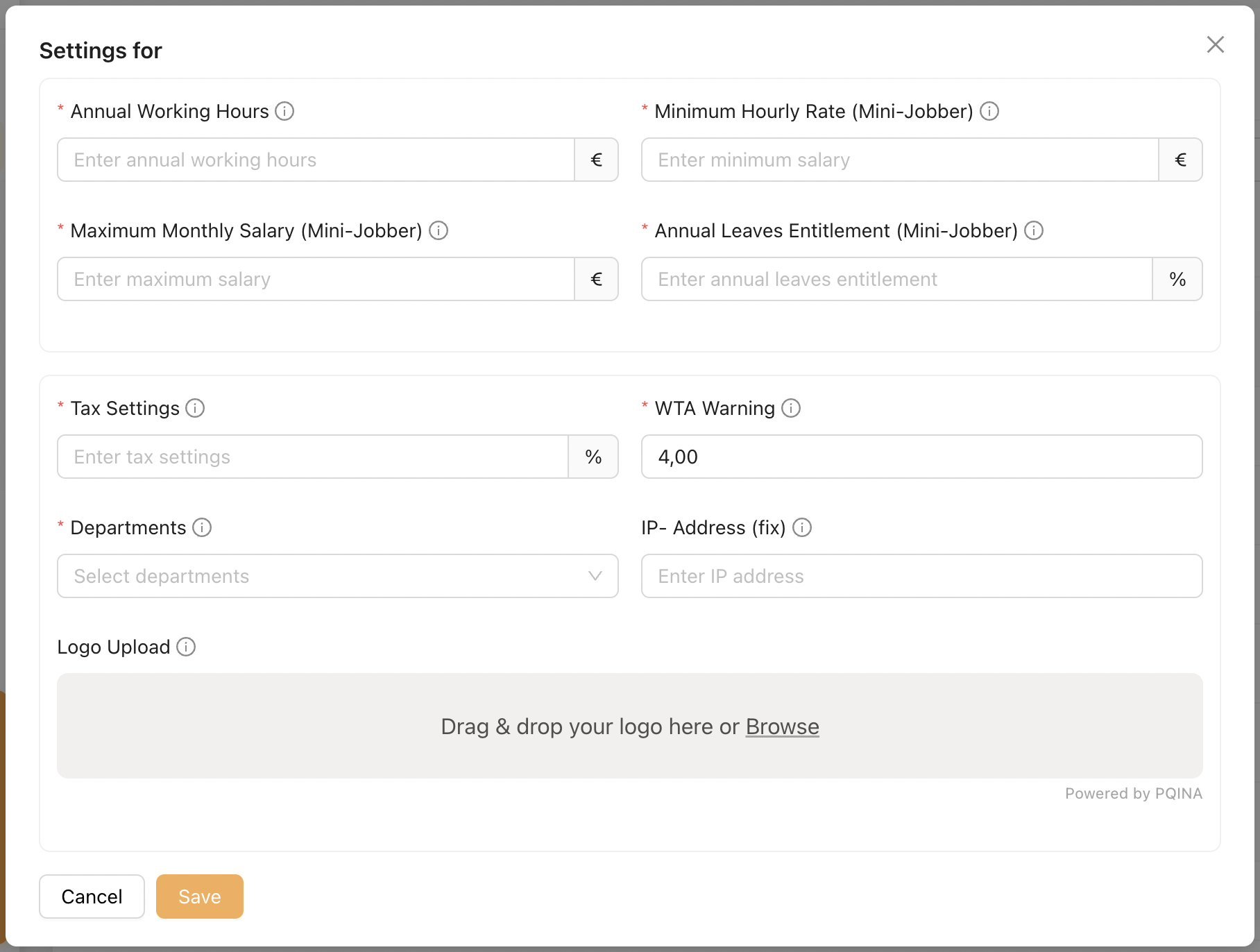
Under the Location Setting page, the Admin manages all location-specific master data.
-
These configurations directly affect an employee’s contract details and payroll calculation whenever this location is assigned as the employee’s Primary Location.
Each field includes aninfo icon, which provides an explanation of the field’s purpose when hovered.Action Required:Admin must complete all fields in this section.
Client Admin can [Add + Delete] Location. If a location is in use, an error message will appear and the location cannot be deleted.
3. System Users
This page displays all employees who have been granted upgraded access in Jeydoo.
There are three types of upgraded access roles:
1. Admin (Upgraded Role)
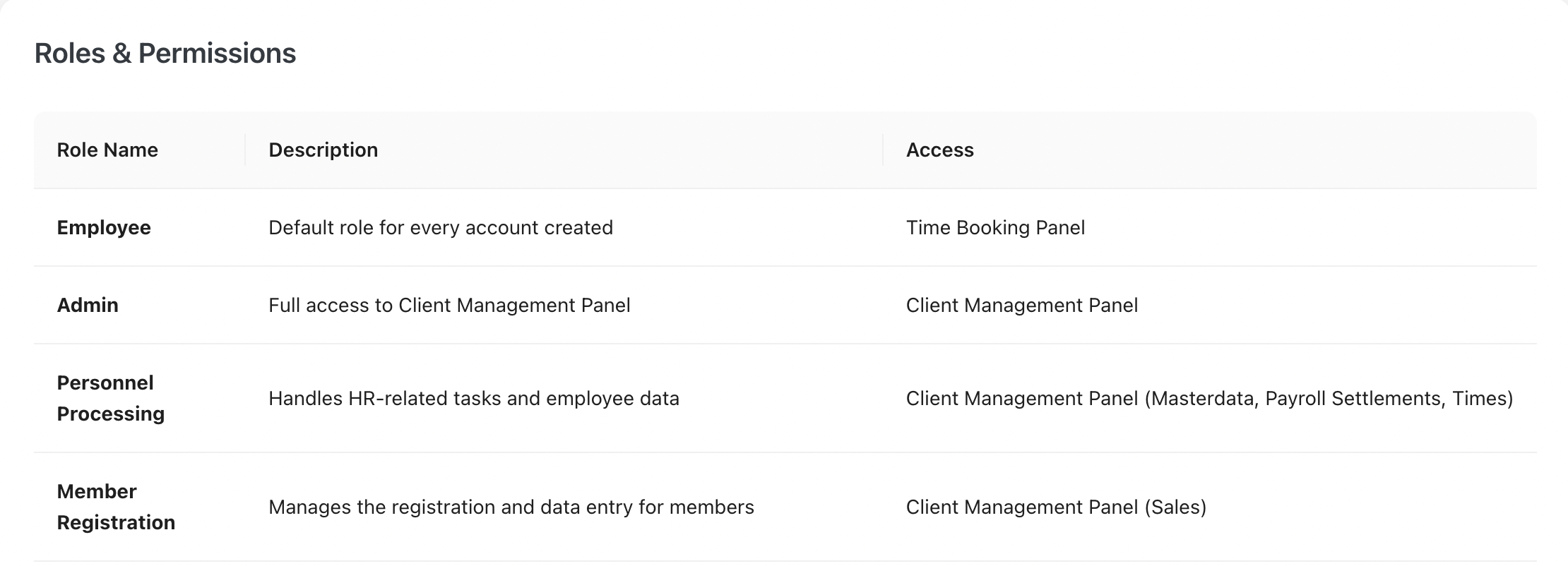
Has full access to the Client Management Panel, including all configurations, employee management, and system settings.
2. Personnel Processing (Upgraded Role)
Responsible for HR-related tasks, including managing employee master data, payrolls creation, generating reports.
3. Member Registration (Upgraded Role)
Handles sales registration, new members listing.
[ Edit Employee Master Data ]
To edit an employee’s upgraded access or personal data:
-
Click [ Edit ] under the Action column.
-
The Employee Master Data modal will open, allowing direct editing of the fields.
4. Roles & Permissions
This page displays all available roles within the Jeydoo software and the specific access rights assigned to each role.
5. Settings
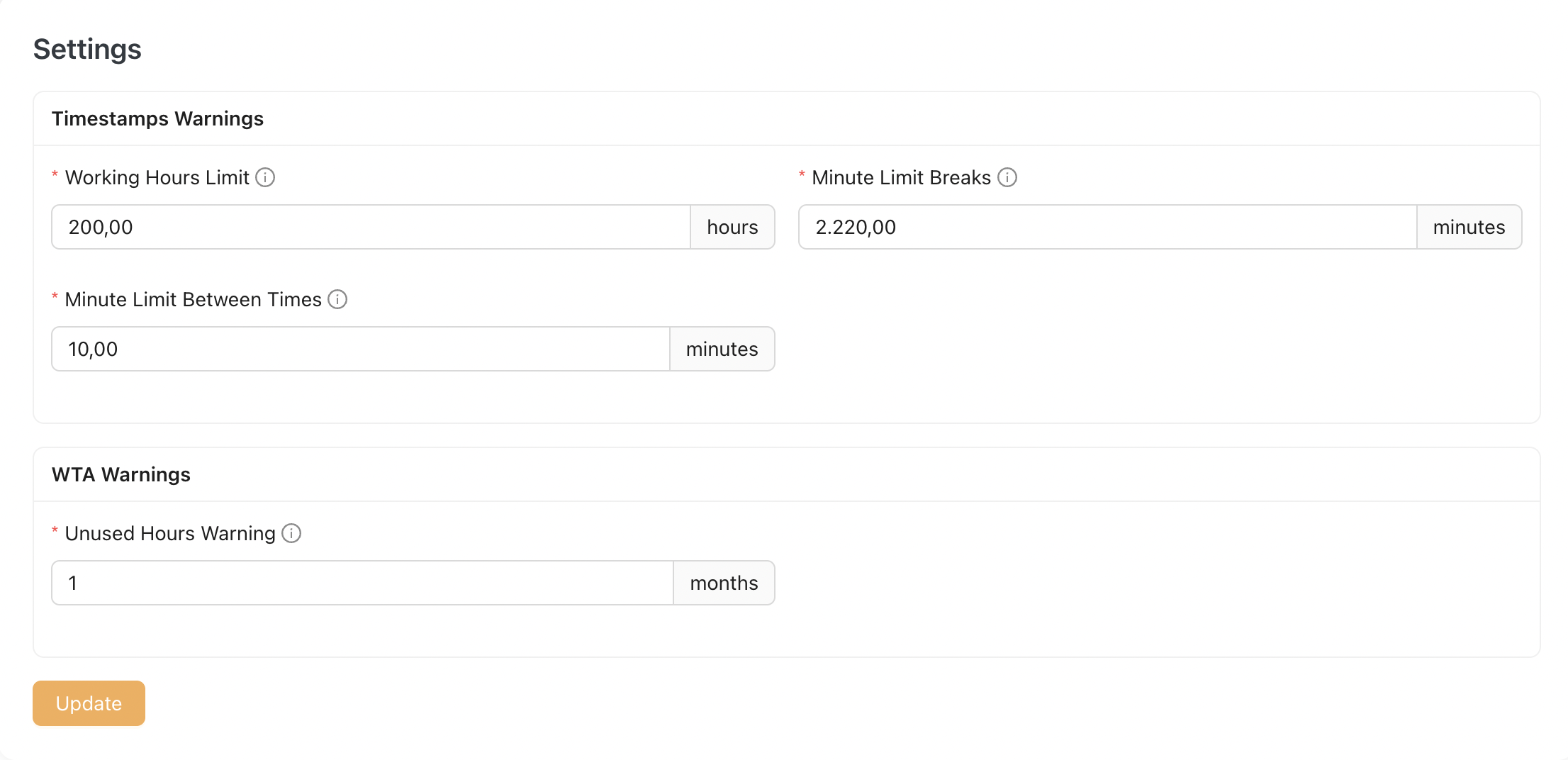
Currently, Timestamp Warnings and WTA Warnings can be configured via these fields.
These configurations are not location-specific and apply globally across all locations.
Hover over the [ ? ] icon to learn more about this setting.