Module : Memberships
The Membership module allows Admin to configure all settings related to membership packages. These packages and configurations will be displayed on the JSales platform and serve as the foundational setup for recording company sales and new member registrations.
1. Types
Membership Type is a mandatory field when creating a new member or membership sale in Jeydoo.
Configuring Membership Types in Jeydoo:
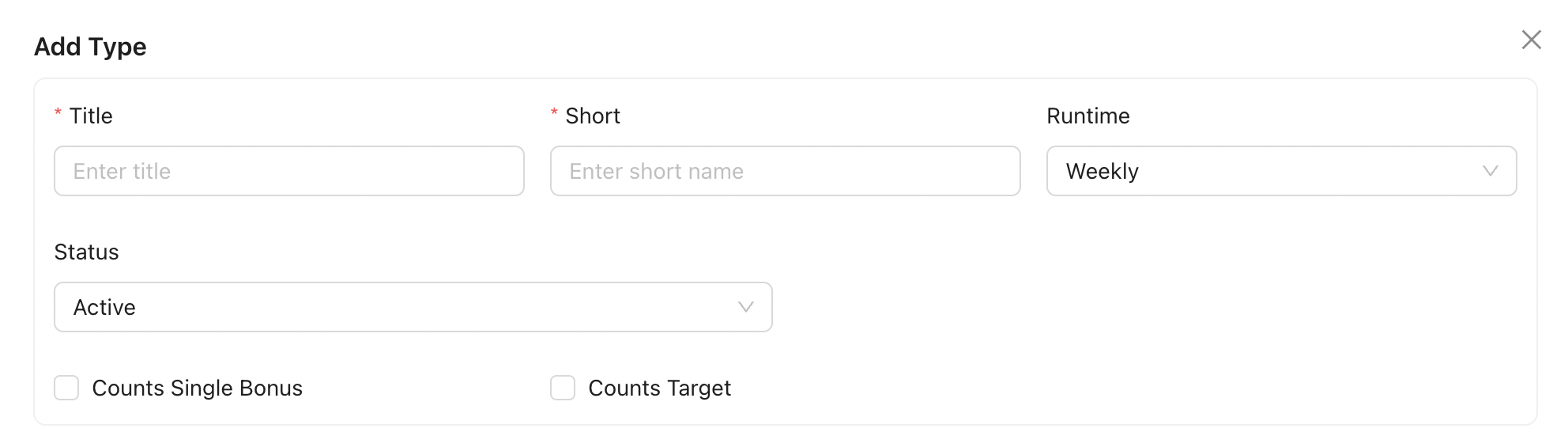
Form :
-
Title: Enter a title for this membership type.
-
Runtime: Select whether the membership runtime is weekly or monthly.
- Count Single Bonus : When this option is enabled, membership sales using this membership type will be included in the Single Bonus calculation.
- Count towards Target: When this option is enabled, membership sales using this membership type will counted towards the overall sales target for the location.
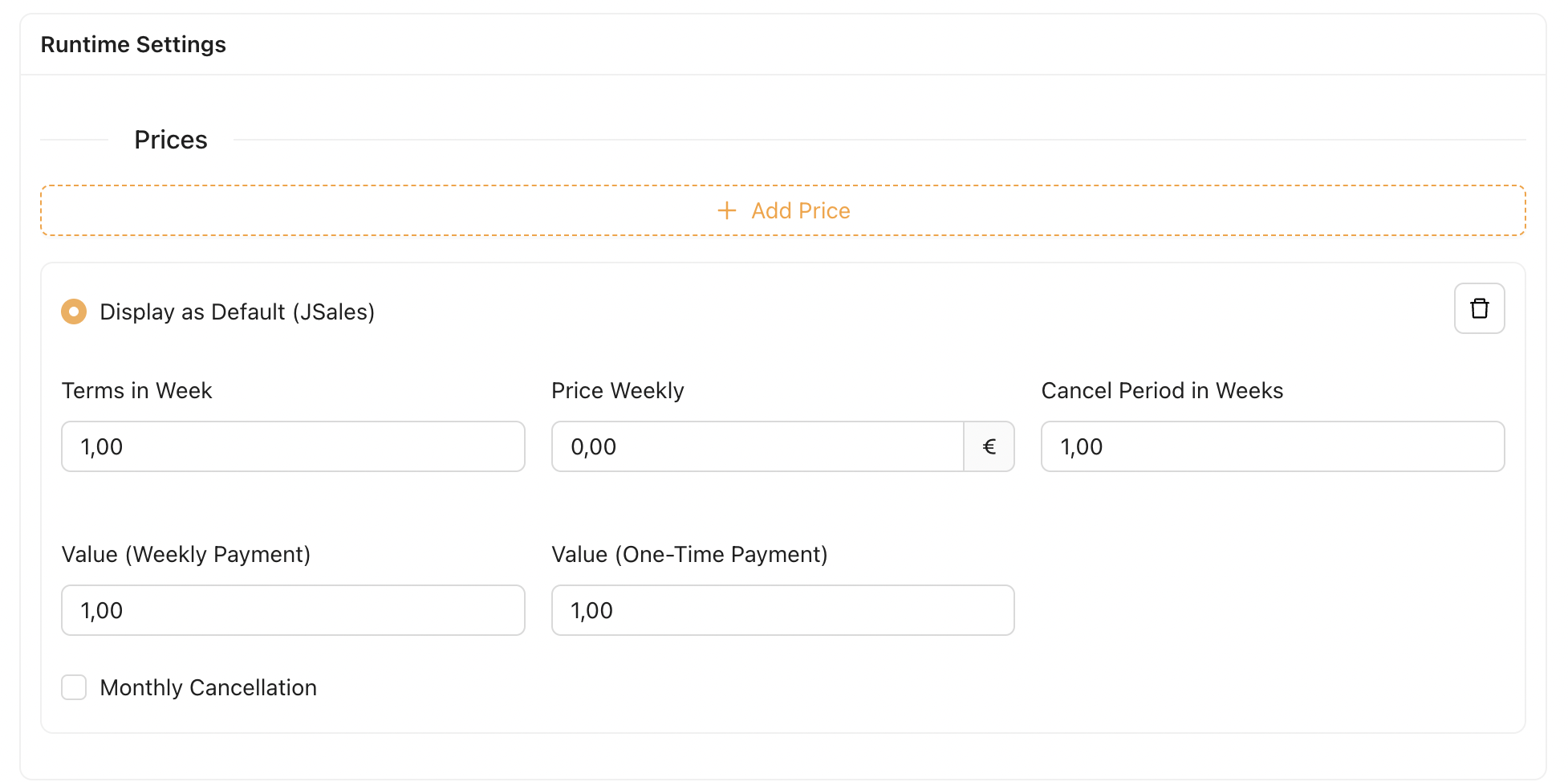
Under Runtime Setting, Admin can create multiple prices under Weekly/Monthly Terms.
-
- Terms in (Week/month) : Defines the duration of the membership type in weeks or months. This field is automatically set based on the selected Runtime setting at the beginning of the form.
- Price (Weekly/Monthly): The price charged per week or month.
- Value : This value is used to calculate the Single Bonus when the payment type of a new membership sale is set to Monthly Payment.
- Example :
-
Single Bonus: €10.00
-
Value: 1.0
-
Bonus received by Sales Employee for selling this membership:
1.0 × €10.00 = €10.00
-
- Example :
- Value One-Time-Payment : This value is used to calculate the Single Bonus when the payment type of a new membership sale is set to One-Time-Payment
- Example :
-
Single Bonus: €10.00
-
Value: 5.0
-
Bonus received by Sales Employee for selling this membership:
5.0 × €10.00 = €50.00
-
- Example :
- Cancel Period : Defines how many weeks or months in advance a member must give notice to cancel the membership. There is no calculation or logic behind this value.
- Display as Default ( JSales ) : Allows the Admin to select which price option is shown as the default on JSales.
- Monthly Cancellation(Display on JSales): When enabled, an additional price field will appear, allowing the Admin to enter an alternative price and terms that will override the original Terms in Week/month and Price Weekly/Monthly displayed on JSales.

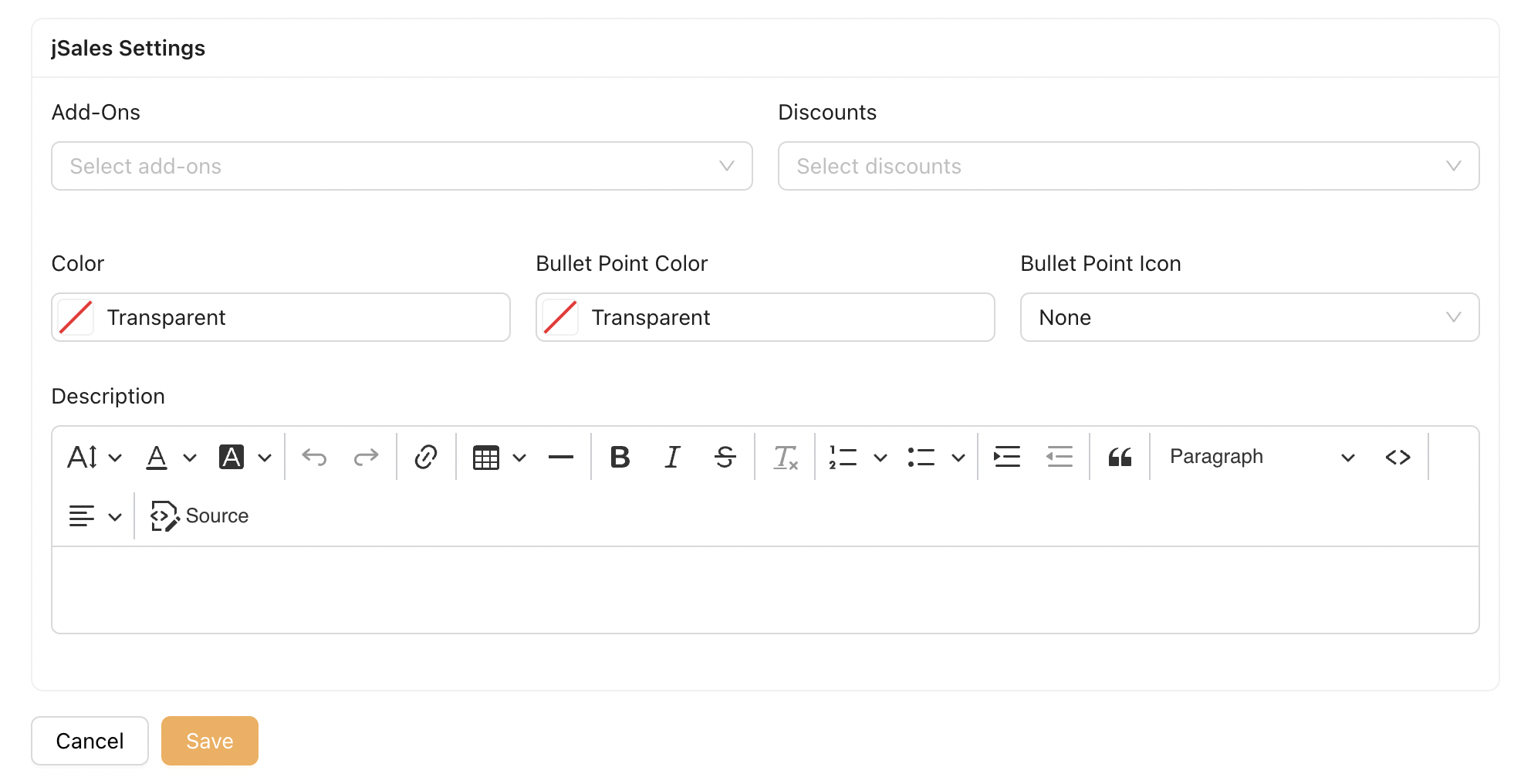
jSales Settings :
The following configurationsettings onlycontrol displayhow the selected Membership Type is displayed on the JSales Platform:platform.
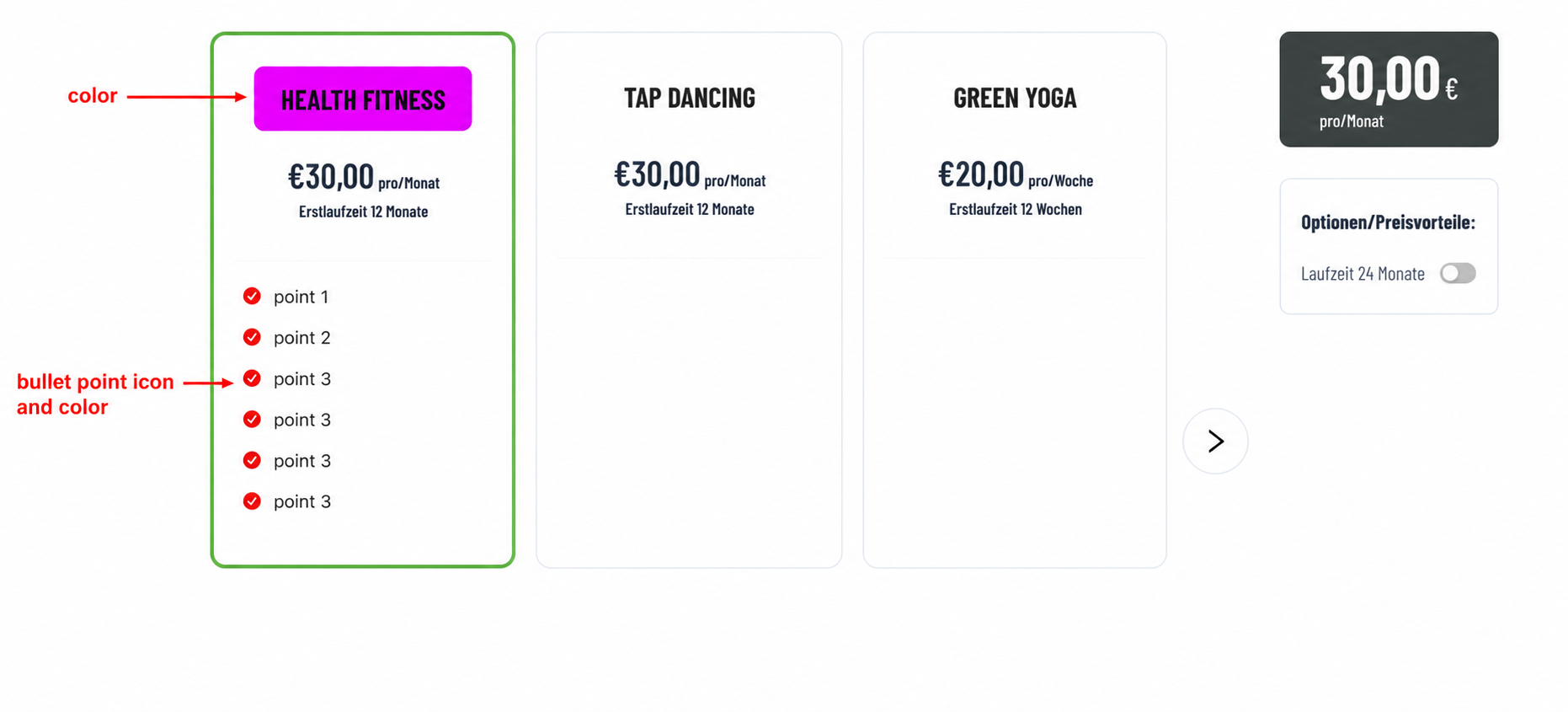
Field Description Add-Ons (JSales) :Select Adminonecanorselect list ofmore Add-Onsandtoassignbetoavailable for this MembershiptypeDescription (JSales) :Admin can enter descriptive text in this field. The content will be displayedType on JSales.DiscountDiscounts (JSales):Select Adminonecanorassign multiplemore discountstofor thismembershipMembershiptype.Type. Thediscountselectedvaluediscount(s) will be deducted from the price of the selectedruntimeruntime.price.Color Select the background color used for this Membership Type‘s title on JSales. Bullet Point Color Select the color used for bullet points displayed in the Description section. Bullet Point Icon Select the icon displayed for bullet points in the Description section. Description (JSales) Enter the descriptive content for this Membership Type using the rich text editor. The content entered here will be displayed on Step 4 of the JSales platform. - Add/Edit Package popup allows Admin to configure the following information:
Field Description Title :Enter AssigntheaPackage name. This name will be displayed to Sales on theMembership PackageLocation: Assign locations to this package to control which packages are displayed inJSalesforplatform.eachlocation-specificURL.Membership Types :Select andoneassignoractivemore"MembershipTypes"Types tothisbepackageincludedDescription: Enter a remark forin this Package.Location Assign one or more Locations where this Package will be available. Since each Location has its own dedicated JSales URL, the Package will only be available and displayed on the JSales page of the assigned Location(s). Description Enter an optional description for the Package. Status Set whether the Package is Active or Inactive. Only Active Packages are available on the JSales platform. Start Fees Configure one or more Start Fees that can be offered together with this Package. Multiple Start Fees can be added by clicking Add Start Fee. 2.2 Start Fees
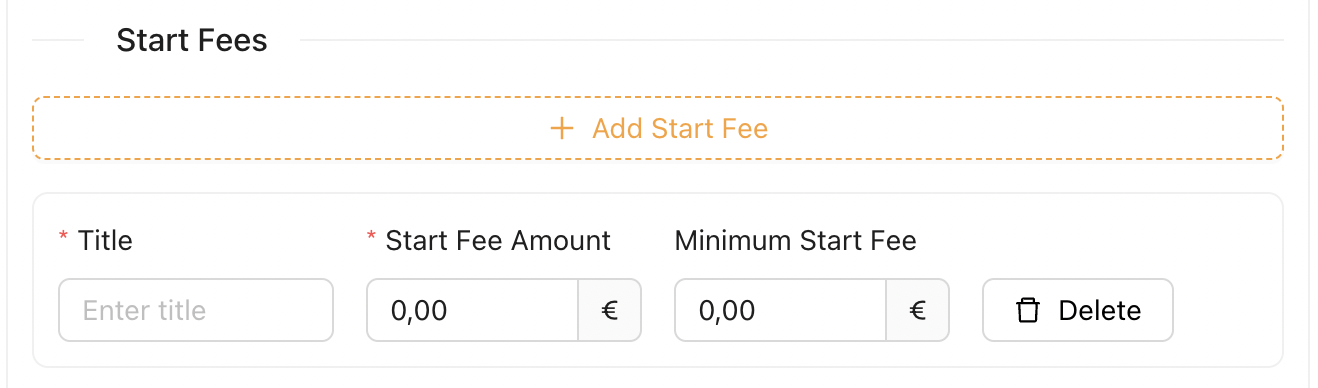
The Start Fees section allows Admin to configure one or more Start Fees for the Package.
The Minimum Start Fee controls whether the Start Fee can be adjusted by the Sales Representative on JSales. When configured, the Sales Representative may reduce the Start Fee, but not below the specified minimum. If left empty, the Start Fee remains read-only.
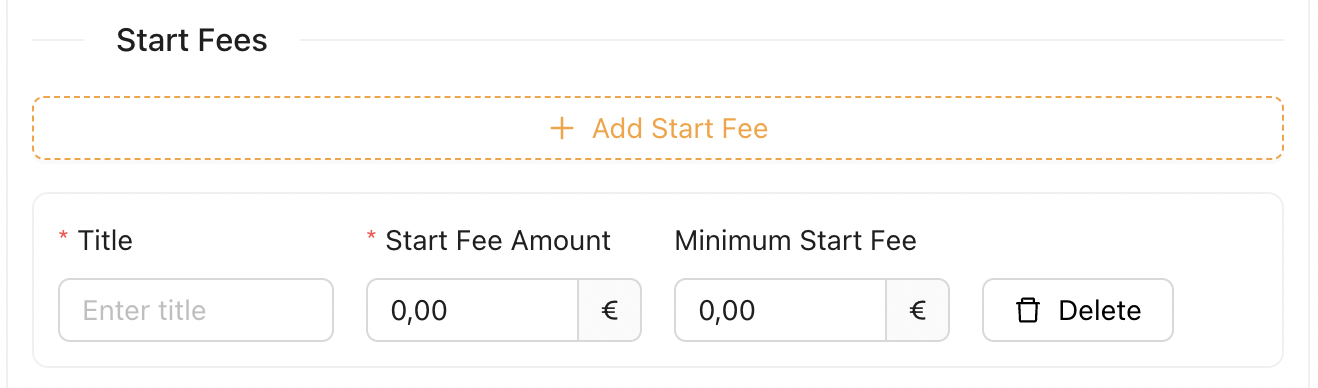
Field Description Title Enter the name of the Start Fee. Start Fee (DisplayAmountonEnter JSale):theAssignstandard Start Feevalueamount.tothisMinimum Start Fee Enter the lowest Start Fee that can be offered by the Sales Representative on JSales during customer negotiations. Delete Removes the selected Start Fee from the Package. Status:Active/Inactive
3. Add-Ons
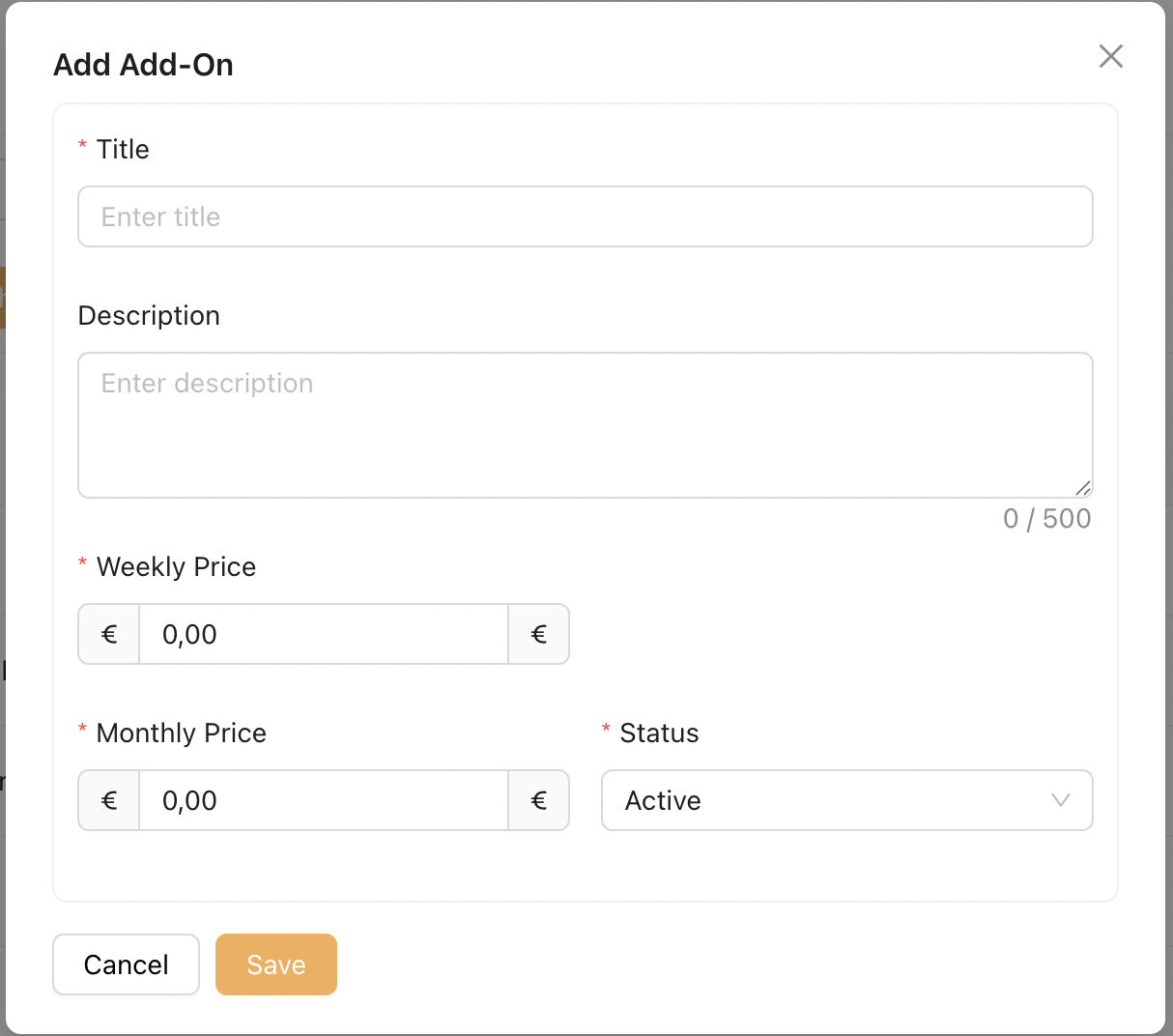
Add-Ons represent optional paid items that can be attached to a Package.
Once assigned, the Add-Ons and their respective prices will be displayed on JSales for viewing during the sales process.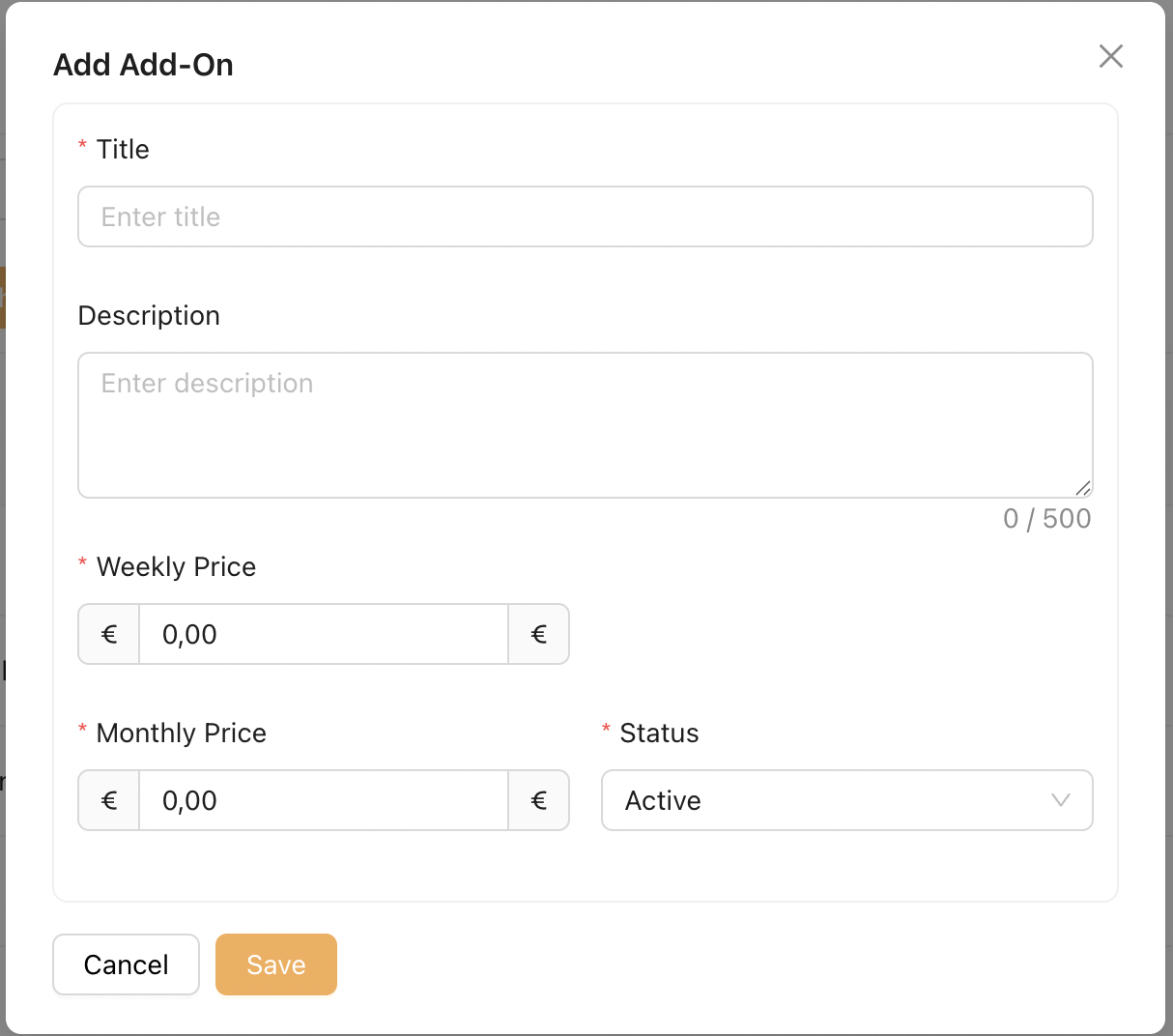
- Title : Name of the Add-On.
- Description : Optional description of the Add-On. This will be shown in JSales for reference.
- Weekly Price: Price displayed when the Sales Rep selects Weekly as the runtime.
- Monthly Price: Price displayed when the Sales Rep selects Monthly as the runtime.
- Status: Defines whether the Add-On is Active or Inactive. Only Active Add-Ons will be available for selection in JSales.
4. Discount
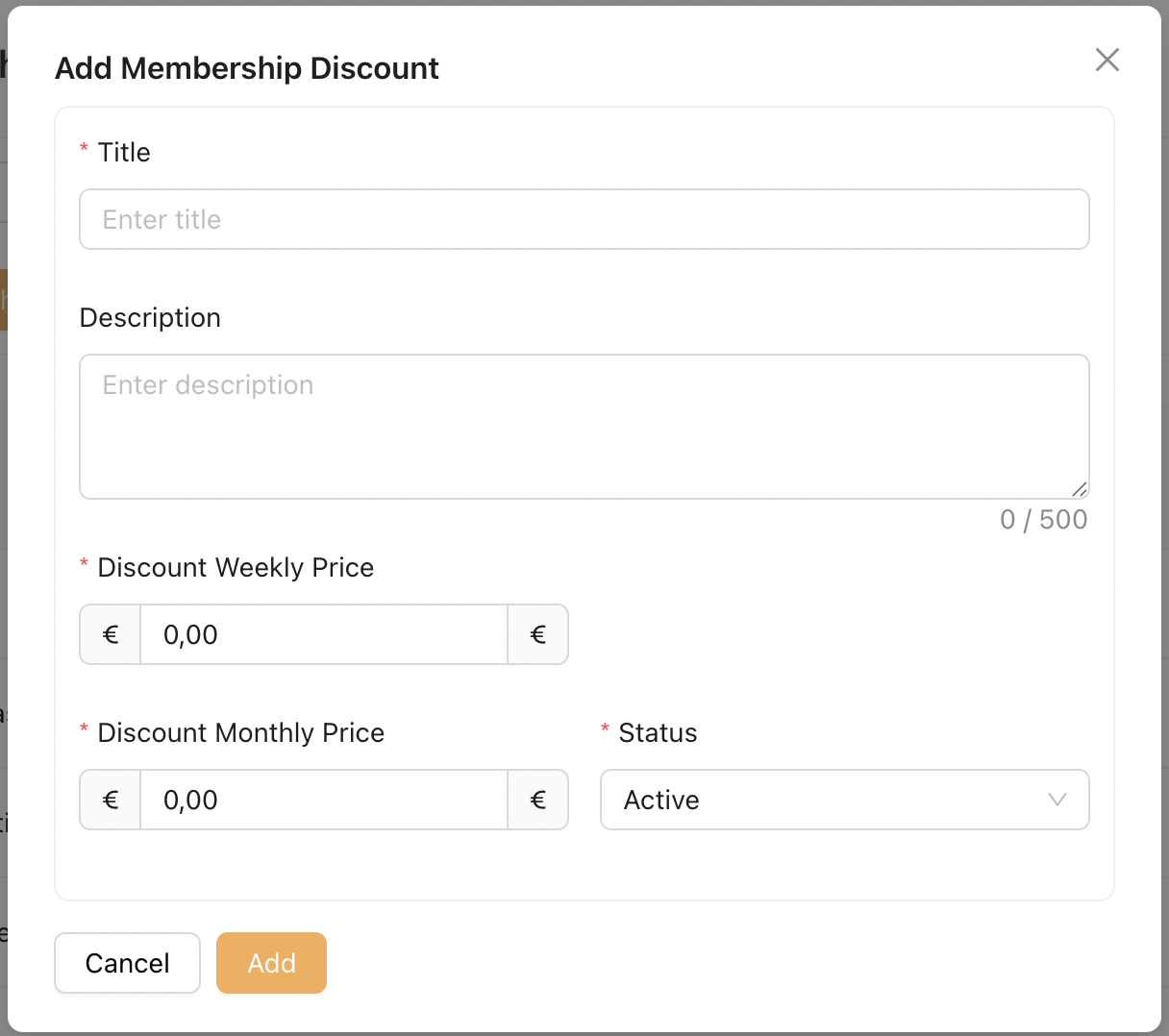
A Discount represents a price reduction that can be applied to a Package’s runtime price. For example, an Admin may create a special discount for customers who only attend the gym in the morning.
When this discount is selected in JSales, the system will automatically deduct the discount value from the selected runtime price.
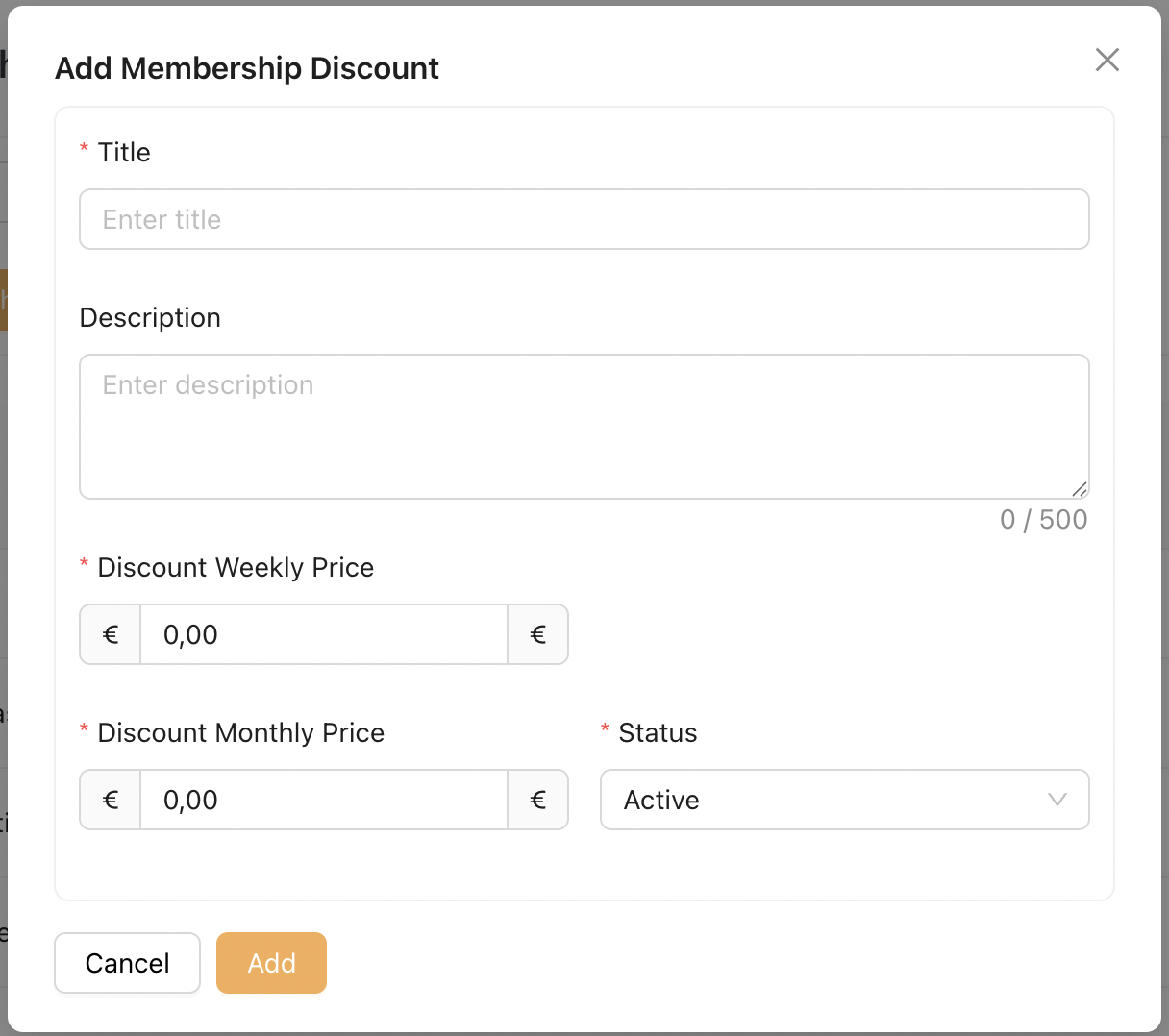
- Title : Name of the Discount
- Description : Add a short description to explain the purpose of this discount. This text will be displayed in JSales for reference.
- Weekly Price: Price deducted when the Sales Rep selects Weekly as the runtime.
- Monthly Price: Price deducted when the Sales Rep selects Monthly as the runtime.
- Status: Defines whether the Discount is Active or Inactive. Only Active Discount will be available for selection in JSales.
Example of how the color settings affect the Membership Types displayed in Step 4 of jSales.
2. Package
After a Membership Type is created, it will be assigned to a Package. A membership package can contain one or more Membership Types.
In JSales, the Sales Representative selects a Package that the customer is interested in and reviews the available Membership Types under that Package.
The purpose of a Package is to group related Membership Types together, making it easier for Sales to present and manage different membership options.
2.1 Create/Edit Package
Click Add to create a new Package, or click Edit to modify an existing Package.
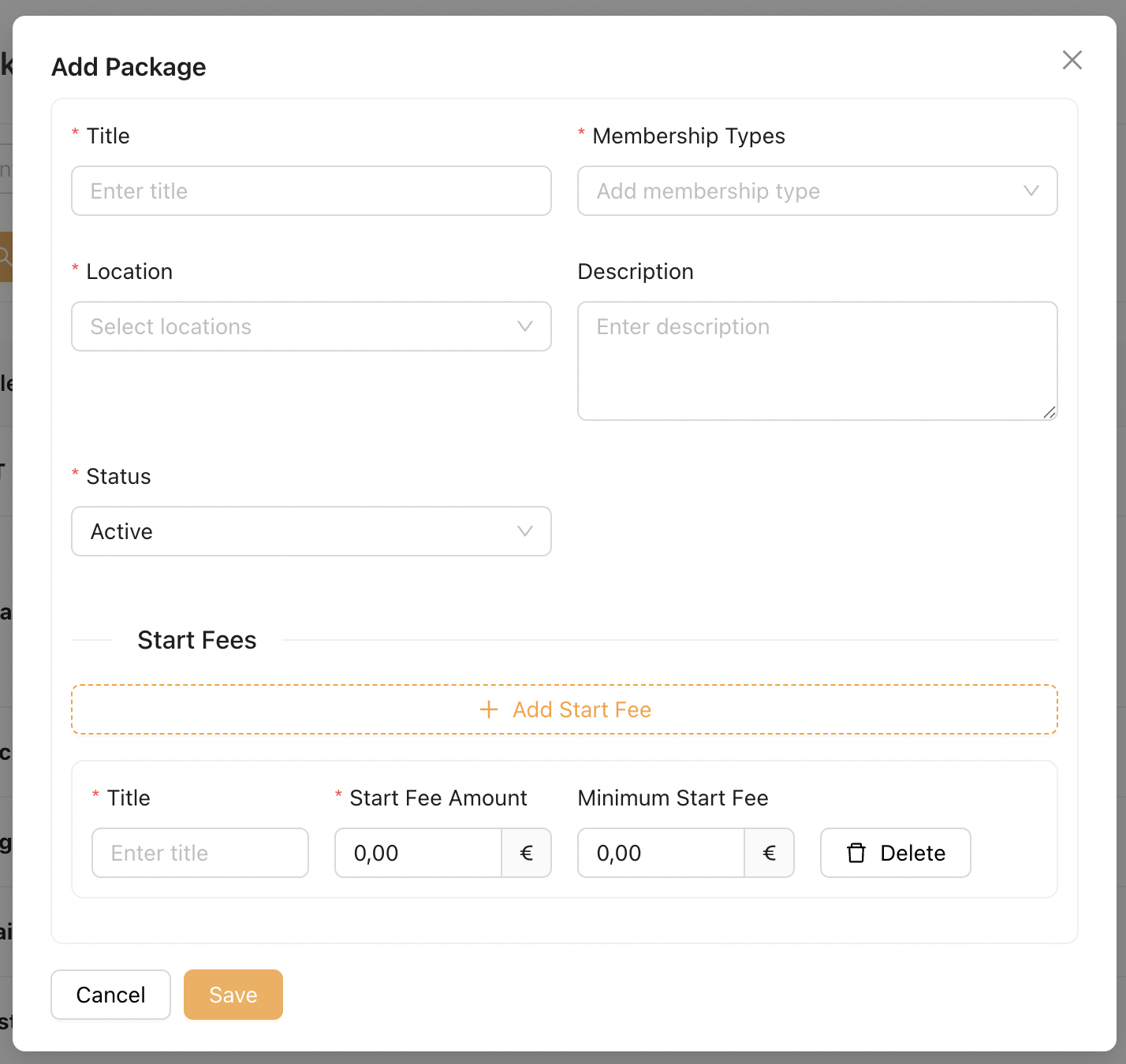
The