
Module : Report ( Timesheet )
Overview
The Timesheet Report Module provides a centralized view of employee working time records and monthly summaries.
It supports both individual employee tracking and consolidated reporting, allowing Admin to review and download timesheet reports in PDF efficiently.
Timesheet Types
- Single Timesheet - Displays detailed timesheet records for a specific employee within a selected month.
- Multi Timesheet - Compiles timesheet records of all employees for a selected month into a single report.
1. Single Timesheet
By default, the listing always display Timesheet Record of the current month.
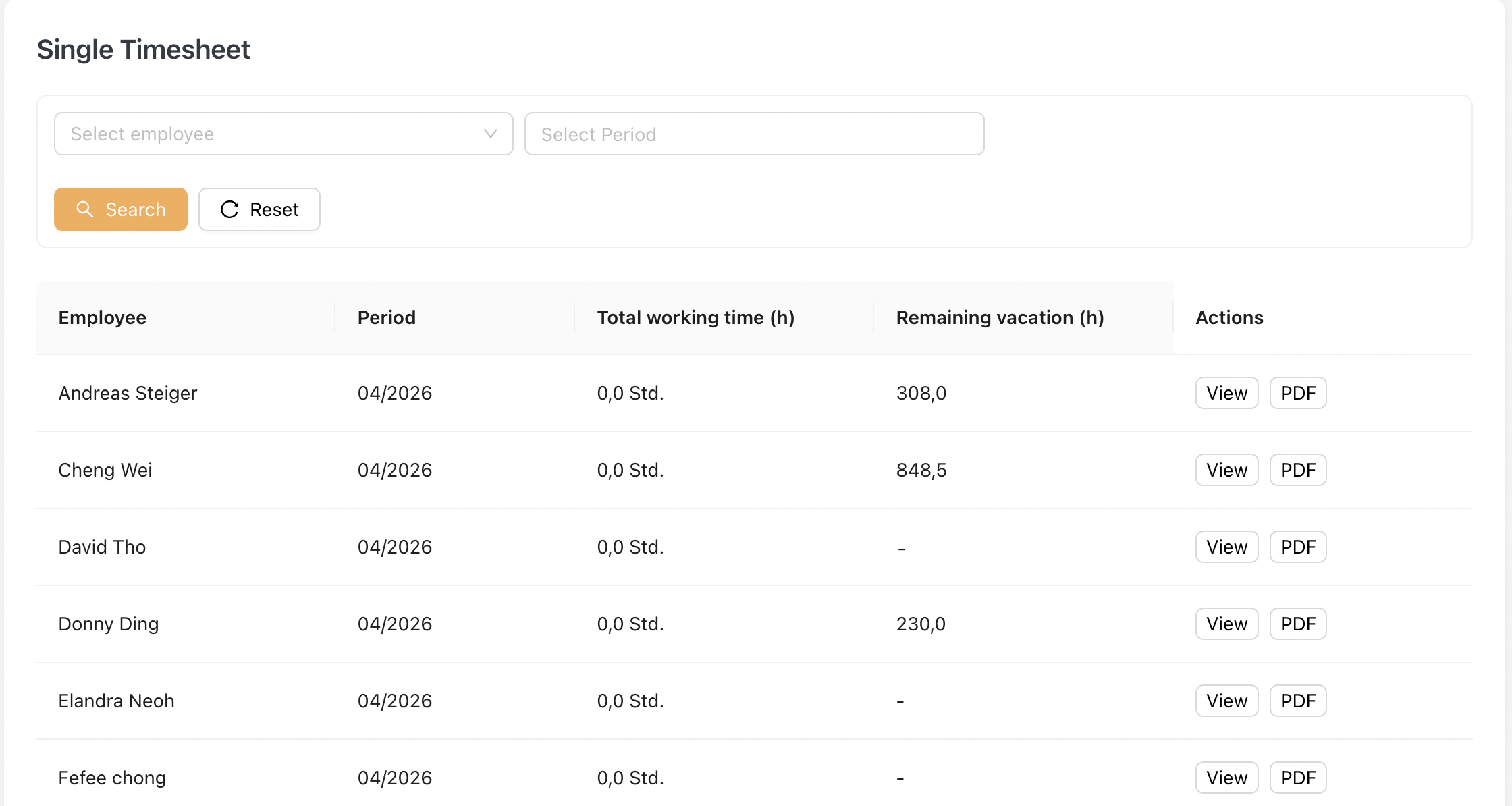
Key fields explanation:
| Field | Description |
|---|---|
| Employee | Displays the employee’s name. |
| Period | Indicates the month and year of the timesheet. |
| Total working time (h) | Shows the total worked hours for the selected period. |
| Remaining vacation (h) | Displays the employee’s remaining vacation hours. Only applicable to employees with annual vacation entitlement. |
| Actions | Allows Admin to view or download the timesheet. |
1.1 Timesheet format
When click View, the employee's timesheet will be displayed.
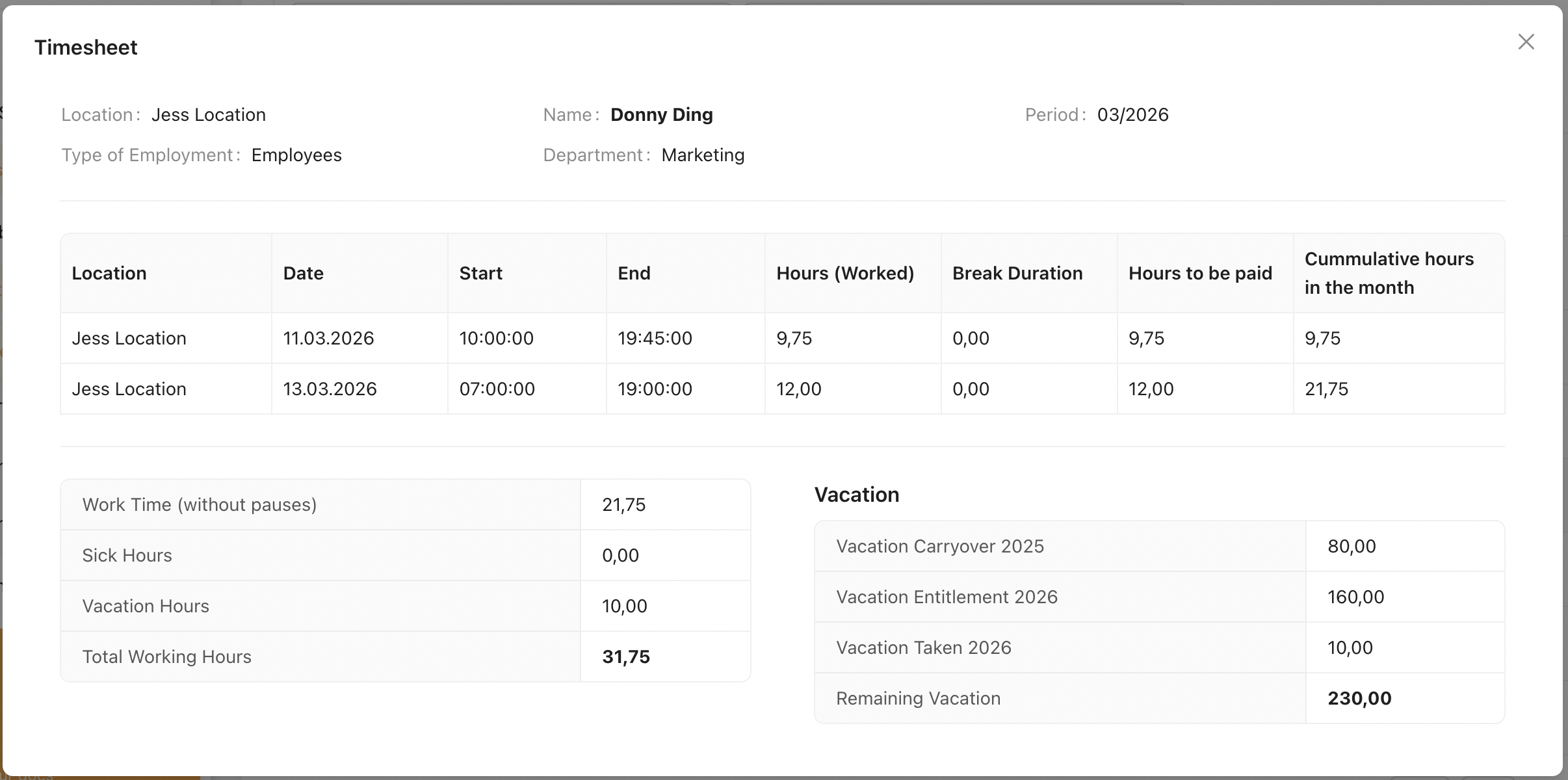
From this timesheet view, there are 3 sections :
Header
The header section displays the basic information of the selected employee and timesheet period.
| Field | Description |
|---|---|
| Location | Displays the employee’s contracted (primary) location. |
| Name | Displays the employee’s full name. |
| Period | Indicates the selected timesheet month and year. |
| Type of Employment | Shows the employee’s employment type (Employee, Mini-Jobber, Hourly Employee, Trainer). |
| Department | Displays the department assigned to the employee. |
Timesheet Table
The timesheet table displays all recorded working time entries for the selected employee and period.
| Field | Description |
|---|---|
| Location | Location where the work was performed. |
| Date | The date of the recorded time entry. |
| Start | Clock-in time. |
| End | Clock-out time. |
| Hours (Worked) | Total hours between start and end time. |
| Break Duration | Total break time recorded for the entry. |
| Hours to be paid | Net working hours after deducting break time. |
| Cumulative hours in the month | Running total of paid hours accumulated within the month. |
Manual Times Breakdown
Displays all Admin-configured manual time entries applied to the employee.
- Includes entries such as Sick Hours, Vacation Hours, or other configured manual time types
- Values will appear when the employee has recorded or assigned entries for the selected period
The display of Manual Time Types in this section is configurable by Admin via Masterdata > Manual Times > Edit.
Vacation Hours Summary
Displays the employee’s vacation summary for the year.
| Field | Description |
|---|---|
| Vacation Carryover (Previous Year) | Unused vacation hours brought forward from the previous year. |
| Vacation Entitlement (Current Year) | Total vacation hours entitled for the current year. |
| Vacation Taken (Current Year) | Total vacation hours used within the current year. |
| Remaining Vacation | Current balance of available vacation hours. |
Note :
This timesheet format applies to 3 types of employment : Employee, Mini-Jobber and Hourly Employee.
Mini-Jobber and Hourly Employee do not have vacation entitlement. Therefore, the Vacation Hours Summary section will not be displayed for these employment types.
2. Multi-Timesheet
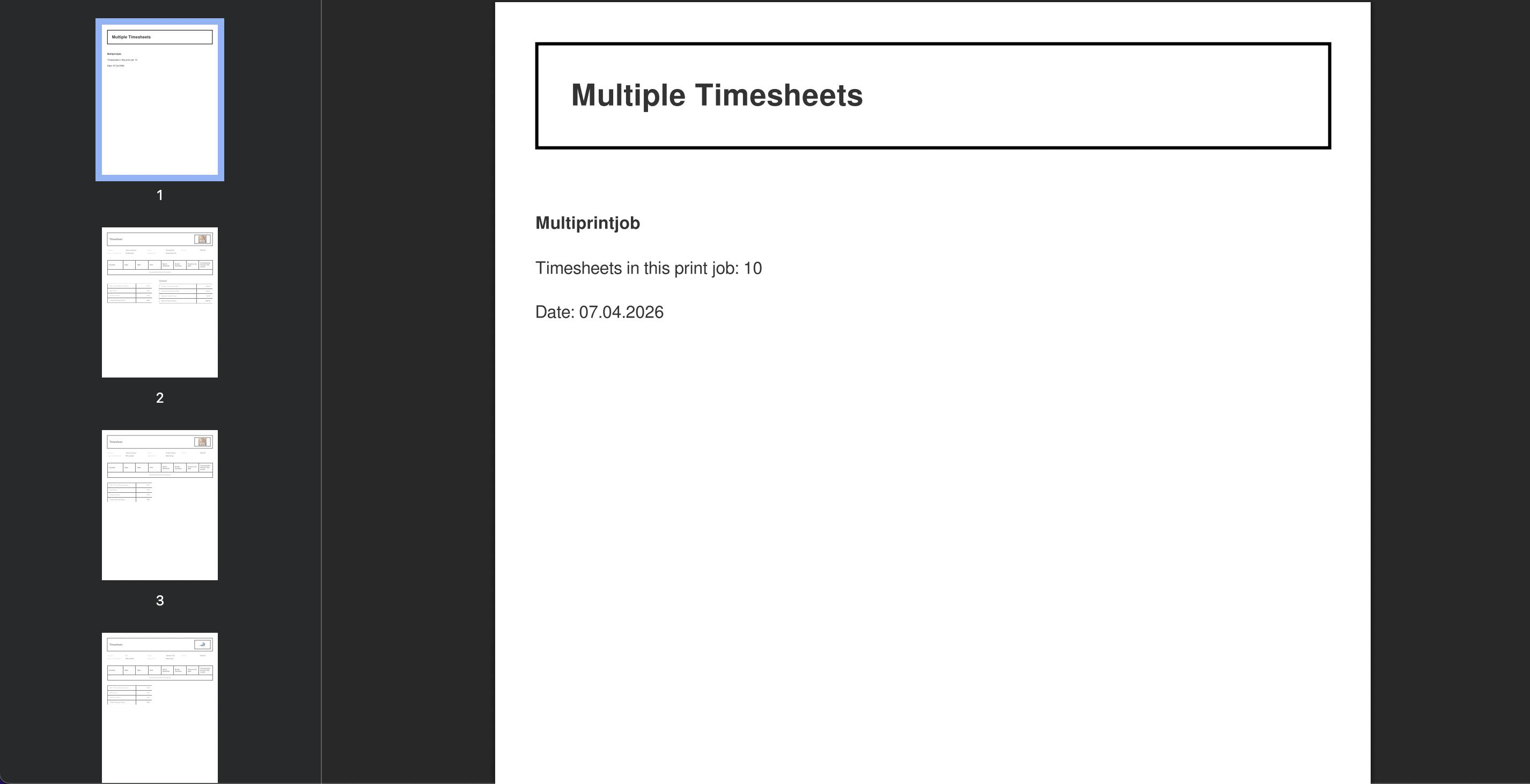
The Multi Timesheet is a compilation of all individual employee timesheets into a single document.
Only employees with the "Multi Timesheet" checkbox enabled in Masterdata are included in this document.
3. Trainer Timesheet
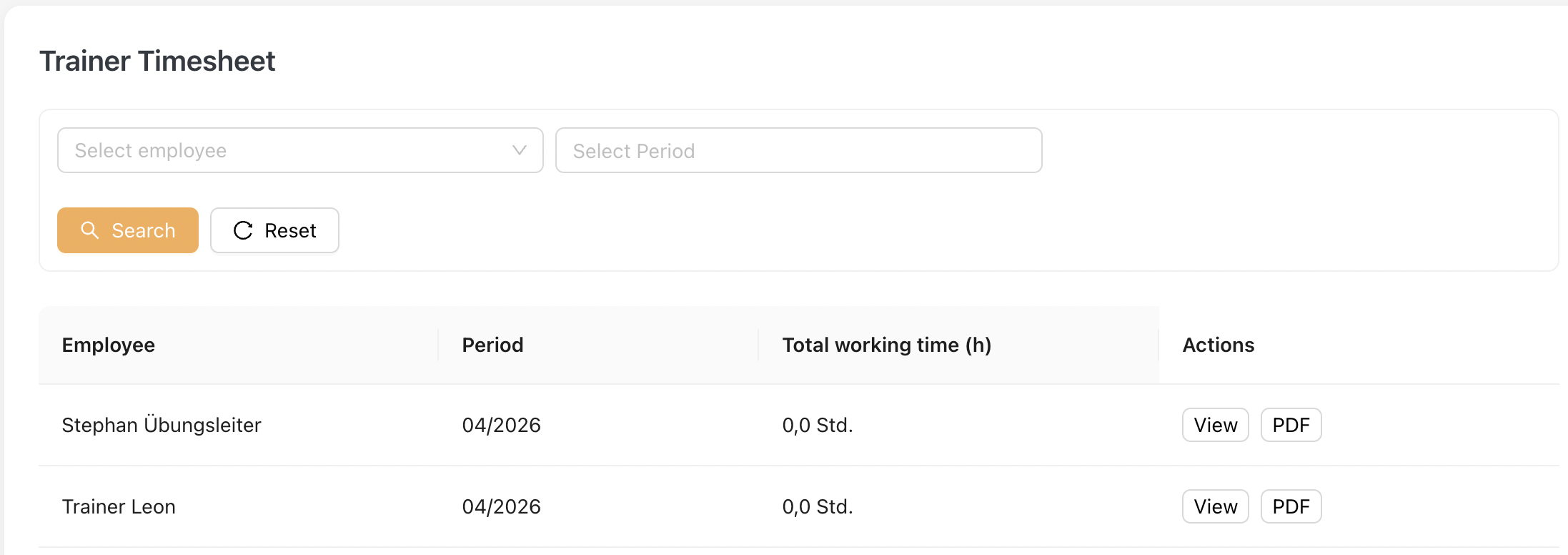
This page is dedicated to the Trainer employment type only.
Similar to the Single Timesheet, this listing displays all trainers contracted by the company along with their monthly time-booking records.
3.1 Timesheet format
Please view here on the full explanation of Timesheet Format.
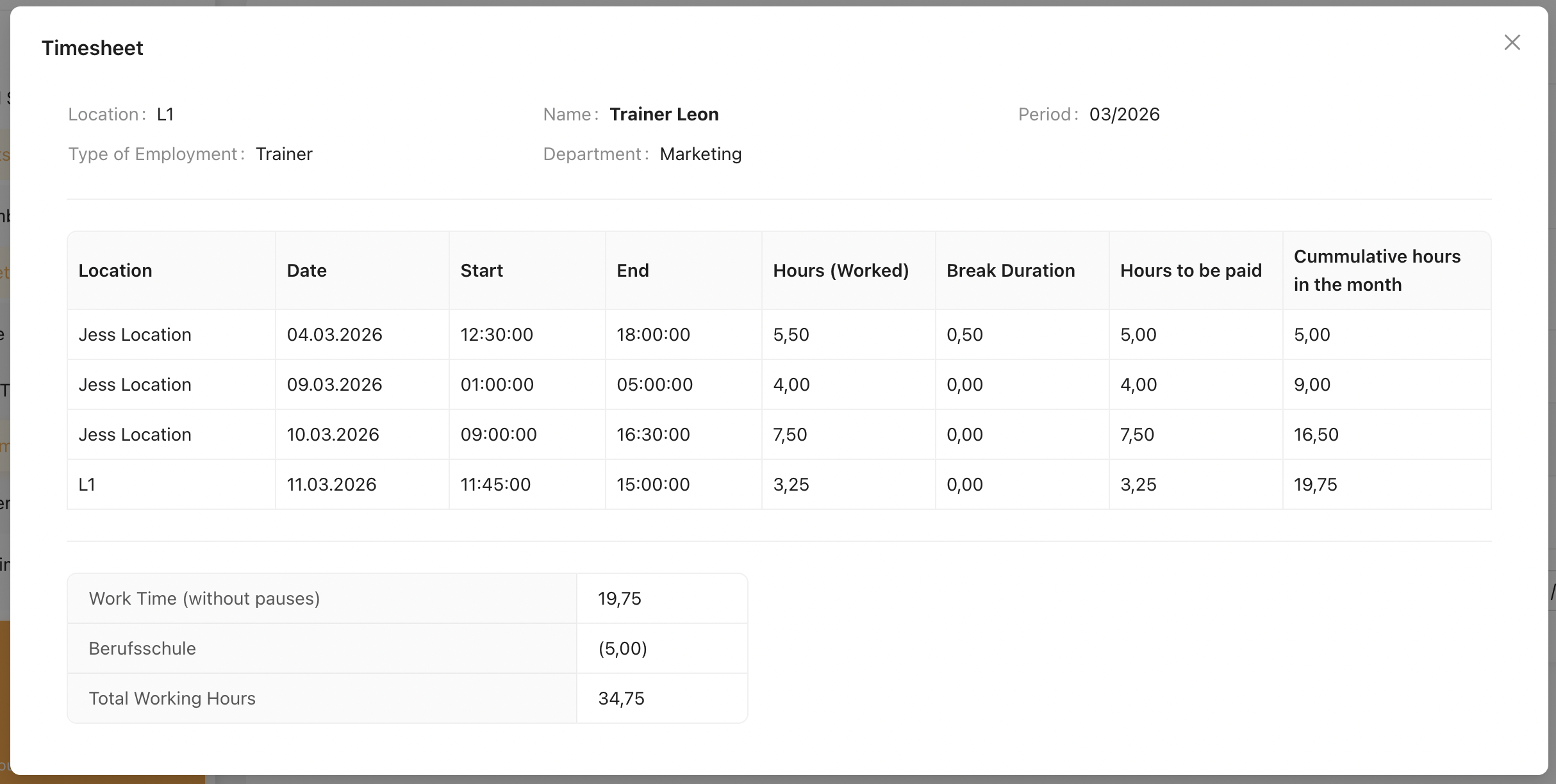
Note
Trainers are not entitled to sick leave or vacation hours. Therefore, the Vacation Hours Breakdown is not displayed.
However, other configured Manual Time Types are still applicable and will appear in the Manual Times Breakdown.