
Module : Times
The Times module displays all time booking records, whether they are booked by employees via the Time Booking panel or manually created by Admin within this module. It allows Admin to monitor each employee’s daily time booking records, add, edit, or remove manual time entries, and review or correct time records when warnings are triggered due to suspicious or invalid entries.
1. Records
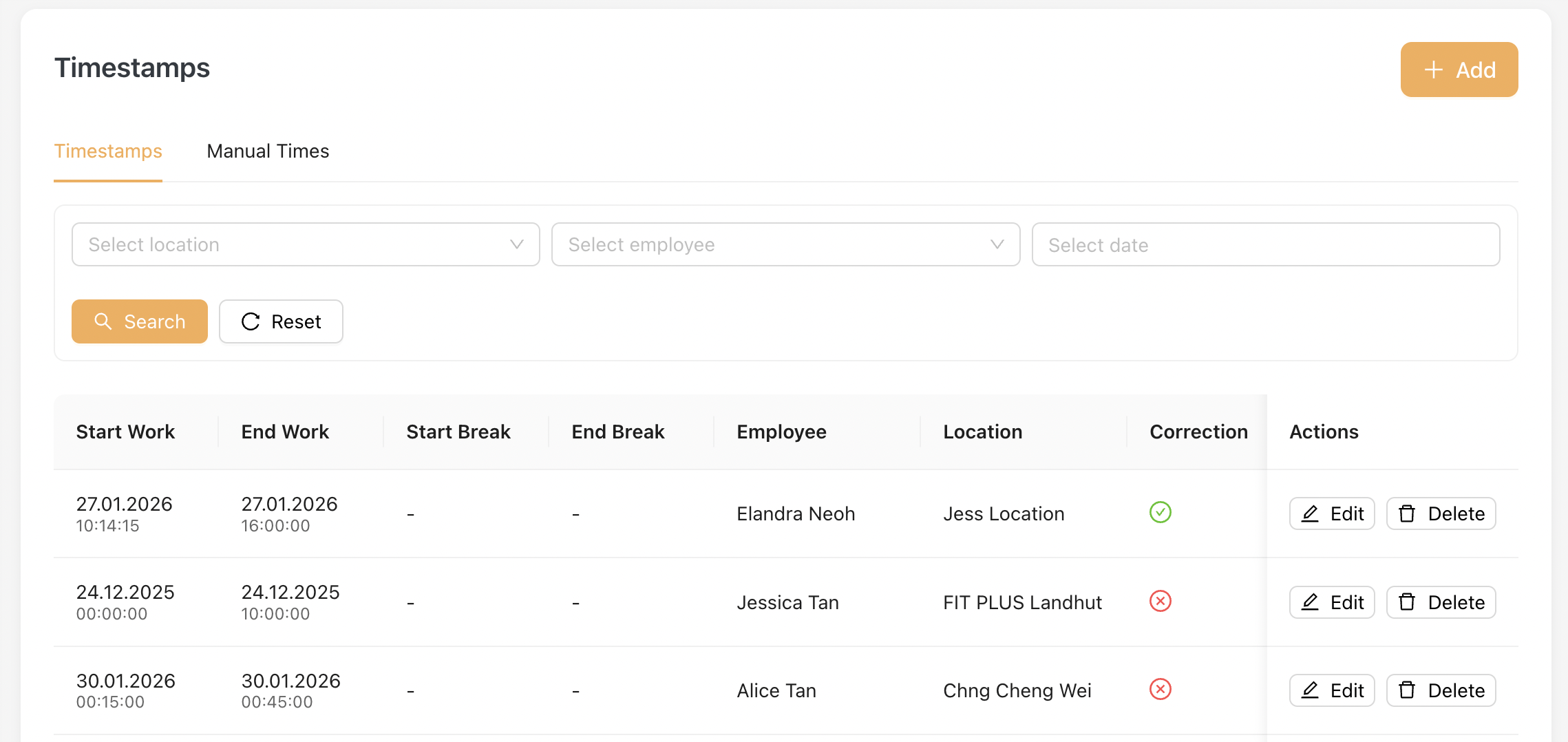
This listing shows all the latest timestamps record from employees.
- Admin able to view Start/End Work, Start/End Break timestamps for individual employee at a specific location.
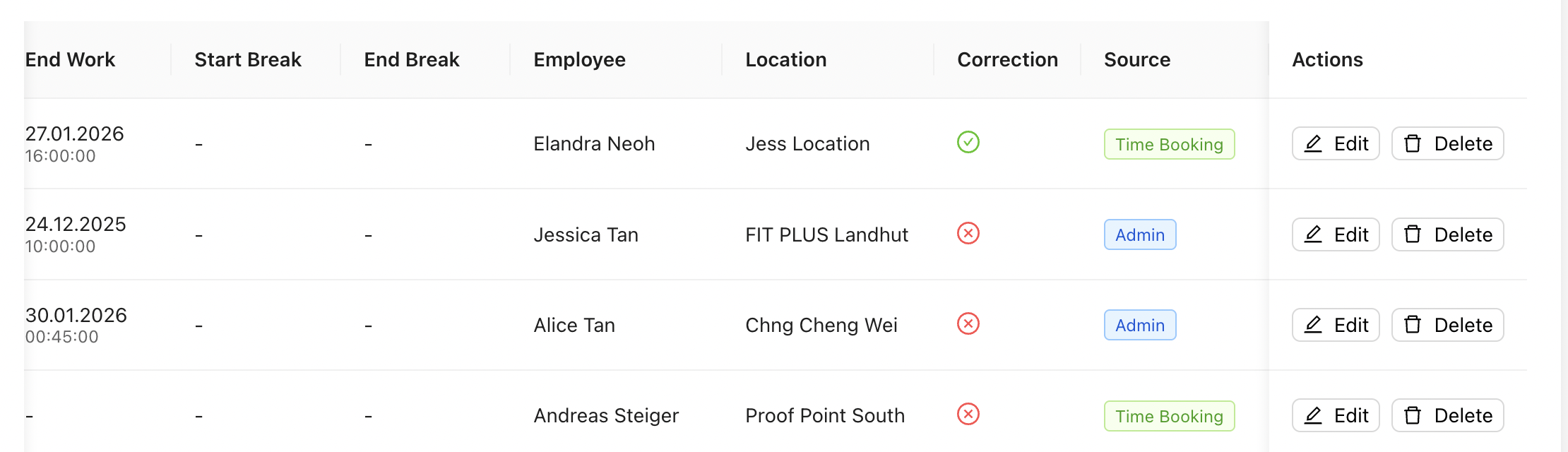
- Correction column is checked when this record is edited by Admin.
- Source column shows where the timestamps came from :
- Timebooking - booked by employee via Time Booking Panel
- Admin - created manually by Admin within this module
1.1 Adding a record manually
To add a record, Admin clicks on the [ + Add ] button :
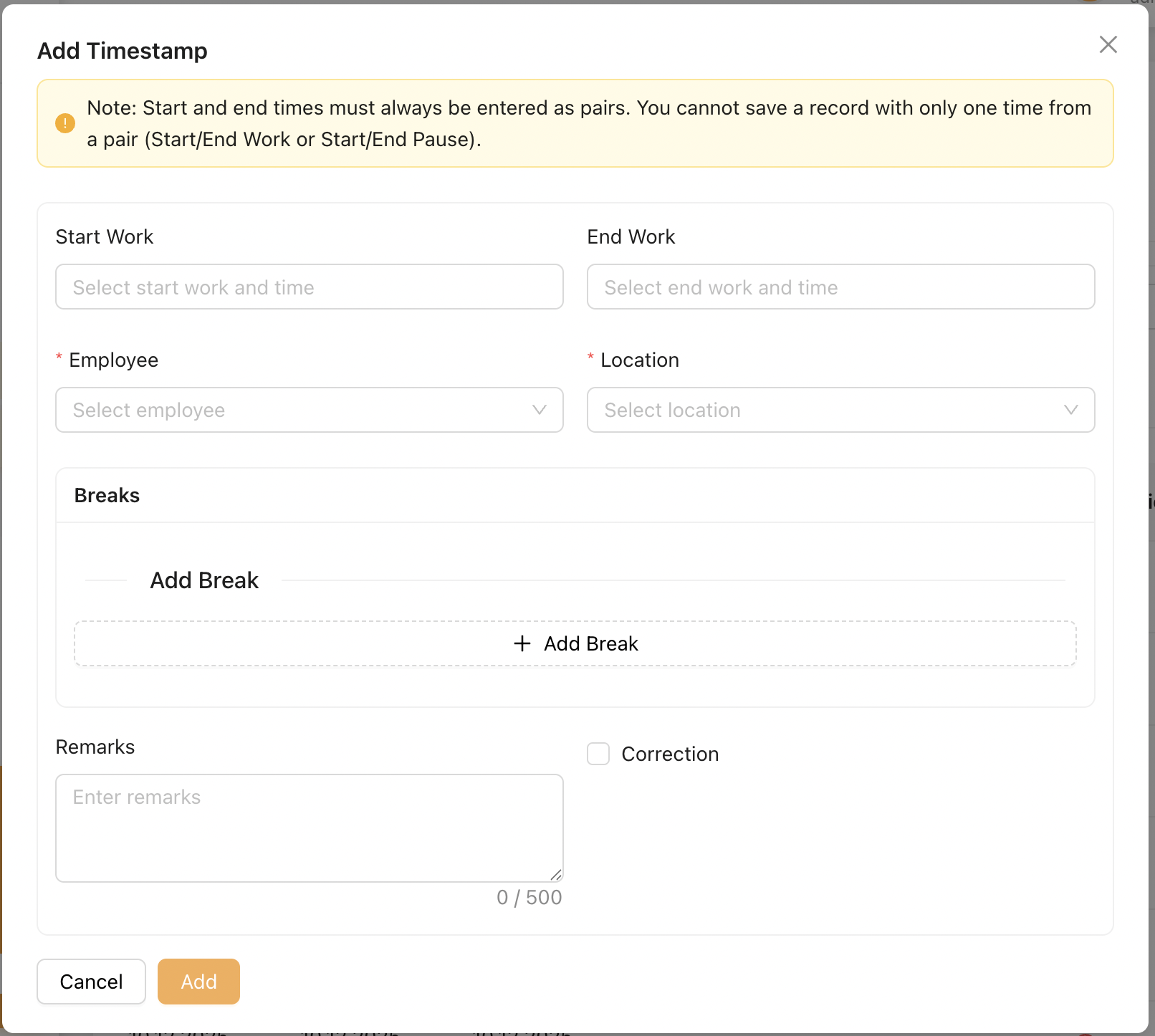
Admin creates a timestamp for an employee using the modal above:
-
Start Work: Enter the employee’s start work time
-
End Work: Enter the employee’s end work time
-
Employee: Select the employee or mini-jobber this record applies to
-
Location: Select the location this record is associated with
-
Add Breaks: Admin may add multiple breaks within the same shift for the employee
-
Remarks: Admin may record any necessary remarks related to this record or employee
-
Correction: Admin may enable this checkbox if the record is corrected or edited later on
2. Manual Times
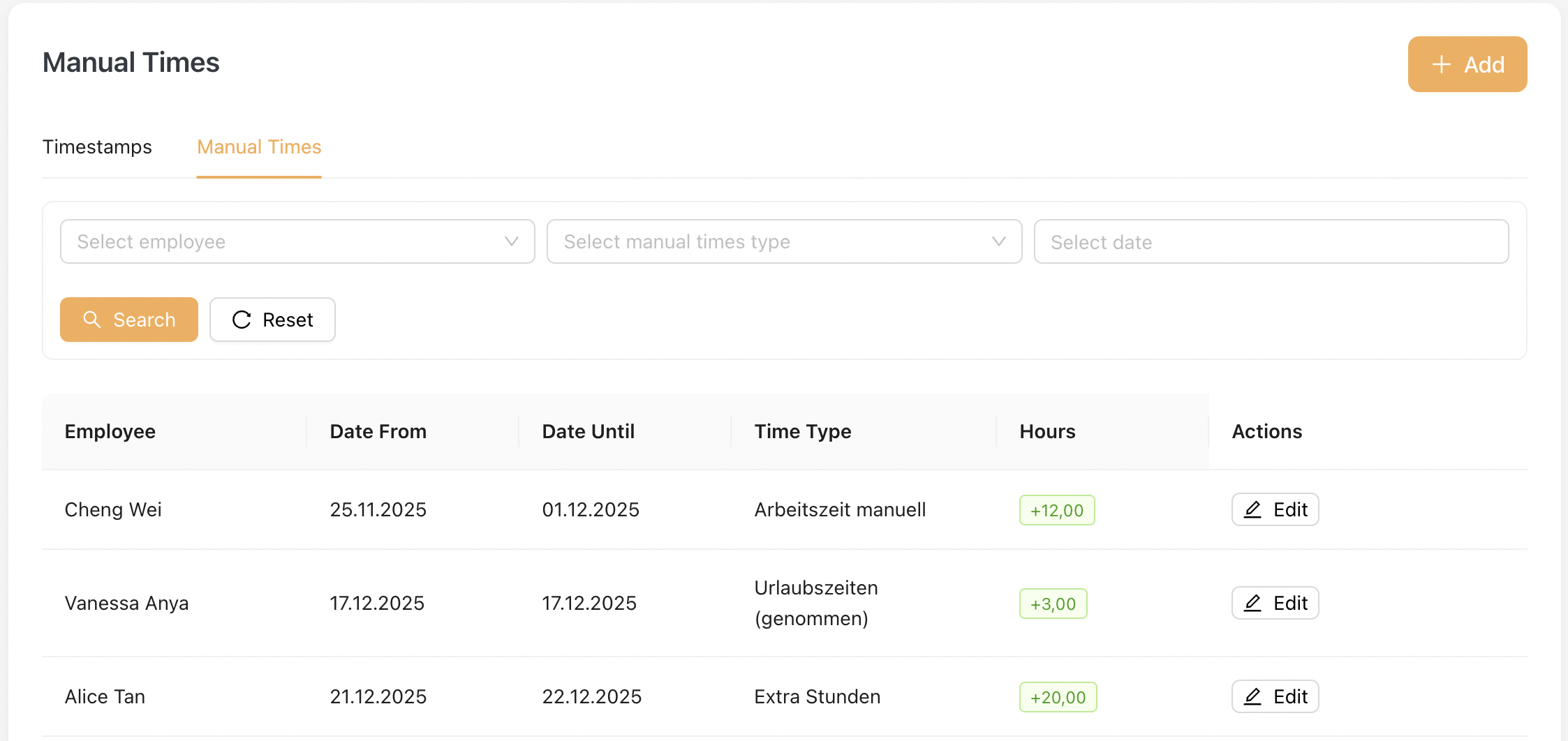
Manual Times refer to work or absence hours that can be manually entered into the system by Admin. These values either add to or deduct from the Total Working Hours, directly affecting payroll calculations. By default, the system provides Vacation and Sick Leave manual time types.
Admin can define custom Manual Time Types under Master Data → Manual Time Types, which will then be available here for configuration.
Listing below shows the Manual Times added by Admin:
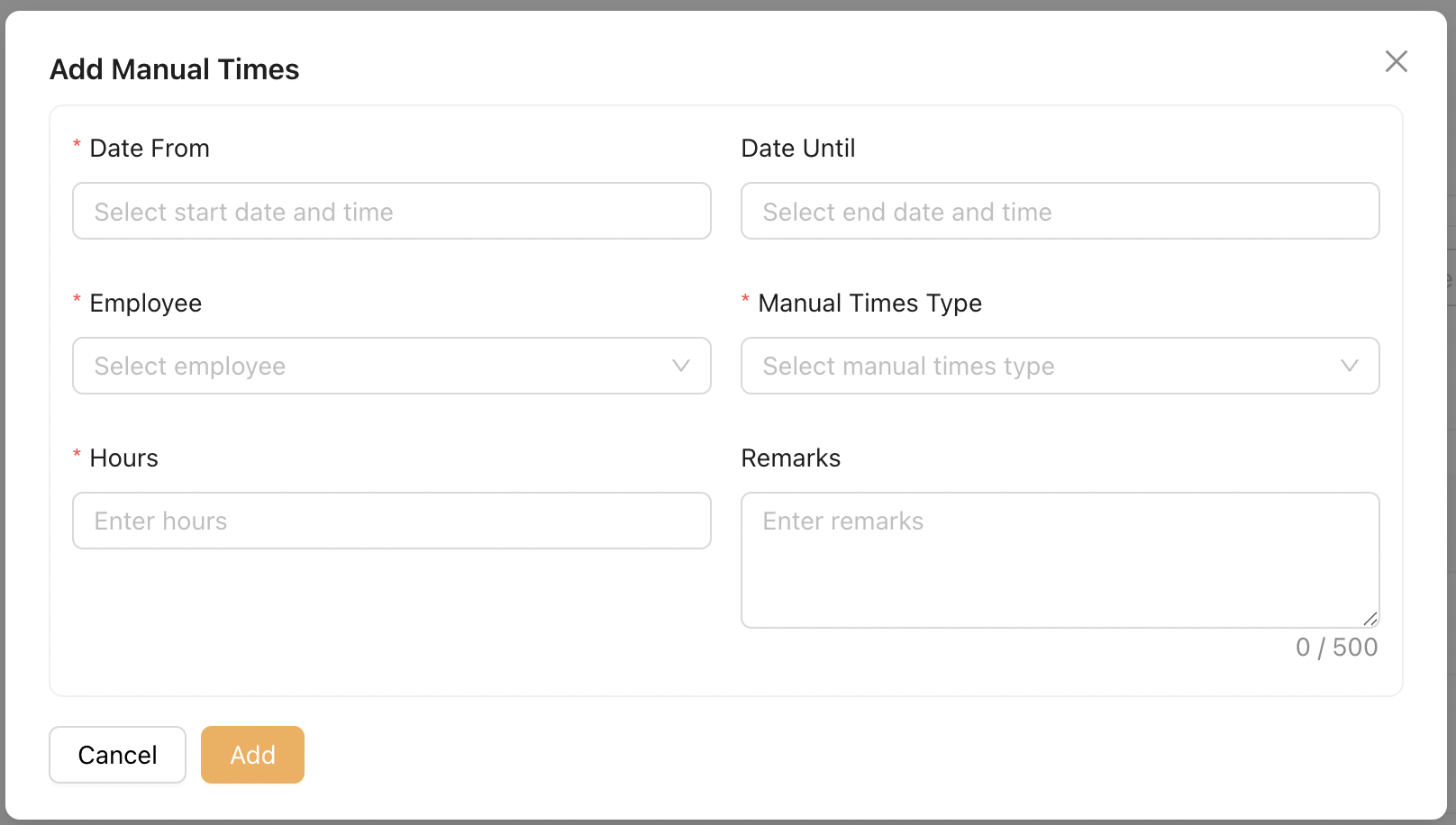
To add a Manual Times, click [ + Add ] button :
-
Date From: This is a mandatory field. Every Manual Time entry must have a start date to indicate when the time is booked from.
-
Date Until: This field is optional.
-
Employee: Select the employee or mini-jobber this record applies to.
-
Manual Time Type: Select the manual time type for this record.
-
Hours: Enter the total number of hours to be booked.
-
Remarks: Add any additional remarks for this record.