
Job Posting Module
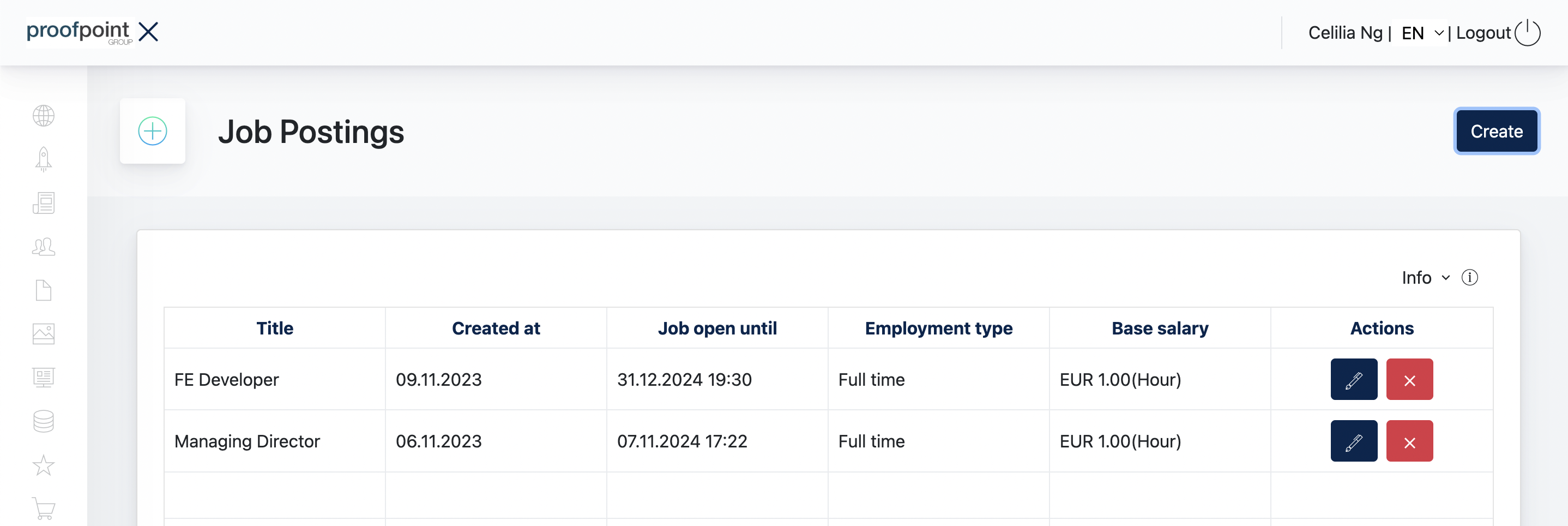
Job Postings
The Job Postings module allows Admin to create and manage job vacancies displayed on the website.
The overview lists the existing job postings together with key information such as the job title, creation date, application deadline, employment type, and base salary.
Admin can create, edit, or delete a job posting from this page.
Live view of a Job Posting on site:
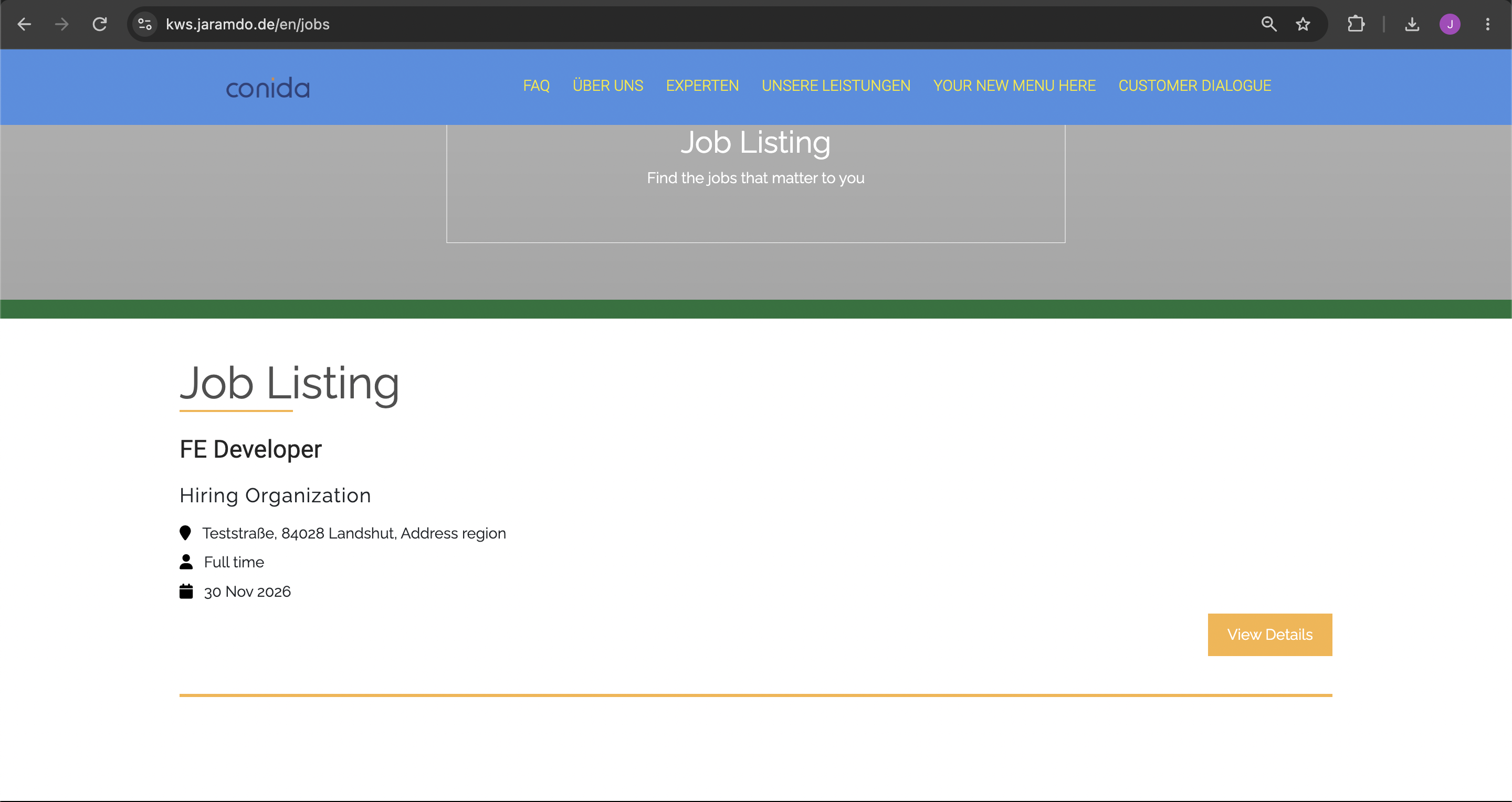
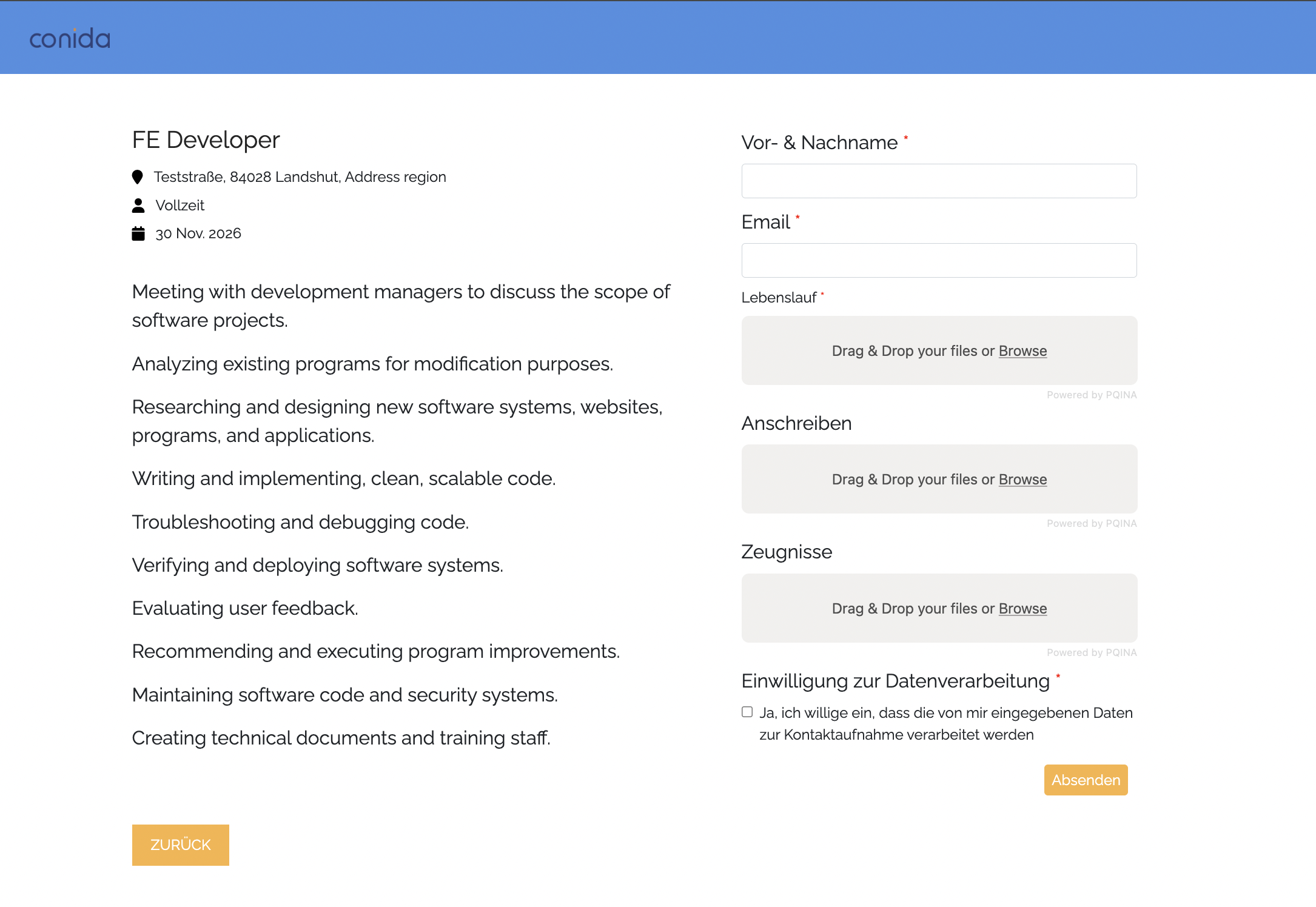
Click "View Details" and enter this page:
1. Create a Job Posting
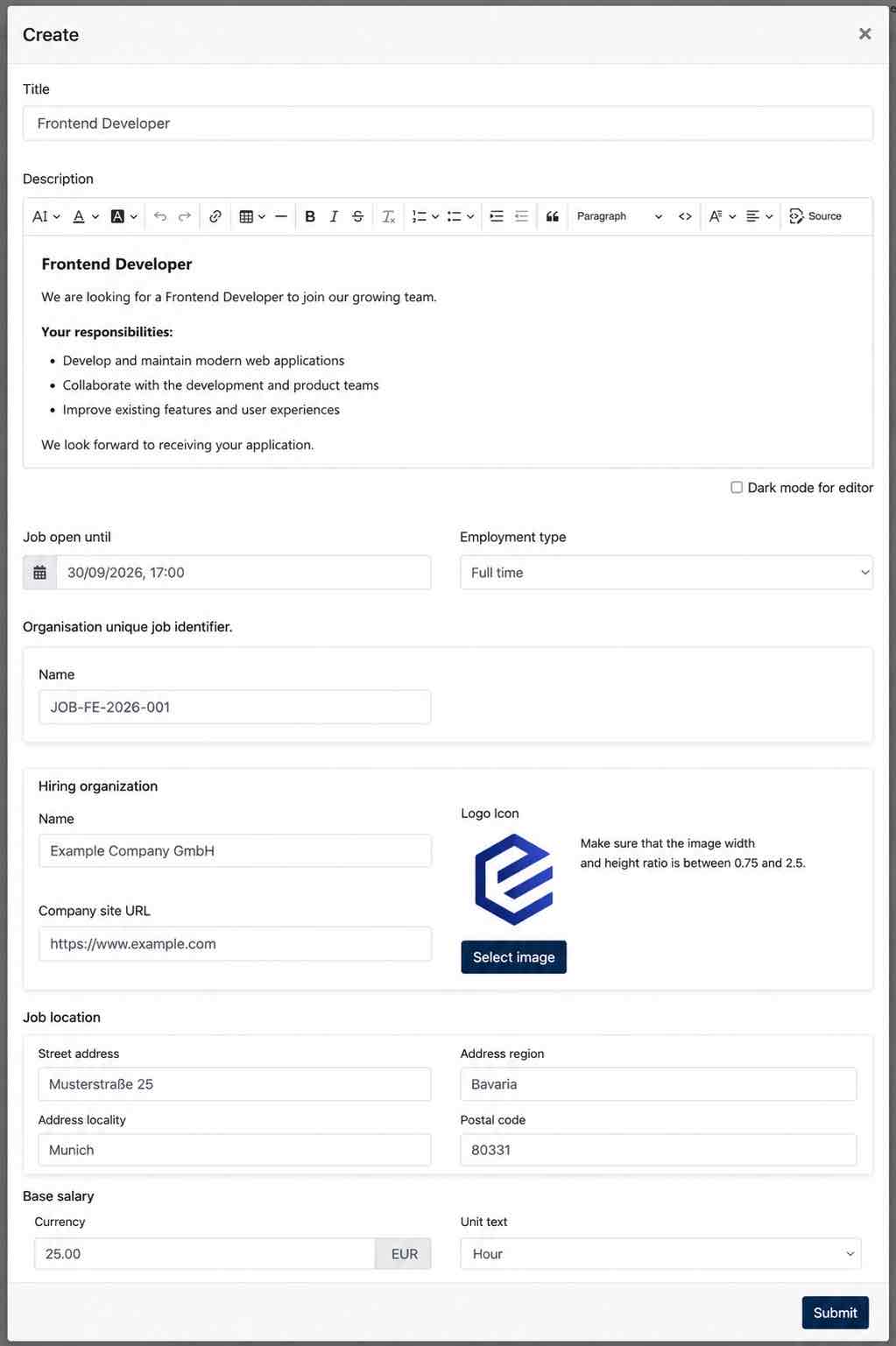
Click Create to add a new job posting. Configure the following information:
| Setting | Description |
|---|---|
| Title | Enter the job title. |
| Description | Add the job description and format the content using the text editor. |
| Job open until | Define the date and time until which the job posting is open. |
| Employment type | Select the applicable employment type, e.g. Full time. |
| Organisation unique job identifier | Enter the organisation's identifier for the job posting. |
| Hiring organization | Enter the hiring organization's name, company website URL and logo. |
| Job location | Enter the address where the position is based. |
| Base salary | Enter the base salary and select the applicable unit, e.g. per hour. |
Click Submit to create the job posting.
An example of the job posting form :
3.2. Display Job Postings on the Website
When the Job Posting module is enabled, the website includes predefined pages for displaying job postings.
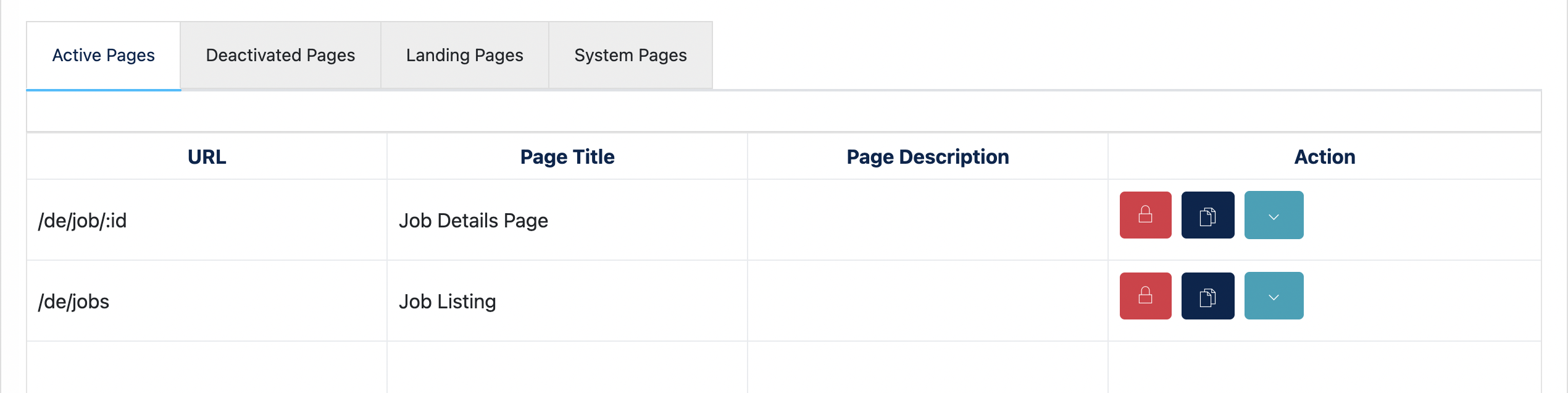
Job postings created in the Job Posting module are automatically displayed on the Jobs Overview page:
/jobs
Visitors can select a job from the overview to open its corresponding Job Details page:
/job/:id
The Job Details page displays the information configured for the selected job posting, such as the job title, description, employment type, location and salary information.
Note: Admin does not need to create a separate website page for each job posting. The Job Details page is generated dynamically based on the selected job.
4.3. Configure the Job Application Form
A Site Form can be added to the Job Details page to allow visitors to submit an application directly from the website.
The same configured form is displayed on the Job Details page for the job postings.
4.3.1 Create the Application Form
First, create the application form under Site Form using the required fields for the application, for example:
- Name and contact details
- Application message
- CV or other required information
Configure and save the form before assigning it to the Job Details page.
4.3.2 Add the Form to the Job Details Page
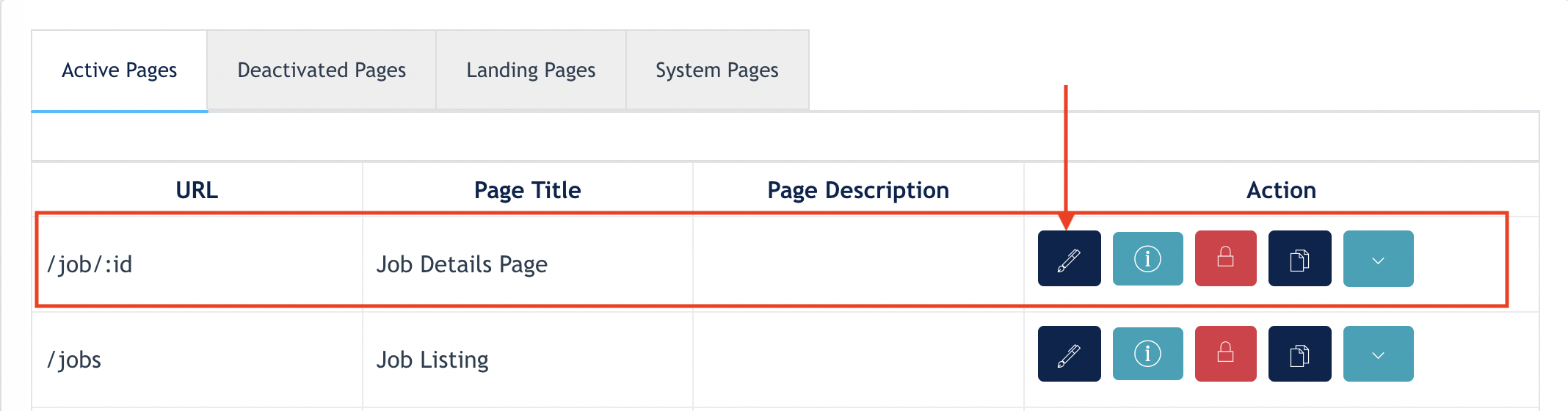
Go to Site Content → Site Pages and locate the Job Details page (/job/:id).
- Click Edit to open the page.
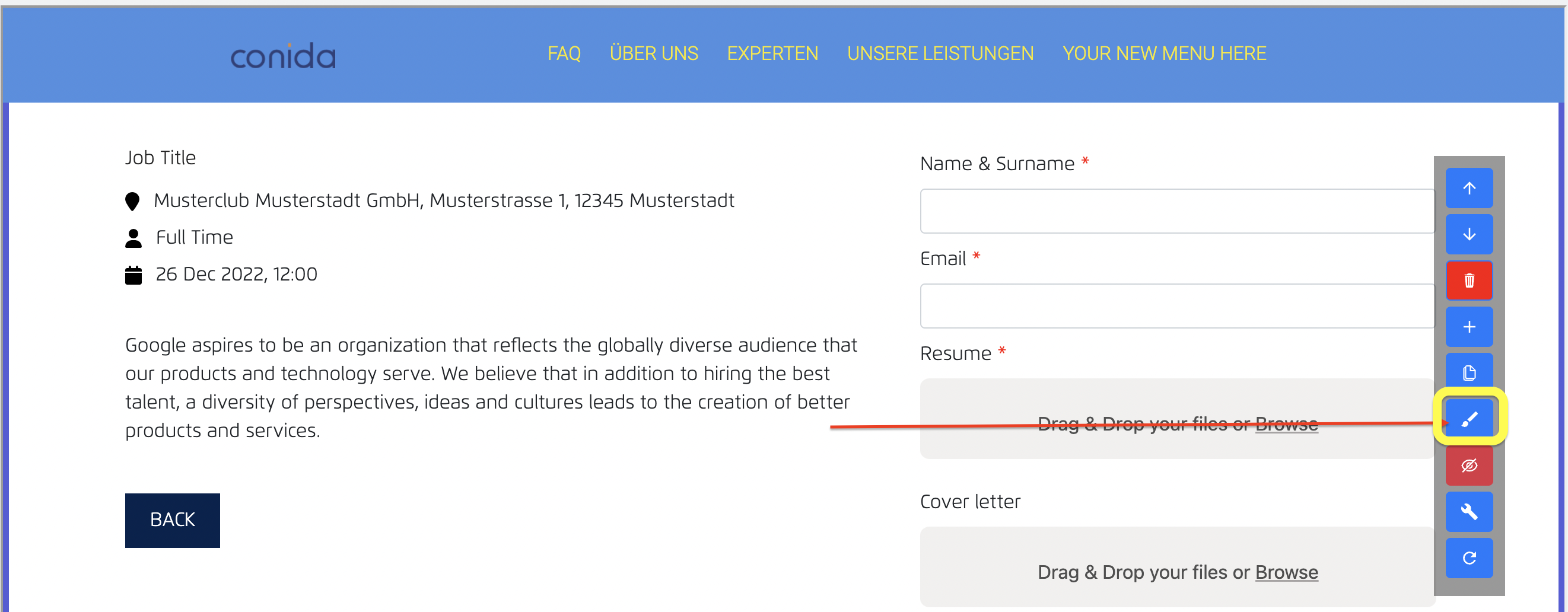
- Locate the Job Details section and click Edit.
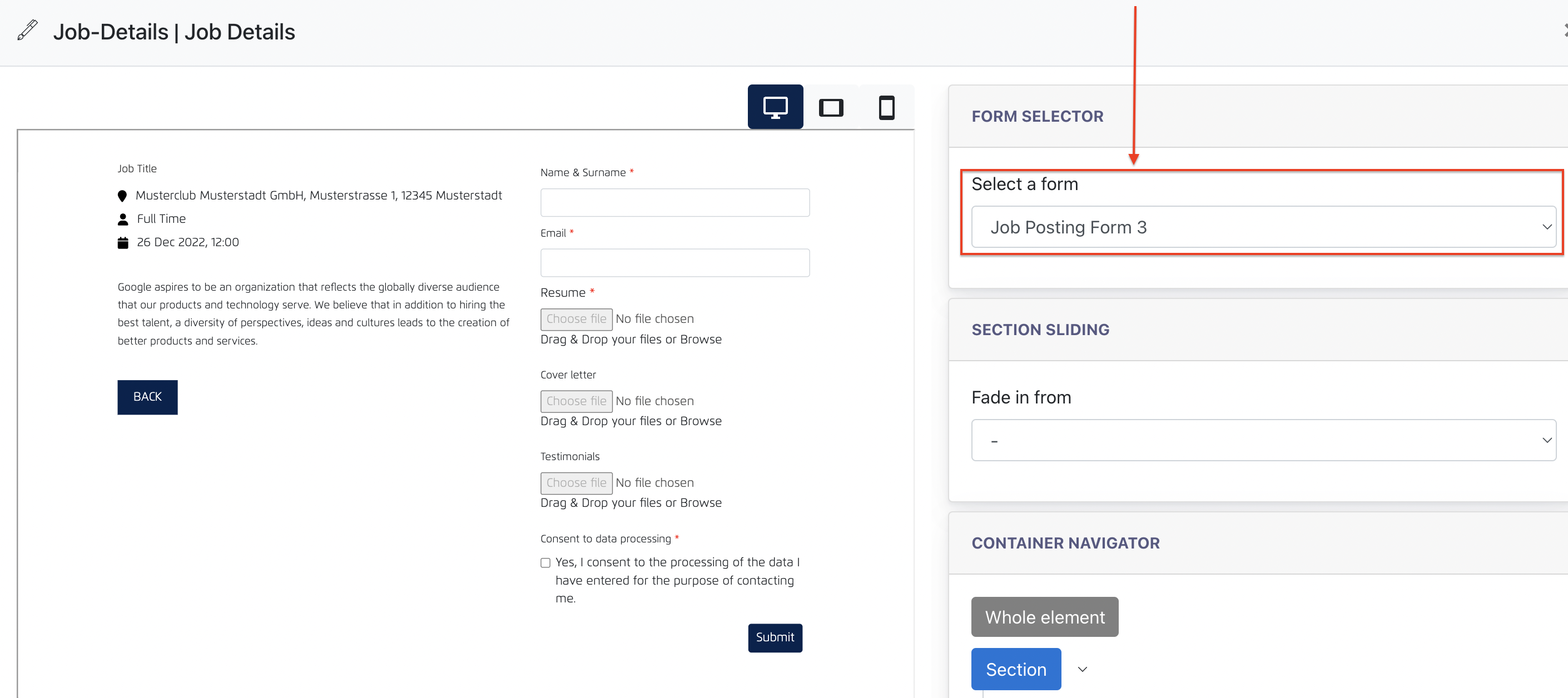
- Under Select Form, select the Site Form created for job applications.
- Save the changes.
The selected form will then be available on the Job Details page for visitors to submit their applications.
5.4. View Job Applications
Applications submitted through the Job Details page are stored as submitted data of the selected Site Form.
To view the applications:
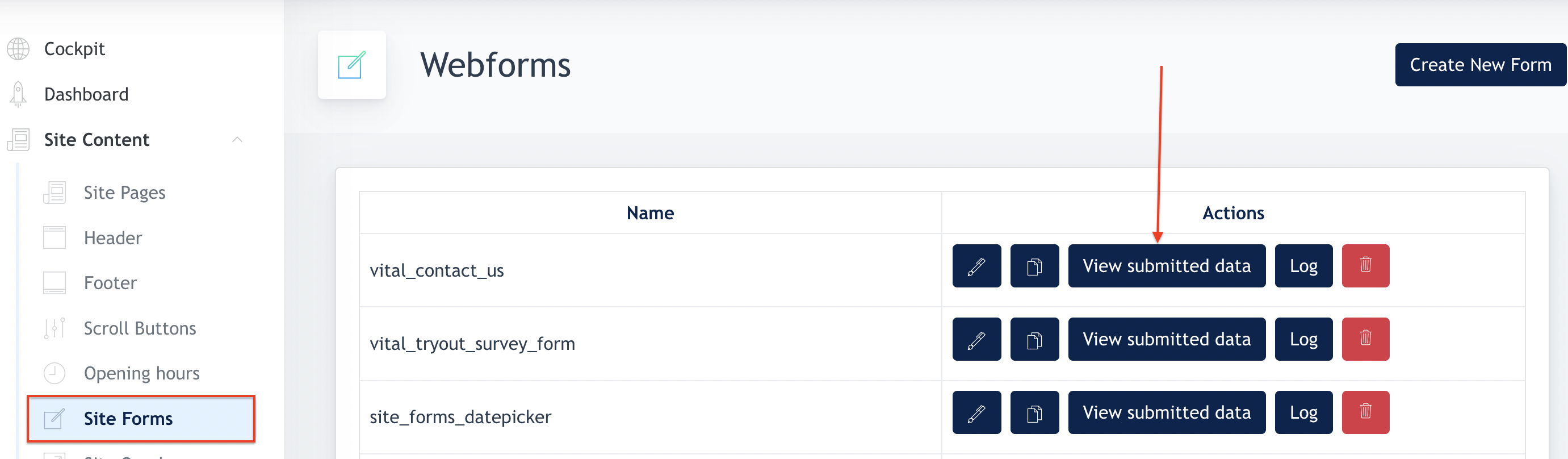
- Go to Site Form.
- Locate the form used for job applications.
- Click View Submitted Data.
Admin can then review the applications submitted through the website.
- the end -