
Site News
The News module allows administrators to create, manage, and publish news articles on the website. News can be organized into categories, scheduled for publication, and displayed on designated News pages. Each news article supports rich text content, images, multilingual URLs, publication scheduling, and optional call-to-action buttons.
In addition to creating news articles, the News module also provides supporting features for managing reusable content, organizing categories, and configuring news-related settings.
The News module consists of the following sections:
- News – Create, edit, publish, and manage website news articles.
- Content Service – Manage reusable content that can be selected when creating a news article, allowing content to be reused instead of recreated from scratch.
- Categories – Create and manage news categories for organizing articles.
- Settings – Configure the Facebook Page IDs that can be used when publishing news articles to Facebook.
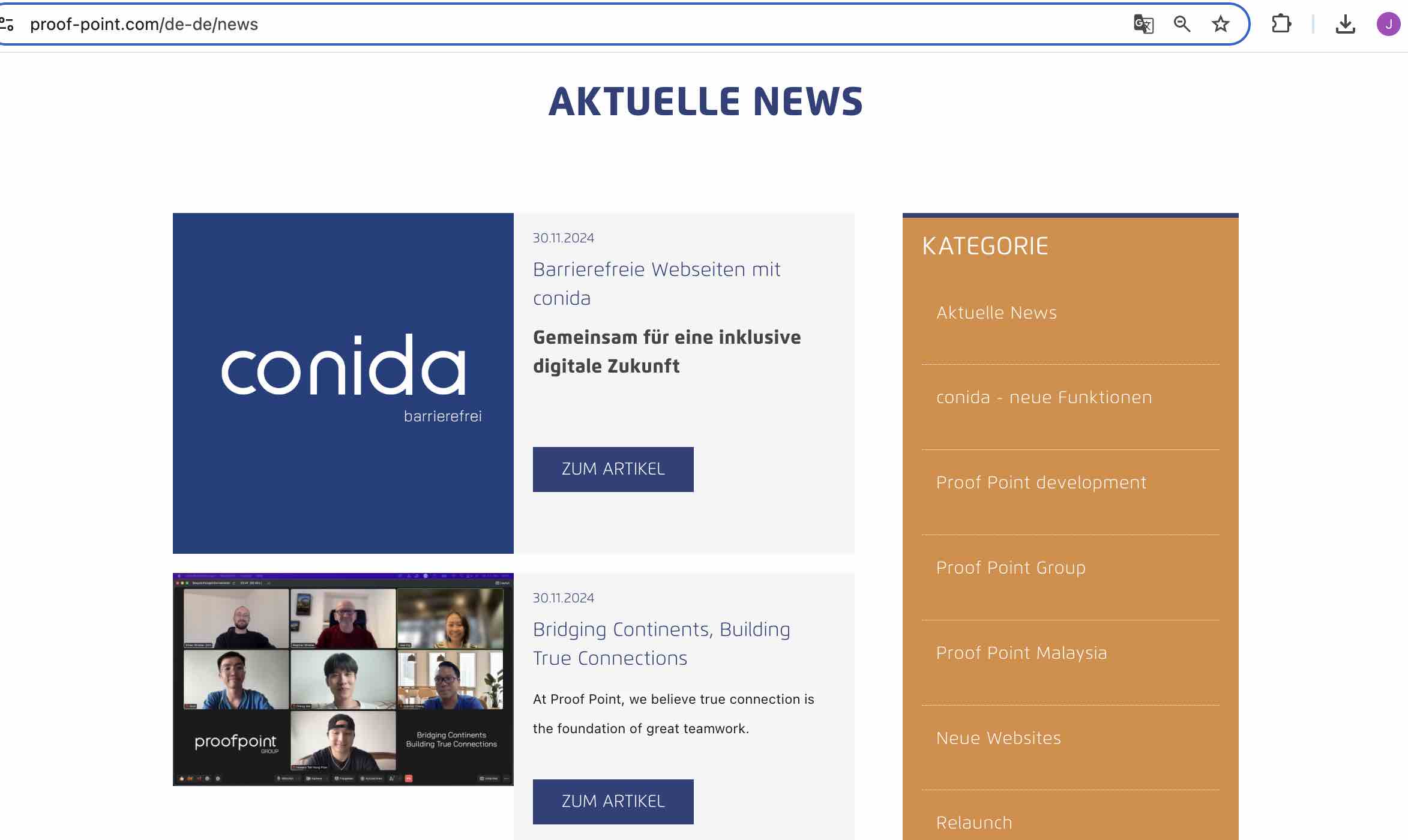
An example of /news page on Live Site:
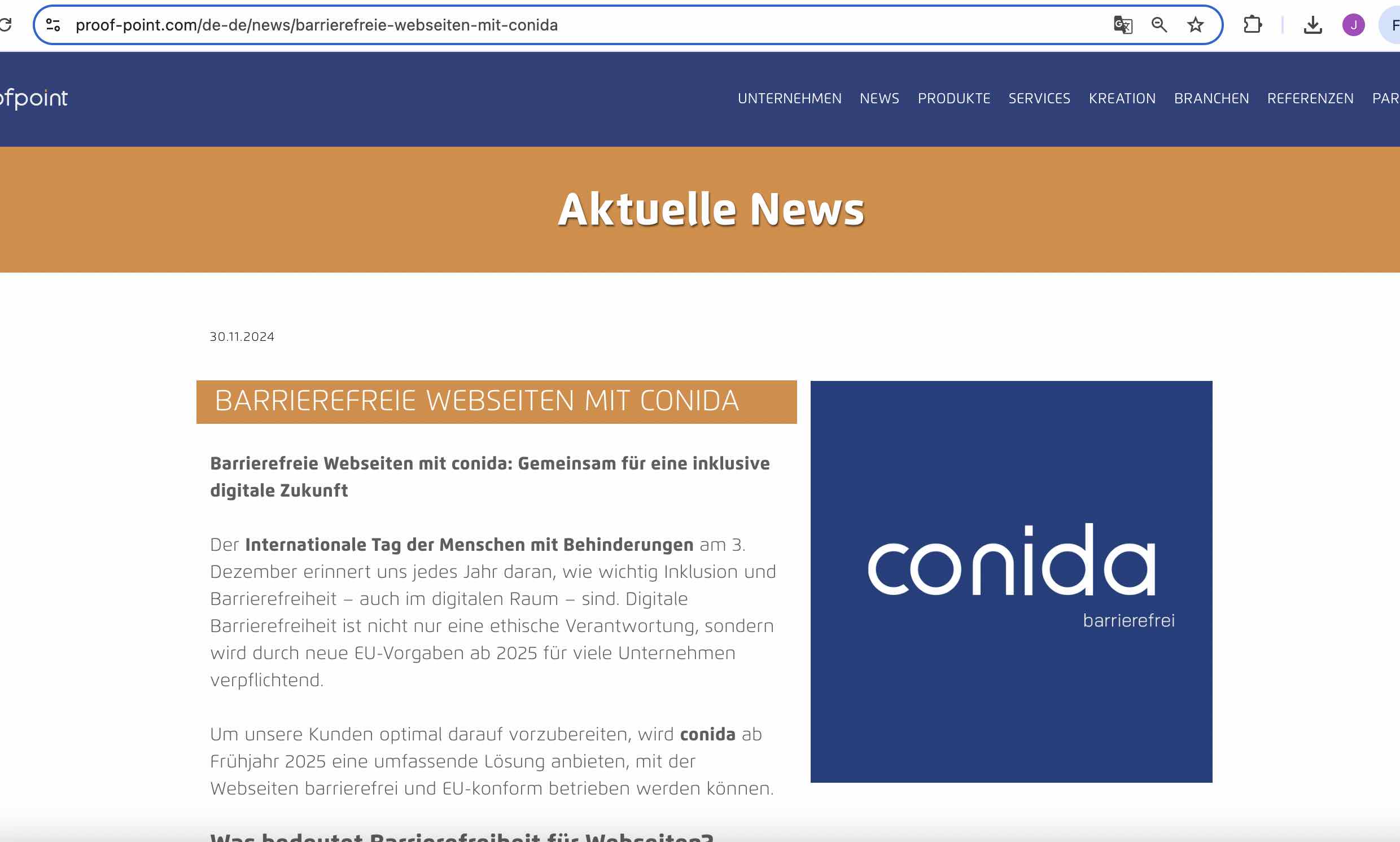
An example of /news/:id page
1. Create News
This section explains how to create a new news article.
Step 1: Click Create News
From the News page, click Create News.
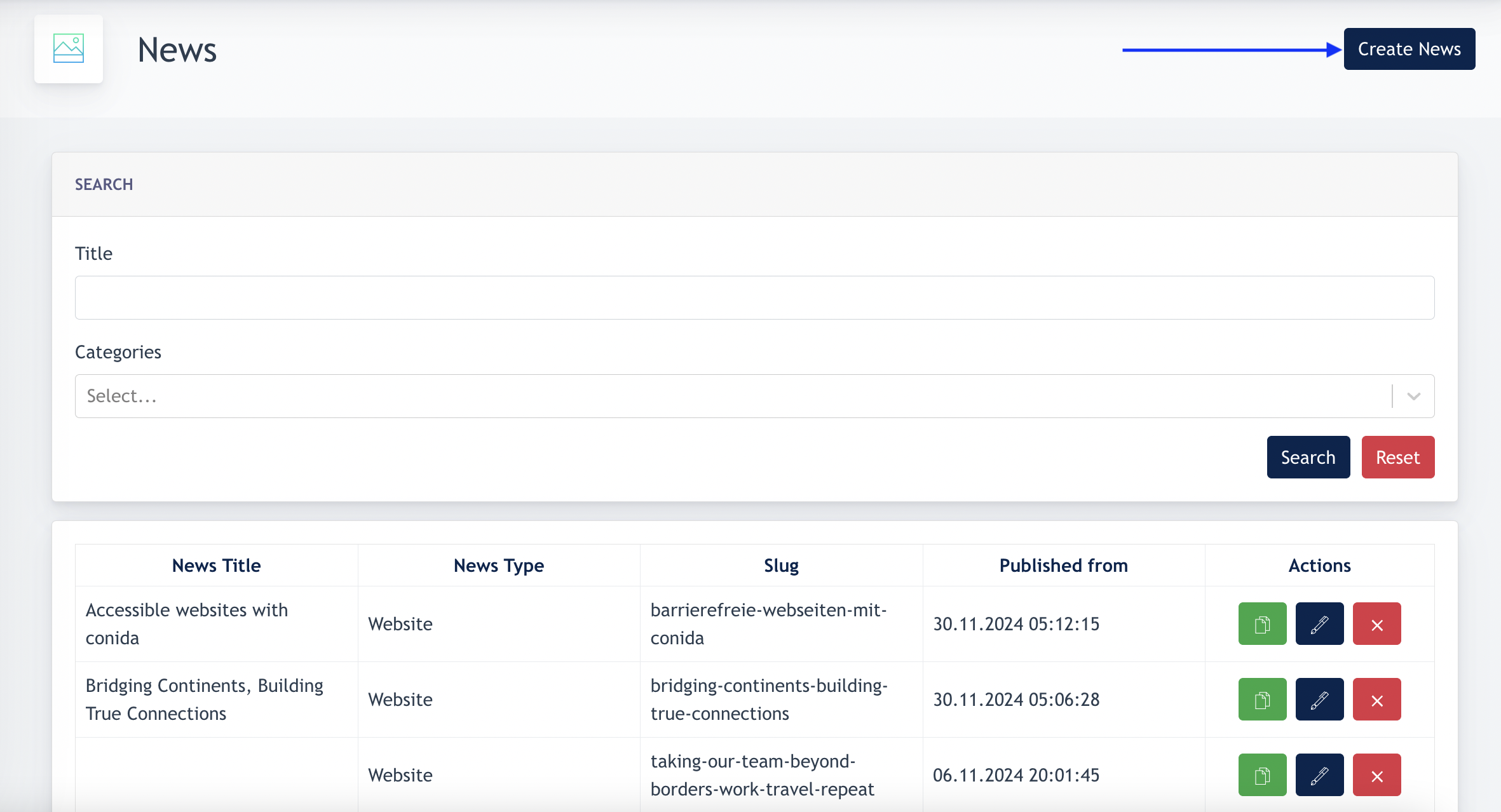
Remarks: Categories are mandatory for news creation. Make sure Categories are created before creating news.
Step 2: Select the News Type
Choose where the news article should be published.
| Option | Description |
|---|---|
| Website | Publish the news article on the website only. |
| Publish the news article on Facebook only. | |
| Website and Facebook | Publish the news article on both the website and Facebook simultaneously. |
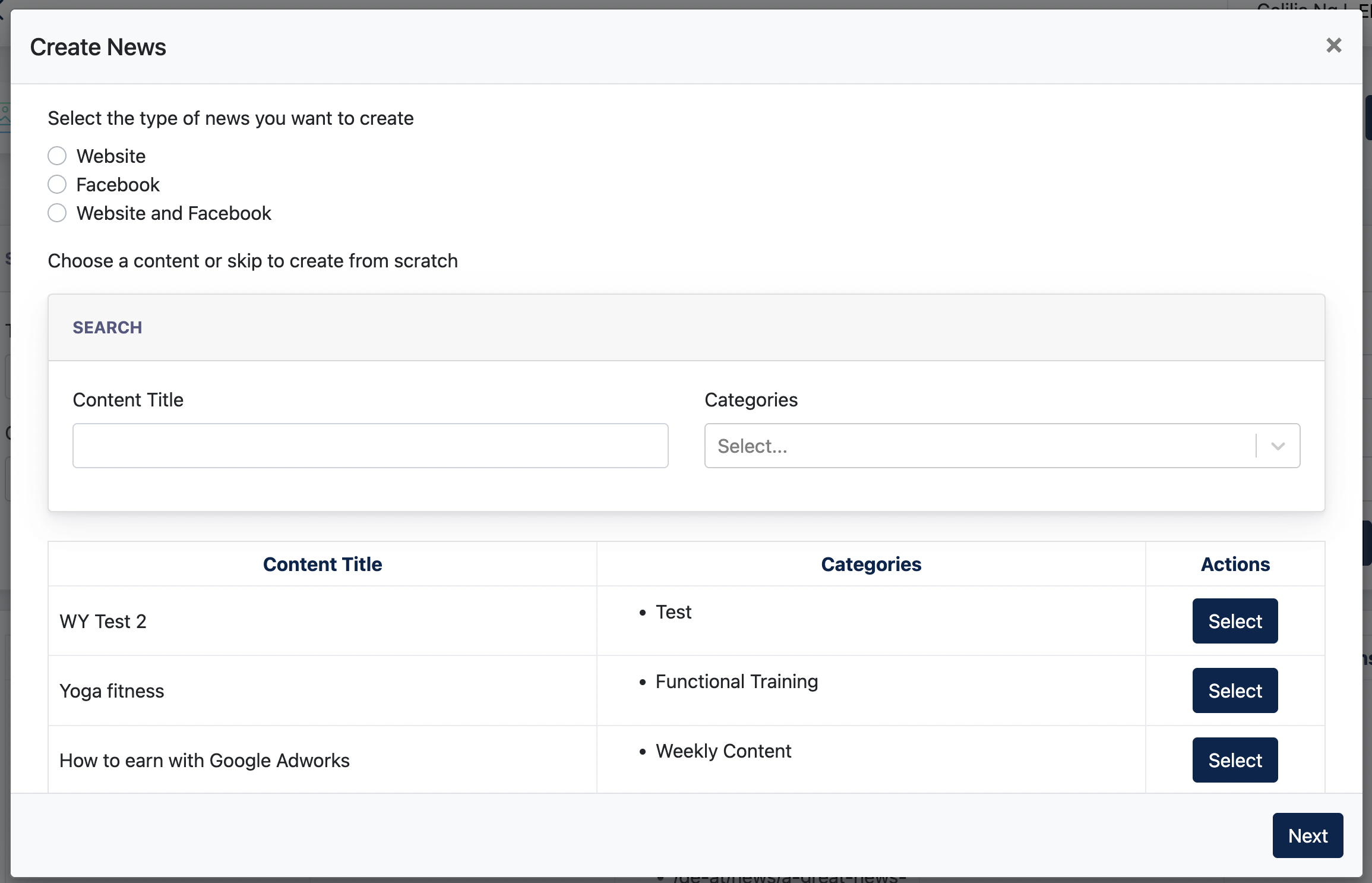
Step 3: Choose Existing Content (Optional)
You may reuse an existing article from the Content Service, or create a completely new news article.
| Option | Description |
|---|---|
| Select Existing Content | Reuse content that has been created previously in the Content Service. |
| Next | Skip this step and create a new news article from scratch. |
Note: Content imported from the Content Service can still be edited before publishing.
Step 4: Complete the News Information
Complete the required information before publishing the news article.
The news editor is divided into several configuration sections:
| Section | Description |
|---|---|
| General Information | Enter the basic information for the news article, including the category, title, teaser text, and main content. |
| Publication Settings | Configure the publication status, publication period, preview images, and other publishing options. |
| Canonical URL | (Optional) Specifies the preferred URL for this news article to help search engines avoid duplicate content. Leave this field empty unless a custom canonical URL is required. |
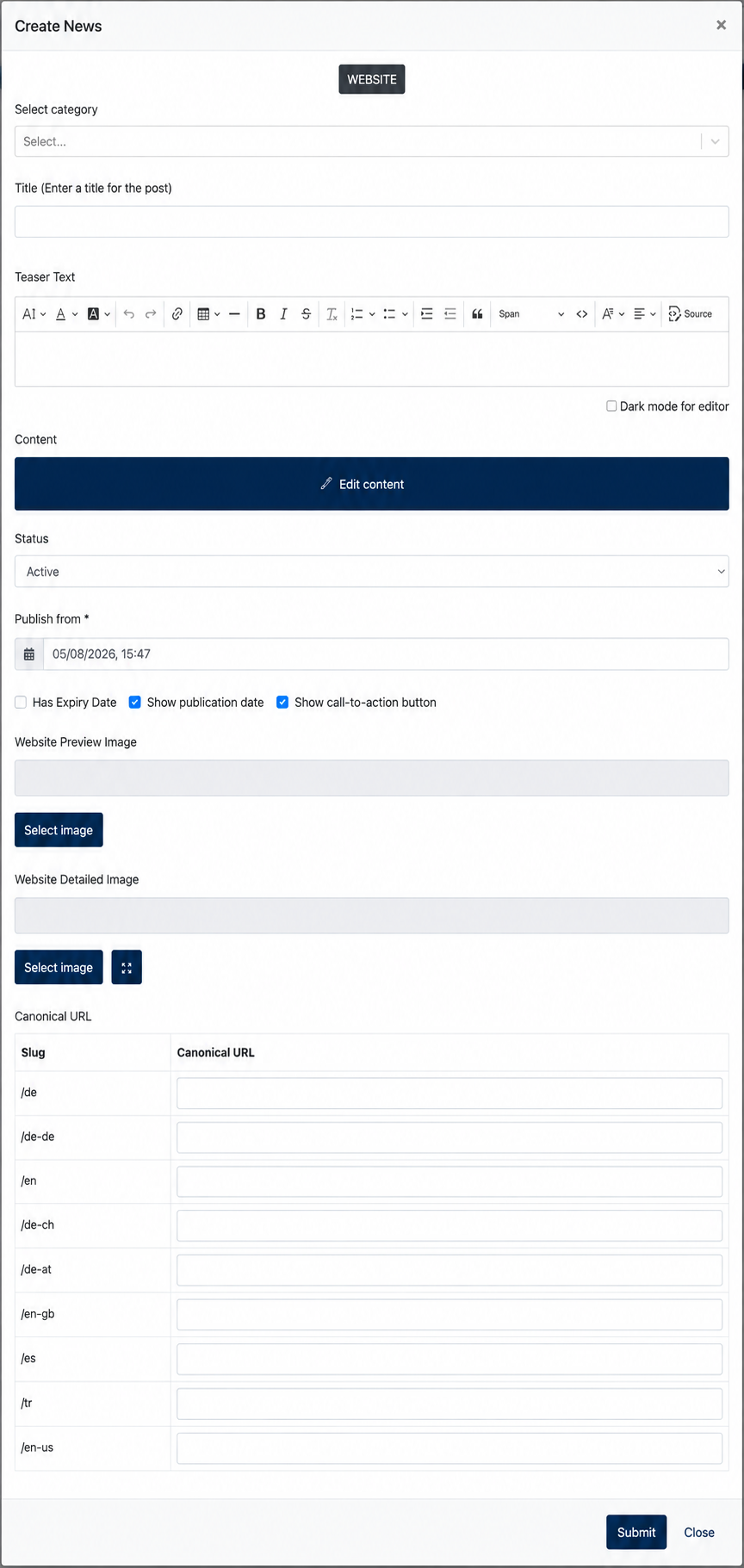
Step 5: Submit the News
After completing all required information, click Submit to save the news article.
The news article will be published according to the configured publication settings.
Remarks
The Canonical URL is used to specify the preferred URL for this news article. It helps search engines identify the primary version of the content when the same or similar content is available through multiple URLs, improving SEO and preventing duplicate content issues.
The end