
Site News
[
The SiteNews News ] featuremodule allows usersadministrators to configurecreate, manage, and publish news content displayedarticles on the website.
AnyNews clientcan thatbe subscribeorganized conidainto website,categories, willscheduled havefor publication, and displayed on designated News pages. Each news withinarticle supports rich text content, images, multilingual URLs, publication scheduling, and optional call-to-action buttons.
In addition to creating news articles, the siteNews modules.module [also provides supporting features for managing reusable content, organizing categories, and configuring news-related settings.
The News ] is part of the system page, auto-generated once a website is ready.
Newsmodule consists of the following URL :sections:
/newsNews-–thisCreate,isedit,thepublish,overalland manage website newspagearticles./news/:idContent Service-–thisManageisreusable content that can be selected when creating a news article, allowing content to be reused instead of recreated from scratch.- Categories – Create and manage news categories for organizing articles.
- Settings – Configure the
individualFacebook Page IDs that can be used when publishing newspage,articleswithtoits own slug created by the UserFacebook.
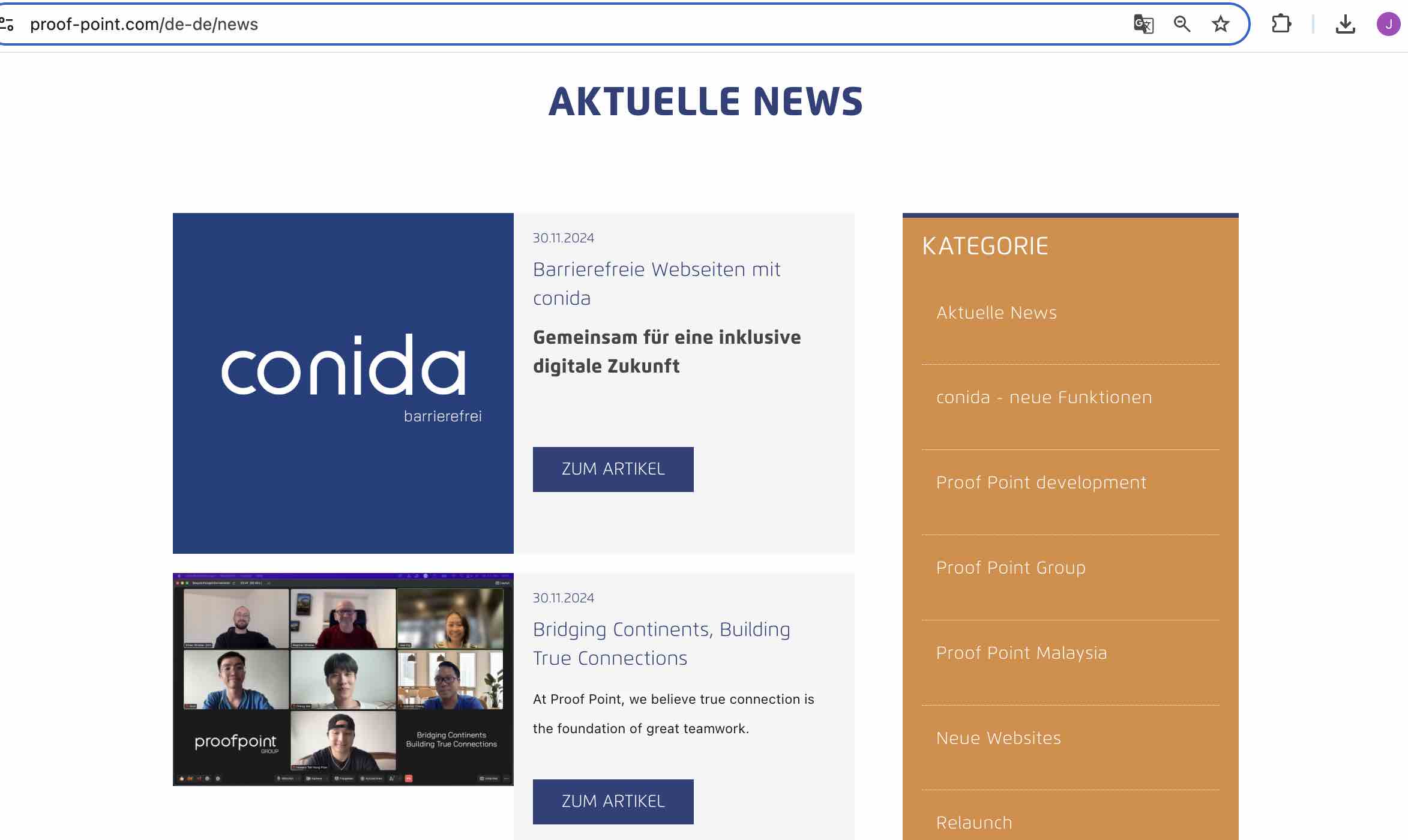
An example of /news page:page on Live Site:
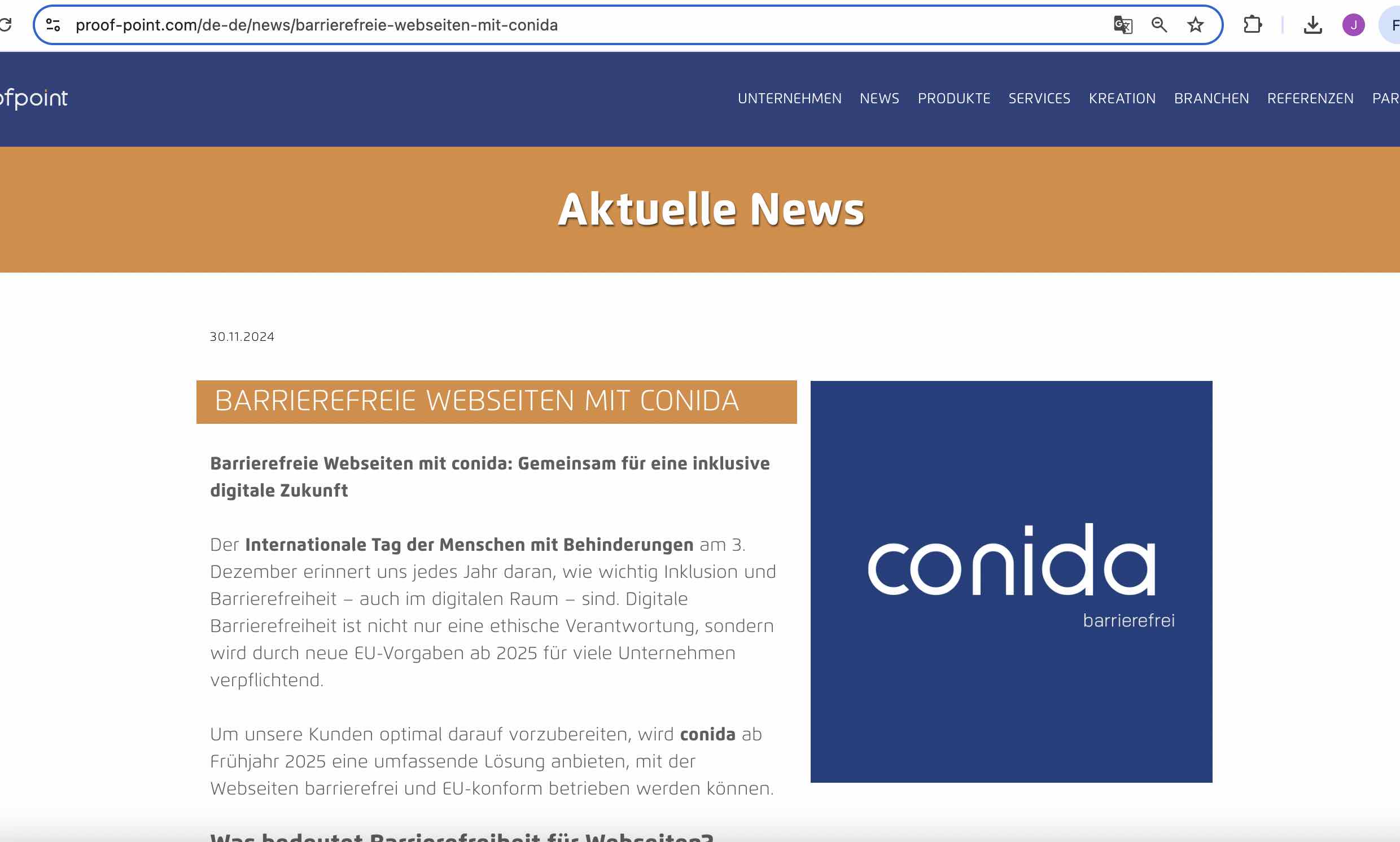
An example of /news/:id page
NewsContent ServiceCategoriesSetting
1. Create News
This section explains how to create a new news article.
Step 1: Click onCreate News
From the [News News ] and you will come to the News Listing page. To create news, simplypage, click on [ Create News ] button..
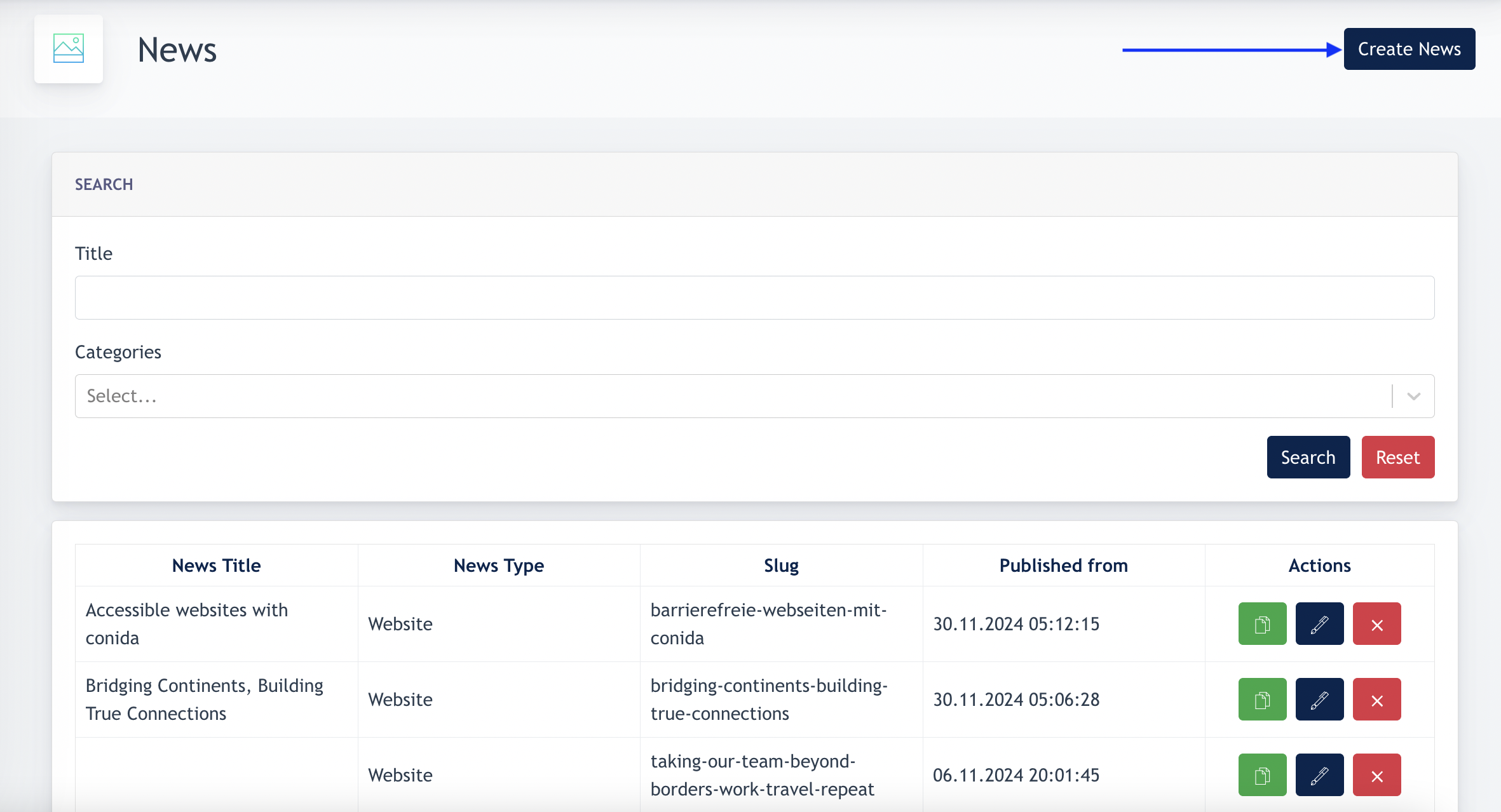
Remarks:Remarks: Categories are mandatory for news creation. Make sure Categories are created before creating news.
1.1
CreateStep 2: Select the News fromType
ScratchChoose
where the news article should be published.
| Option | Description |
|---|---|
| Website | Publish the news article on the website only. |
| Publish the news article on Facebook only. | |
| Website and Facebook | Publish the news article on both the website and Facebook simultaneously. |
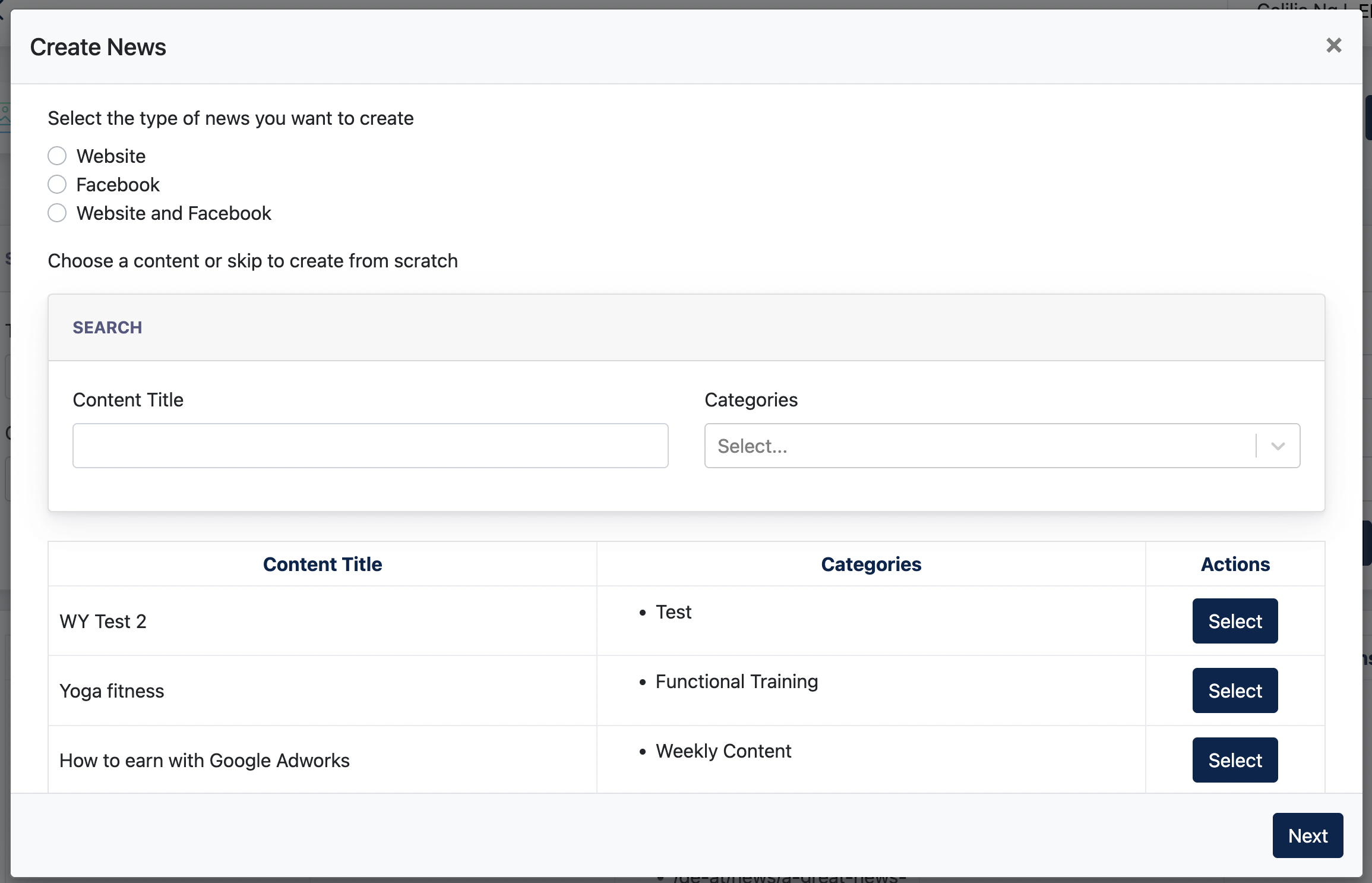
Step 3: Choose Existing Content (Optional)
ClickYou "Website"may reuse an existing article from the Content Service, or create a completely new news article.
| Option | Description |
|---|---|
| Select Existing Content | Reuse content that has been created previously in the Content Service. |
| Next | Skip this step and |
Note: Content imported from the Content Service can still be edited before publishing.
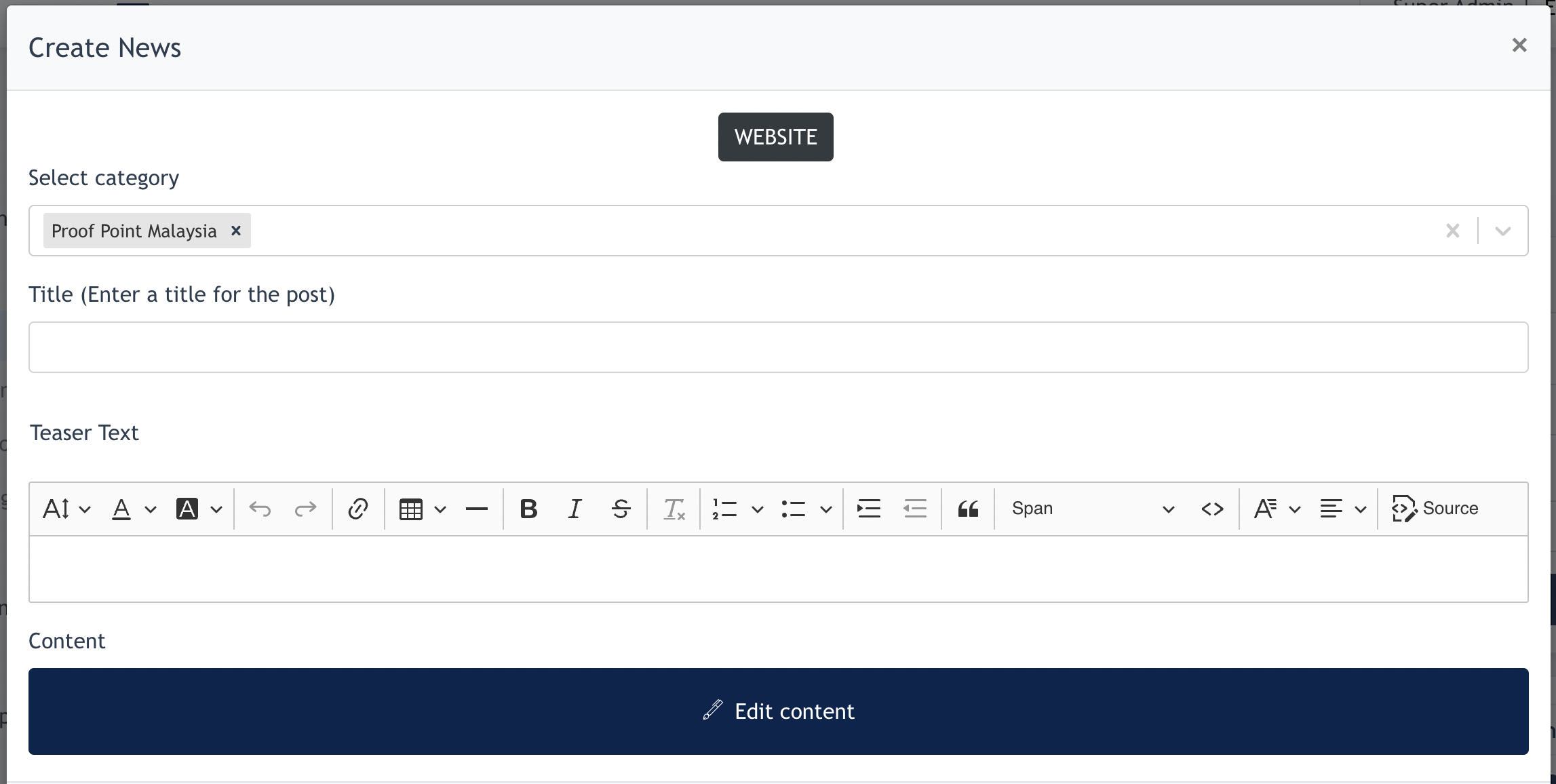
Select4:CategoryComplete: Every news item has to belong to at least one or more categories.Title: The title of your newsTeaser text: Short description for preview underthe NewstitleInformation
ContentComplete the
:requiredContentinformationeditorbeforeofpublishing the news
Step
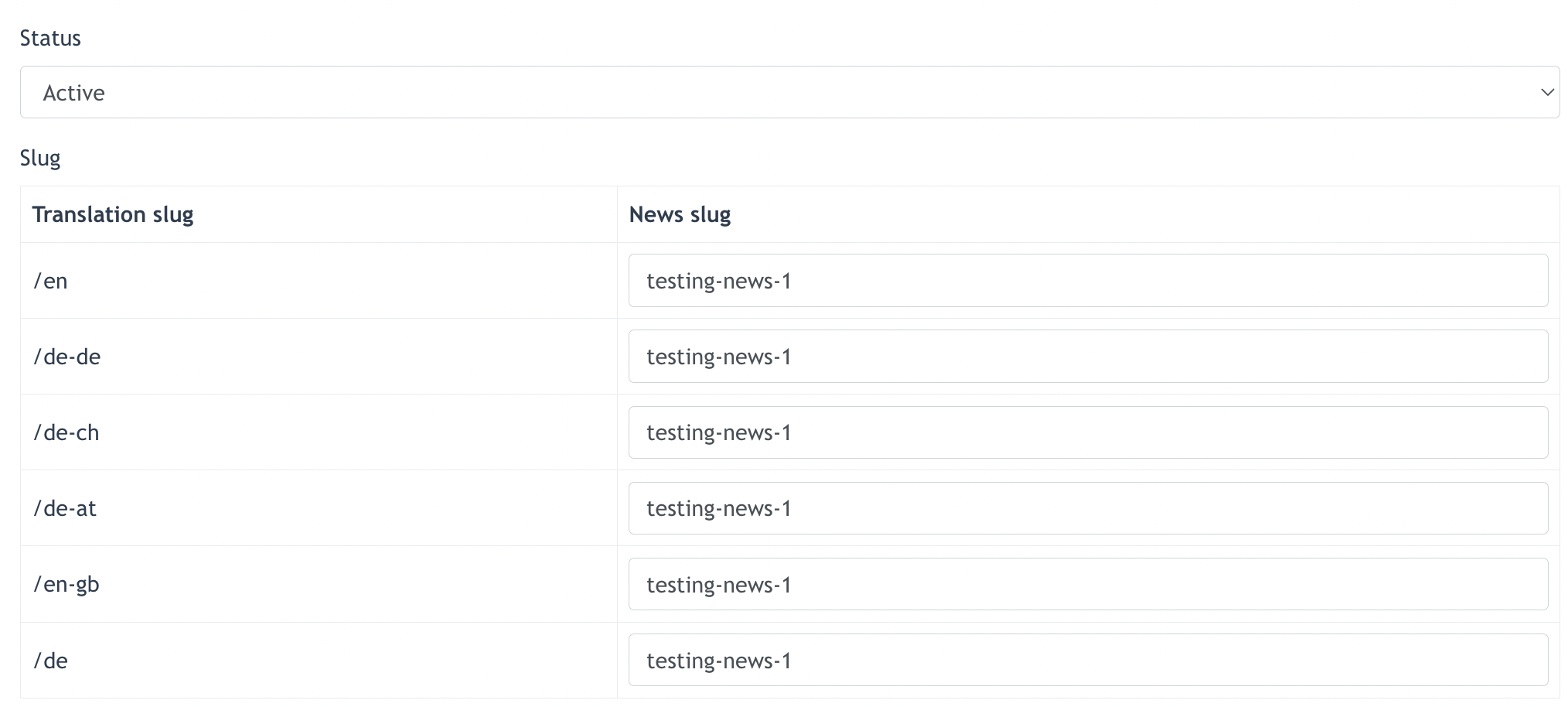
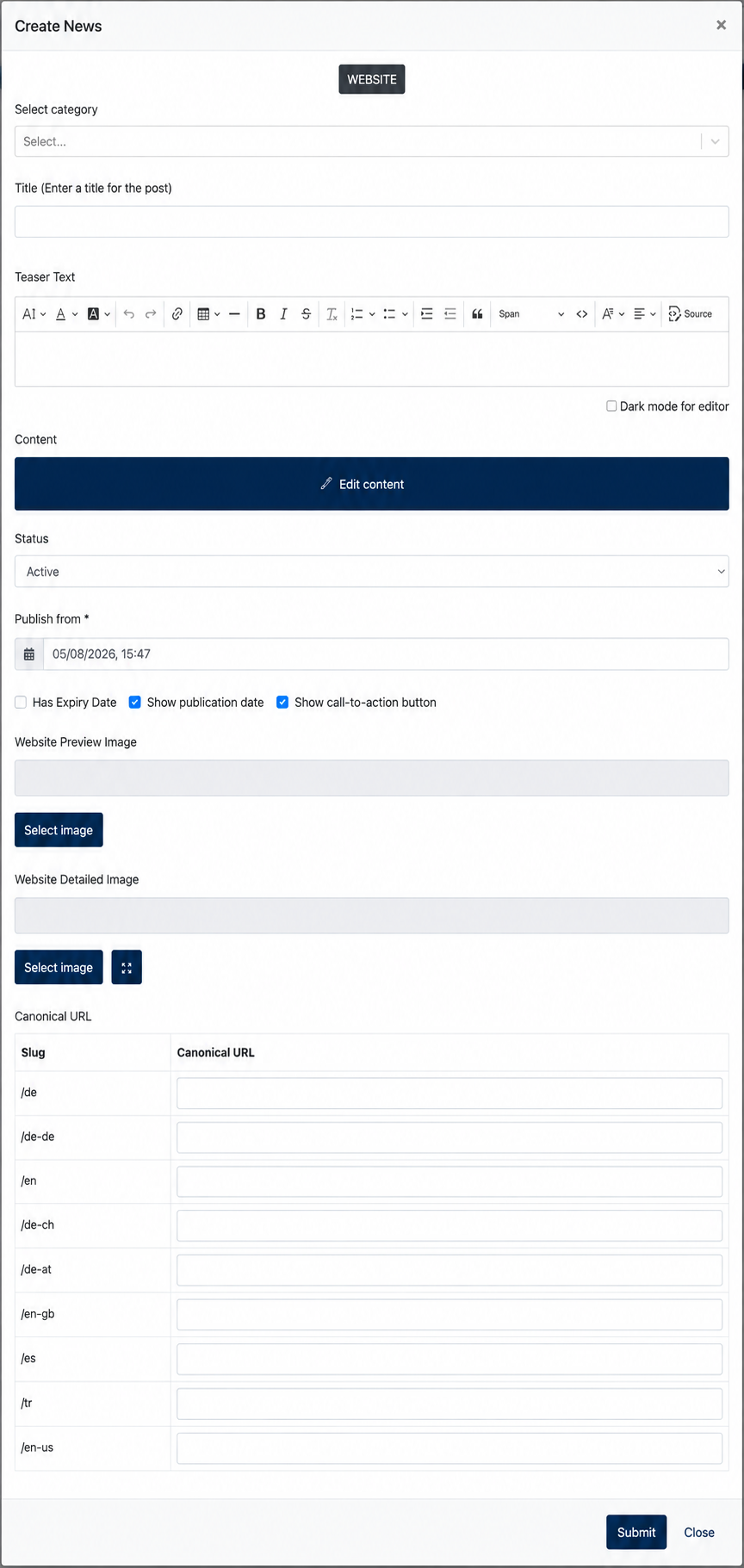
Section Description StatusGeneral Information:Enter Setthe basic information for the news article, including the category, title, teaser text, and main content.Publication Settings Configure the publication status, publication period, preview images, and other publishing options. Canonical URL (Optional) Specifies the preferred URL for this news asarticleactiveto/helpinactivesearch(enginesbyavoiddefaultduplicateitcontent. Leave this field empty unless a custom canonical URL isactiverequired.).Onlyactivenews- 5: Submit the News
After completing all required information, click
SlugSubmit:toTitle ofsave the newswill automatically becomes slug of the article
Step

Publish from: Set a publish date ( it is by default to publish the news at current time if user does nothing on this )Has Expiry Date: Set an expiry date for this news. News will be removed from the website (status set to inactive) when this date & time is reached.Show publication date- when this is checked, everyThe news article willdisplaybeapublishedpublication date on the top of the news.Example :
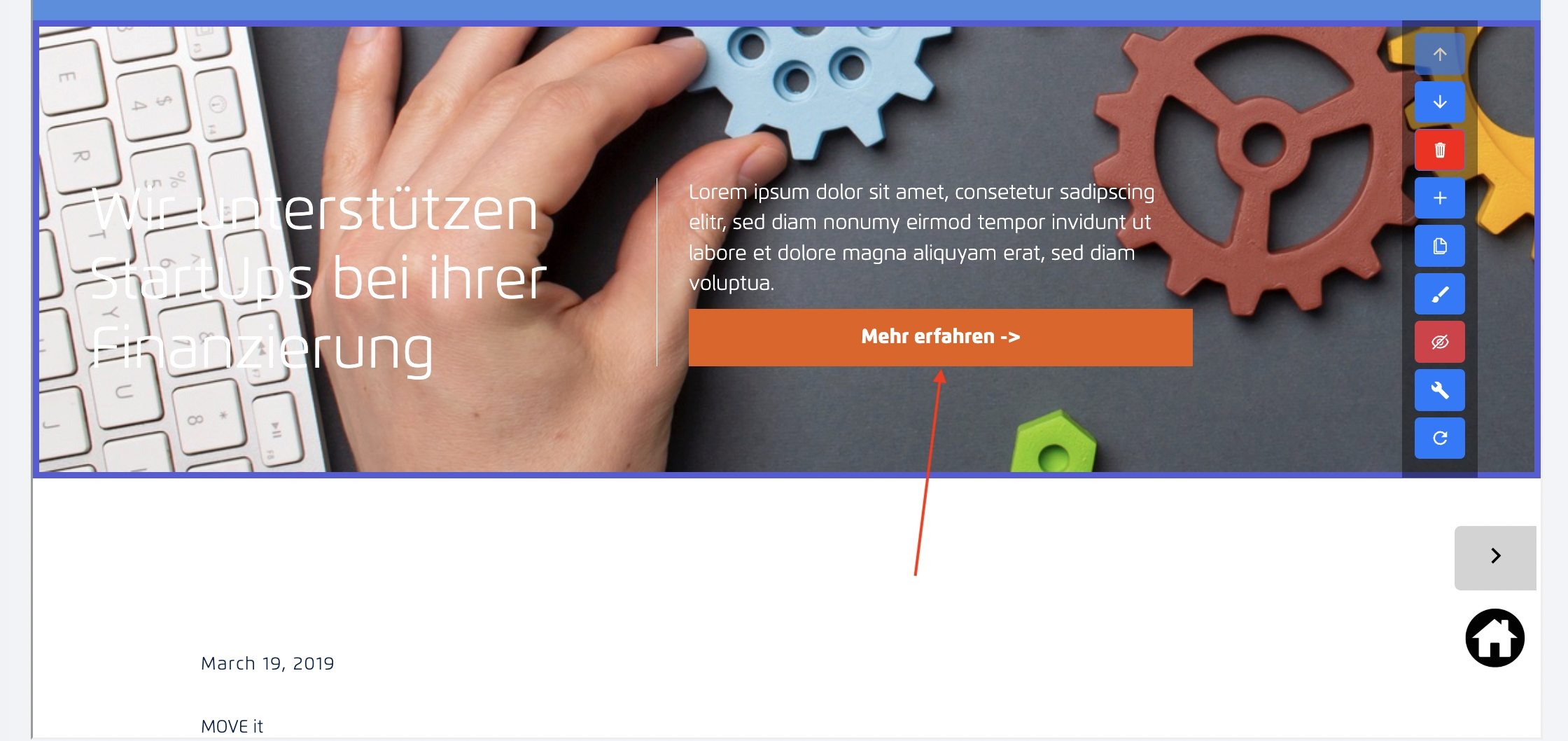
Show Call-to-Action Button- This checkbox works when "Injoy New Template Slider" is addedaccording to the"newsconfiguredid"publicationpage.settings.When
thefollowing slider is add, and "call-to-action" button is checked, you will see a button being displayed in the slider, and Admin may click "Edit section" to configure the link for this button.

Remarks
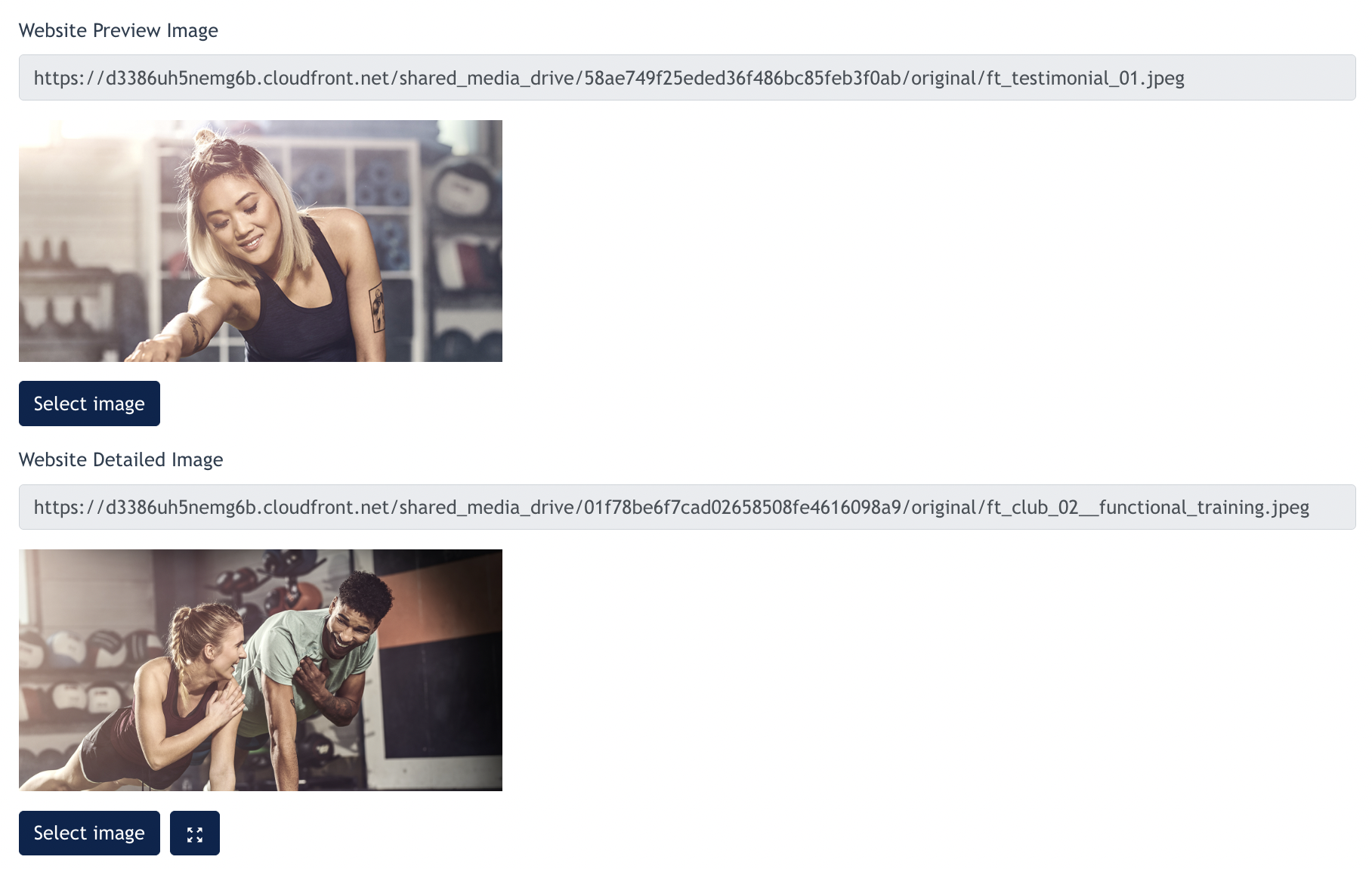
Website Previewed image & Detailed image: Website previewed image is for /news page and Detailed image is for /news/:id page
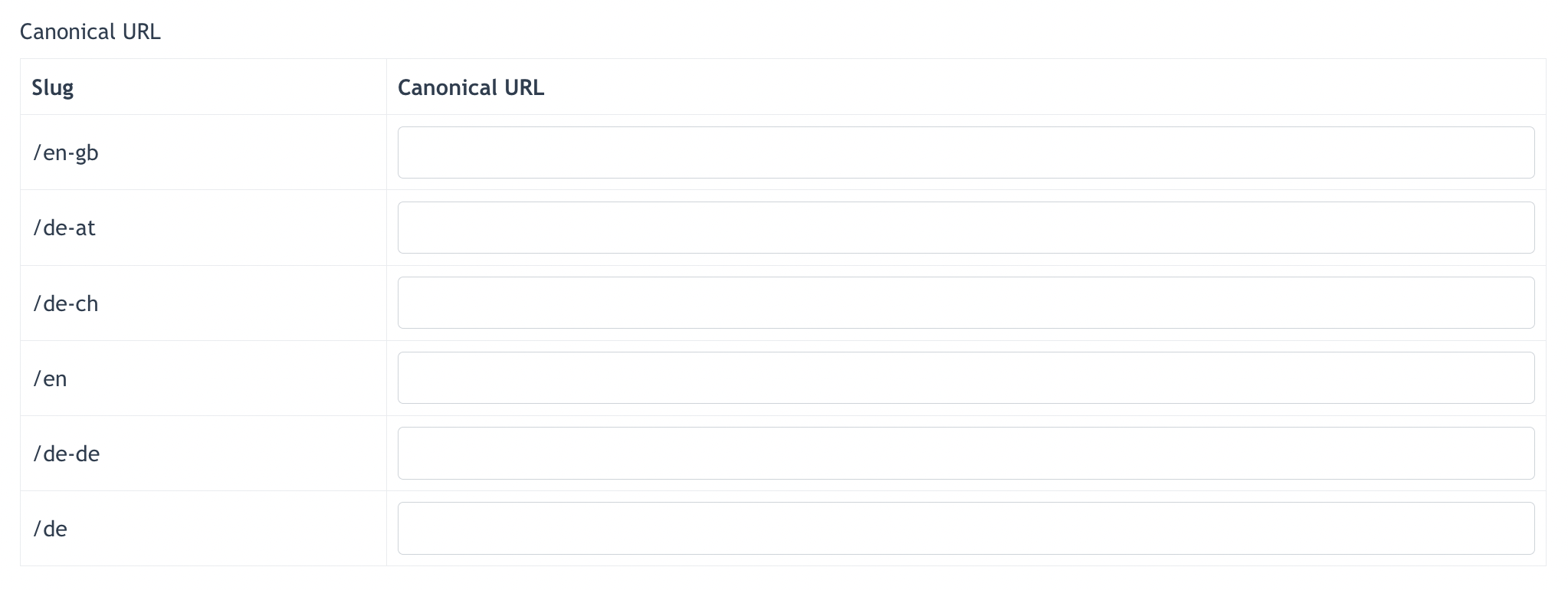
- Canonical URL
:isAdmin has an optionused tomanuallyspecifyconfigurethecanonicalpreferred URL fordifferentthislanguages.newsIfarticle.noItURLhelpsissearchfilledenginesin here manually, then page URL will automatically becomeidentify thecanonicalprimaryURL
Click "Submit" after all the above are configured. The news will be published and display on the news listing.
1.2 Create News from Content Service
dTick "Website".Select which categoriesversion ofcontent you're looking for.Content listed on the listing --> users may click on the button to selectthe content
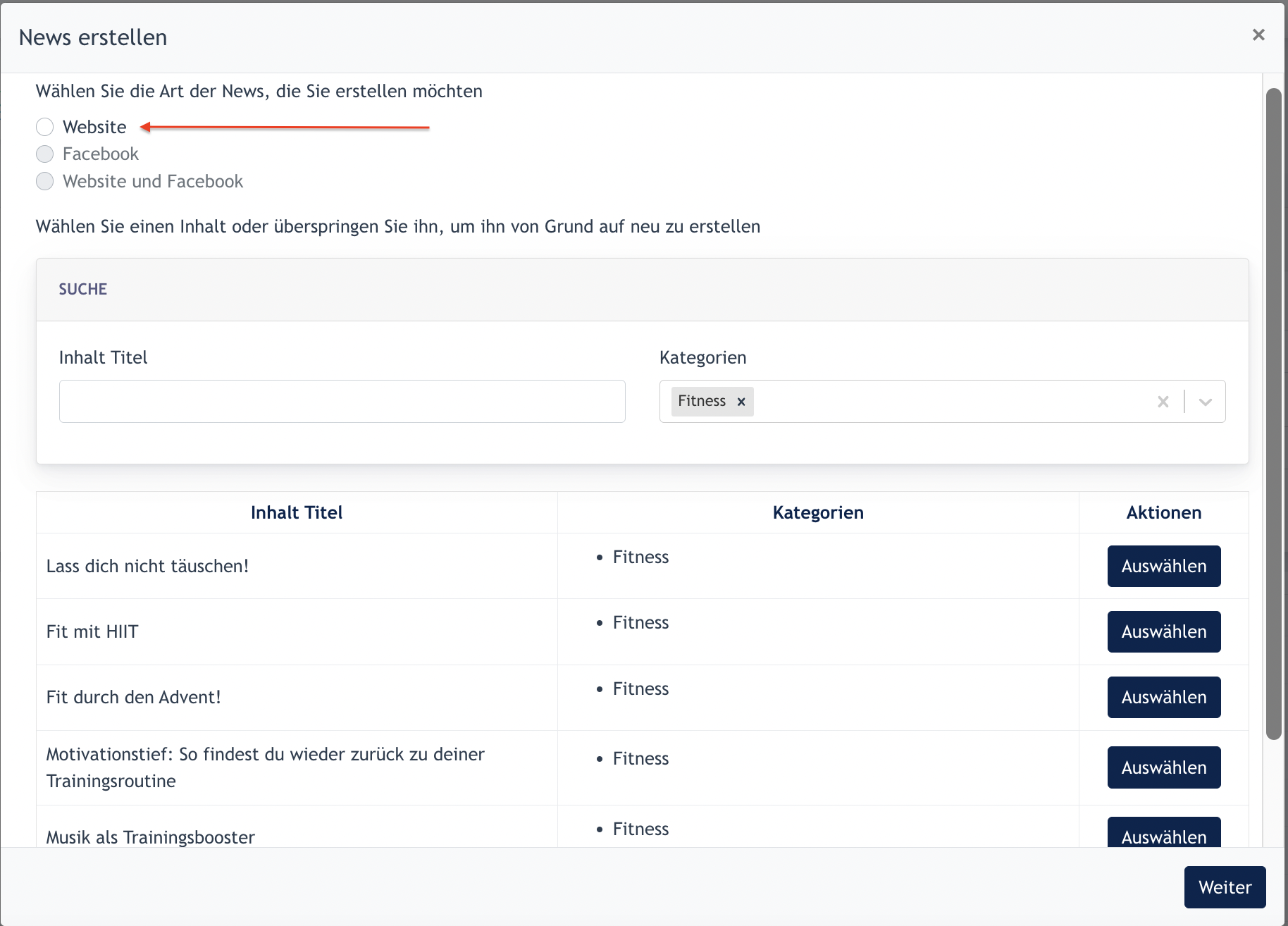
4. Content is selected, click next.
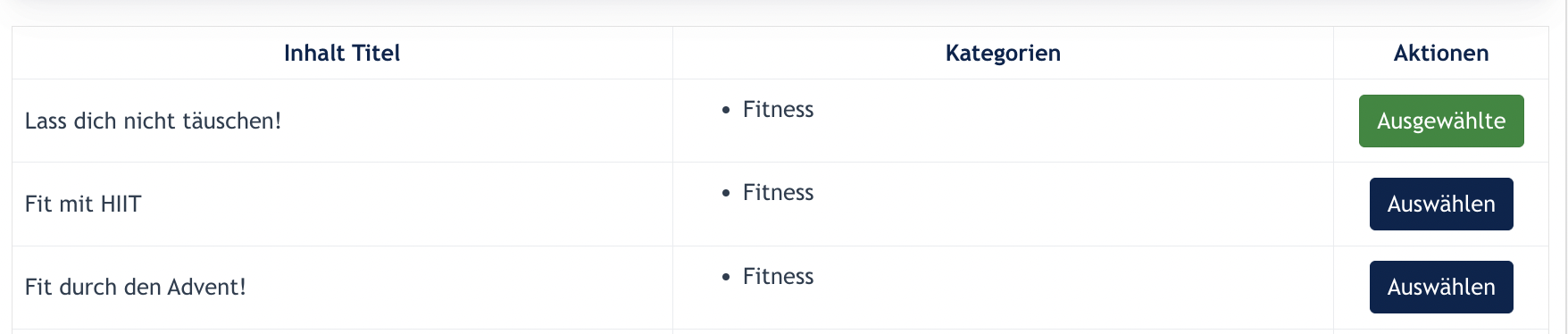
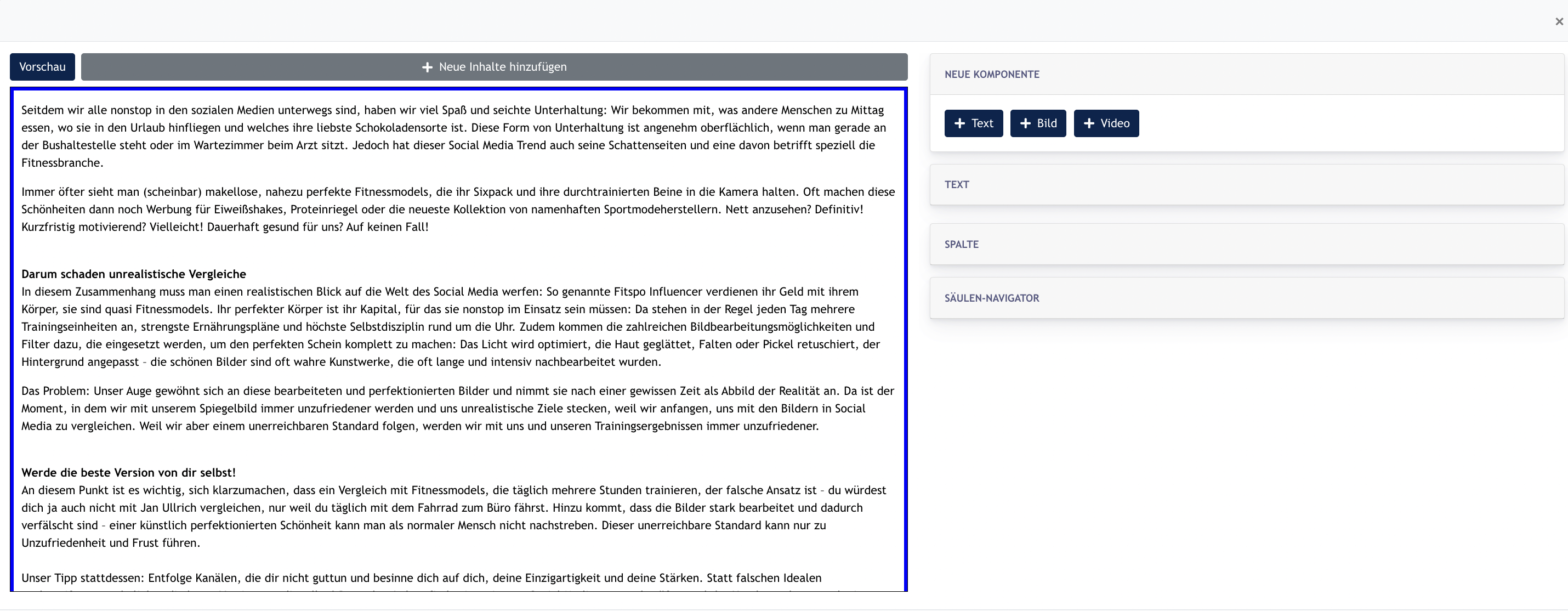
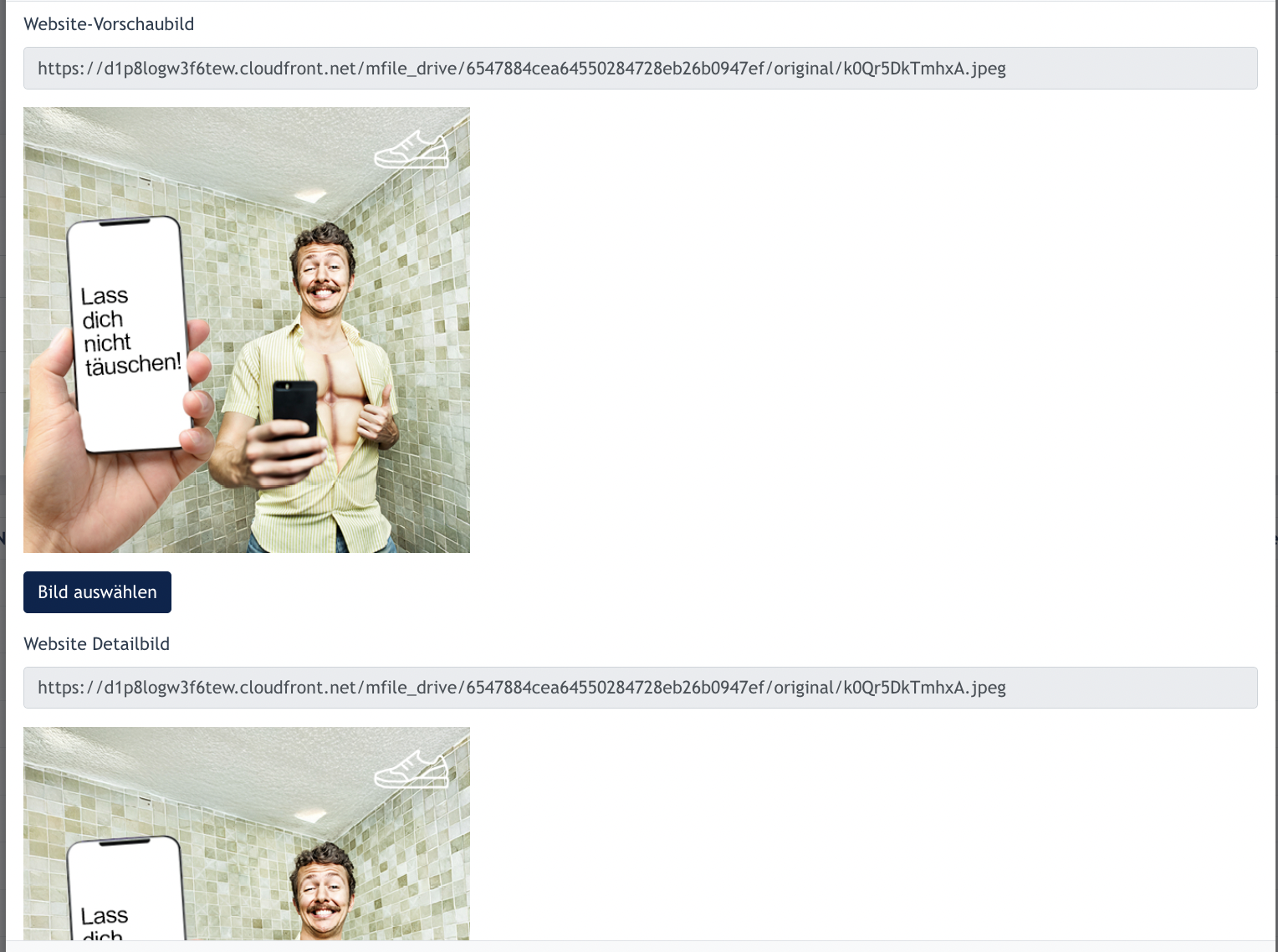
5. Content selected will automatically fill in the News Configuration modal. See screenshots below :
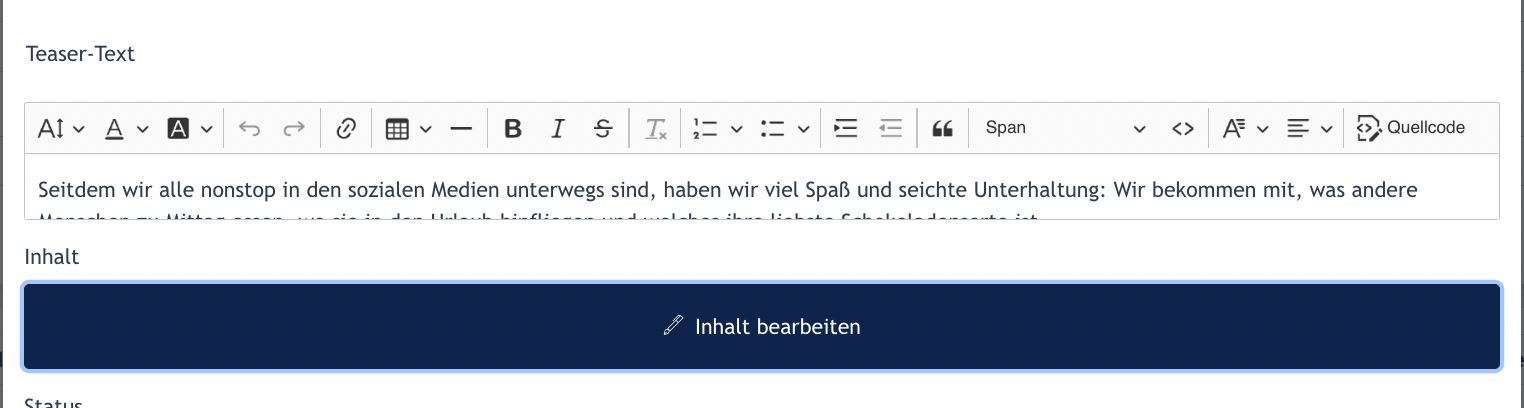
Content text is filled:
Preview & Detailed image are also filled:
After review the content, Center Admin may choose to Edit existing content, or publish directly.
Additional Info :
Website news are displayed under www.url.com/news and Facebook news are news solely published to Facebook. The system needs the user needs to link their Facebook ID via News > Setting
There are 2 methods to create news :
Create from ScratchCreate from Content Service
1.3 Categories
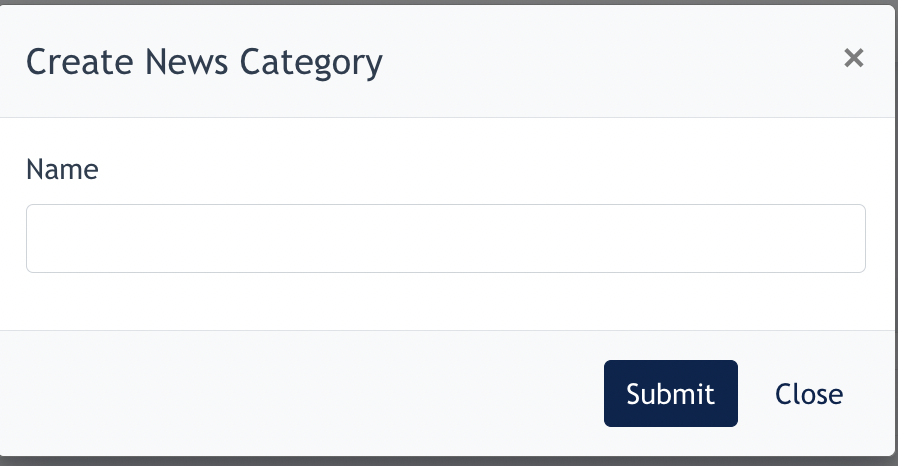
This are the news categories configuration page.
Click on "Create News Category"

Input text to name your category, and click Submit to save.
1.4 Setting (Facebook ID)
Center Admin may add Facebook ID by filling in the field here, after click on the [ Add ] button.
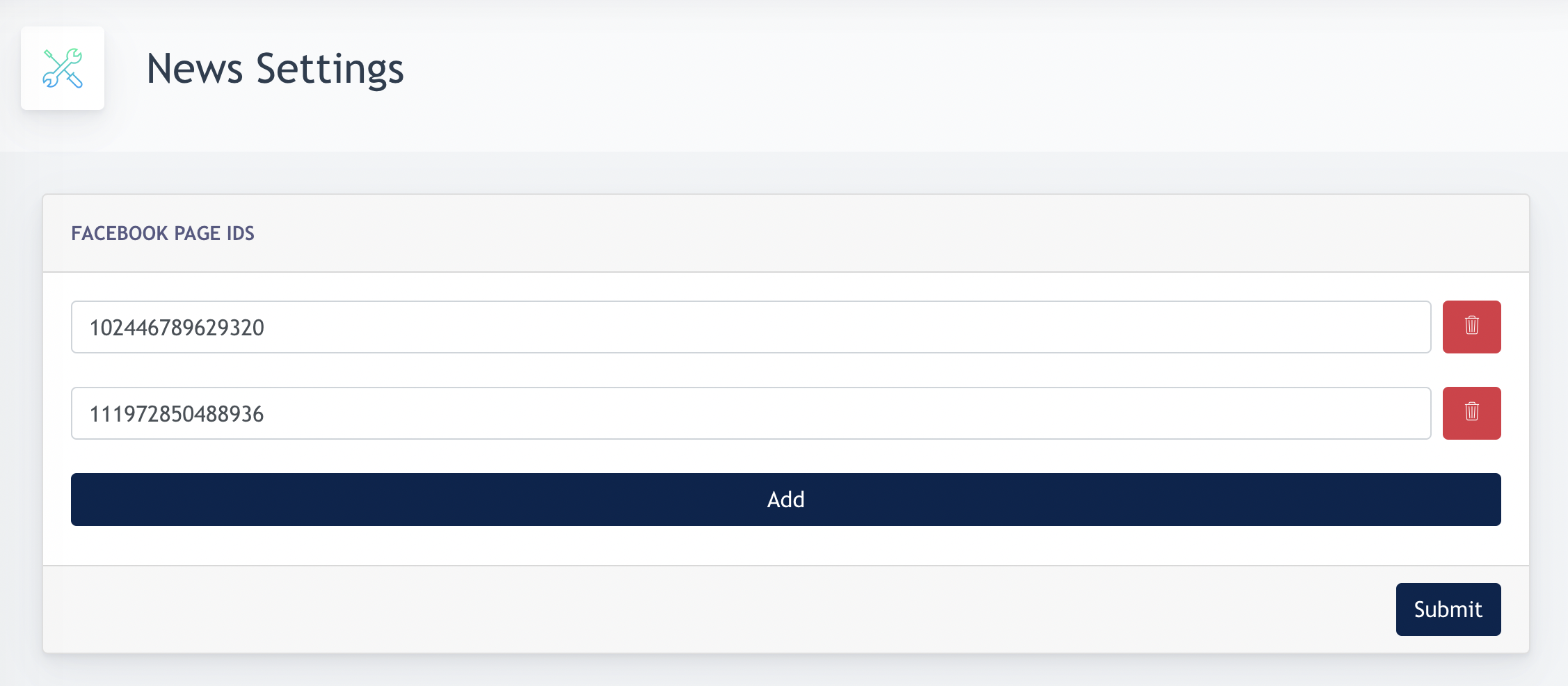
Remarks : There are procedure required to ensure FB ID added is working, kindly check with your consultant.
2. Creating News Content
Click on the "Edit Content" button to create a news/ edit existing content from "content service"
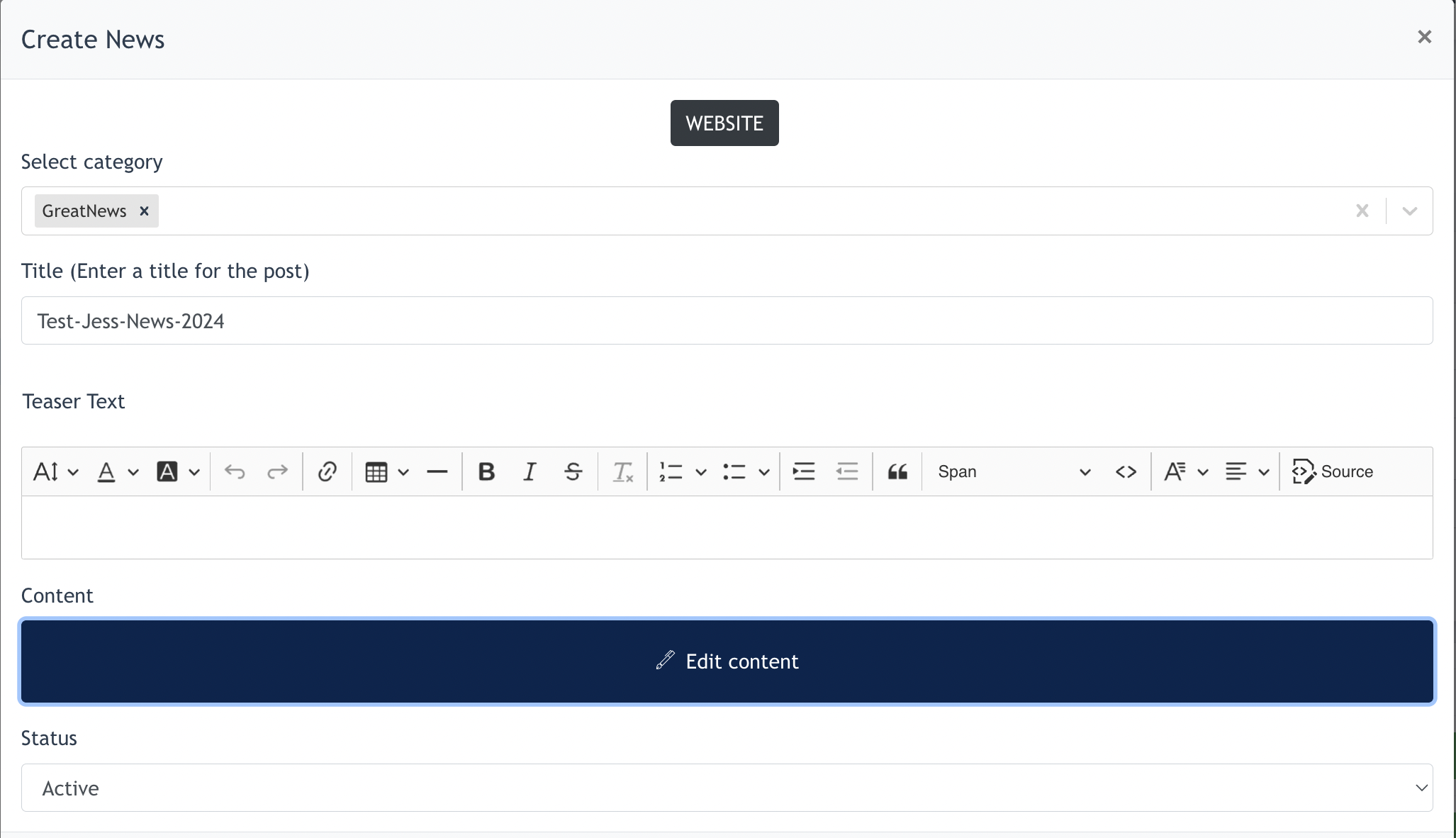
After clicking the button, the following modal will be opened up:
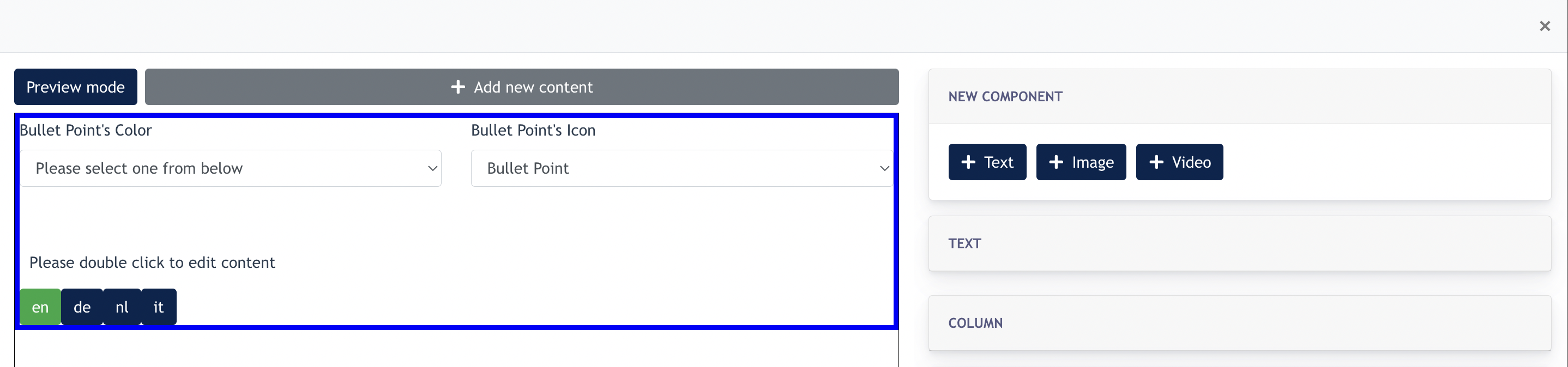
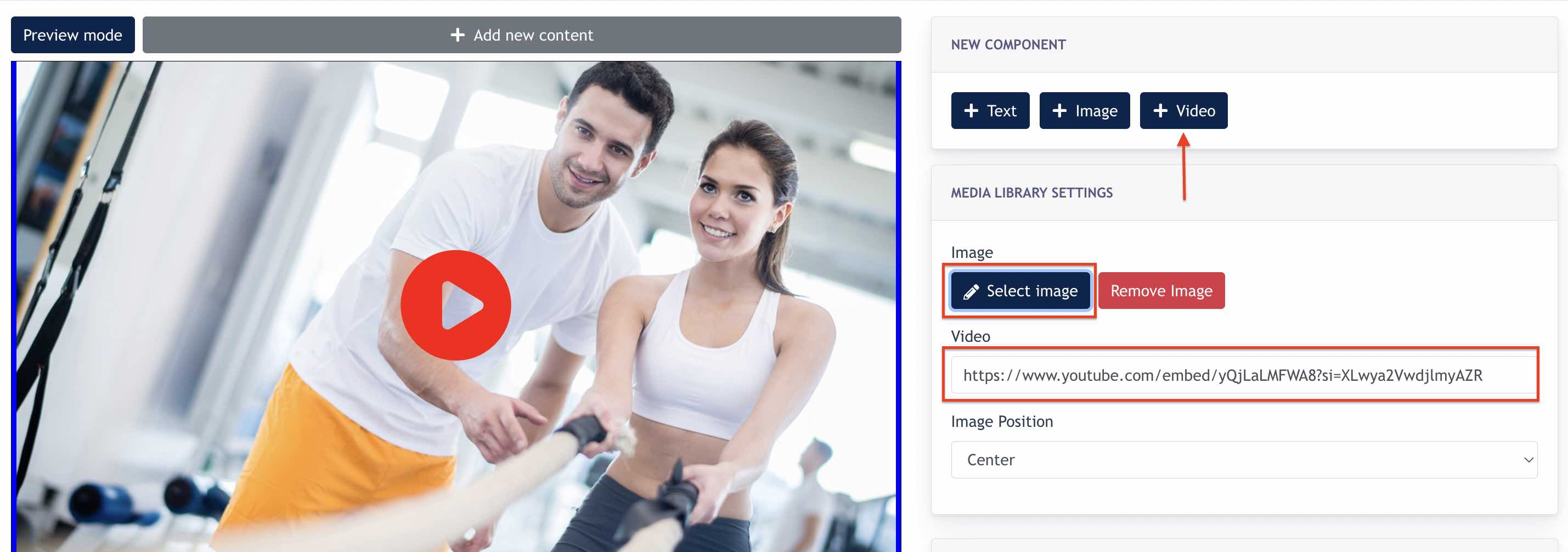
A default row is ready for Center Admin to add either [ text ], [ image ] or video into the link.
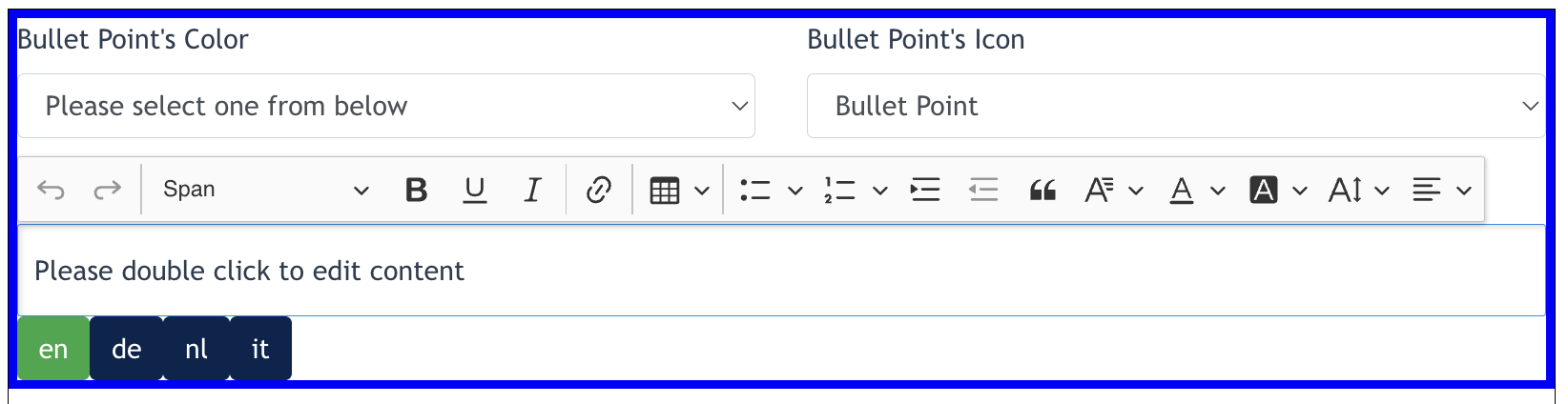
If text is added, Admin may edit the text using the text editor, or add/configure bullet point onto the text.
If [ +Image ] is added towhen the same row,or Adminsimilar maycontent choose/uploadis anavailable imagethrough formultiple thisURLs, byimproving clickingSEO "uploadand image"preventing duplicate content issues.
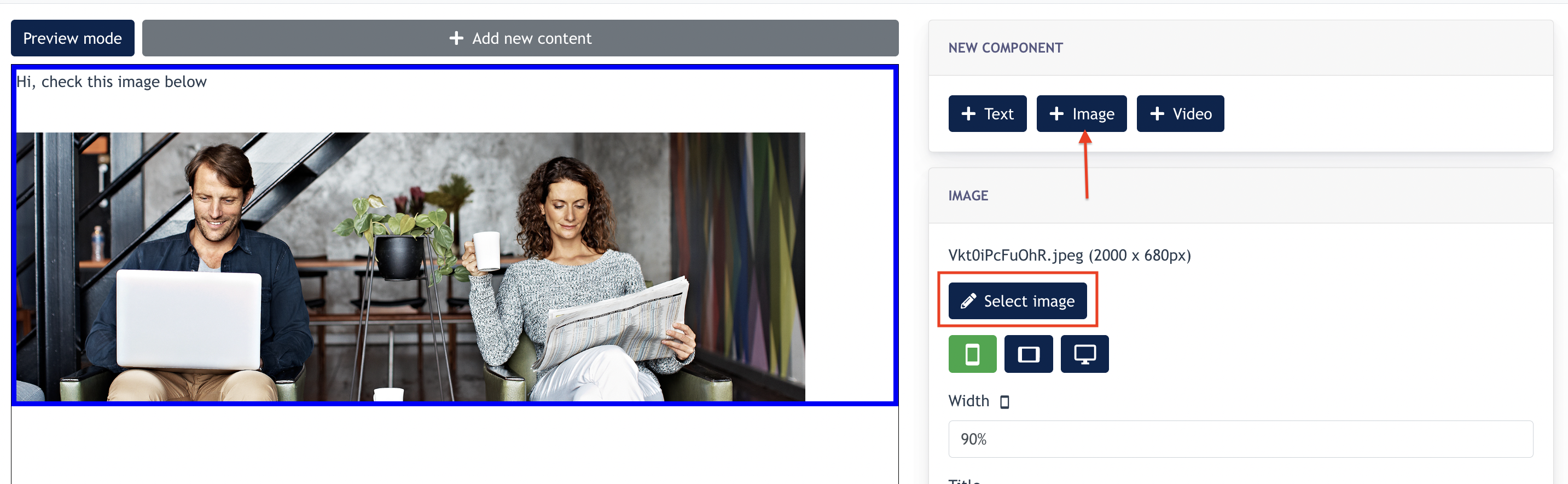
IfThe [+video ] is selected, Admin can upload a video cover image by clicking "select image" and fill in the Youtube video embed link. end
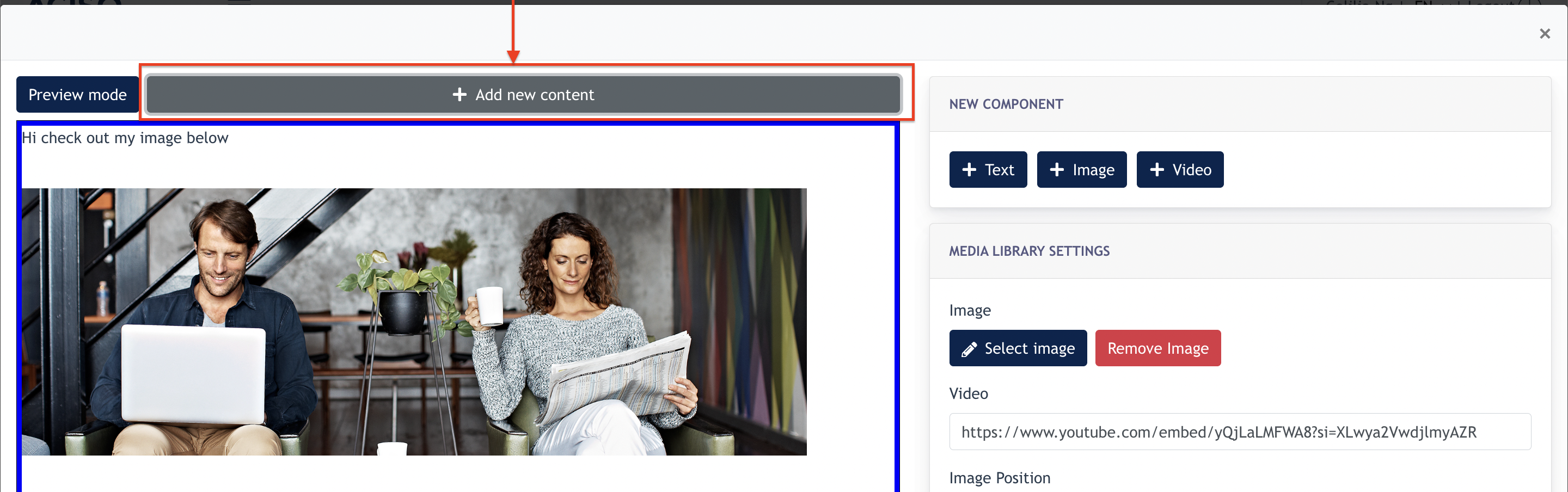
To add a new row with new component, Admin may click on "Add new content" and select component to add.
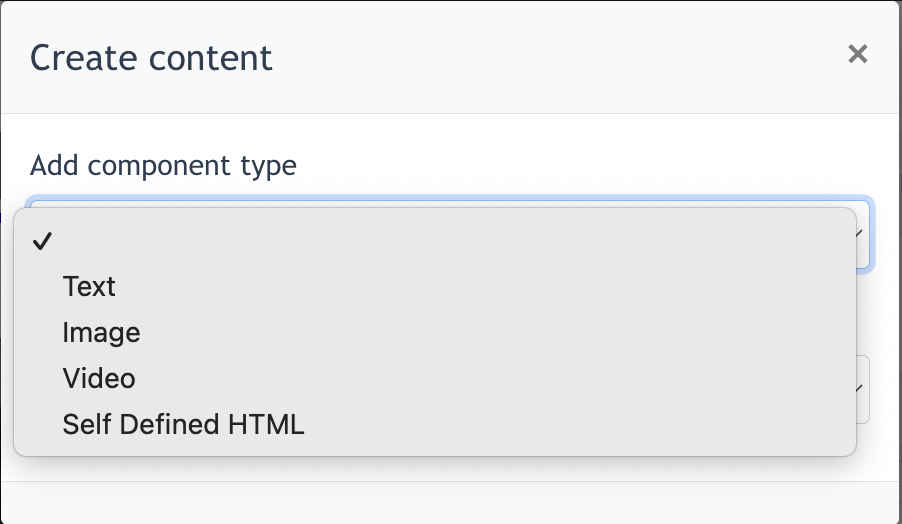
Admin may continue to configure the news content via the above ways.
- the end -