
Modul: Lohnabrechnungen
PayrollÜbersicht Overviewder Lohnabrechnung
JeydooDie Jeydoo-Software supportsunterstützt threedrei typesArten ofvon employee payroll:Mitarbeiterabrechnungen:
-
EmployeeAngestellte -
Mini-JobberMinijobber -
Hourly EmployeeStundenmitarbeiter
Prerequisite:Voraussetzung: MasterEinrichtung Datader SetupStammdaten
BeforeVor generatingder payroll,Erstellung theder Lohnabrechnung muss der Admin mustsicherstellen, ensuredass thatalle all relevantrelevanten masterStammdaten data(Stammdaten, (Masterdata,Verkäufe, Sales,Zeitaufzeichnungen) Timekorrekt Record)erfasst isund properlyaktuell entered and up to date.sind.
IfWenn thereÄnderungen arean anyden changesStammdaten tovorgenommen the master data:werden:
-
UpdateAktualisierentheSienecessarydieinformationerforderlichen Informationen inthedenmaster data.Stammdaten. -
ReturnKehrentoSiethezurpayrollLohnabrechnungsseitepage.zurück. -
ClickKlicken Sie auf "Recreate"Neu erstellen“,toumregeneratedietheLohnabrechnungpayslipmitwithdentheaktualisiertenupdatedDatendata.neu zu generieren.
PayrollErstellung Generationder Lohnabrechnung & PDF PDF-Snapshot
OnceSobald aeine payroll isLohnabrechnung createderstellt oroder recreatedneu erstellt: wurde:
-
AEinPDF snapshotPDF-SnapshotofdertheLohnabrechnungpayslipwirdwillautomatischbegeneriertautomaticallyundgenerated and stored.gespeichert. -
ThisDieses PDFrepresentsstelltthedielatestaktuellsteversionVersionofdertheLohnabrechnungpayroll.dar. -
Der Admin
cankanndownload thisdieses PDFatjederzeitanyzurtimeReferenzforoderreferenceArchivierungor record-keeping.herunterladen.
1. EmploymentBeschäftigungsart Type– - EmployeesAngestellte
1.1 GenerateSammelabrechnung Multi Payrollerstellen
TheDas multi-payroll Sammelabrechnungs-PDF combineskombiniert allalle individualindividuellen employeeLohnabrechnungen payslipsder intoMitarbeiter onein consolidatedeinem documentkonsolidierten forDokument easyzur revieweinfachen andÜberprüfung distribution.und Verteilung.
ToUm generatedie payrollLohnabrechnung forfür multiplemehrere employees,Mitarbeiter gozu toerstellen, gehen Sie zu Payroll SettlementsLohnabrechnungen > EmployeesAngestellte MultiSammelabrechnung
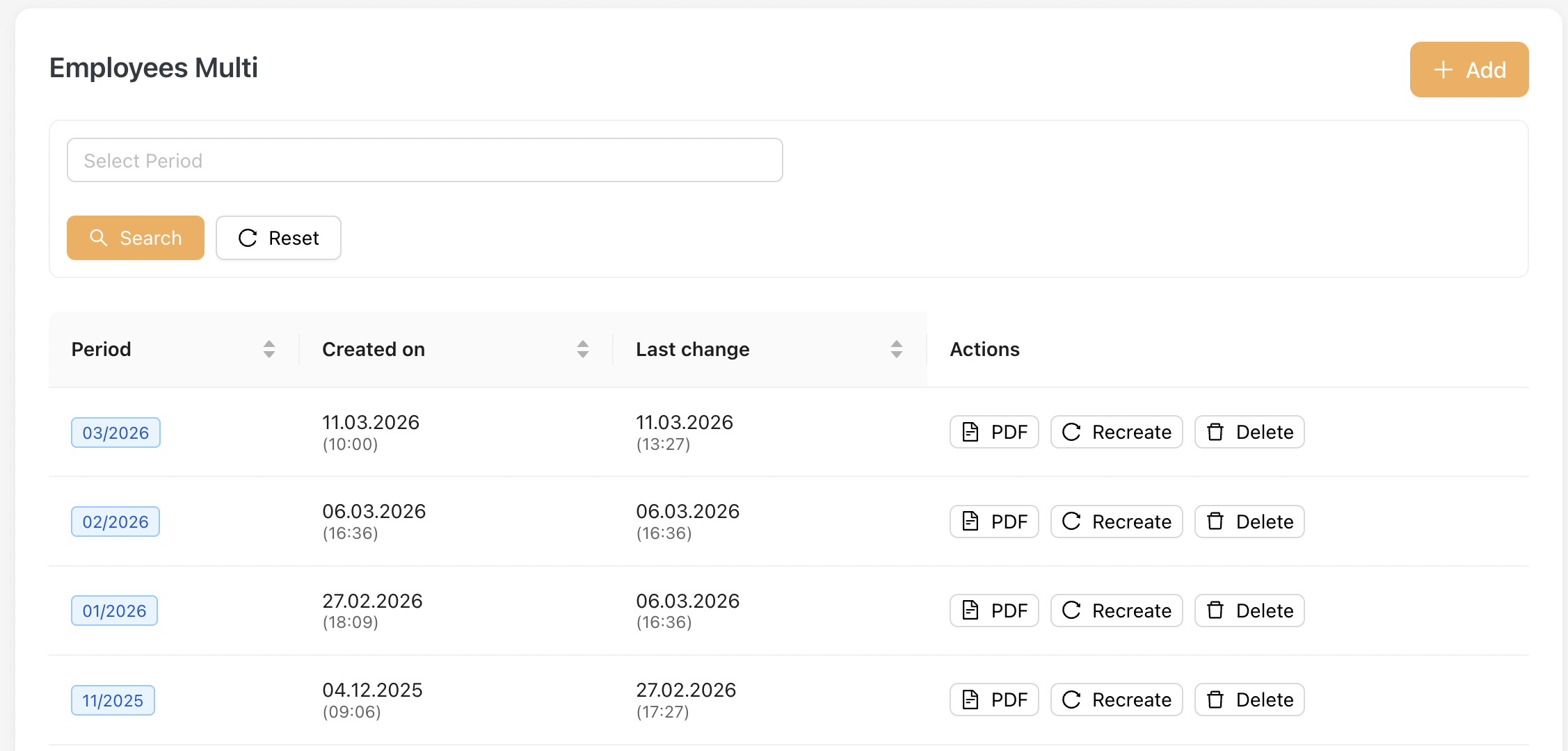
-
ClickKlickentheSie oben rechts auf die Schaltfläche [Add]button on the top right. Select the desiredpayroll periodHinzufügen].-
ClickWählen Sie den gewünschtenSubmitAbrechnungszeitraumtoaus.generate -
multiKlicken
payroll.Sie auf [ Speichern ], um die Sammelabrechnung zu erstellen.
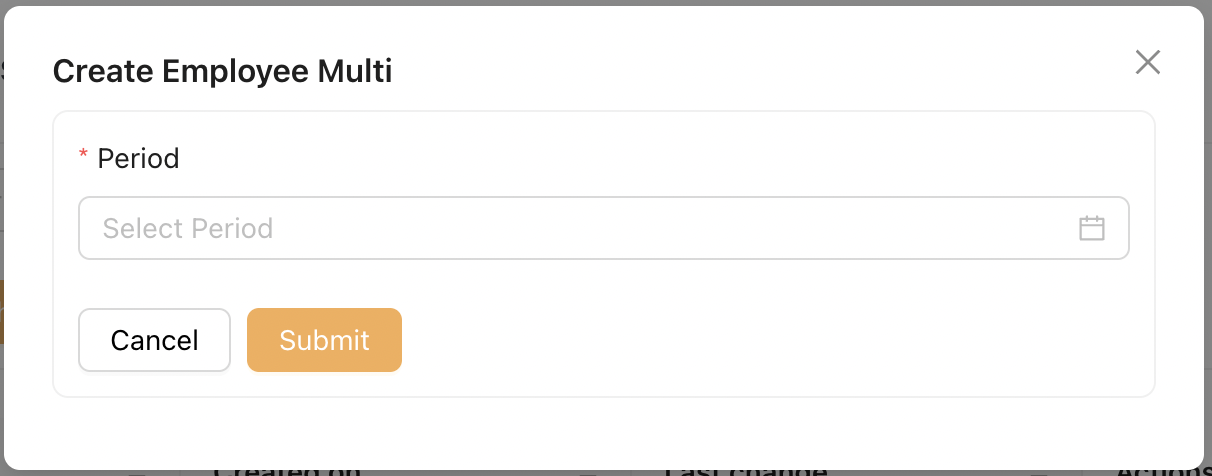
OnceSobald aeine multiSammelabrechnung payrollerstellt is generated:wurde:
-
AllAlleincludedenthaltenenemployeesMitarbeiterwillerscheinenalsoebenfallsappearinunderdertheListe "EmployeesAngestellteSingle"Einzelabrechnung“payroll list.. -
EachDieemployee’sLohnabrechnungpayrolljedescanMitarbeitersbekannviewedinindividuallydiesemfromBereichthiseinzelnsection.eingesehen werden.
OnlyNur employeesMitarbeiter withmit theaktivierter “Checkbox "Multi-Billing” checkbox enabledBilling“ (underunter MasterStammdaten) Data) will be includedwerden in thisdieses PDF.PDF aufgenommen.

1.2 GenerateEinzelabrechnung Single Payrollerstellen
YouDiese willÜbersicht findfinden thisSie listing underunter Payroll SettlementsLohnabrechnungen > EmployeesAngestellte SingleEinzelabrechnung, afternachdem aeine multiSammelabrechnung payrollhinzugefügt is added.wurde.
Der Admin cankann alsoauch generateeine aEinzelabrechnung singleerstellen, payrollindem byer clickingauf thedie Schaltfläche "Add"Hinzufügen“ Button.klickt.
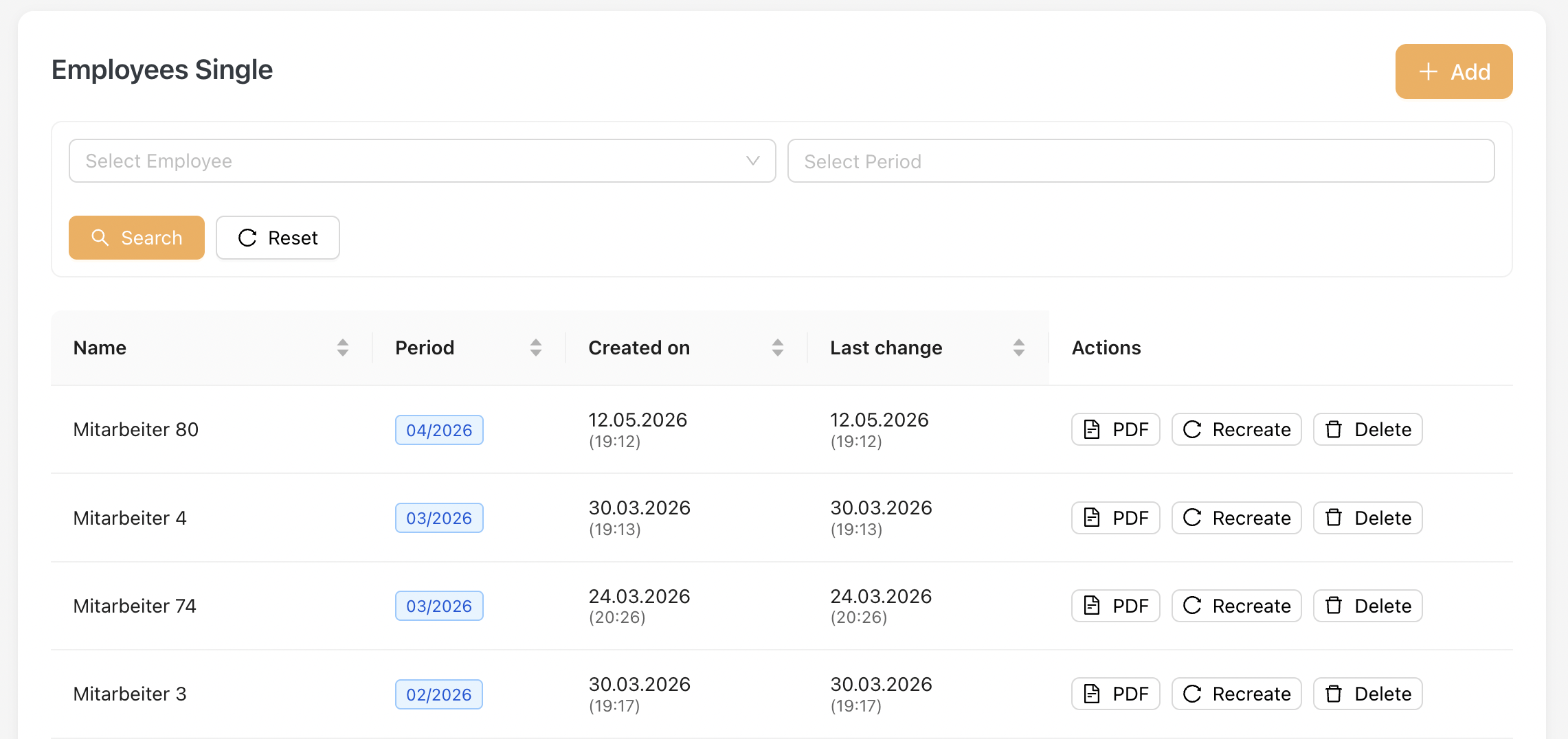
DownloadLohnabrechnungs-PDF Payroll PDFherunterladen
OnAuf thisdieser page,Seite kann der Admin canauf click on thedas PDF iconPDF-Symbol toklicken, downloadum theden payrollLohnabrechnungs-Snapshot snapshotim inPDF-Format PDF format.herunterzuladen.
UpdateLohnabrechnung Payrollnach AfterÄnderungen Masterder DataStammdaten Changesaktualisieren
IfWenn anyÄnderungen changesan are made to theden master dataStammdaten thatvorgenommen affectwerden, payroll:die die Lohnabrechnung beeinflussen:
-
ClickKlickentheSie auf die SchaltflächeRecreate"Neu erstellen“,buttonumtodieregenerateLohnabrechnungtheneupayroll.zu generieren. -
DownloadLadentheSieupdateddas aktualisierte PDFtoherunter,obtainumthedielatestneuesterevisedüberarbeiteteversionVersion.zu erhalten.
PleaseBitte notebeachten thatSie, ifdass thedas heruntergeladene PDF weiterhin die vorherigen Abrechnungsinformationen enthält, wenn der Admin updates thedie master dataStammdaten withoutaktualisiert, clickingohne auf "RecreateNeu erstellen,“ thezu downloaded PDF will still reflect the previous payroll information.klicken.
1.3 PayrollFormat Formatder Lohnabrechnung
BelowUnten issehen theSie payslipdie forLohnabrechnung Salesfür EmployeeVertriebsmitarbeiter (Sales Format)Vertriebsformat)
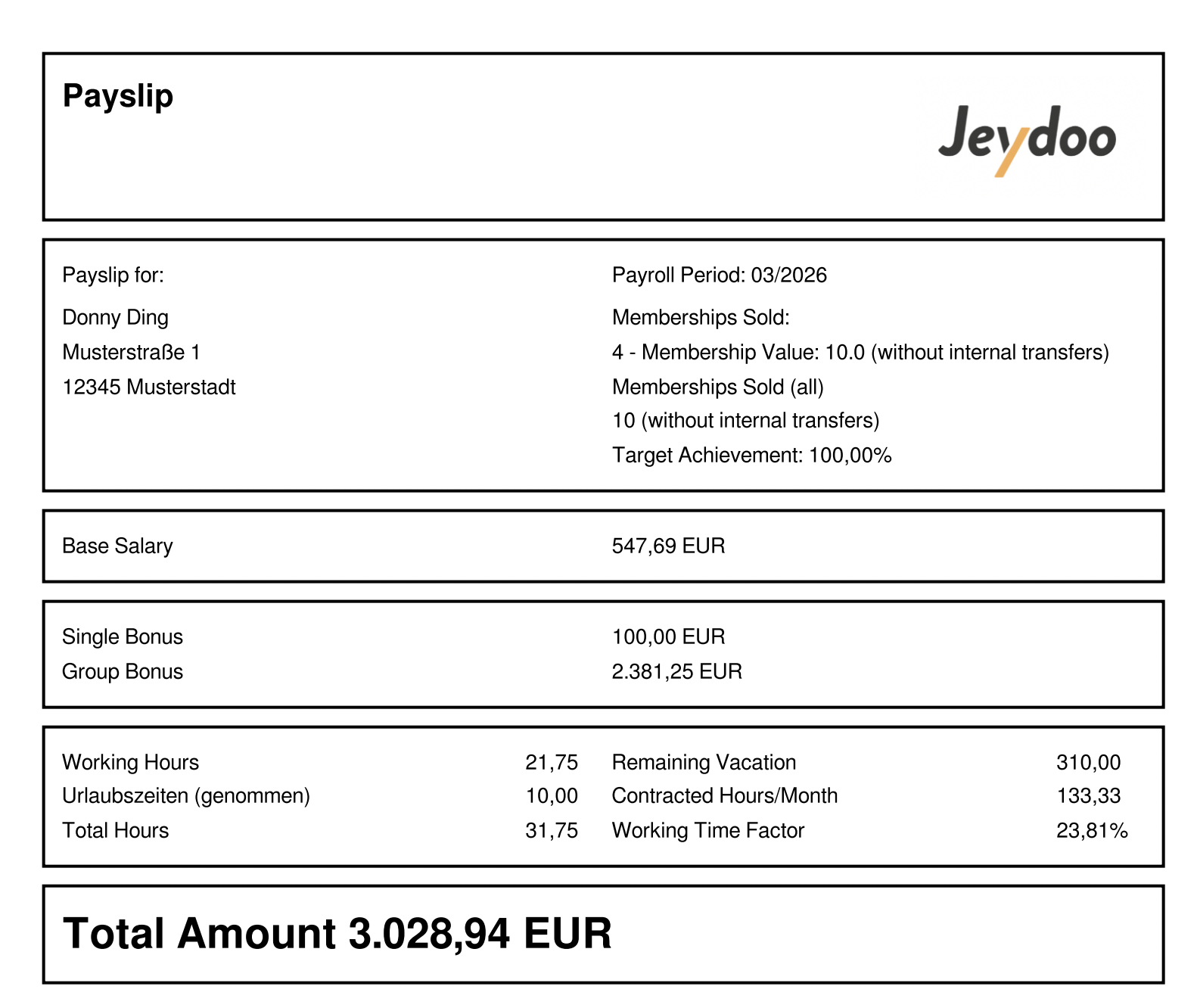
BelowUnten issehen theSie payslipdie forLohnabrechnung Employeesfür Angestellte (NotNicht-Vertrieb) Sales)– - Standard FormatStandardformat
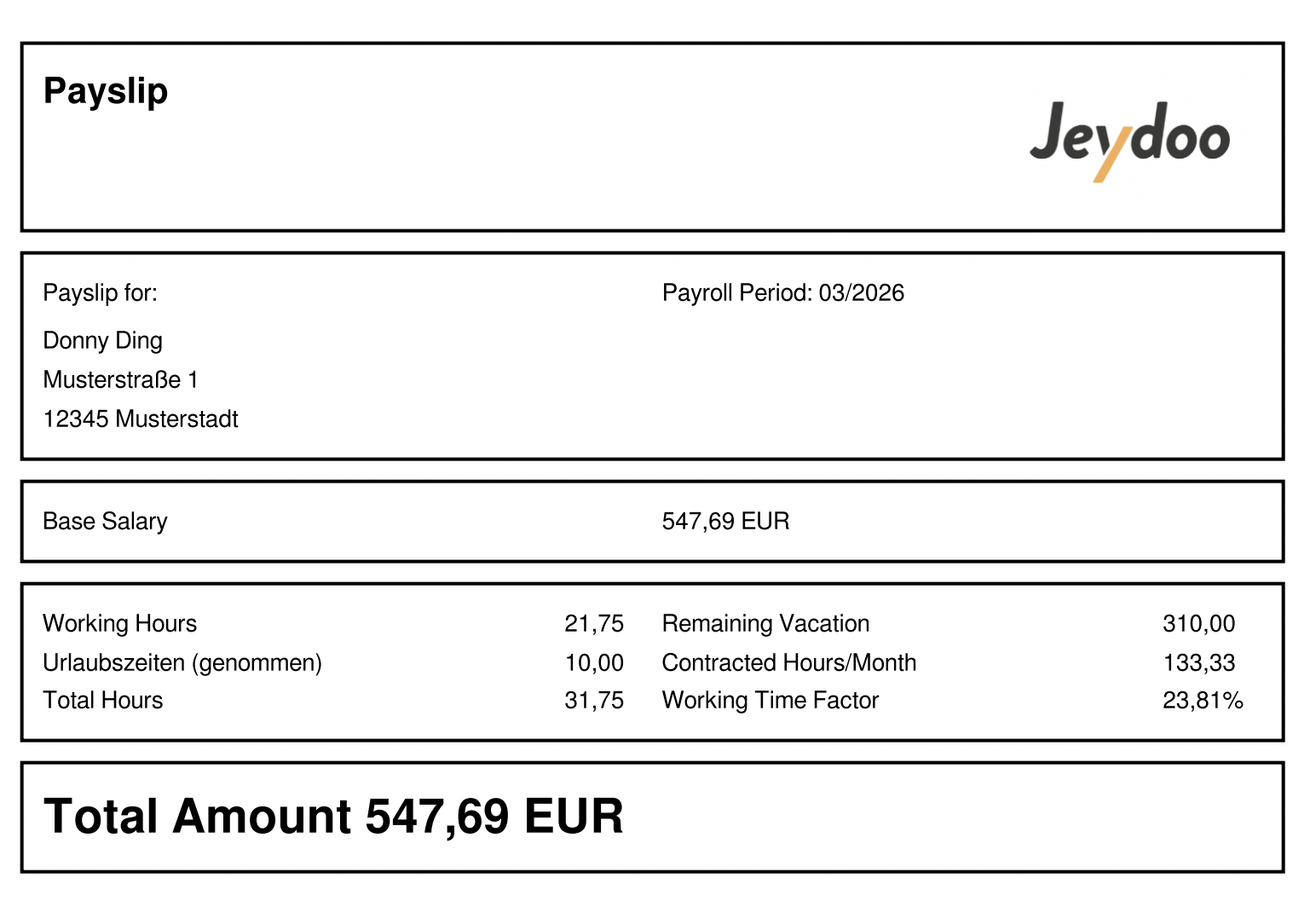
SalaryErklärungStructurederExplanationGehaltsstrukturIn
Jeydoo,JeydooemployeeswerdenunderMitarbeiterthederEmployeeKategoriecategory"Angestellte“areentwederclassified as eitheralsSalesVertriebsmitarbeiterEmployeesoroderGeneralallgemeineEmployeesMitarbeiter (Non-Sales)Nicht-Vertrieb).
klassifiziert.
TheDerkeyHauptunterschieddifference liesliegt intheirihrerperformance-basedleistungsbasiertencompensationVergütungsstrukturstructureundanddempayslipFormatformat.der Lohnabrechnung.
SalaryVergleichStructurederComparisonGehaltsstruktur
FeatureFunktionSales EmployeeVertriebsmitarbeiterGeneralEmployeeAllgemeiner Mitarbeiter
(
Non-Sales)Nicht-Vertrieb)Base SalaryGrundgehalt✔ ✔ Single BonusEinzelbonus✔ ✖ Group BonusGruppenbonus✔ ✖ PT CommissionPT-Provision✔ ✖ CustomIndividueller Bonus✔ ✔ PayslipFormatFormatder LohnabrechnungSales FormatVertriebsformatStandard FormatStandardformat
NotesHinweise
SalesVertriebsmitarbeiterEmployees includeenthaltenperformance-basedleistungsbasiertecomponentsKomponentensuchwieasEinzelbonus,SingleGruppenbonusBonus,undGroup Bonus, and PT Commission.PT-Provision.GeneralAllgemeineEmployeesMitarbeiterhavehabenaeinesimplifiedvereinfachtestructureStruktur,withbeionlyder nur derCustomindividuelle Bonusasals zusätzliche Komponente enthalten ist.- Änderungen an
erfordern,additionalGehaltskomponentencomponent.Anydasschanges to salary components require theder Adminto clickaufRecreate„Neu erstellen“toklickt,updateumthediepayslipLohnabrechnungandundsnapshot.PDF-Snapshot zu aktualisieren.
2. Employment Type - Mini-Jobber
2.1 Generating Multi-Payroll
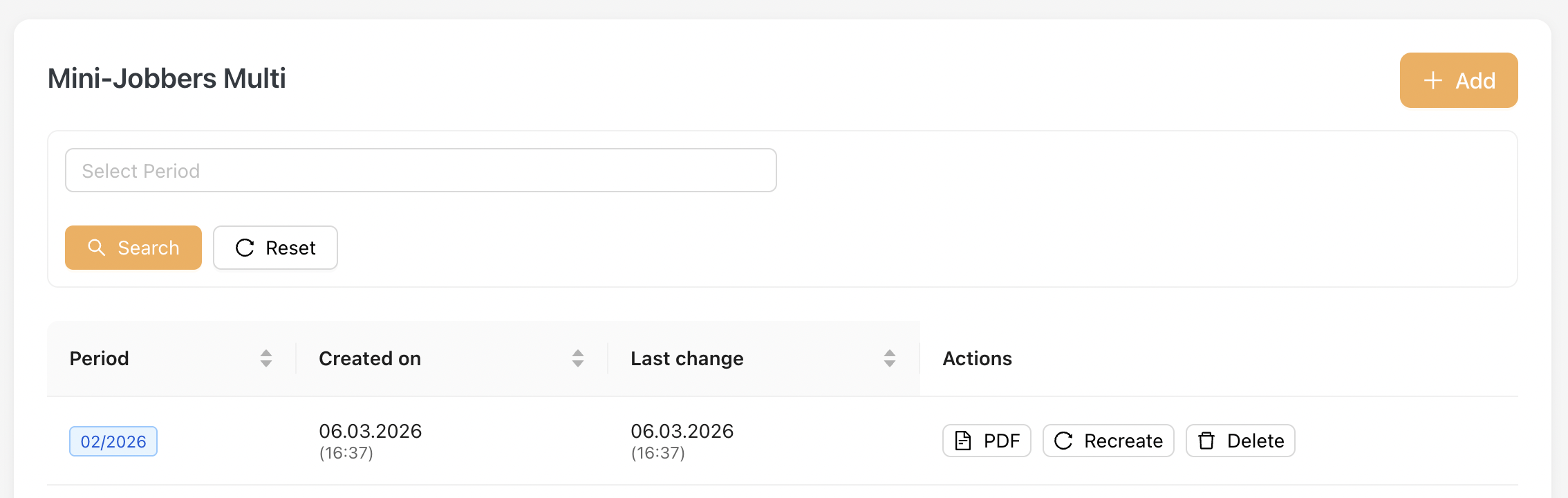
To generate payroll for multiple Mini-Jobbers, go to Payroll Settlements > Mini-Jobbers Multi
-
Click the [Add] button on the top right.
-
Payroll period is preselected for Mini-Jobber.
-
Click Submit to generate the multi payroll.
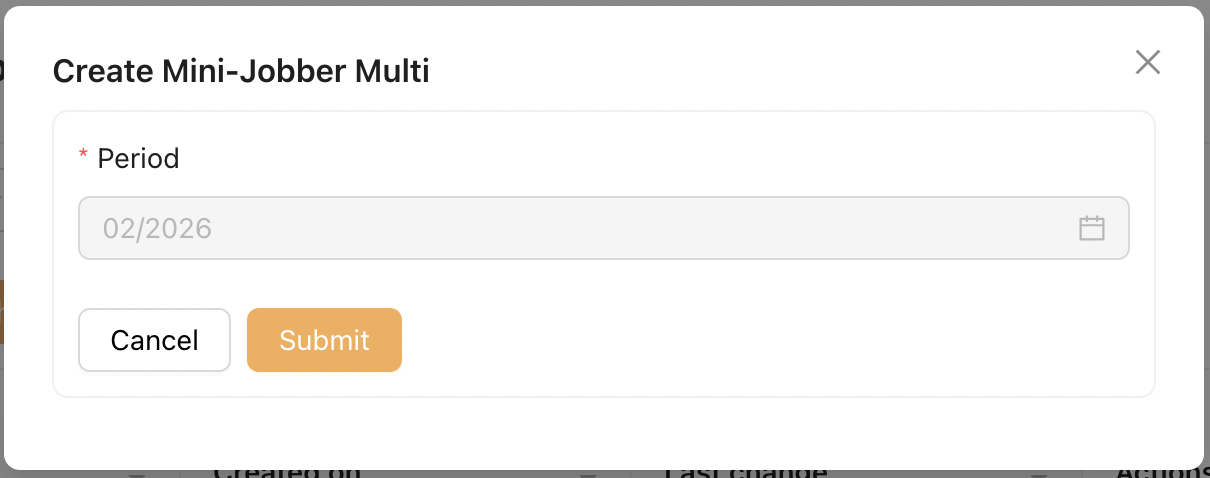
The Payroll Period is limited to the previous month due to WTA calculations for Mini-Jobbers. Once WTA balance is finalised, earlier periods cannot be regenerated to ensure data integrity.
Once a multi payroll is generated:
-
All included Mini-Jobbers will also appear under the "Mini-Jobber Single" payroll list.
-
Each Mini-Jobber’s payroll can be viewed individually from this section.
2.2 Generate Single Payroll
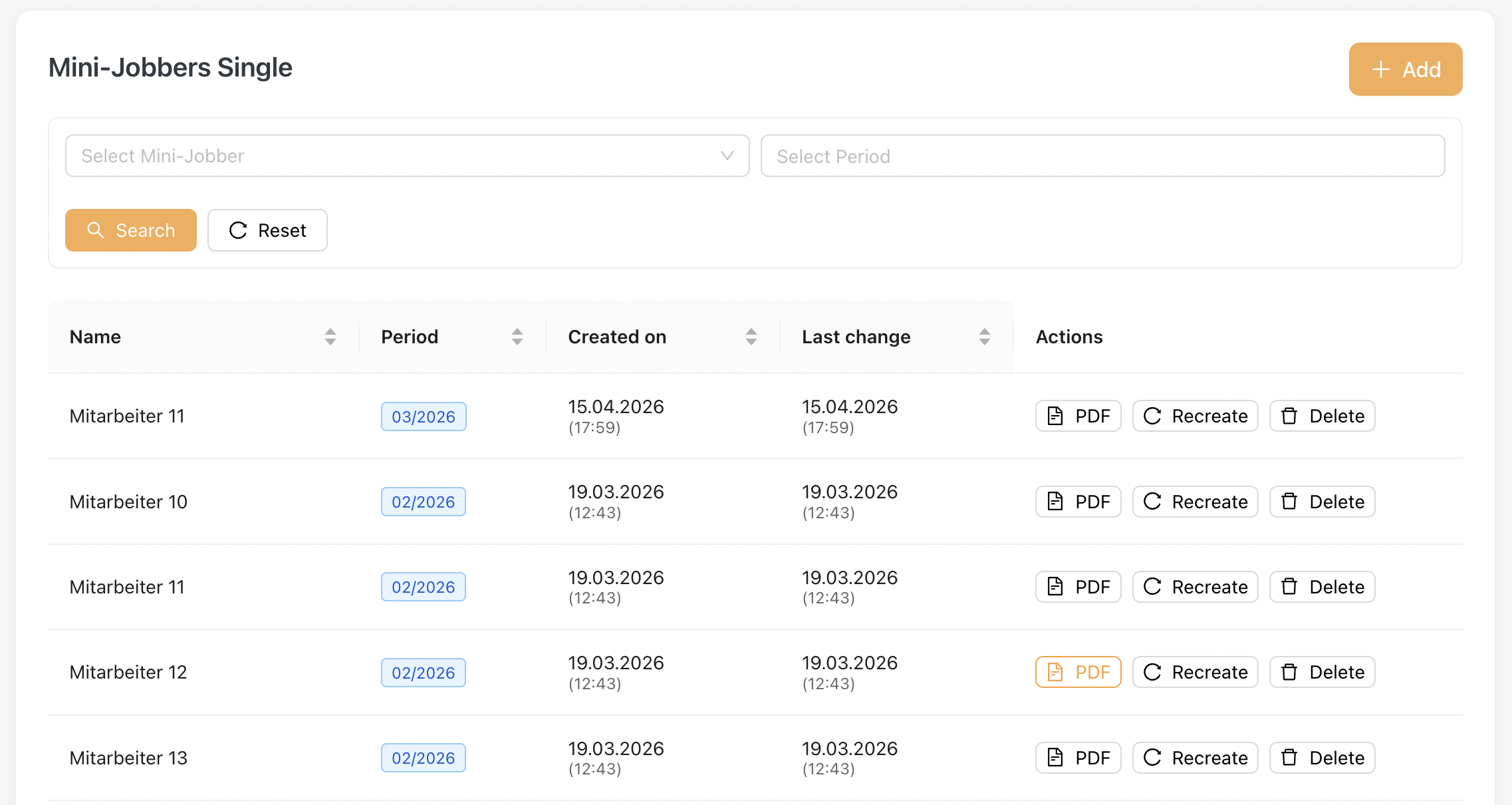
You will find this listing under Payroll Settlements > Mini-Jobbers Single after a multi-payroll is added.
Alternatively, Admin can also generate a single payroll by clicking the "Add" Button.
Screenshot of Single Payroll Listing :
Download Payroll PDF
On this page, Admin can click on the PDF icon to download the payroll snapshot in PDF format.
Update Payroll After Master Data Changes
If any changes are made to the master data that affect payroll:
-
Click the Recreate button to regenerate the payroll.
-
Download the updated PDF to obtain the latest revised version.
NOTE: Recreate Restriction for Mini-Jobber Payroll
The Recreate function for Mini-Jobber payroll is subject to WTA (Working Time Account) data integrity rules.
- Payroll can be recreated for the latest payroll period, allowing updates to be reflected before finalization.
For closed periods (periods where WTA balances have already been calculated and carried forward), any changes related to WTA will not be recalculated.
The following fields will remain unchanged:
- Paid Hours
- Special Payment
- Taken WTA Hours
- Added WTA Hours
- Carried Forward WTA Hours
- Total WTA Hours
- Total Amount (Paid Hours portion)
- Changes to master data that are not related to WTA may still be reflected when recreating payroll.
2.3 Payroll Format
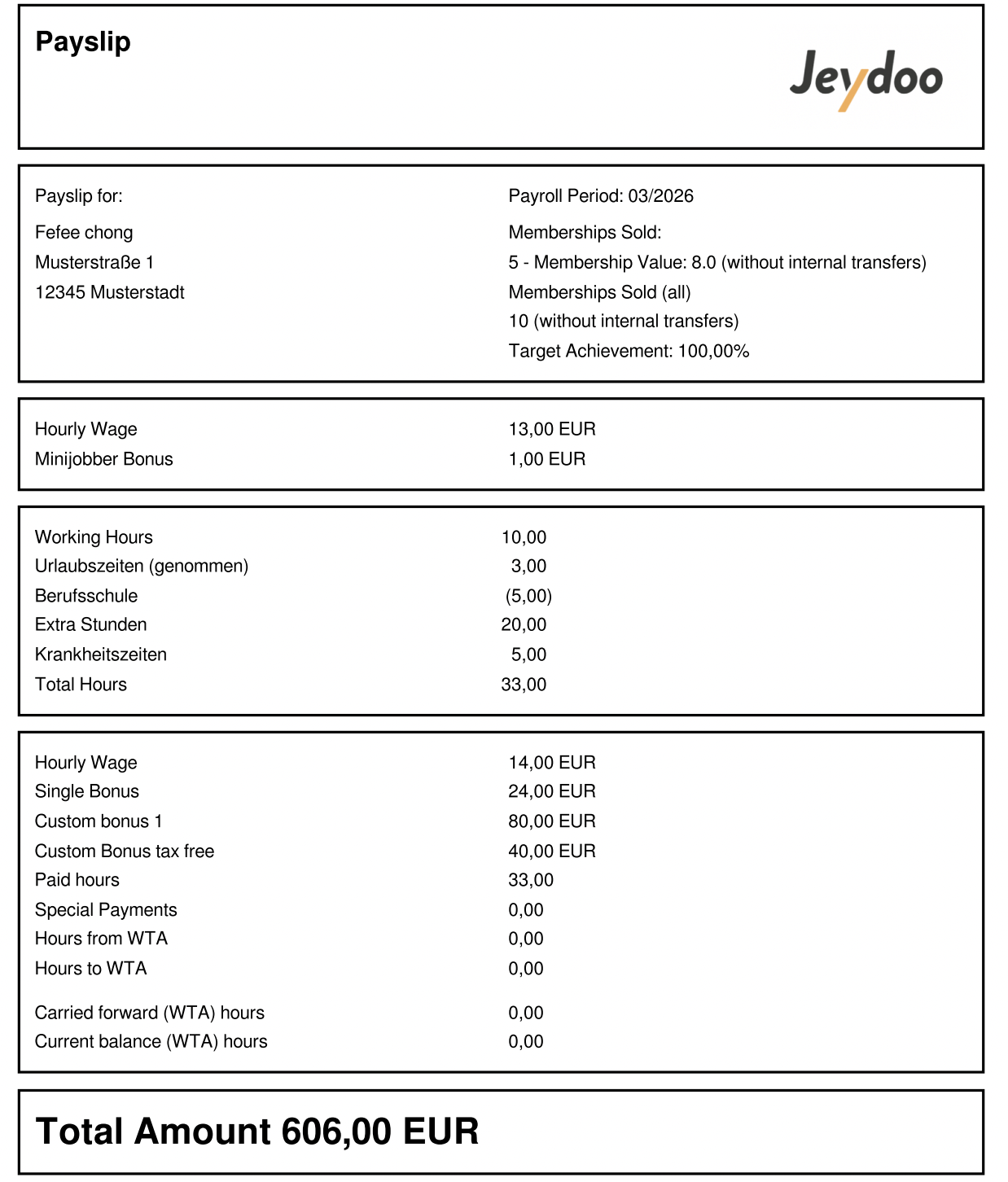
Below is the payslip for Sales Mini-Jobber (Sales Format)
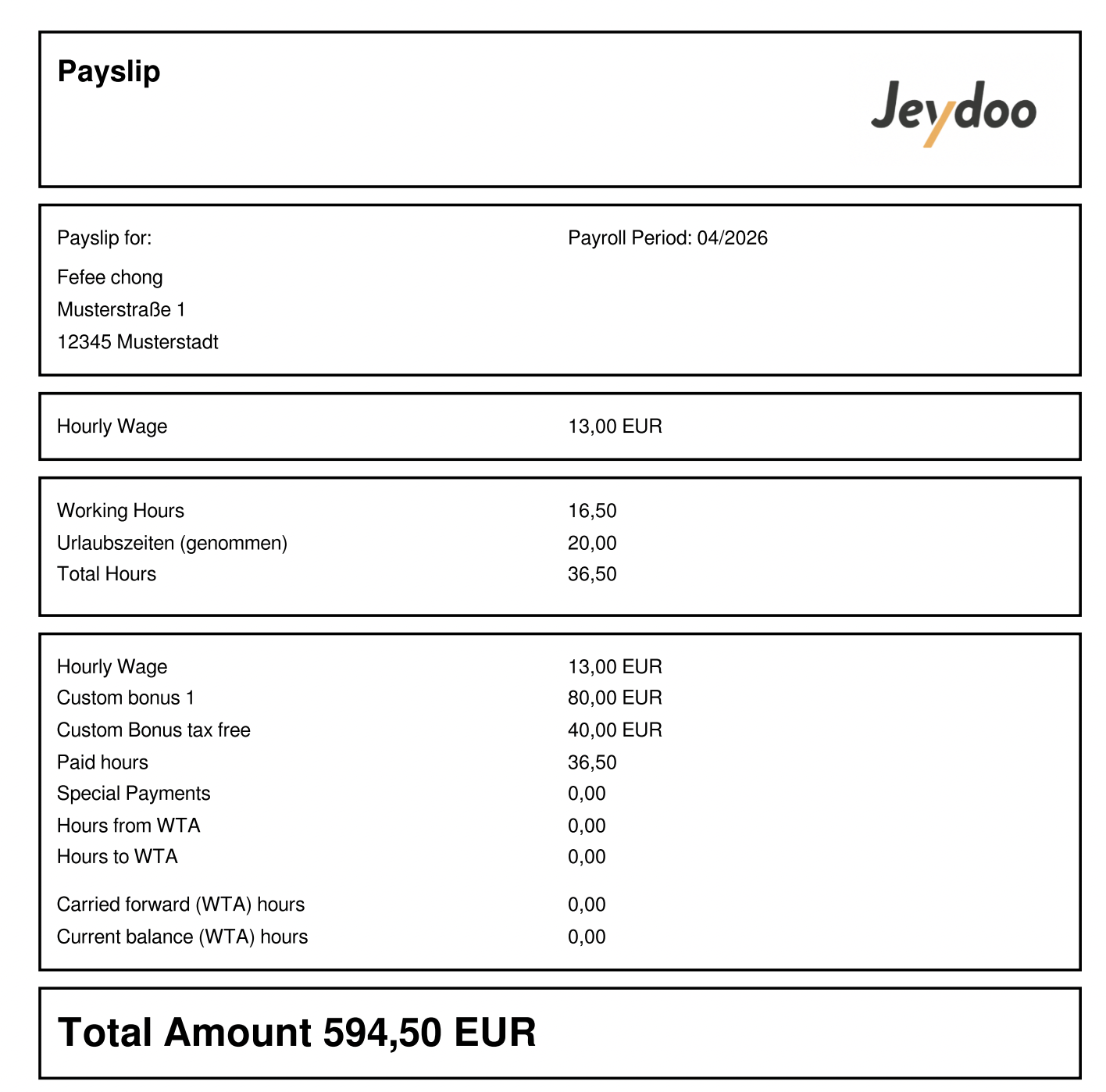
Below is the payslip for Mini-Jobber (Not Sales) - Standard Format
Salary Structure
Mini-Jobbers are paid based on an hourly wage model, with additional bonuses depending on their role (Sales/ Non-Sales, department, and location sales performance.
Their total salary is also subject to a maximum monthly earning limit, with adjustments managed through the Working Time Account (WTA / AZK).
Salary Structure Comparison
* Mini-Jobber Bonus applies only to selected departments configured by the Admin.If no target range and bonus amount are defined for the Location and Department, the bonus will not be applied.
Component Mini-Jobber
(Sales Department)
Mini-Jobber
(Non-Sales Department)
Hourly Wage ✔ ✔ Working Hours ✔ ✔ Single Bonus (Sales-based) ✔ ✖ * Mini-Jobber Bonus ✔ ✔ Custom Bonus ✔ ✔ Tax-Free Custom Bonus ✔ ✔ Notes
- Mini-Jobbers are paid based on an hourly wage model, with bonus eligibility depending on their job function (Sales / Non-Sales).
- Mini-Jobber Bonus is only applicable to departments that have been configured by the Admin for a specific Location, with defined target achievement ranges and bonus amounts.
- Total earnings are subject to a maximum monthly earnings.
- Any changes to salary-related configurations require clicking Recreate to update the payslip accordingly.
3. Employment Type - Hourly Employee
3.1 Generating Multi-Payroll
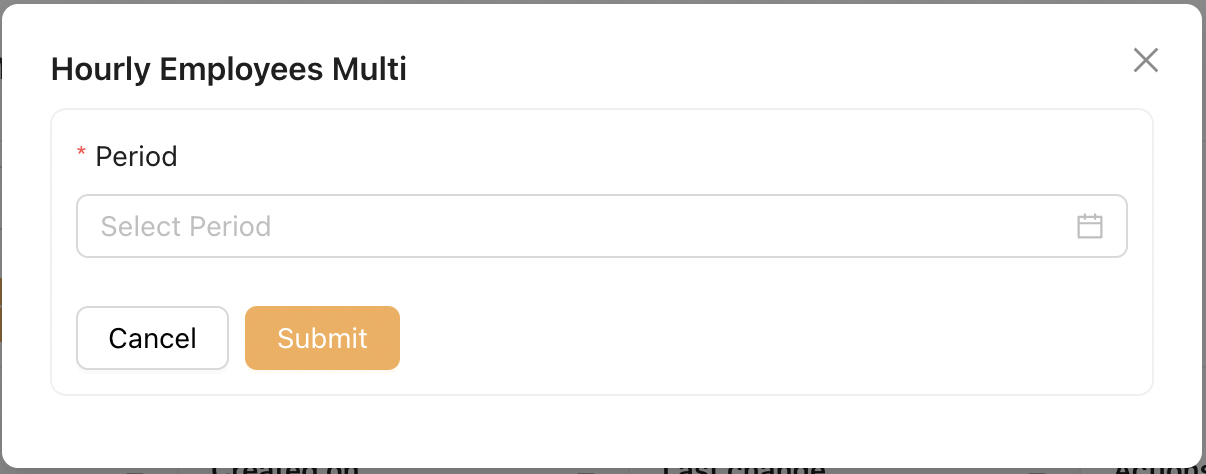
To generate payroll for multiple Hourly Employees, go to Payroll Settlements > Hourly Employees Multi
-
Click the [Add] button on the top right.
- Select the desired payroll period.
-
Click Submit to generate the multi payroll.
Screenshot of Hourly Employees Multi-Listing
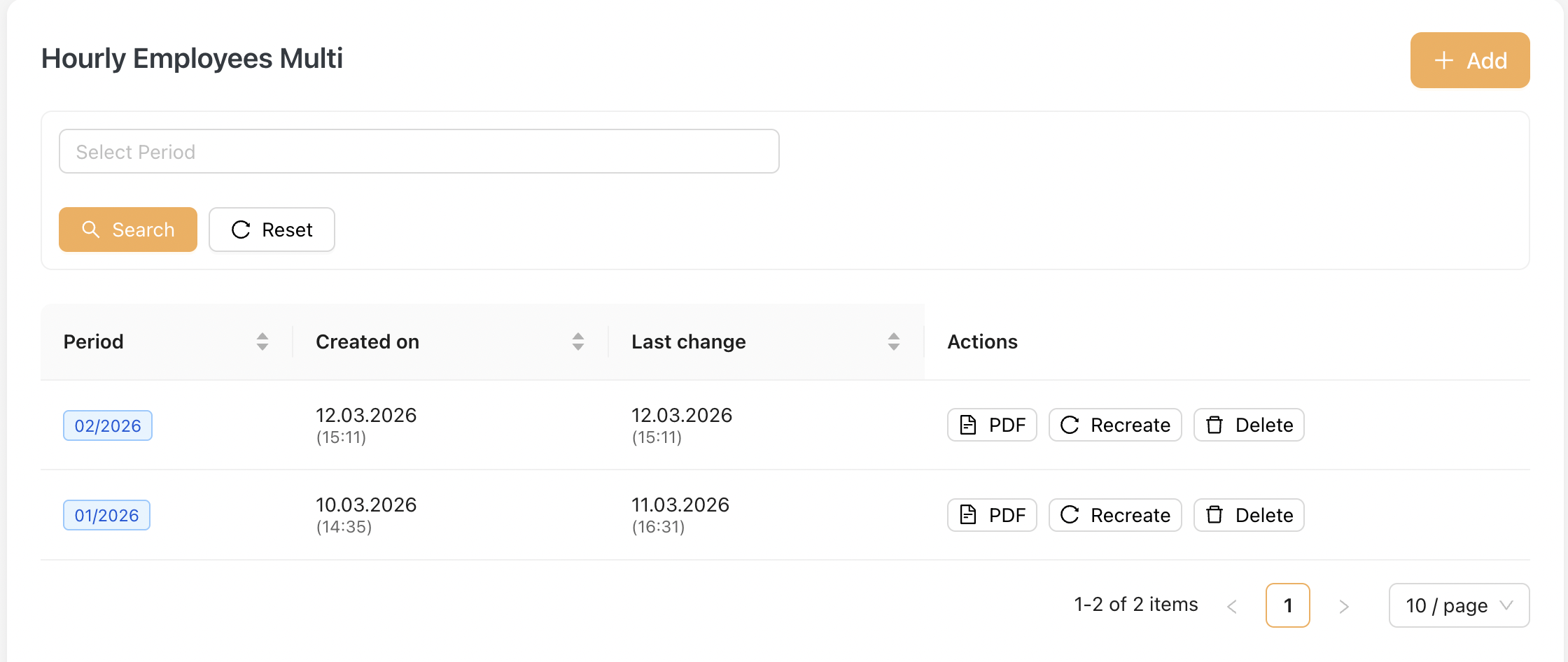
Once a multi payroll is generated:
-
All included Hourly Employees will also appear under the "Hourly Employees Single" payroll list.
-
Each Hourly Employee’s payroll can be viewed individually from this section.
3.2 Generate Single Payroll
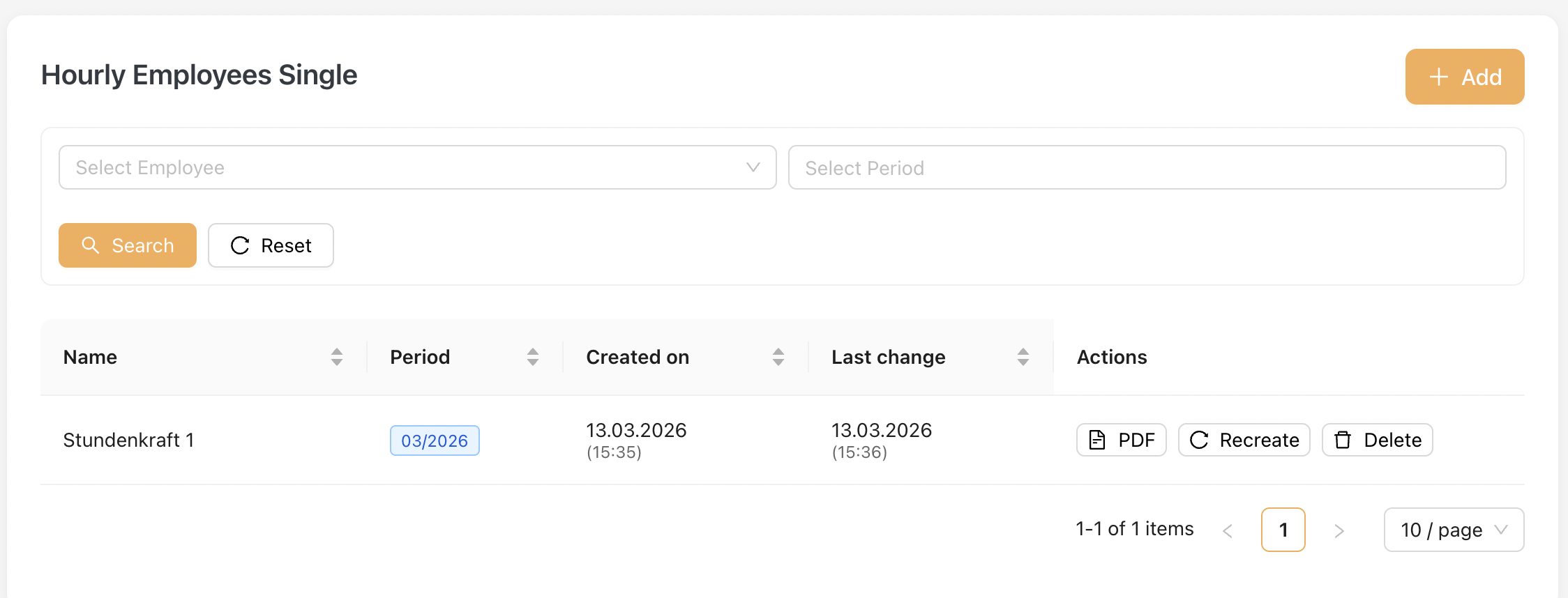
You will find this listing under Payroll Settlements > Hourly Employee Single after a multi-payroll is added.
Alternatively, Admin can also generate a single payroll by clicking the "Add" Button.
Screenshot of Single Payroll Listing :
Download Payroll PDF
On this page, Admin can click on the PDF icon to download the payroll snapshot in PDF format.
Update Payroll After Master Data Changes
If any changes are made to the master data that affect payroll:
-
Click the Recreate button to regenerate the payroll.
-
Download the updated PDF to obtain the latest revised version.
3.3 Payroll Format
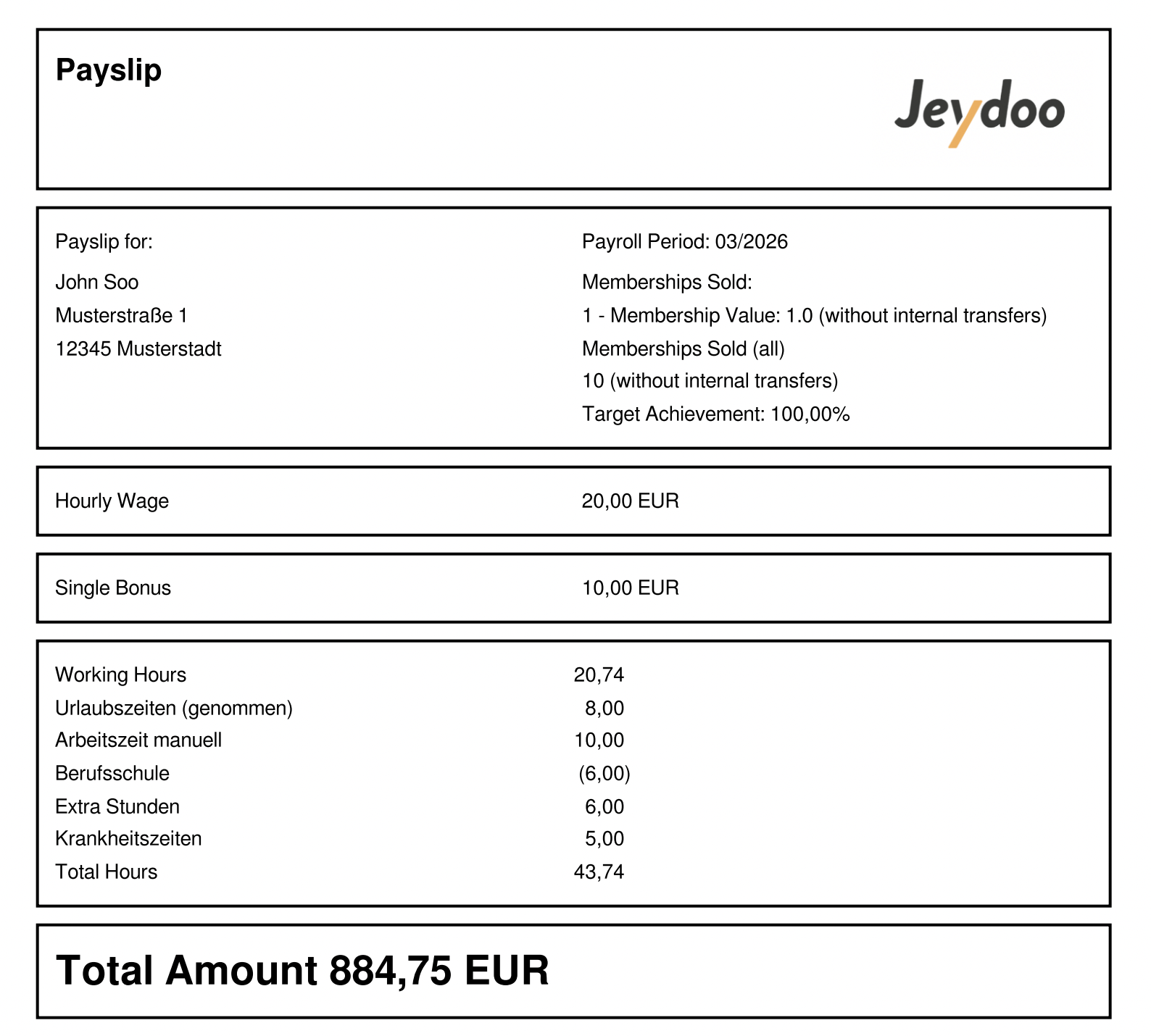
Payslip for Hourly Employee (Sales Format)
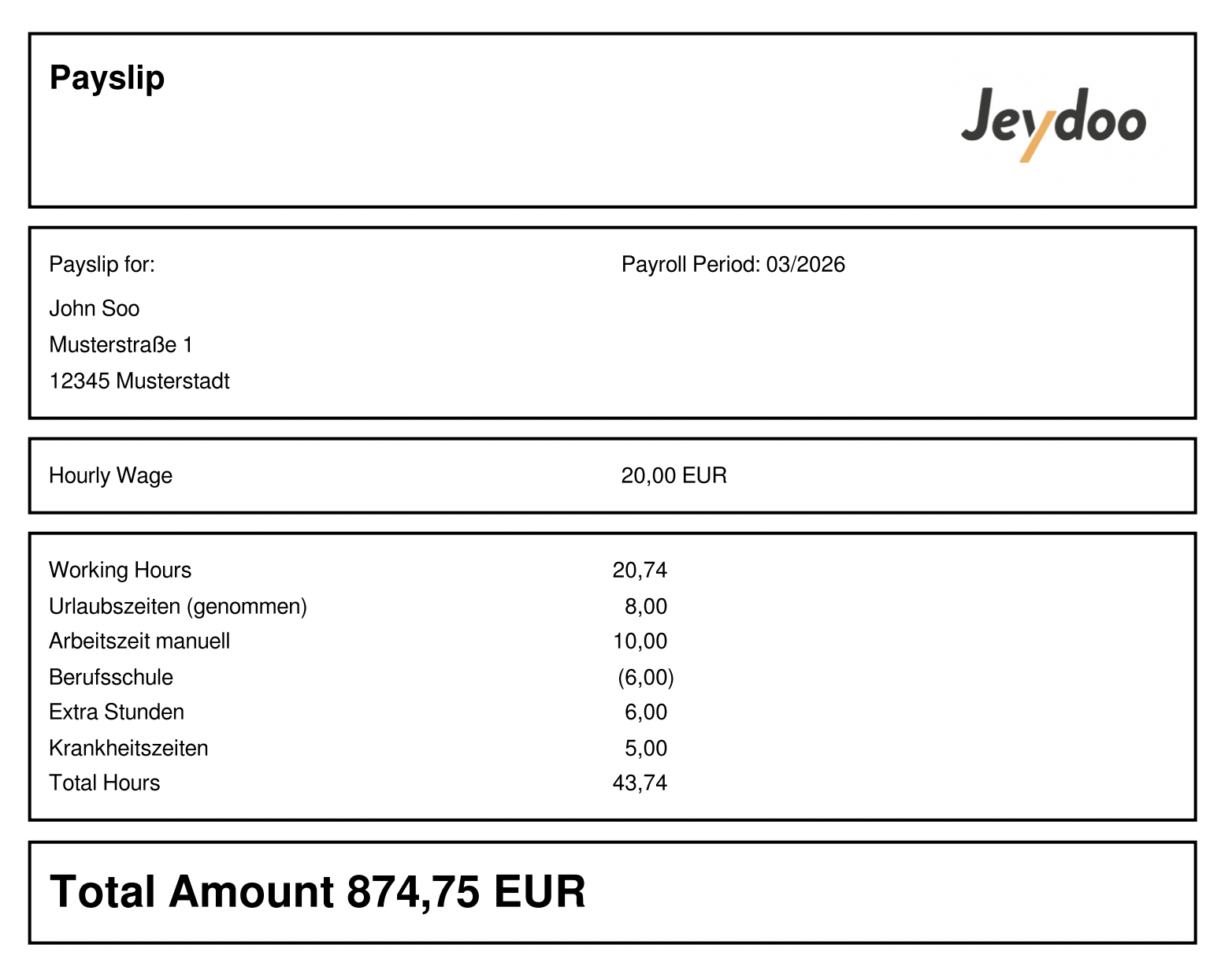
Payslip for Hourly Employee (Not Sales -Standard Format)
Salary Structure Explanation
In Jeydoo, Hourly Employees are full-time employees compensated based on an hourly wage model.
Their salary is calculated directly from their total working hours, with additional bonuses depending on their job function (Sales / Non-Sales).
Salary Structure Comparison
Feature Hourly Employee (Sales) Hourly Employee (Non-Sales) Hourly Wage ✔ ✔ Working Hours ✔ ✔ Single Bonus (Sales-based) ✔ ✖ Group Bonus ✖ ✖ Custom Bonus ✔ ✔ Payslip Format Hourly Format Hourly Format
Notes :
- Hourly Employees are paid based on Hourly Wage × Total Working Hours.
- Sales Hourly Employees are eligible for Single Bonus based on individual performance.
- Group Bonus is not applicable to Hourly Employees
- Custom Bonus may be applied if configured for the employee.
- Any changes to salary-related configurations require clicking Recreate to update the payslip accordingly.