Module : Payroll Settlements
Payroll Overview
Jeydoo Software supports three types of employee payroll:
-
Employee
-
Mini-Jobber
-
Hourly Employee
Prerequisite: Master Data Setup
Before generating payroll, the Admin must ensure that all relevant master data is properly entered and up to date.
If there are any changes to the master data:
-
Update the necessary information in the master data.
-
Return to the payroll page.
-
Click "Recreate" to regenerate the payslip with the updated data.
Payroll Generation & PDF Snapshot
Once a payroll is created or recreated:
-
A PDF snapshot of the payslip will be automatically generated and stored.
-
This PDF represents the latest version of the payroll.
-
Admin can download this PDF at any time for reference or record-keeping.
1. Employment Type - Employees
1.1 Generate Multi Payroll
The multi-payroll PDF combines all individual employee payslips into one consolidated document for easy review and distribution.
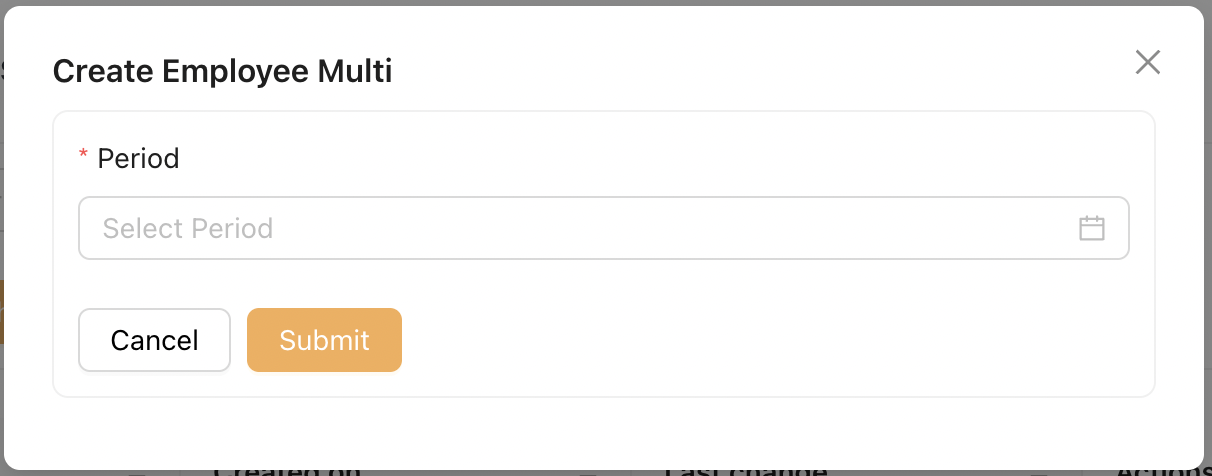
To generate payroll for multiple employees, go to Payroll Settlements > Employees Multi
-
Click the [Add] button on the top right.
-
Select the desired payroll period.
-
Click Submit to generate the multi payroll.
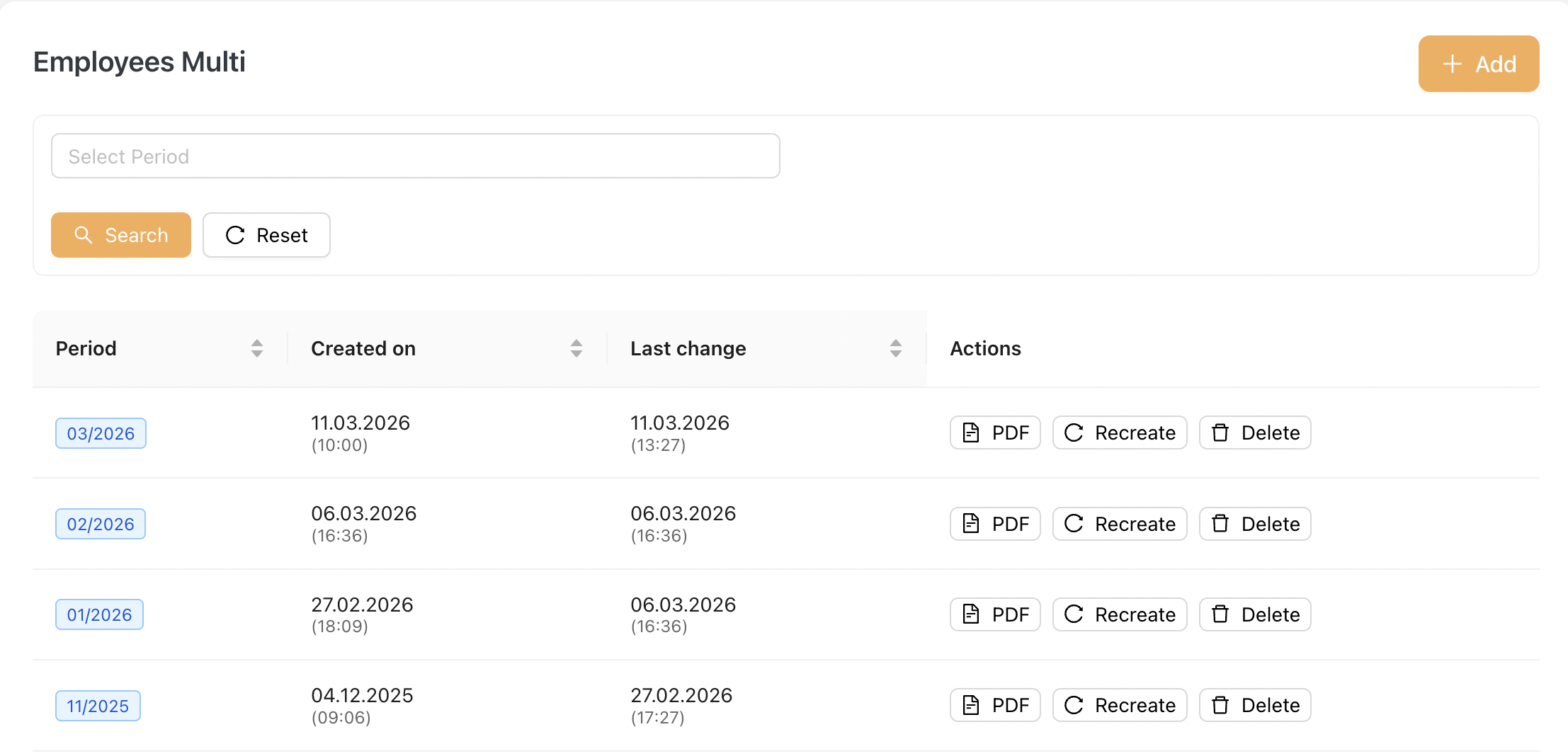
Once a multi payroll is generated:
-
All included employees will also appear under the "Employees Single" payroll list.
-
Each employee’s payroll can be viewed individually from this section.
1.2 Single Payroll
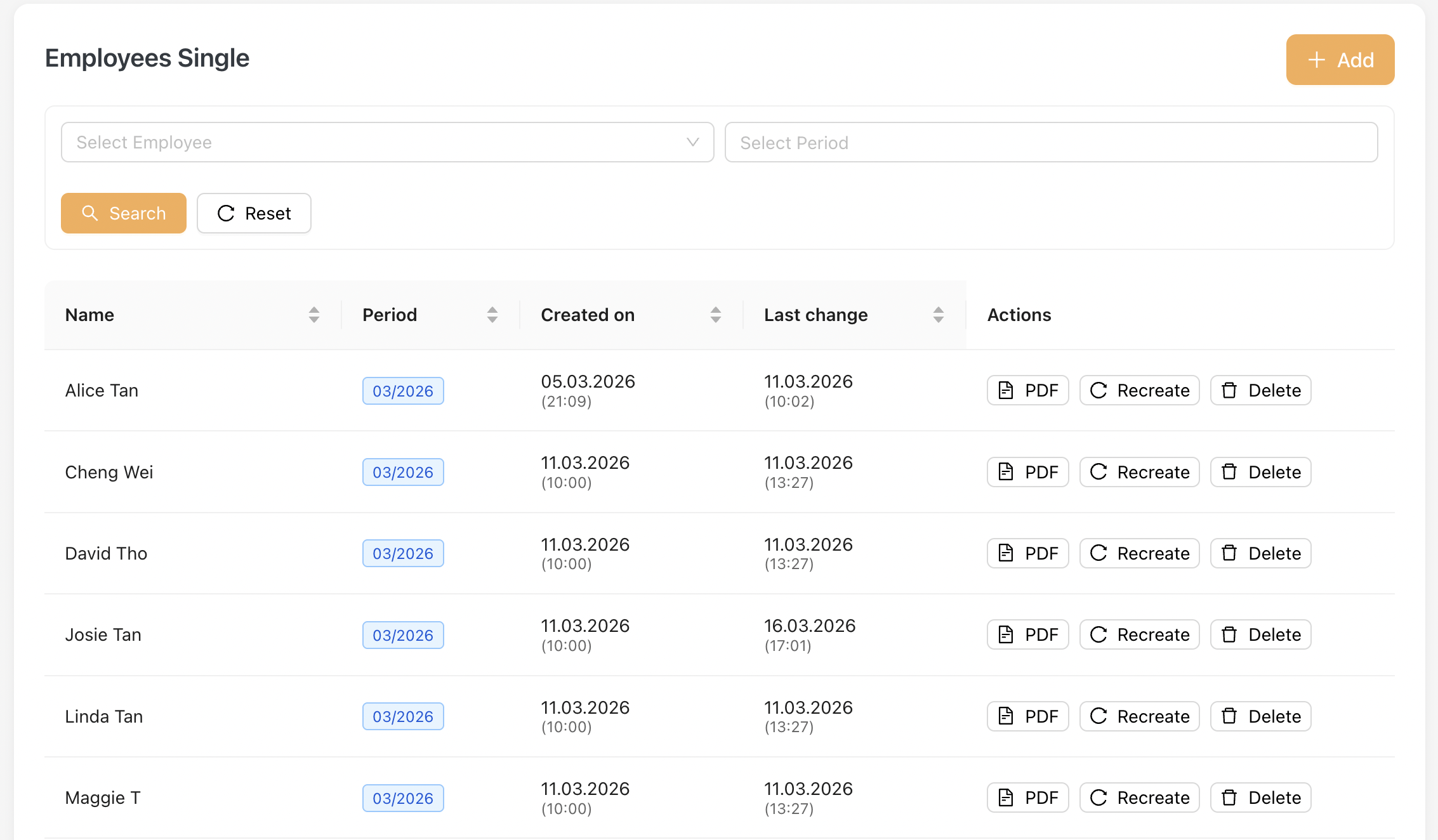
You will find this listing under Payroll Settlements > Employees Single
Download Payroll PDF
On this page, Admin can click on the PDF icon to download the payroll snapshot in PDF format.
Update Payroll After Master Data Changes
If any changes are made to the master data that affect payroll:
-
Click the Recreate button to regenerate the payroll.
-
Download the updated PDF to obtain the latest revised version.
Please note that if the Admin updates the master data without clicking Recreate, the downloaded PDF will still reflect the previous payroll information.
1.3 Payroll Format
Below is the Employee's payslip example:for Sales Employee
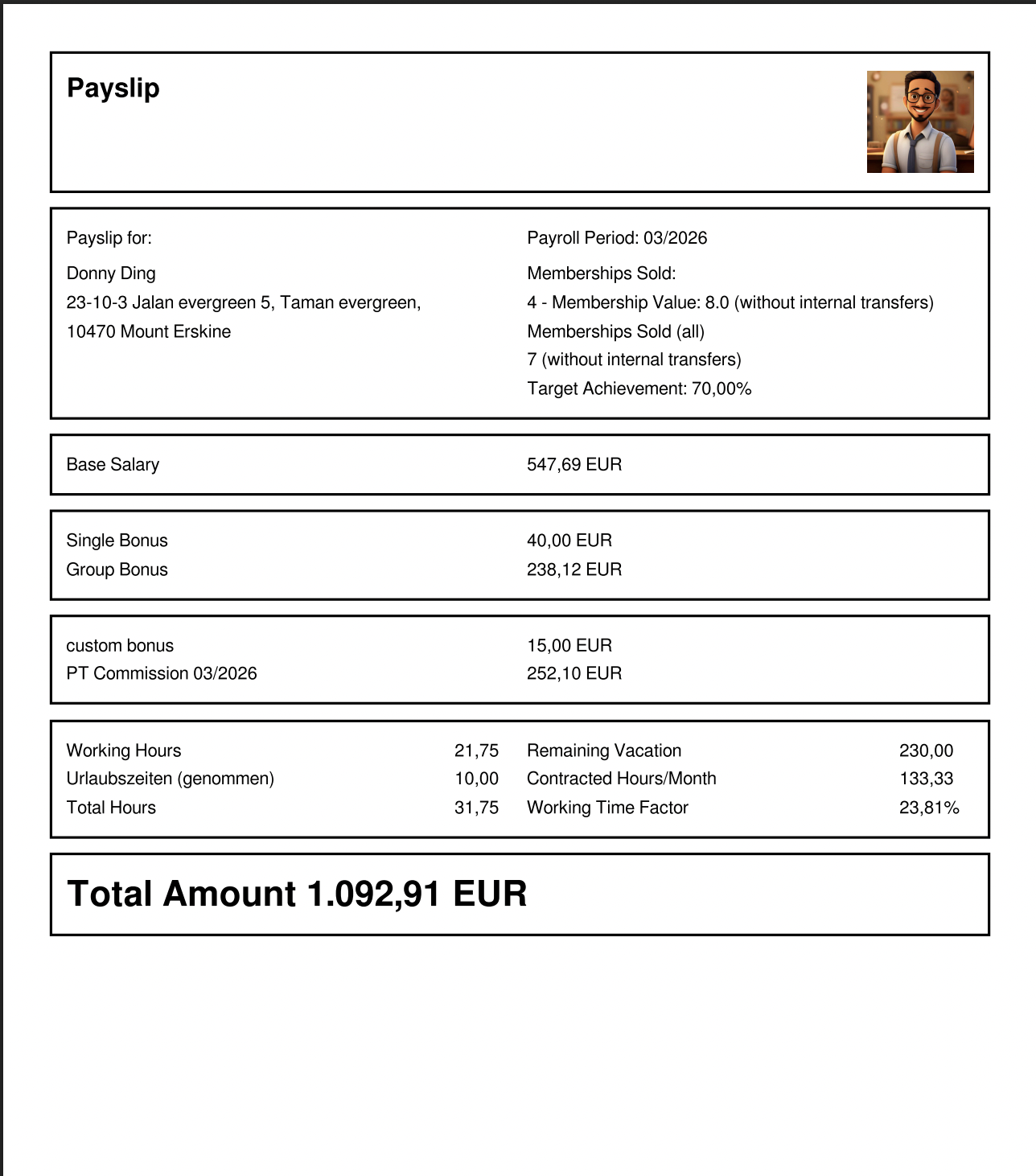
The
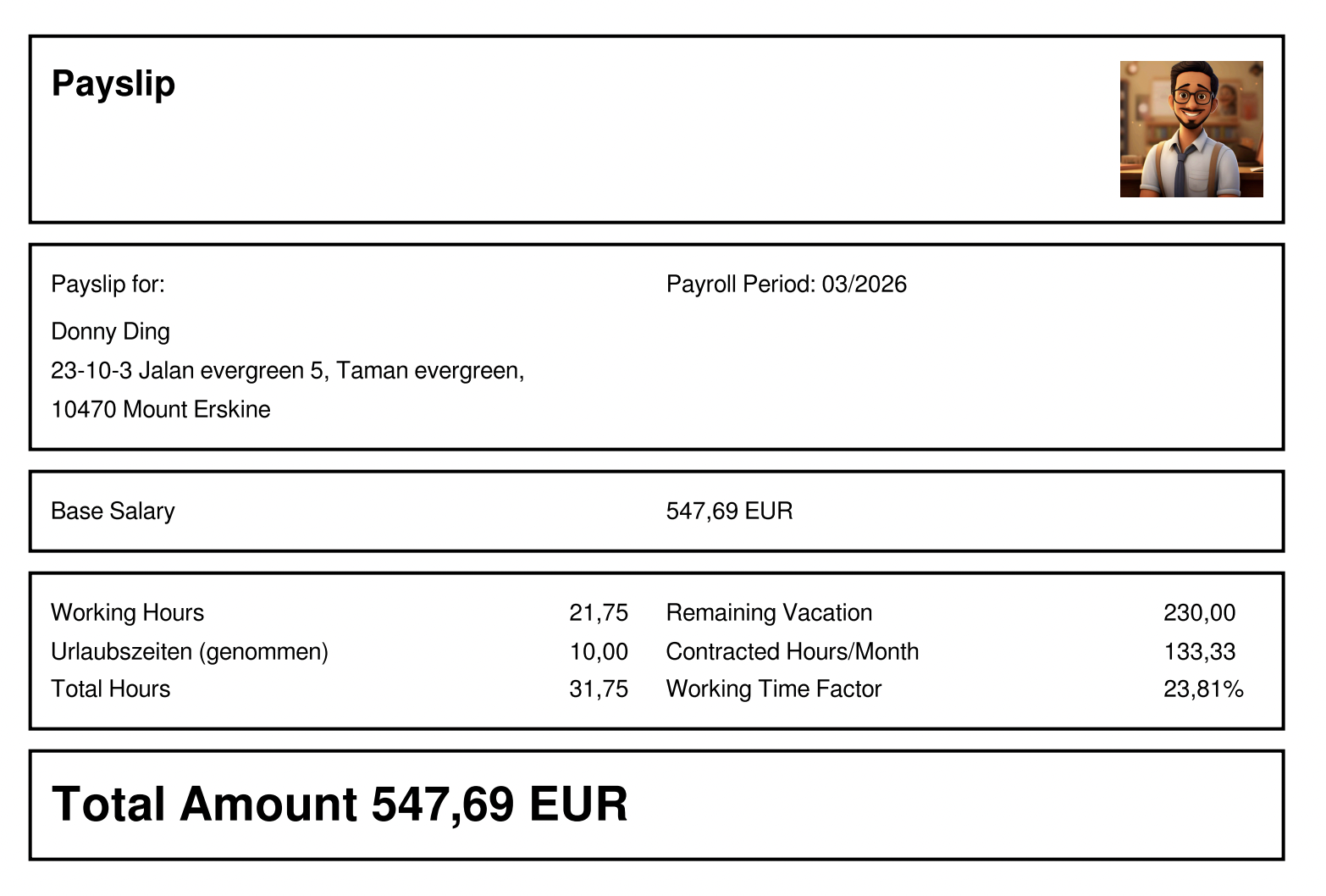
Below multi-payrollis PDFthe combines all individual employee payslips into one consolidated documentpayslip for easyEmployees review(Not andSales)
1.4 Salary Structure
2. Employment Type - Mini-Jobber
2.1 Generating Multi-Payroll
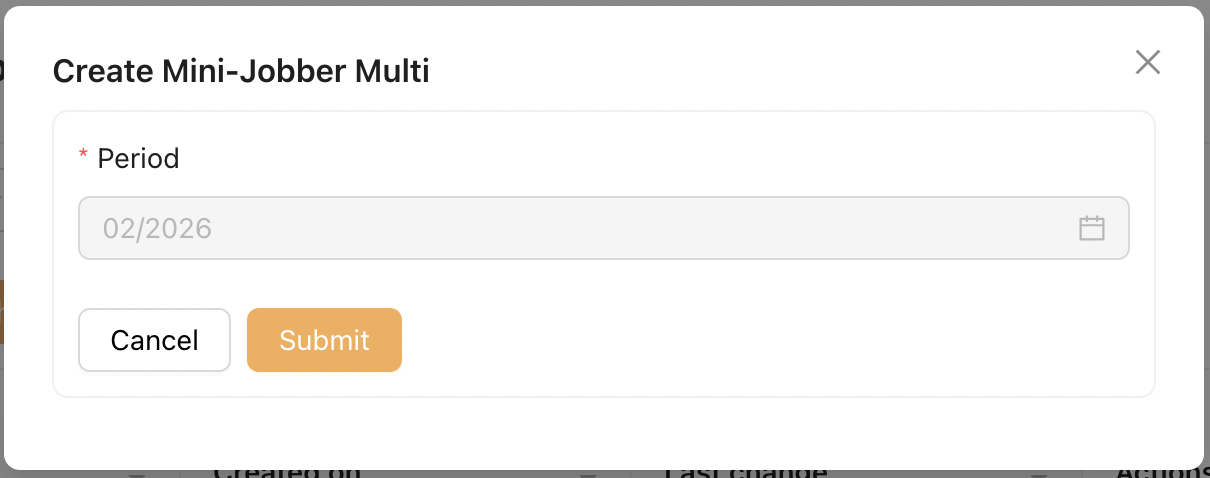
To generate payroll for multiple Mini-Jobbers, go to Payroll Settlements > Mini-Jobbers Multi
-
Click the [Add] button on the top right.
-
Payroll period is preselected for Mini-Jobber.
-
Click Submit to generate the multi payroll.
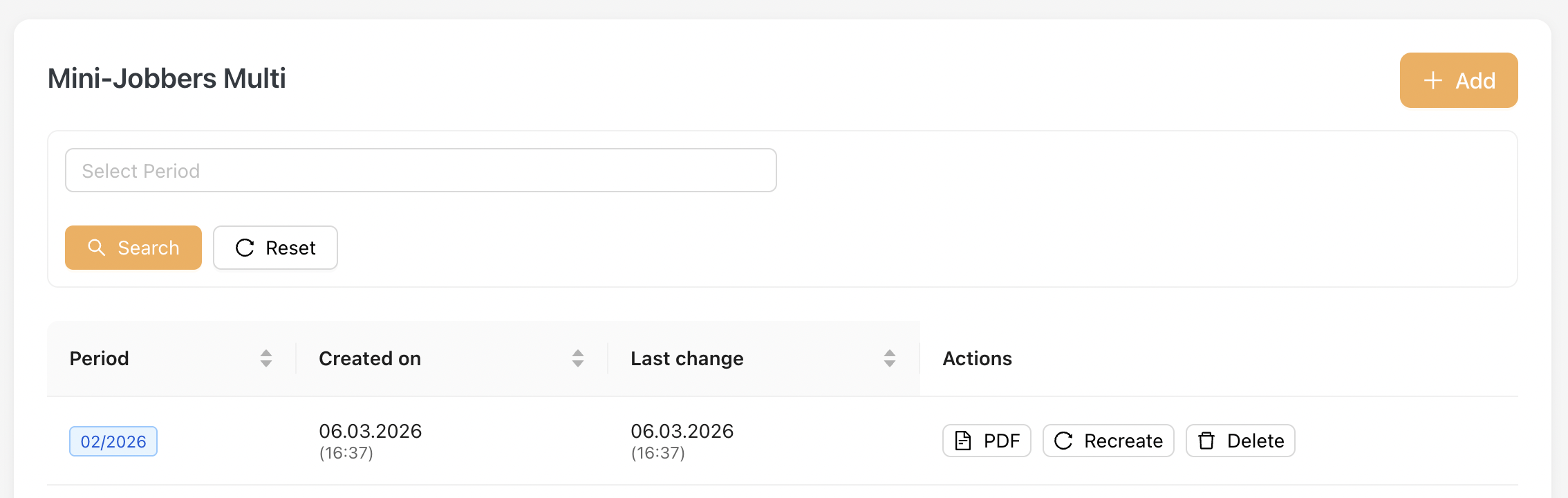
The Payroll Period is limited to the previous month due to WTA calculations for Mini-Jobbers. Once monthly balances are finalized, earlier periods cannot be regenerated to ensure data integrity.
Once a multi payroll is generated:
-
All included employees will also appear under the "Mini-Jobber Single" payroll list.
-
Each Mini-Jobber’s payroll can be viewed individually from this section.
2.2 Single Payroll
You will find this listing under Payroll Settlements > Mini-Jobbers Single
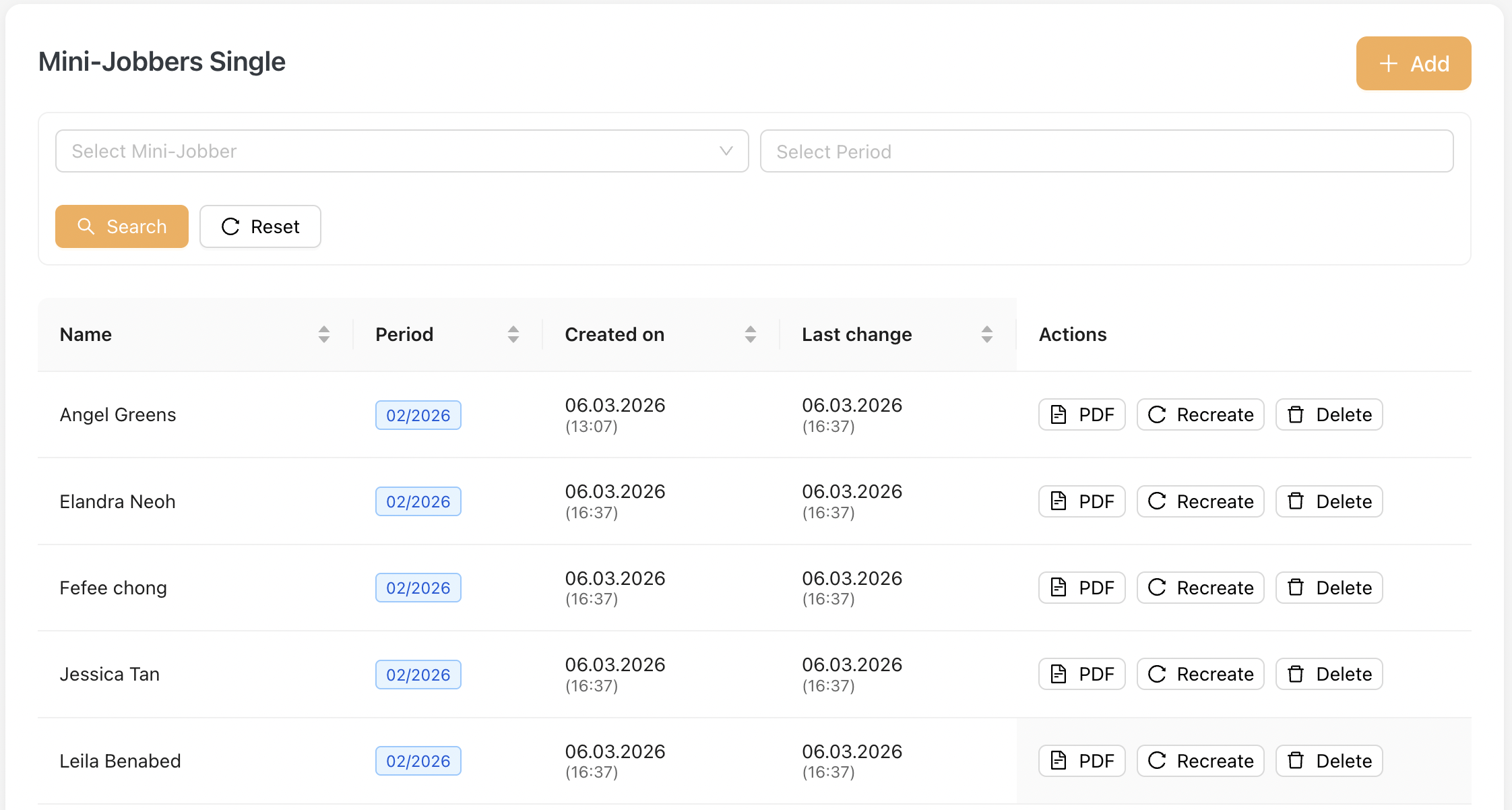
Download Payroll PDF
On this page, Admin can click on the PDF icon to download the payroll snapshot in PDF format.
Update Payroll After Master Data Changes
If any changes are made to the master data that affect payroll:
-
Click the Recreate button to regenerate the payroll.
-
Download the updated PDF to obtain the latest revised version.
Recreate Restriction for Mini-Jobber Payroll
The Recreate function for Mini-Jobber payroll is subject to WTA (Working Time Account) data integrity rules.
- Payroll can be recreated for the latest payroll period, allowing updates to be reflected before finalization.
For closed periods (periods where WTA balances have already been calculated and carried forward), any changes related to WTA will not be recalculated.
The following fields will remain unchanged:
- Paid Hours
- Special Payment
- Taken WTA Hours
- Added WTA Hours
- Carried Forward WTA Hours
- Total WTA Hours
- Total Amount (Paid Hours portion)
- Changes to master data that are not related to WTA may still be reflected when recreating payroll.
2.3 Payroll Format