
Ark Site - On boarding Configuration
Overview
When a centerCenter subscribes to Ark-Site.ARK-Site, There are a few steps to setupseveral basic configurationconfigurations inmust orderbe tocompleted launchbefore the website.website can be launched. These configurations ensure that the system is properly set up and compliant with data protection requirements.
1. Setting upUp GDPR
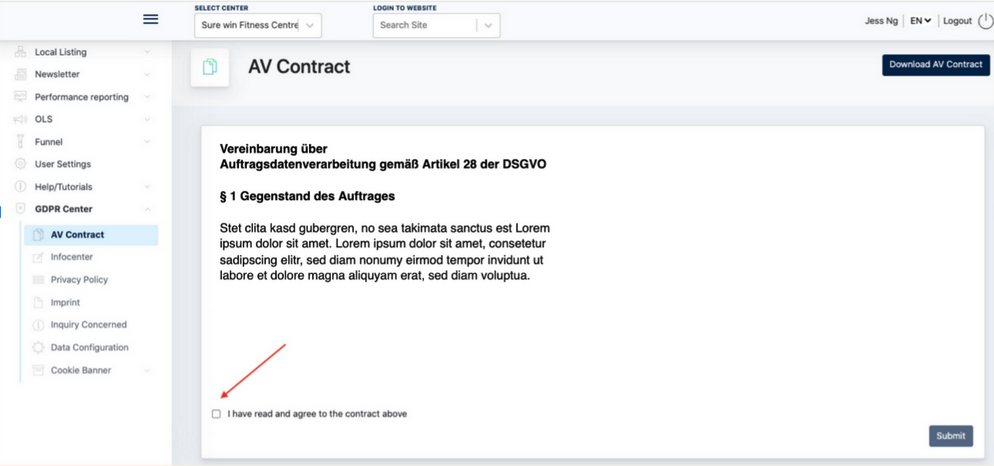
WhenBefore a Client /or Center adminAdministrator needs tocan use the subscribed modules onwithin Cockpit, Client role needsconsent to providesthe consent for AV contractContract on(Data cockpit.Processing Agreement) must be provided.
1.1 HowProviding Consent to provide consent on the AV contractContract
-
LoginLog in to Cockpit.> -
Navigate to GDPR Center > AV Contract.
-
Review the contract.
-
Tick the checkbox
“"I have read and agree to the contractabove”above." -
AndClickthen"Submit"clickto“Submit”provide consent.
Once the consent has been submitted, the subscribed modules can be used in accordance with the agreed data protection terms.
1.2 Provide consent on the Privacy Policy & Impressum :
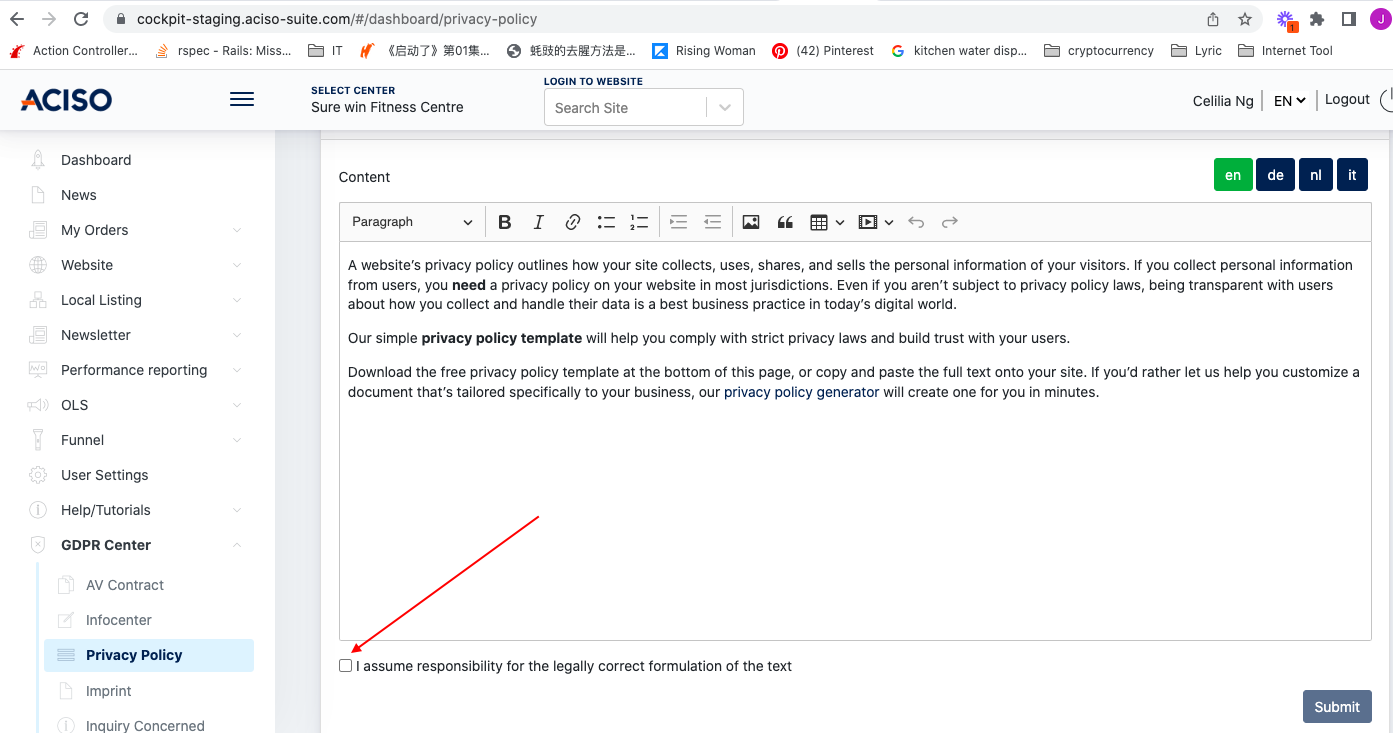
Next,Before accessing the ARK Site Admin Panel, the Client rolemust needsreview to alsoand provide consent forto the content of Privacy Policy &and ImpressumImprint before they can access the Ark Site Admin Panel.content.
This workflowprocess ensures that the Client acknowledgeacknowledges thattheir itresponsibility isfor his dutymaintaining and accountability to take care ofmanaging the sitewebsite content.content in compliance with legal and regulatory requirements.
Steps
LoginLog in to Cockpitasusing a ClientRoleaccount.- Review the Privacy Policy and Imprint content.
- Tick
onthetheconsent checkbox for bothPrivacy Policy & Imprint to provide consent.documents. - Click Submit
button.to confirm your consent.
Once the consent has been submitted, access to the ARK Site Admin Panel will be granted.
Example Screenshot:
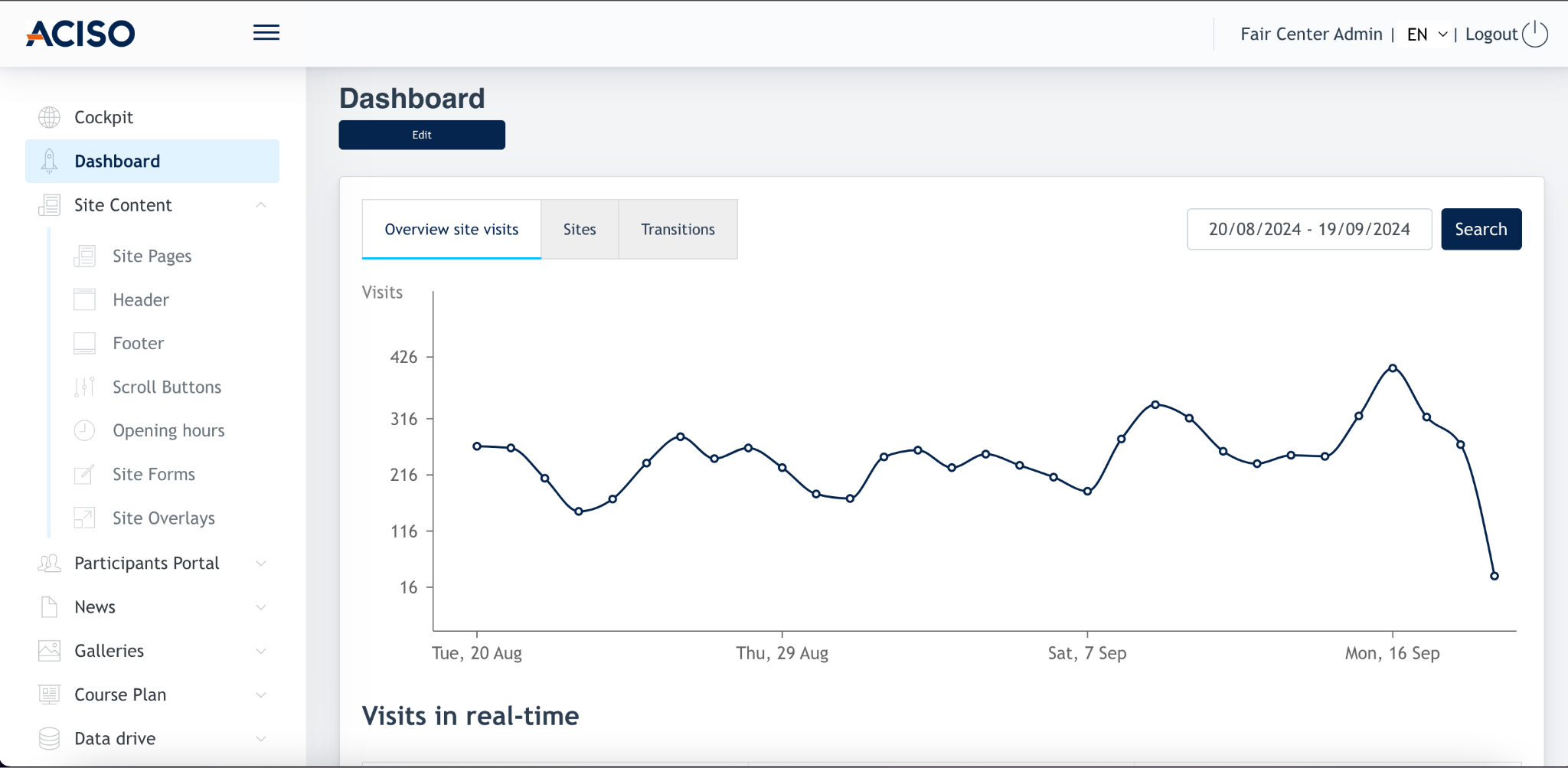
After 1.1completing the consent process for both the AV Contract and the Privacy Policy & 1.2Imprint, isthe completed,Client Client/or Center adminAdministrator canwill nowbe granted access Arkto the ARK Site adminAdmin panel.Panel.
Screenshot example:
2. Setting upUp centerCenter locationLocations
Many modules within ARK Site rely on location data to function correctly. Therefore, at least one location must be created before the website can be fully configured and used.
A location can be created and managed from any of the modulesfollowing within Ark Site requires location to work properly. Thus, we need to set up Center location.platforms:
-
To set up location, Center Admin logins intoCockpit>→ Local Listing>→ Locations
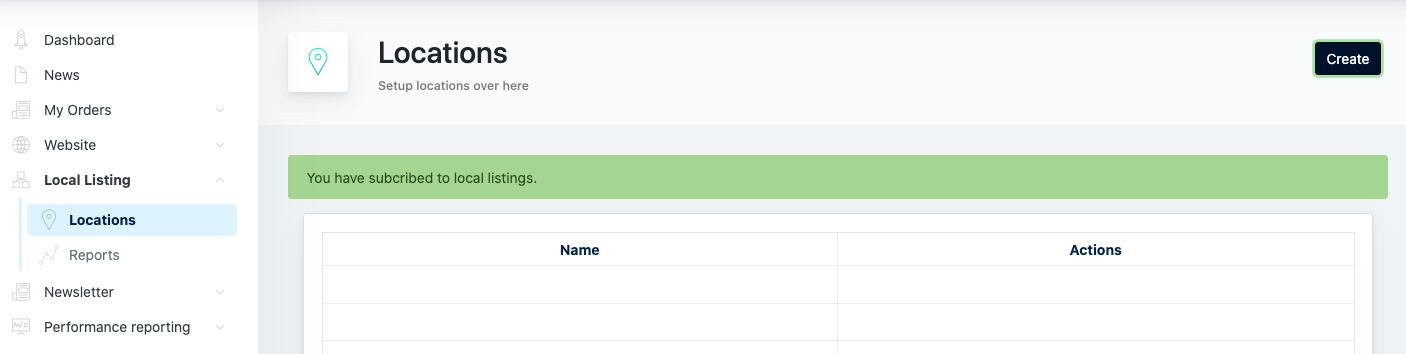
Click on [ Create ] and you’re allowed to create multiple locations for the center. It is mandatory to create 1 location for 1 center.
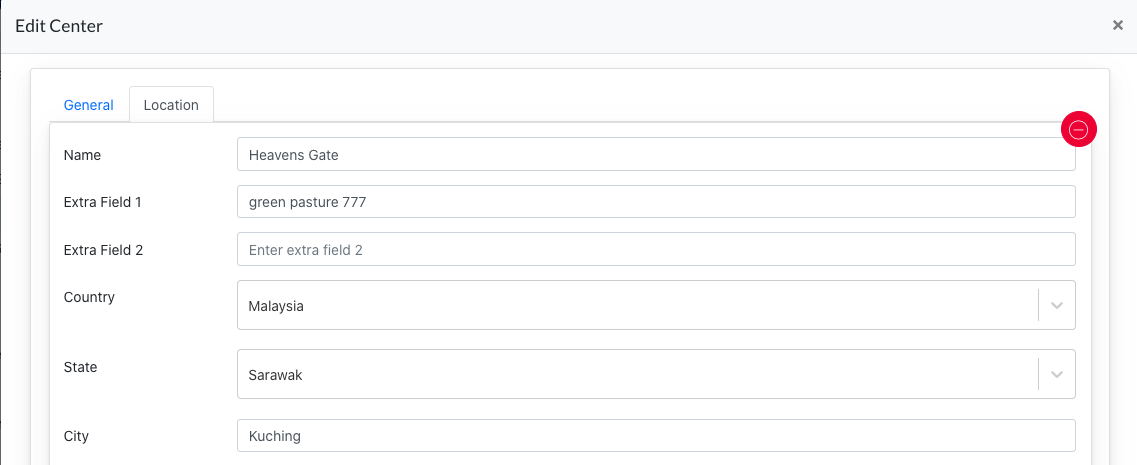
Another way to setup a location is via Ark Management > Center > Edit Center > Location tab
Important to know: This location tab on AM is sync with the Cockpit Location page. They share the same data.
2.1 Main location
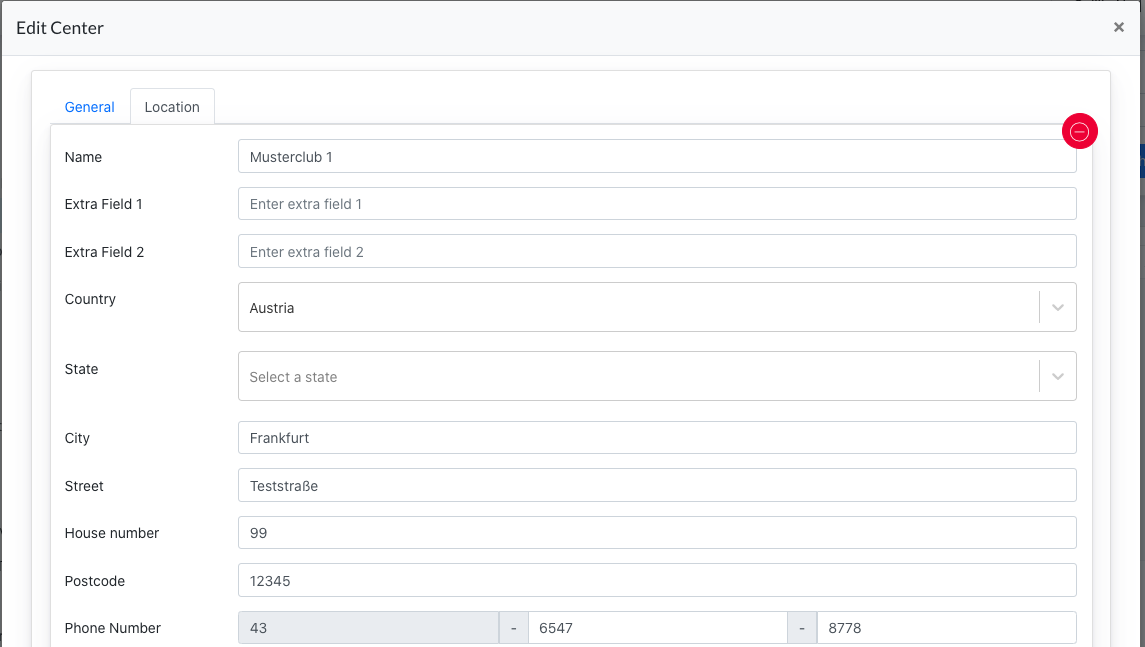
For every center’s location setting, there is always a main location. Main location comes from following configuration:
-
ArkARK Management → Center → Edit Center → Location→1st location appear on the top of the listing
-
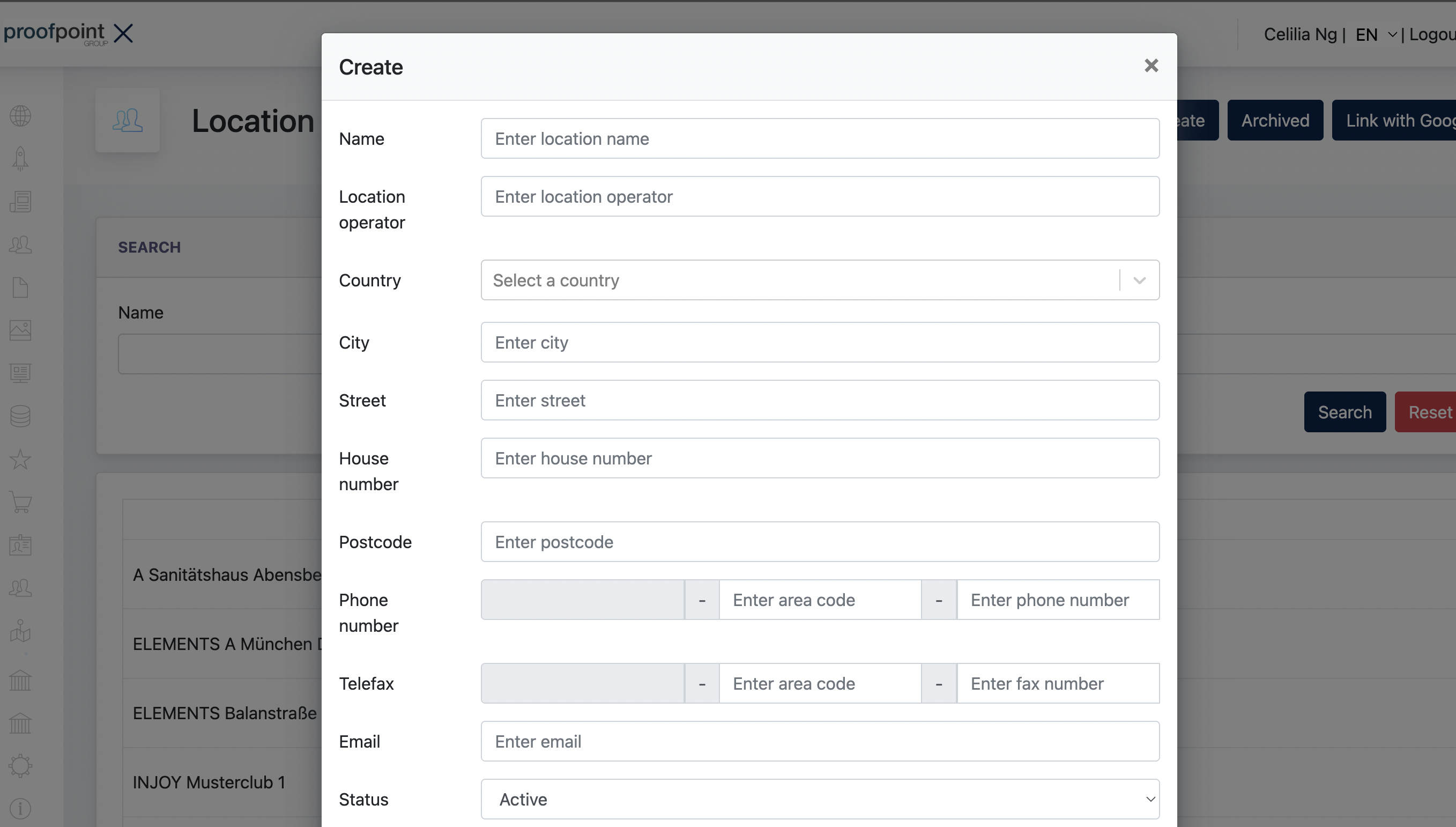
ARK Site Admin Panel → Location Finder → Locations
Important Information
Location data is synchronized across all platforms. While the available fields may vary slightly depending on where the location is managed, all platforms share the same underlying location data.
Any changes made in one platform will automatically be reflected in the others.
2.1 Main Location
It is mandatory for every Center to have at least one location, as many ARK Site modules rely on location data to function properly.
The first location created for a Center automatically becomes the Main Location.
3. Setting up Center Setting
OnIn Arkthe ARK Site Admin Panel,Panel, Gonavigate to Center SettingSettings. Hereto you set up allconfigure the fundamental sitesettings configurations.of the website.
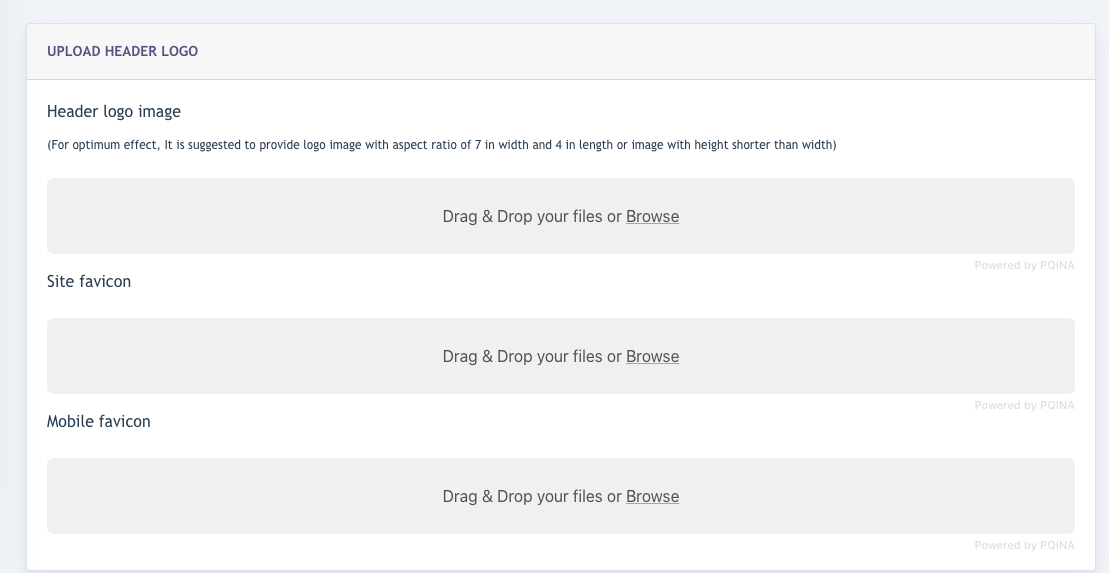
3.1 Logo Icons
This is a mandatory settingconfiguration for the site.website.
AdminAdministrators maycan upload imagesthe forfollowing images:
- Header
logo,Logo – Displayed in the website header. - Site
favicon,Favicon – Displayed in browser tabs and bookmarks. - Mobile
faviconFaviconhere.– Displayed on mobile devices where applicable.
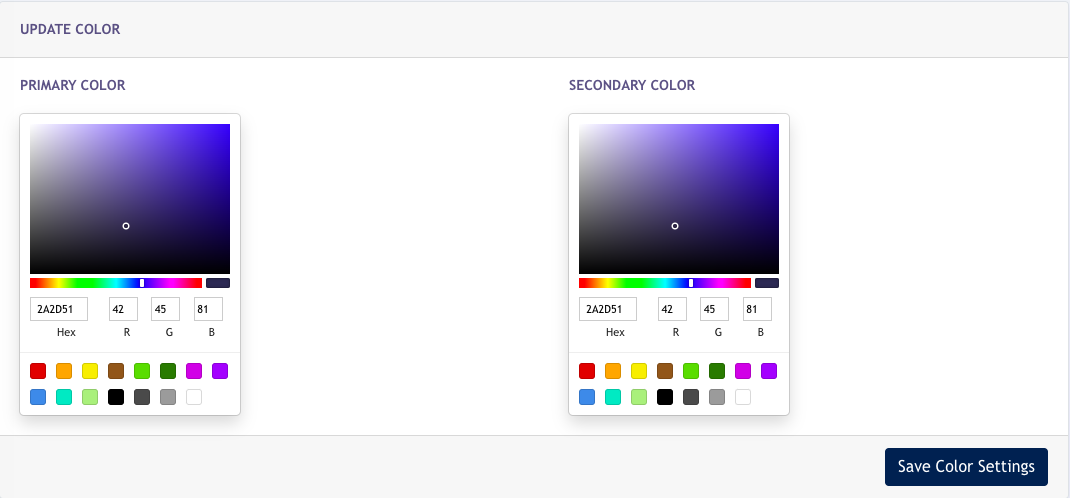
3.2 Colour Setting Settings
This is a mandatory settingconfiguration for the site.website.
The Primary &Colour secondaryand coloursSecondary areColour 2serve as the main colours appliedused tothroughout the entire site.website.
ThisThese cancolours behelp usedmaintain toa makeconsistent sure Center'svisual identity isand consistentbranding across all pages of the site.
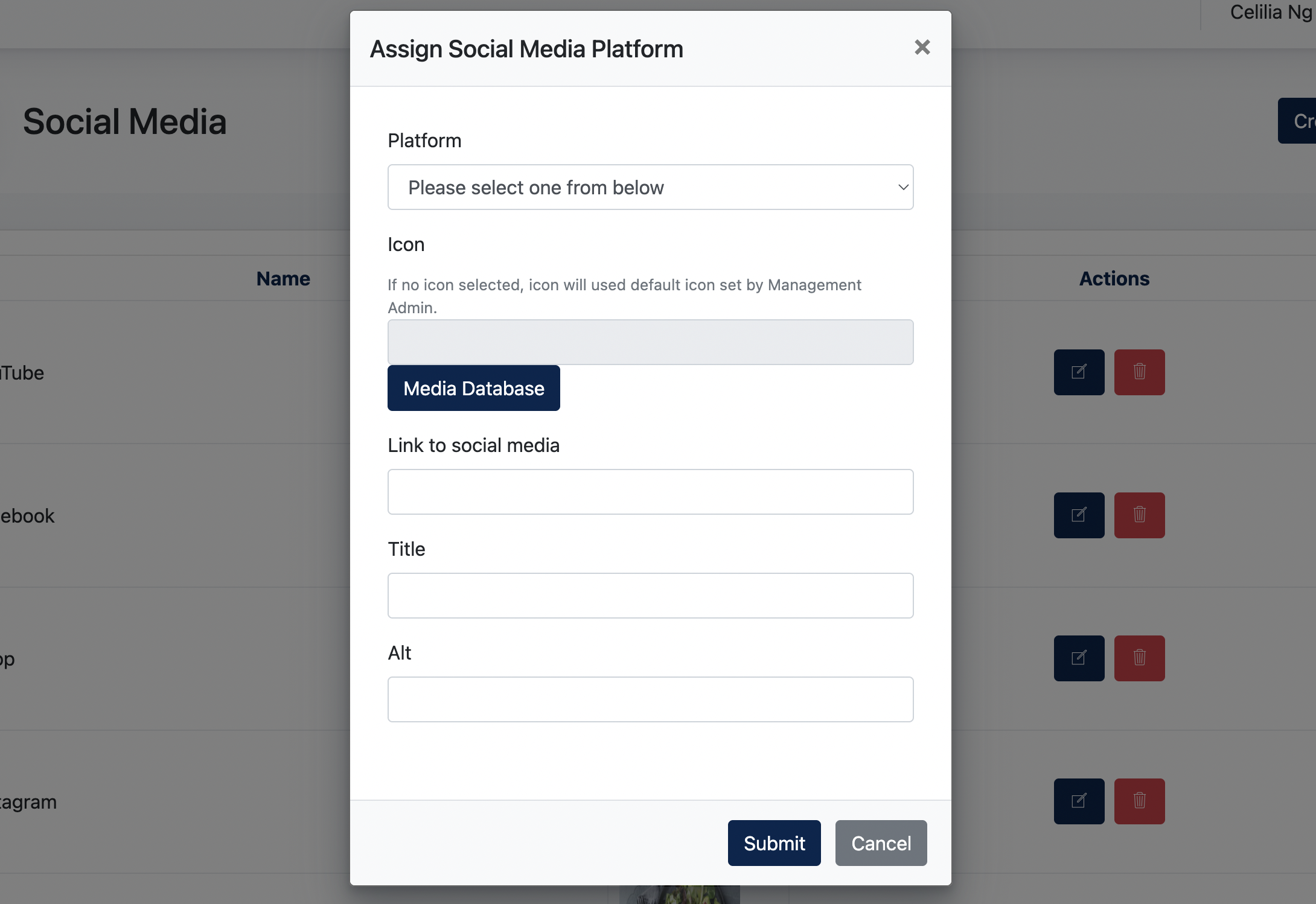
3.3 Social Media
Center AdminAdministrators may setupconfigure Socialsocial Mediamedia buttonslinks for the website. This is an optional configuration and is not mandatory.
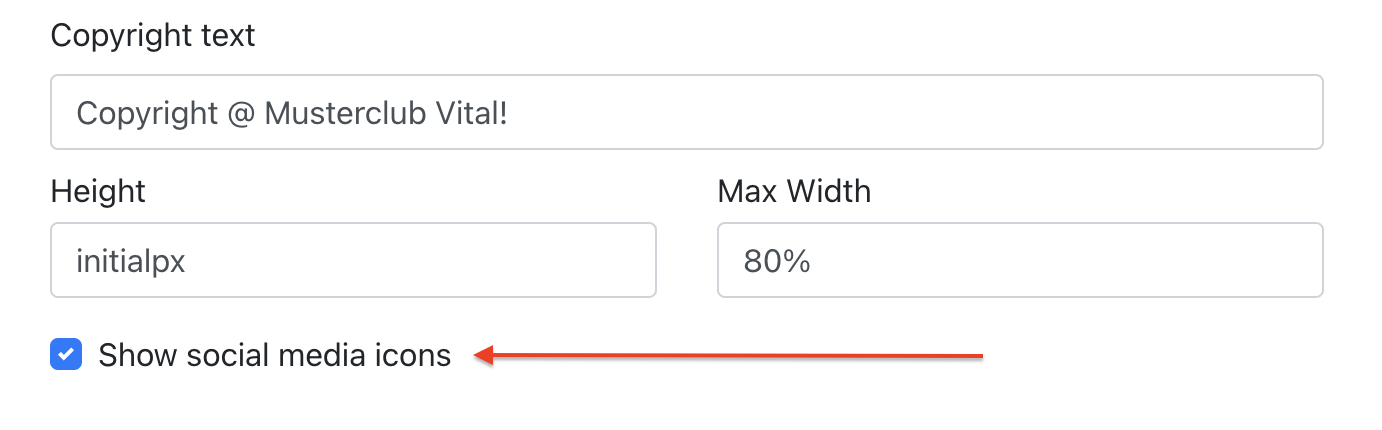
Site Content > Footer > Show Social Media IconIcons
Screenshot
The screenshot below
showshows Socialan Mediaexample of social media icons appearingdisplayed atin the Footerwebsite

3.4 Email Config
AdminAdministrators can configure and customize an email template for the center.Center. When any emails are sent from Center, this emailThis template will be applied.
Goapplied to emails sent from the website.
Navigate to:
Center SettingSettings > Email Config > Email Template
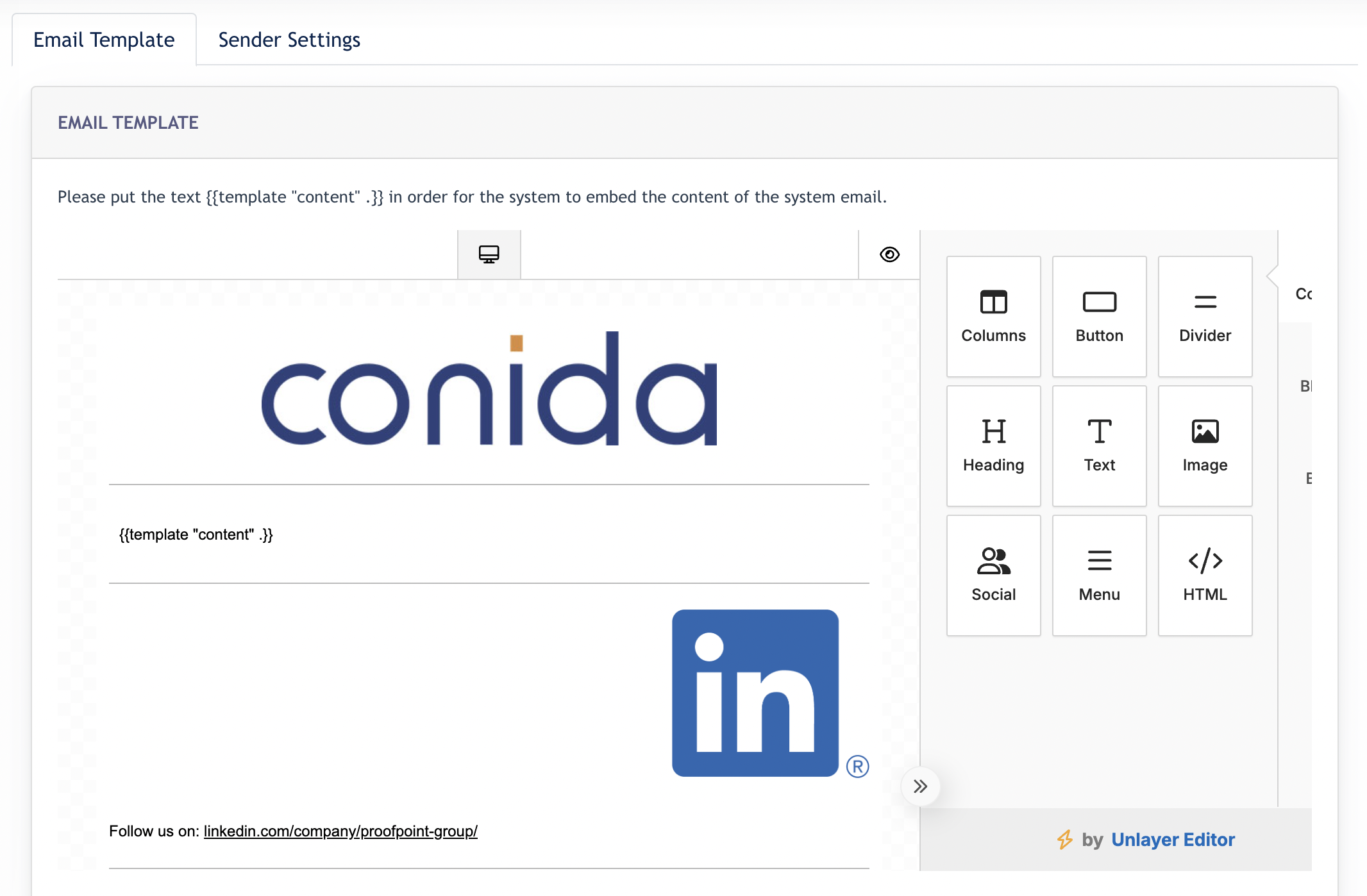
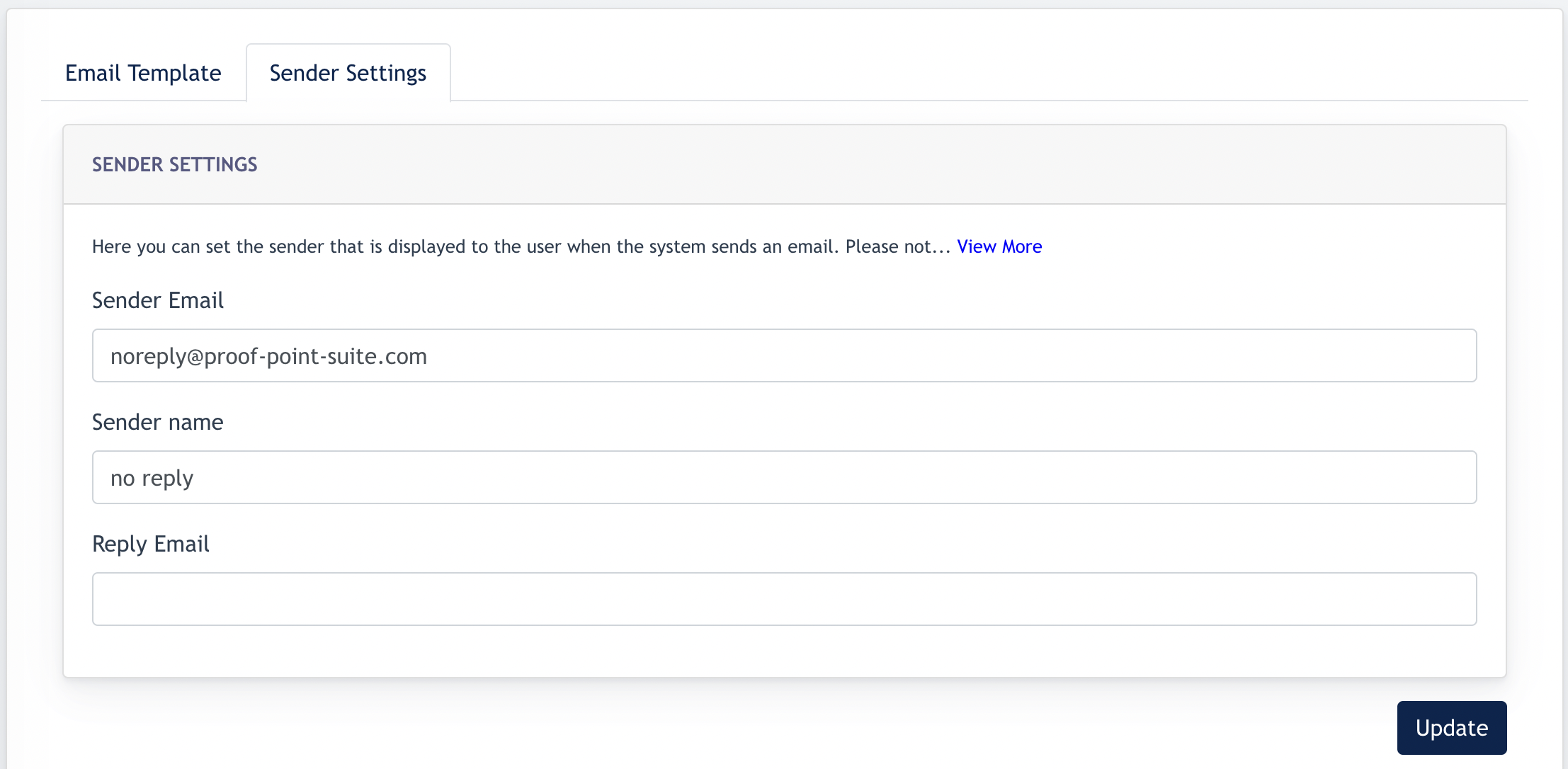
Adminaddition to the email template, sender information canalsobesetupconfigured under theSender's information via the [ SendersSender Settings]tab.The following fields are available:
- Sender Email
:– The email addressappearsdisplayed as the sender tothe receiverrecipients. - Sender Name
:–sender'sThe sender nameappearsdisplayed tothe receiverrecipients. - Reply Email
:–anotherThe email addressusedthatforwillreplyreceivepurposereplies
- Sender Email
In
The Email Dispatch Domain Option
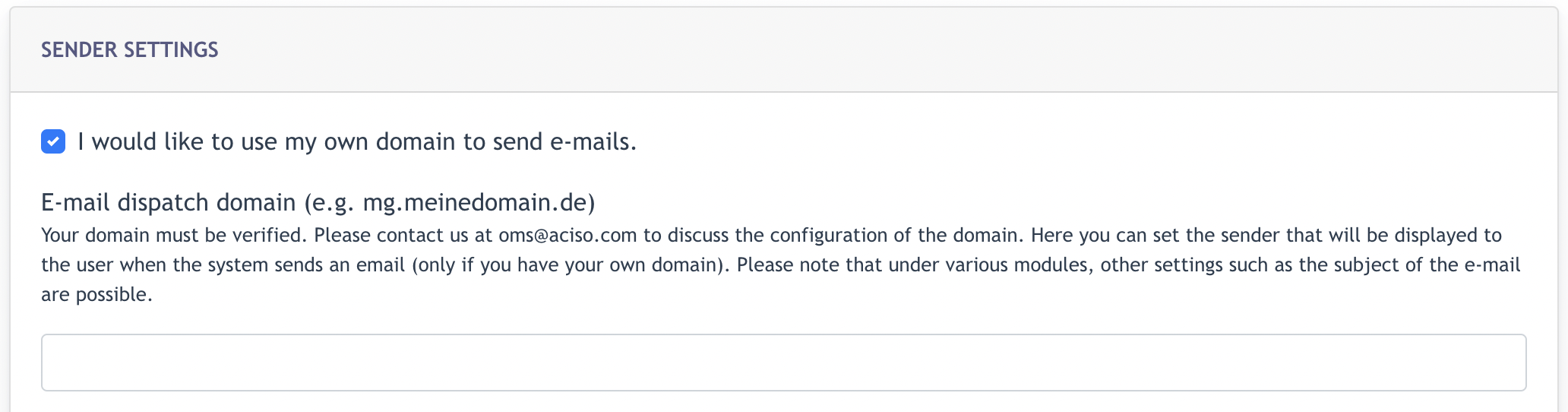
Remark: This option is only available when Mailgun is configured as the Mail Server. Customers who wish to use their own domain for outgoing emails should contact their Consultant for setup and verification.
4. Font Family Setting
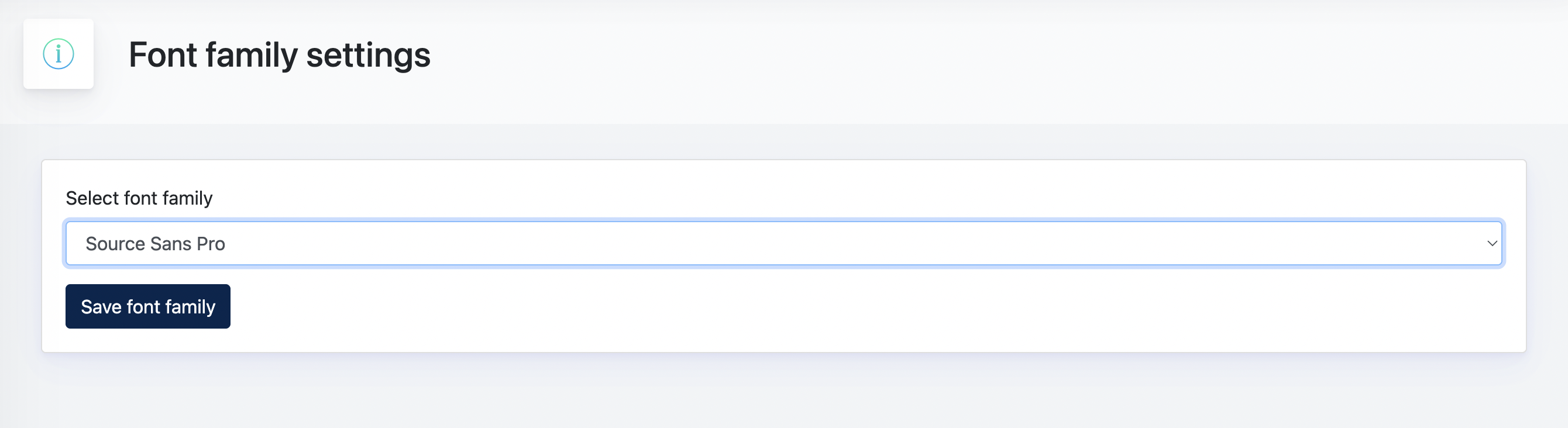
ExampleThe screenshotFont :Family setting allows administrators to select the default font used throughout the website.
Choose the preferred font family from the available options. Once selected, the chosen font will be applied across the site's content and interface elements to ensure a consistent visual appearance.
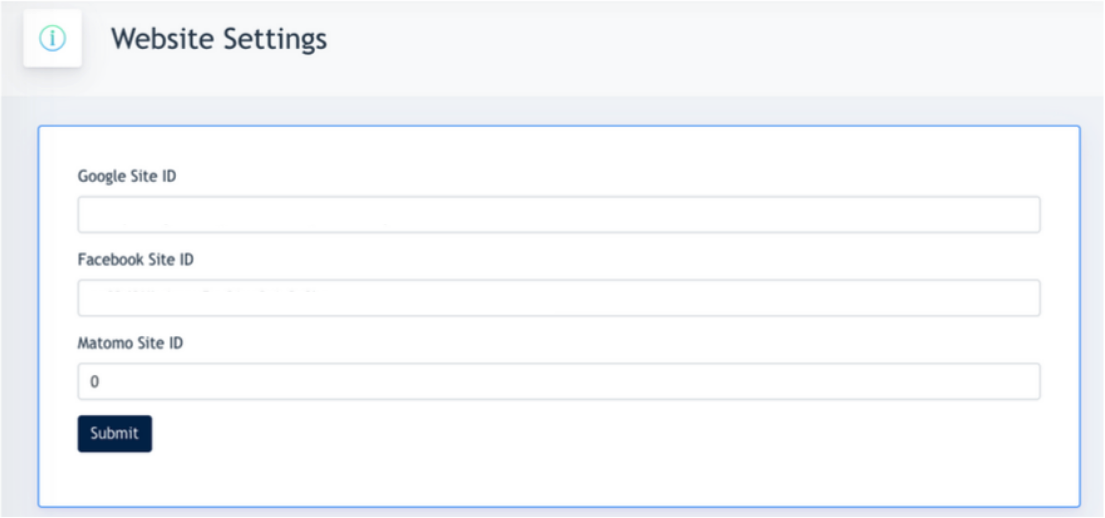
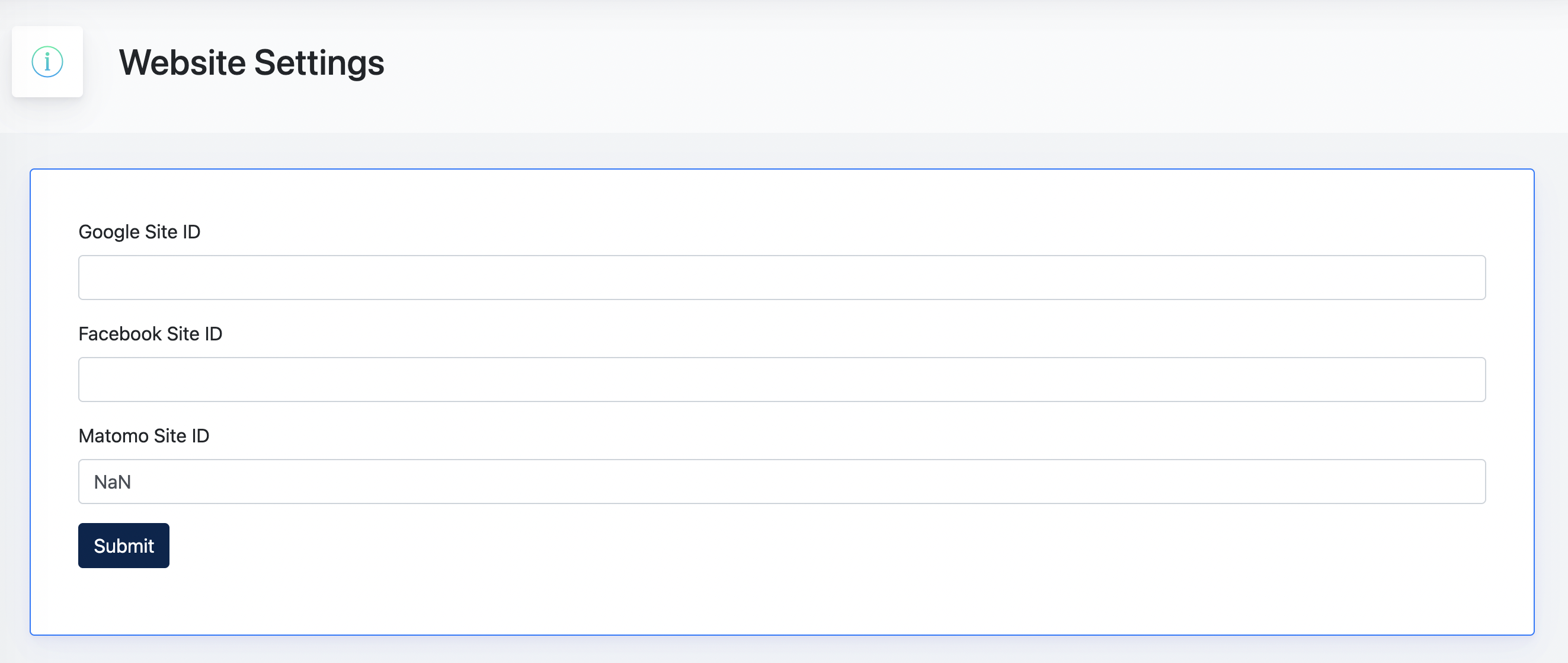
5. Website Setting
The Website Settings section allows administrators to configure tracking and advertising identifiers used by external services.
The following settings are available:
FontGoogleFamilySite ID-–select the font family you want to applyUsed fortheGooglesite.advertising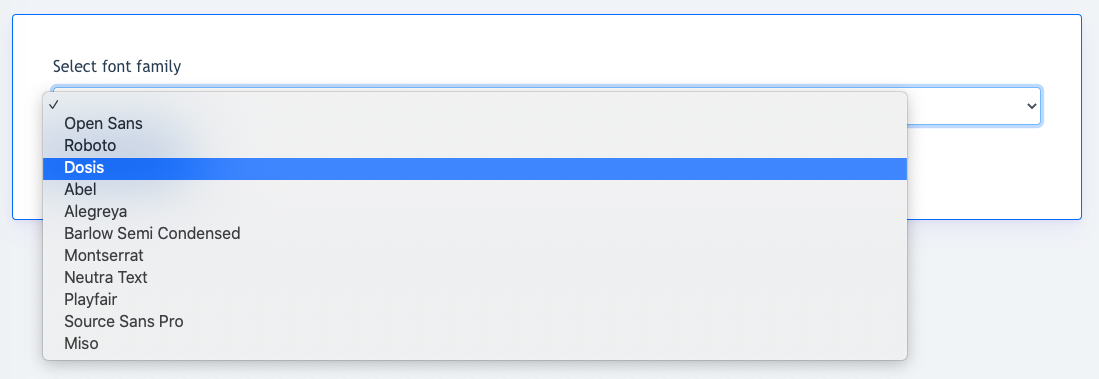
Website Setting- Google site ID &Facebook Site IDis– Used forGoogle Ad &FacebookAdadvertisingpurpose.andAndtracking services.- Matomo Site ID
is– Used for website analytics and statistical tracking.
6. GDPR Settings
The GDPR Settings section allows administrators to configure privacy-related features for the website.
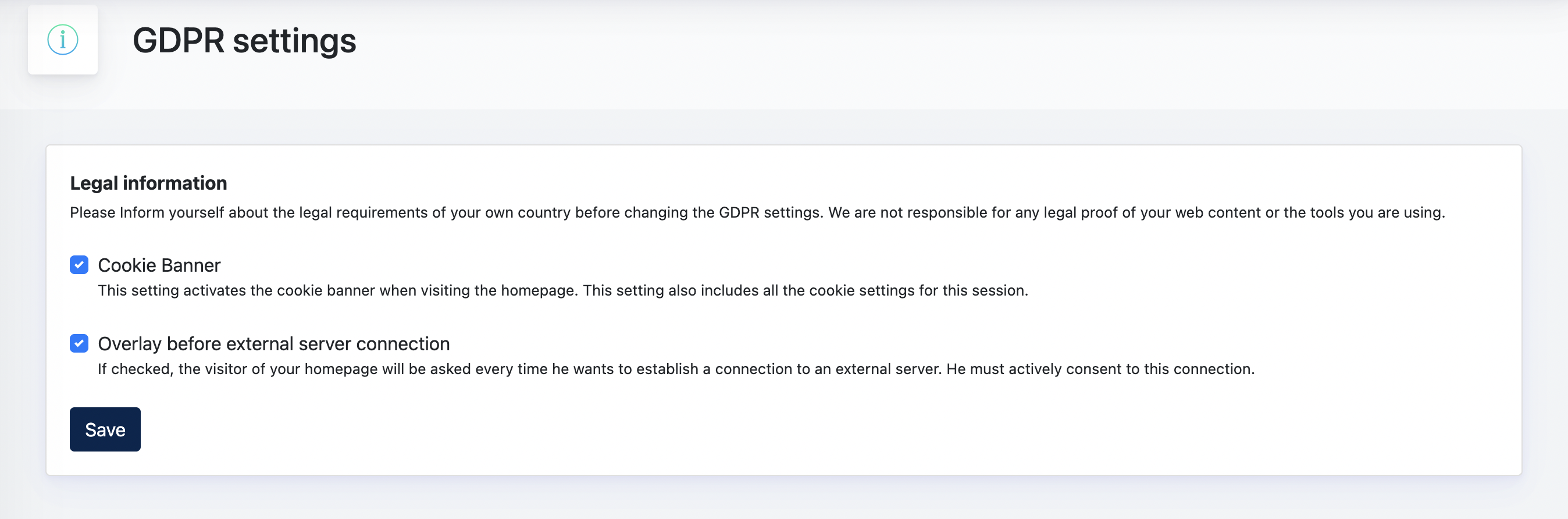
Cookie Banner
When enabled, a cookie consent banner will be displayed to website visitors. Visitors can review and manage their cookie preferences before using the website.
Overlay Before External Server Connection
When enabled, visitors will be prompted for consent before connecting to content hosted on external servers. This helps ensure compliance with privacy and data protection requirements when using third-party services.
Important Information
Center Administrators are responsible for ensuring that the website complies with the applicable legal and privacy requirements in their country.