
Joining the Member Area
Overview
Users can gain access to the Member Area through different entry points on the ARK Site, depending on how they register or are invited.
Access is assigned based on the user's Member Area role, which determines how they join and access the portal.
1. Live Site: Joining Member Area viaAccess Methods
| Access Method | Description |
|---|---|
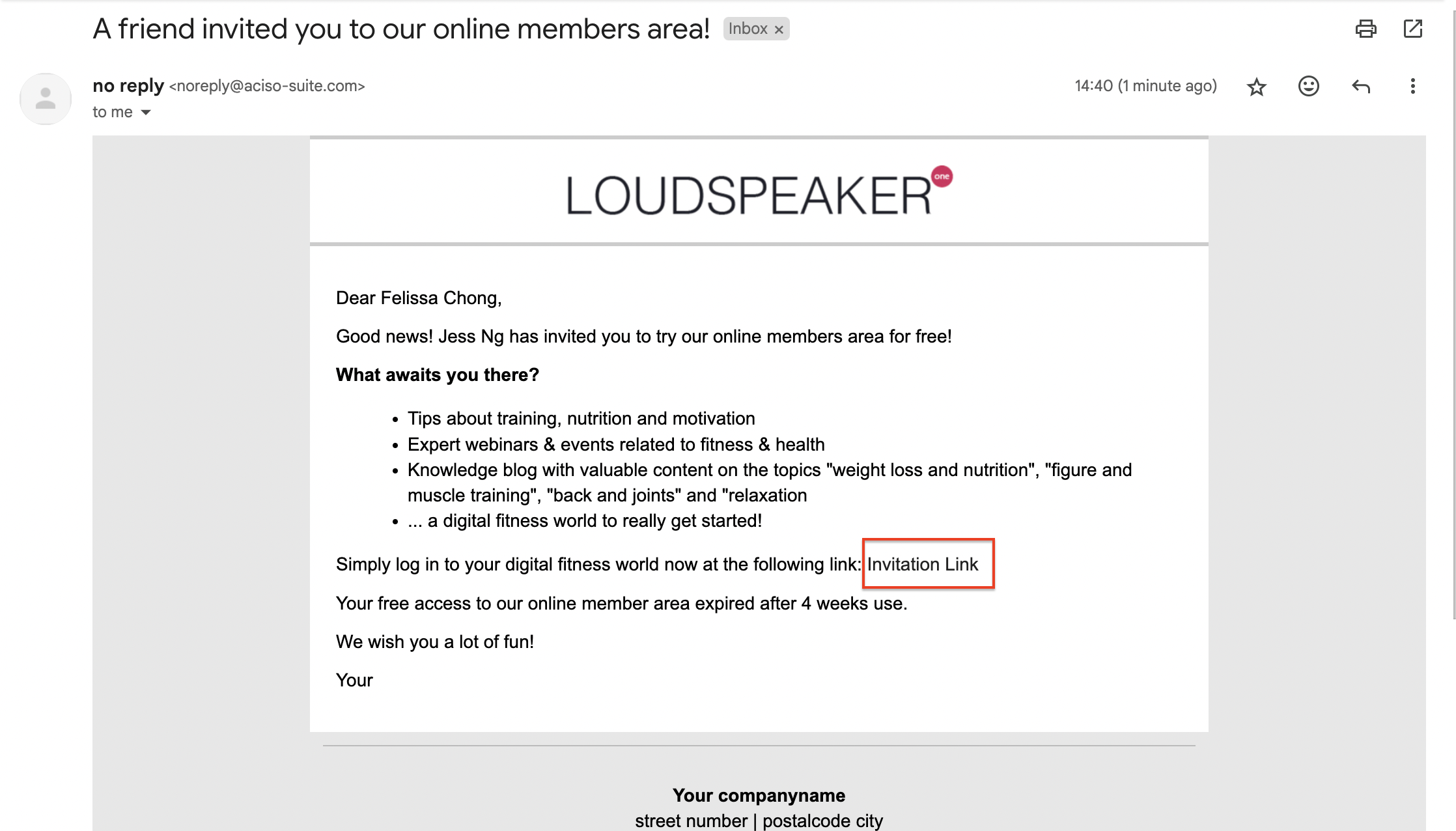
| Online Shop | Visitors can purchase or subscribe to an Online Shop
|
| Existing Members can invite
|
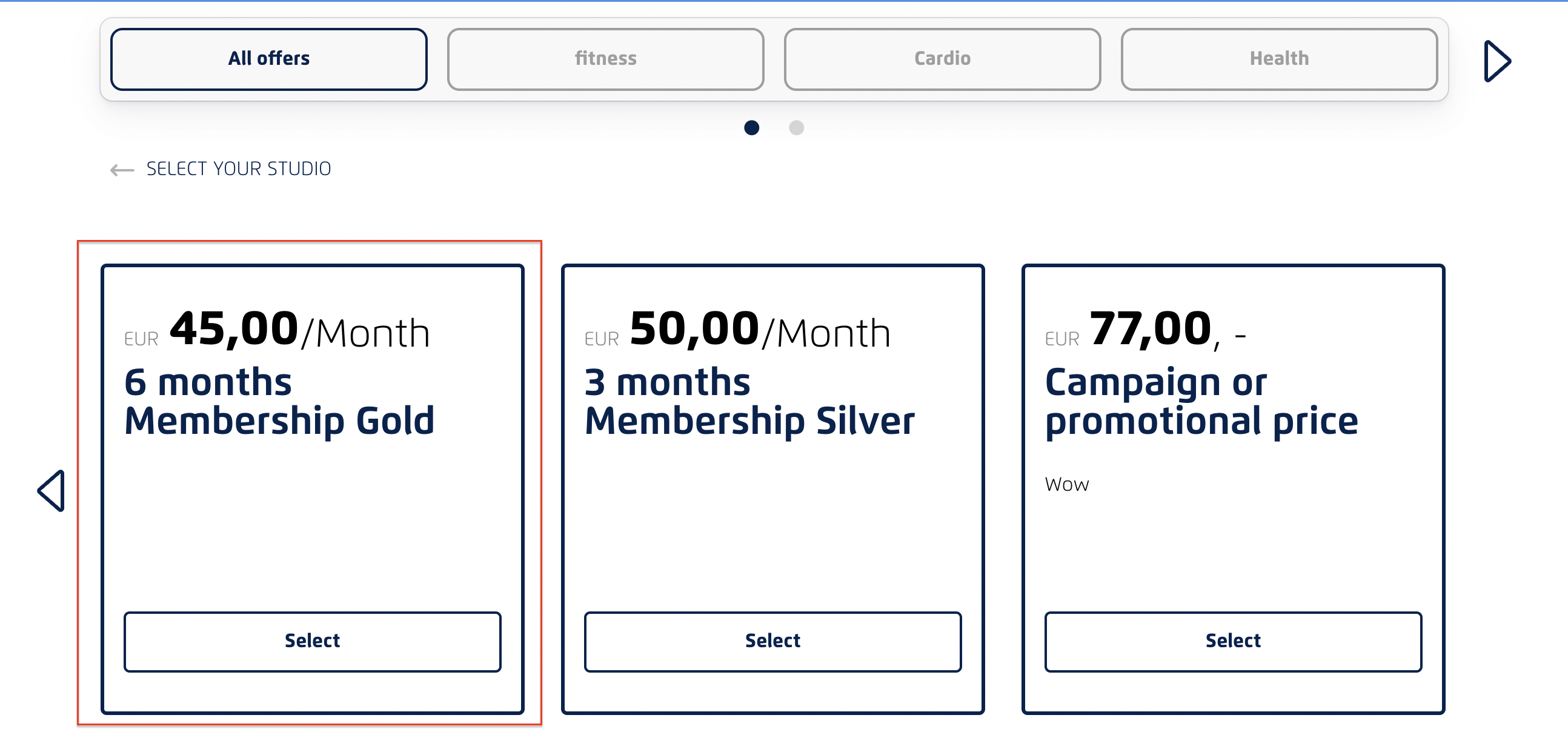
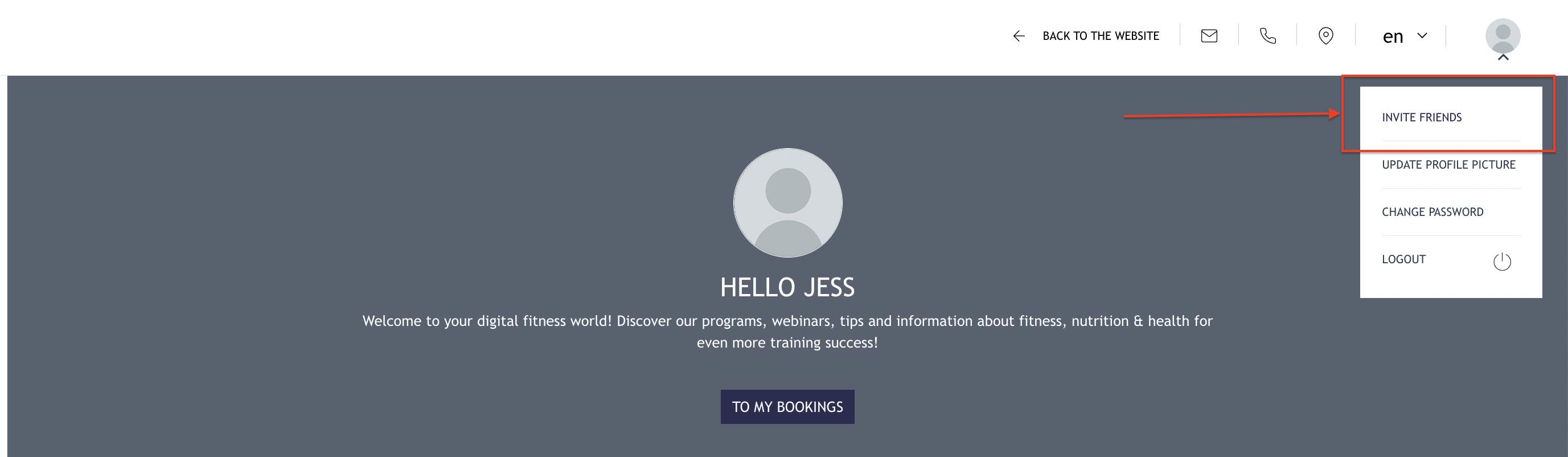
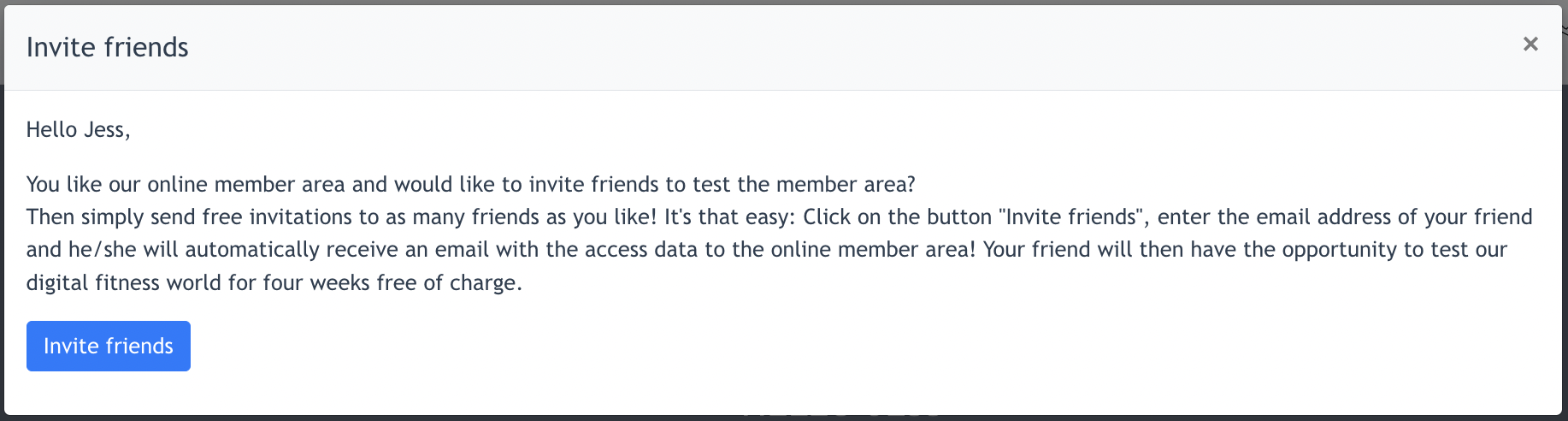
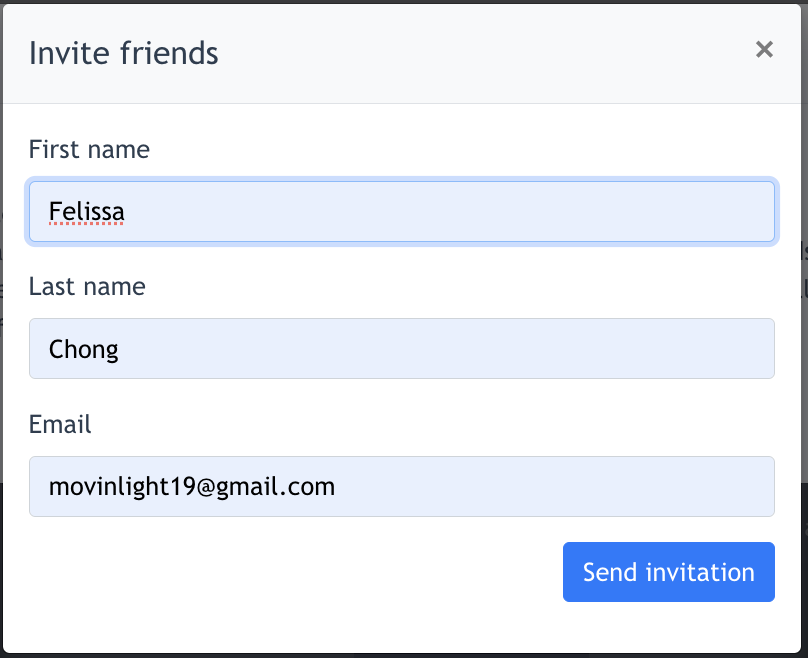
2. Online Shop and Member AreasArea contentConfiguration
Member Area access can be configured through the Online Shop when creating or editing a maximummembership ofpackage.
By weeksenabling only,Link viaPackage Magicto Link.Member Area, Admin can assign the appropriate Member Area role to the package.
Example Screenshot from [ Online Shop > Package ]
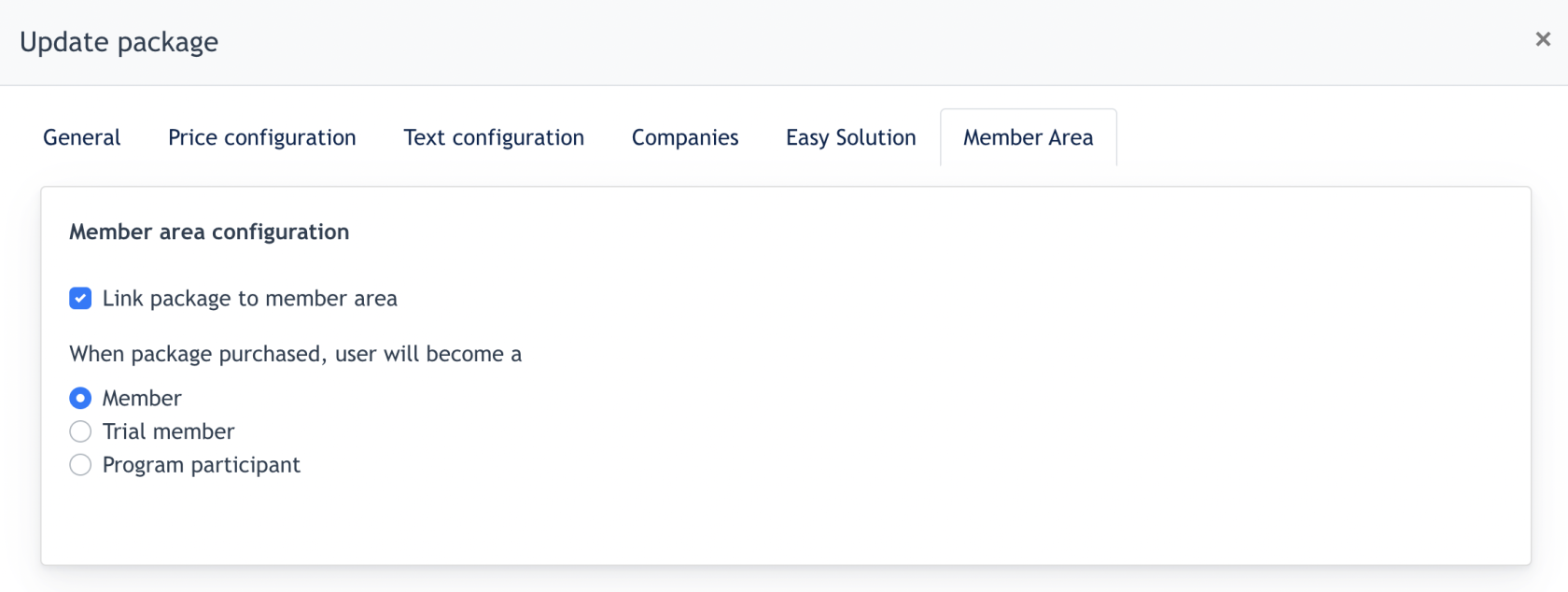
When a user purchases the package, the system automatically assigns the corresponding role.
For detailed package configuration, refer to the Online Shop documentation.
3. ChangeMember ofArea RolesRole Changes
ChangesA ofuser's RolesMember are allowed, but only through subscription of new packages via the Online Shop, done by the joiner himself.
Below are scenarios of how aArea role can be changed to another role :
Trial member can become member / program participantchange when they subscribe toonlineanothershopOnline Shop package(configuredforwithconvertingauserdifferenttorole.memberFor
/example,programaparticipantTrial)Public user can become trial member/program participant/member when they subscribe to online shop package (configured for converting user to trial / member / program participant )Program ParticipantsMember can become amemberMemberwhenortheyProgramsubscribeParticipant,towhileonlineashopProgrampackageParticipant can(configuredbecomeforaconvertingMember.Note: Each user
to member )
Remarks : One user/emailaccount can have only haveone oneMember Area role at the samea time.
4.
Admin Panel : Create Members Area Packages via Online Shop
To create a package, you may follow this stepshere.After a package is created, click on- the
[endEdit ] button
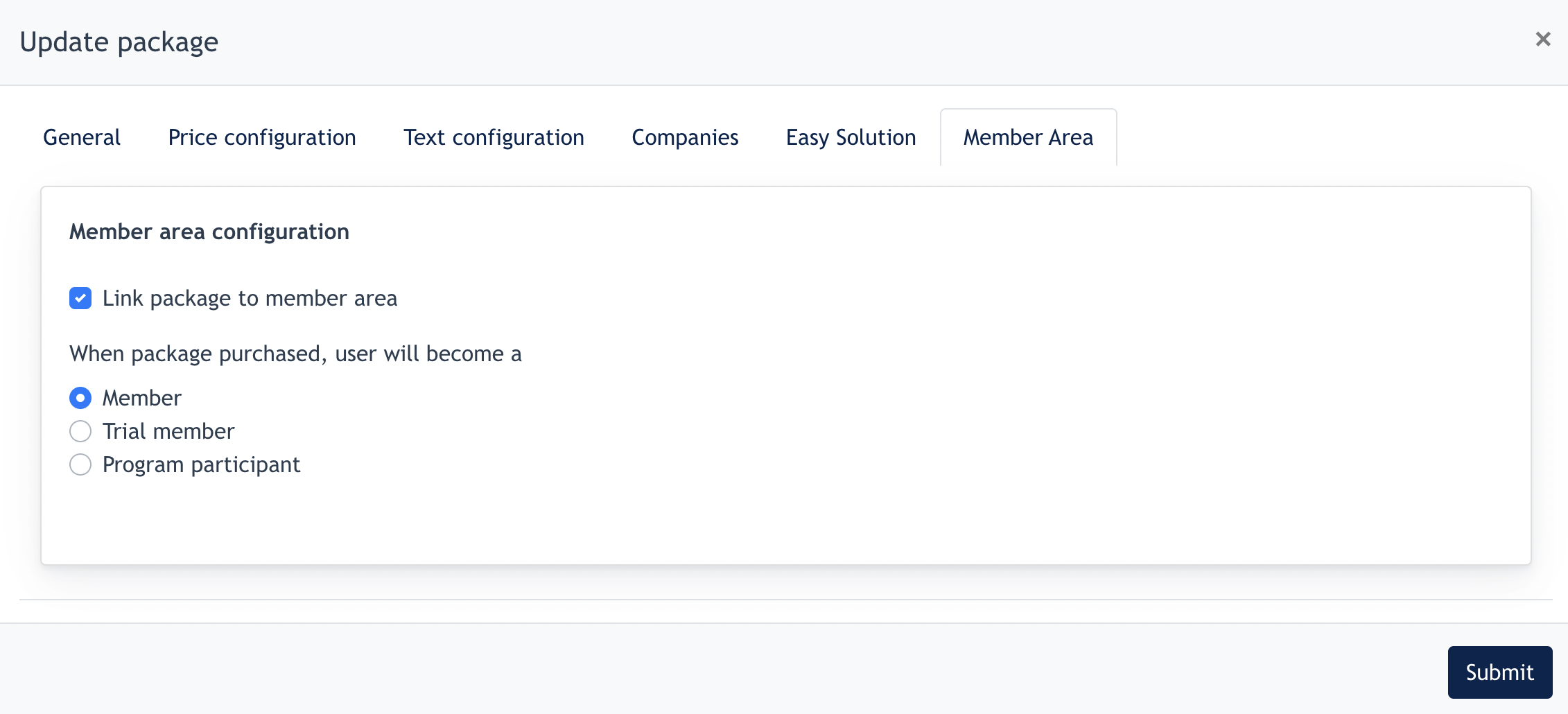
Go to the [ Members Area ] tab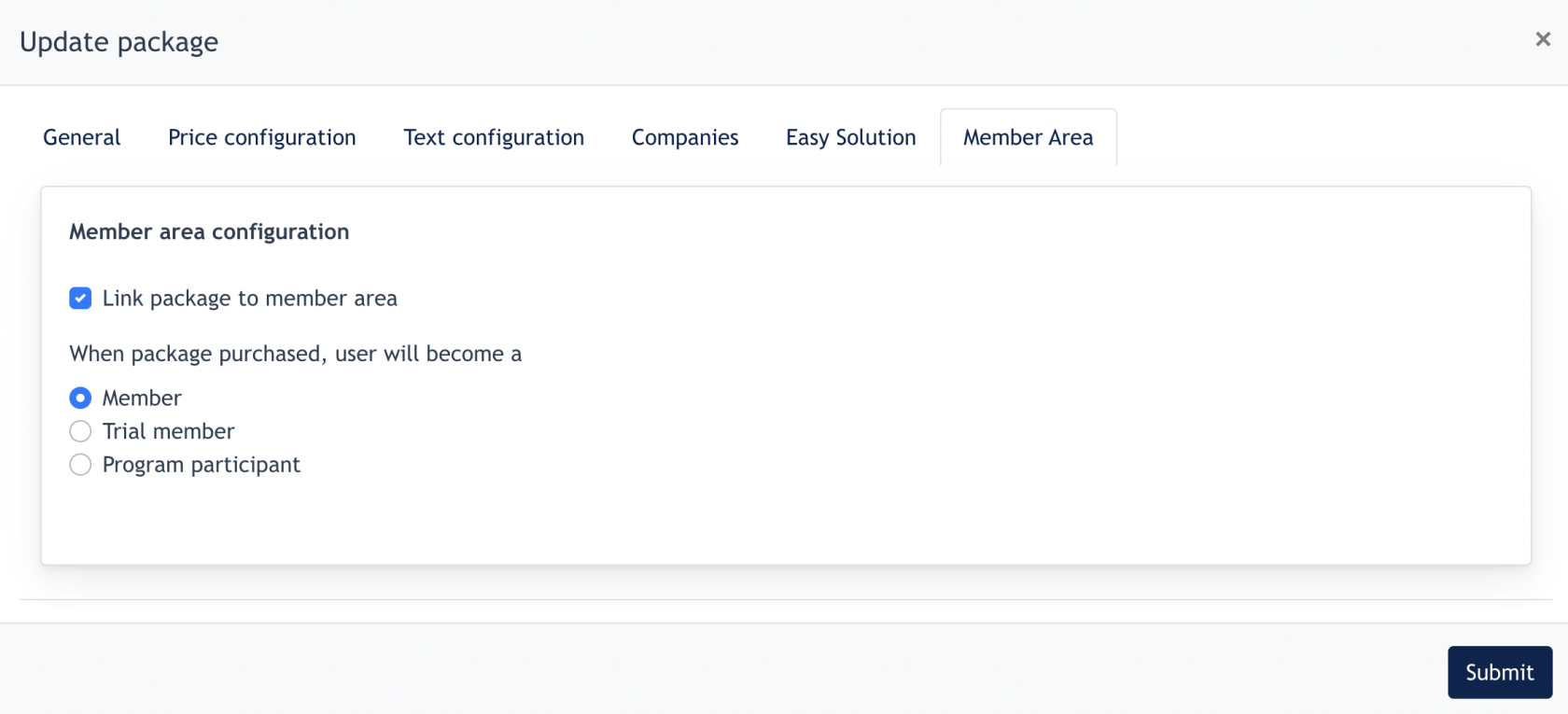
Checked "Link Package to Member Area" and the following radio buttons expanded. Admin can choose which role this package links to, so when someone join this package, he/she will have a new account created in the Member Area with the selected role.Click "Submit" and save this package as Members Area package.

-