
Employees
Overview
The Employees page allows administrators to select which employees are included in Smart Plan AI scheduling and maintain their recurring scheduling preferences.
1. Employee Listing
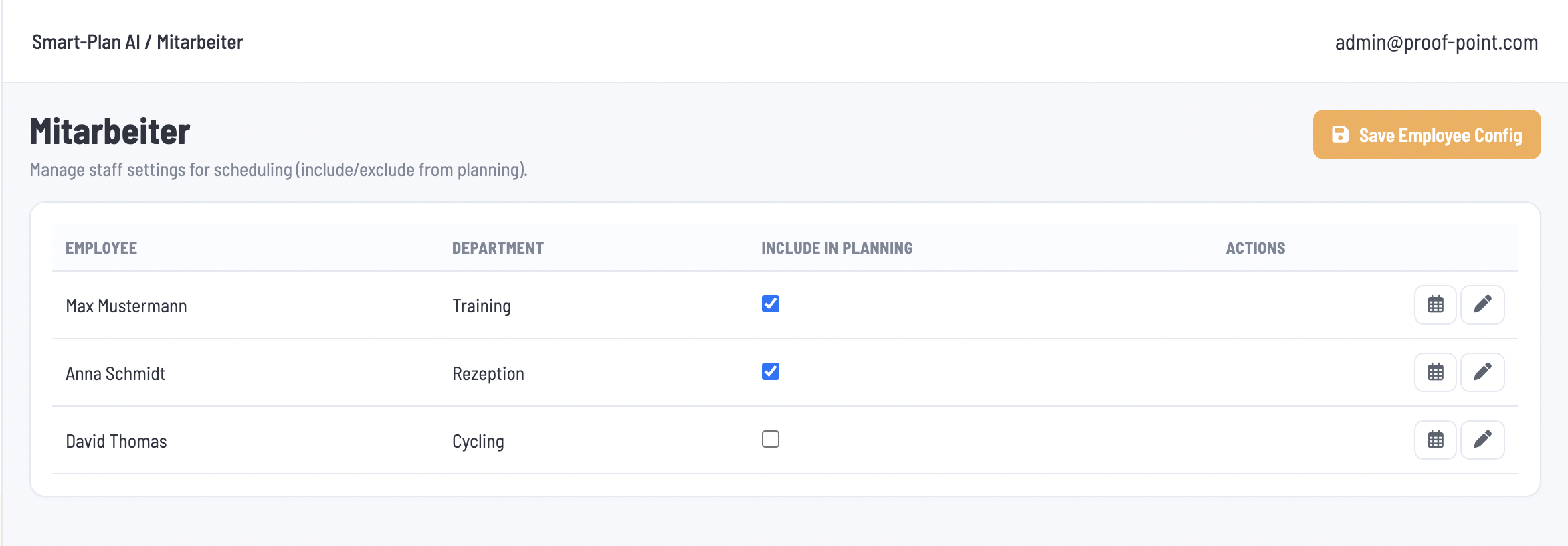
The listing must reflect the same employees and multiple-tab structure as CMP > Master Data > Employees.
Administrators use the Include in Planning checkbox to include or exclude each employee, then click Save Employee Config to save their selections. Selected employees are considered during schedule generation; unselected employees are excluded.
2. Requested Days Off
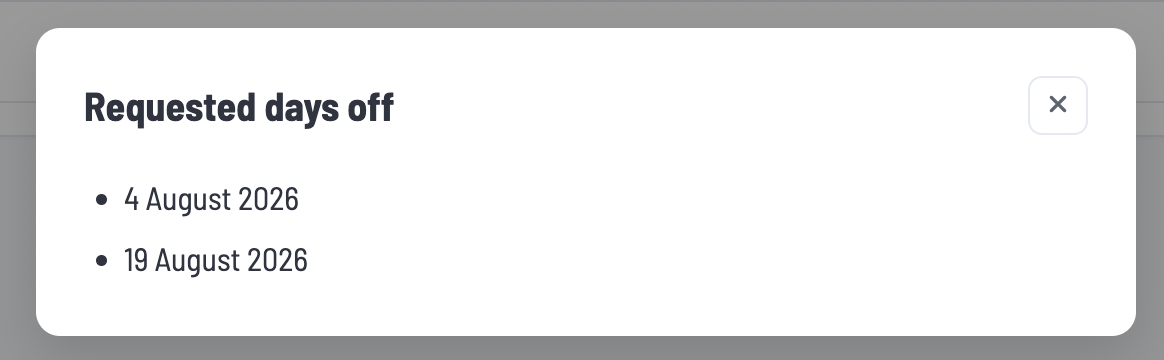
The calendar icon opens a read-only list of dates the employee has requested off through the Time Booking Panel, when Requested Days Off is enabled in Config.
These requests are scheduling preferences only. They are not leave applications, do not create approved leave, and are not guaranteed.
3. Edit Employee
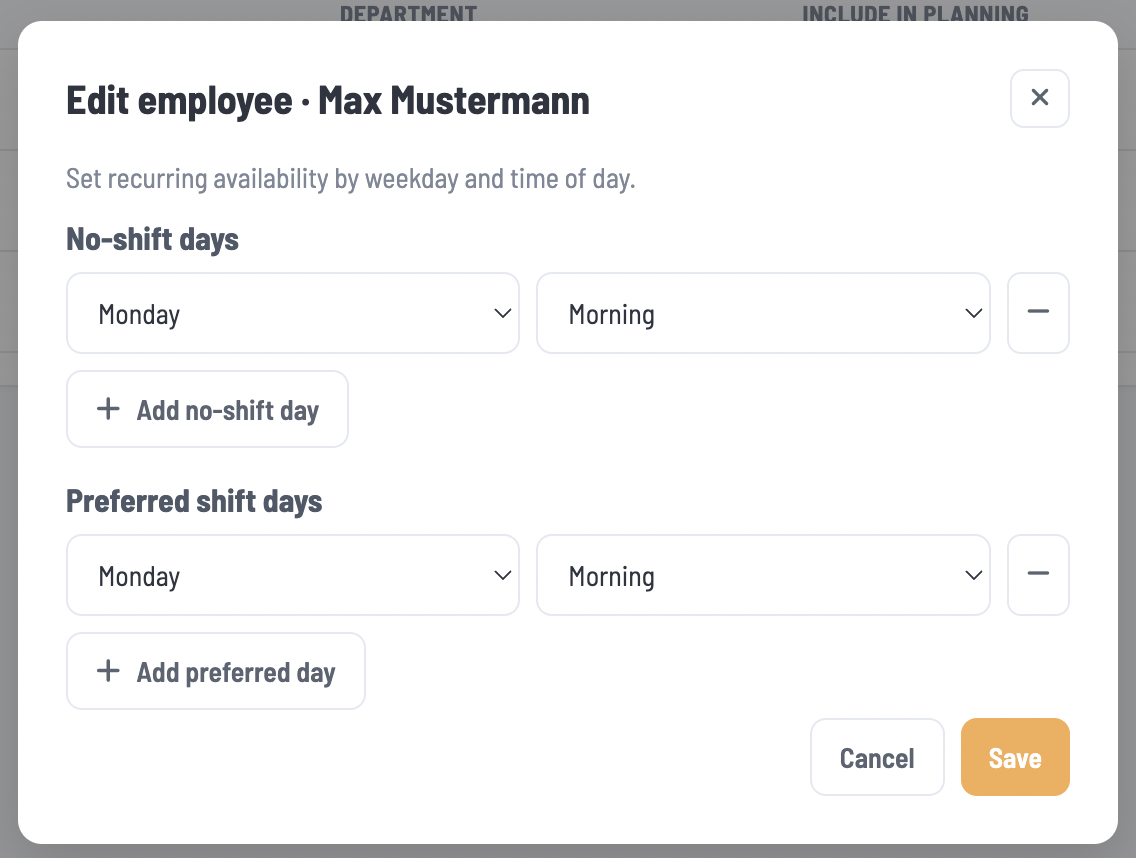
The pencil icon opens the employee’s recurring scheduling settings:
| Setting | Description |
|---|---|
| No-shift days | Weekdays and time periods when the employee should not be scheduled. |
| Preferred shift days | Weekdays and time periods when the employee prefers to work. |
Administrators can add or remove multiple entries in each section. Each entry contains a weekday and time-of-day selection. Clicking Save stores the settings for use during schedule generation.
Scheduling Rules (please verify if these are correct)
No-shift days: These are mandatory restrictions. Smart Plan AI must not assign the employee to shifts during the specified weekdays and time periods.
Time-of-day definitions: The exact time ranges for Morning, Afternoon, and other available options will be discussed and defined internally.
Conflicting entries: The system must block saving if a No-shift day entry and a Preferred shift day entry use the same weekday with identical or overlapping time periods. Different, non-overlapping time periods on the same weekday are allowed.