
Module : Report (Vacation History)
Overview
The Vacation History Report allows administrators to view and download vacation records for each employee based on a selected period.
1. Listing
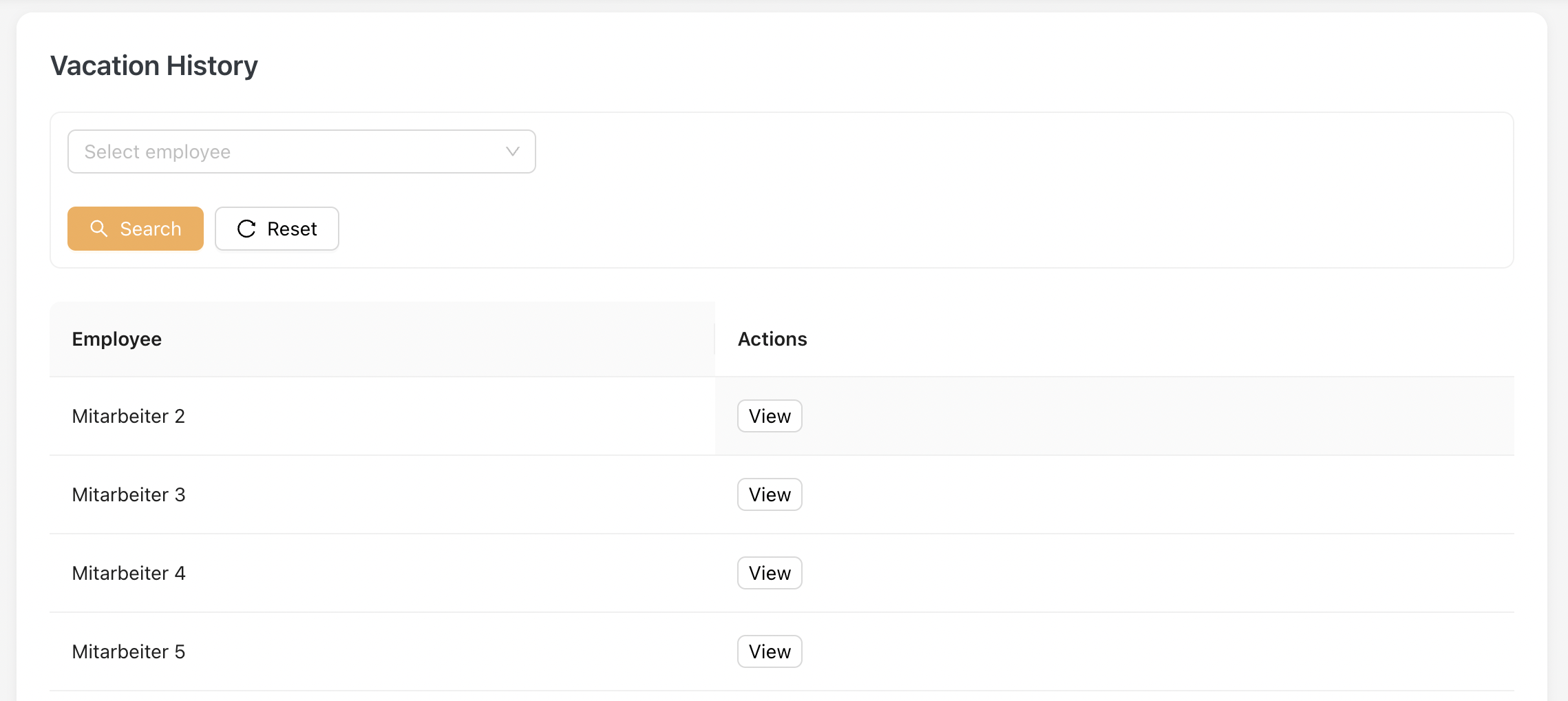
The Vacation History Listing displays all employees with available vacation records.
Each employee is shown in a separate row, with a [ View ] option to access their detailed vacation history.
1.1 Generate Vacation History Report
- Select a specific employee
- Click on [ View ]
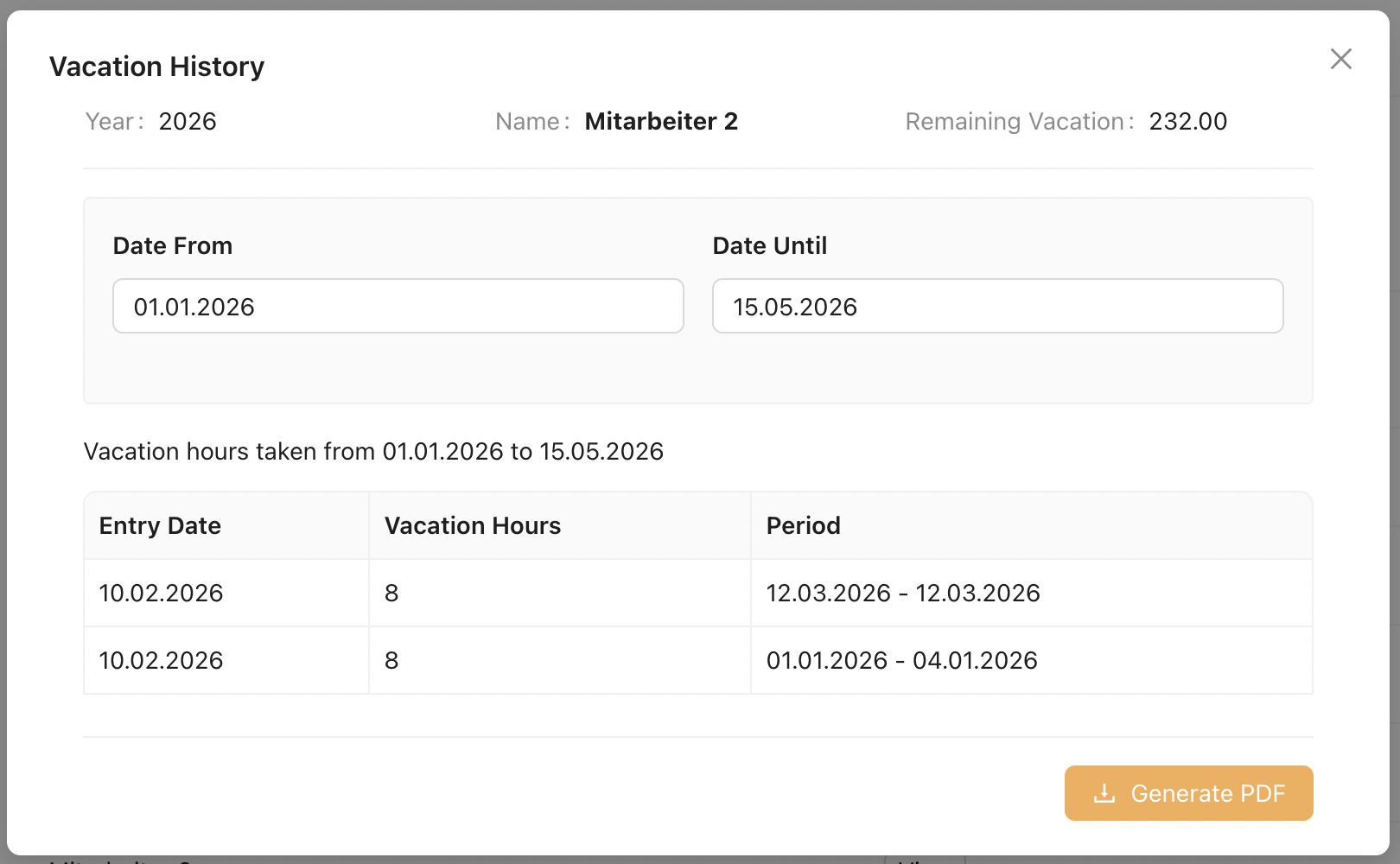
- Define the reporting period by selecting [ Date From ] and [ Date Until ]
- The Vacation History Report will be generated automatically
- Click [ Generate PDF ] to download the report as a PDF file
Screenshot of Vacation History Report
Remaining Vacation
Displays the remaining vacation hours calculated from the beginning of the selected year up to the selected Date Until.
Future vacation bookings after the selected Date Until are not included in this calculation.
For example, if vacation hours are booked after 15.5.2026, those hours will not be deducted from the displayed value of 232.00.