
Module : jSales
The jSales module in the Client Management Panel (CMP) is the central configuration hub for the jSales platform. It allows Administrators to configure the branding, user interface, and core settings that define the appearance and behaviour of jSales.
The module consists of the following configuration pages:
- Brand Settings – Configure the global branding and colour theme.
- HTML Code Editor – Manage location-specific HTML content.
- PDF Template Upload – Upload and assign PDF templates for Summary PDF generation.
- Location URL – Manage and access the jSales URL for each Location.
1. Brand Settings
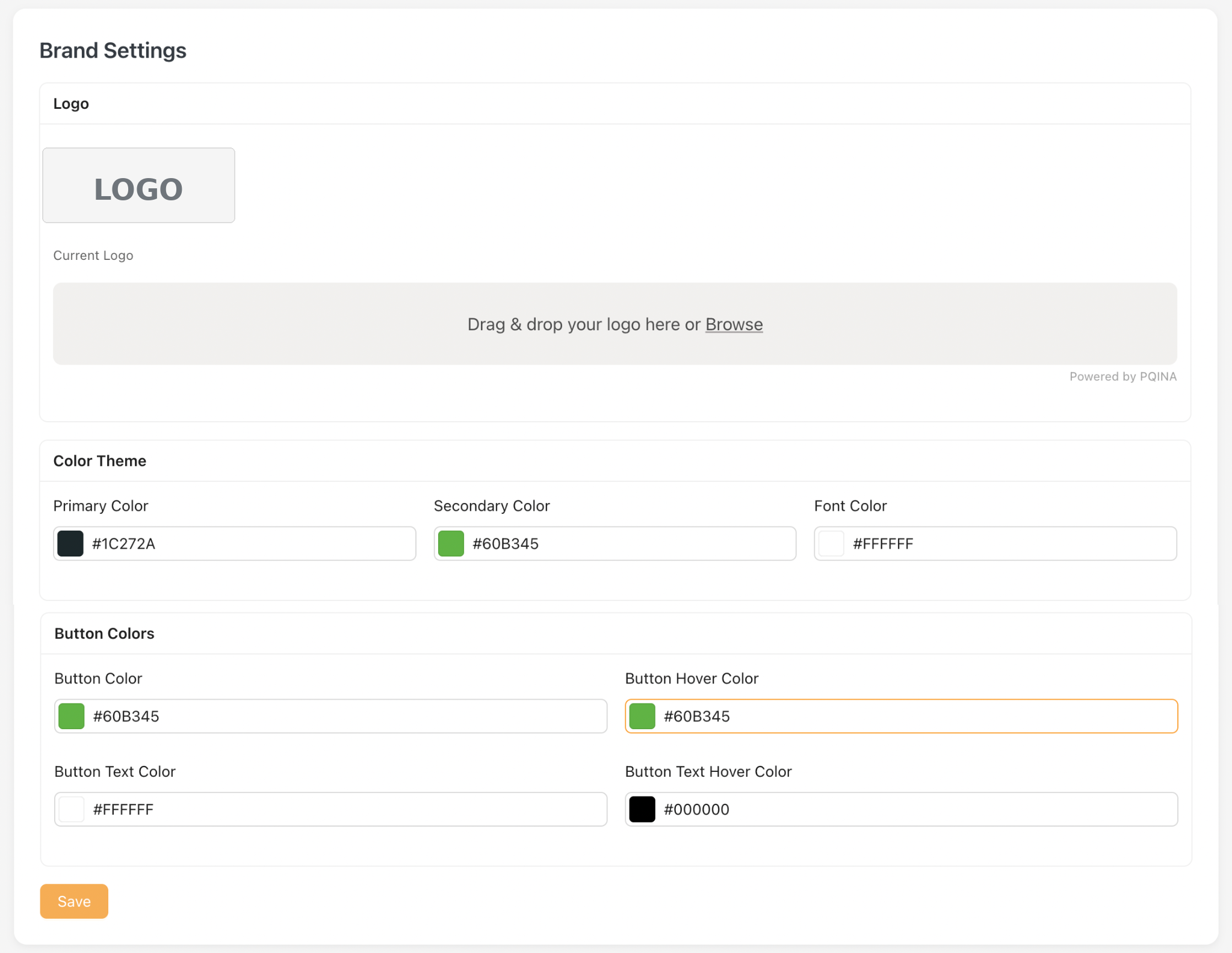
The Brand Settings page allows Administrators to configure the global branding and colour theme used throughout the jSales platform.
Changes made on this page are applied globally and will affect all Locations within jSales
1.1 Configurations.
The Brand Settings page consists of the following configuration sections:
- Logo – Upload the logo displayed across the jSales platform.
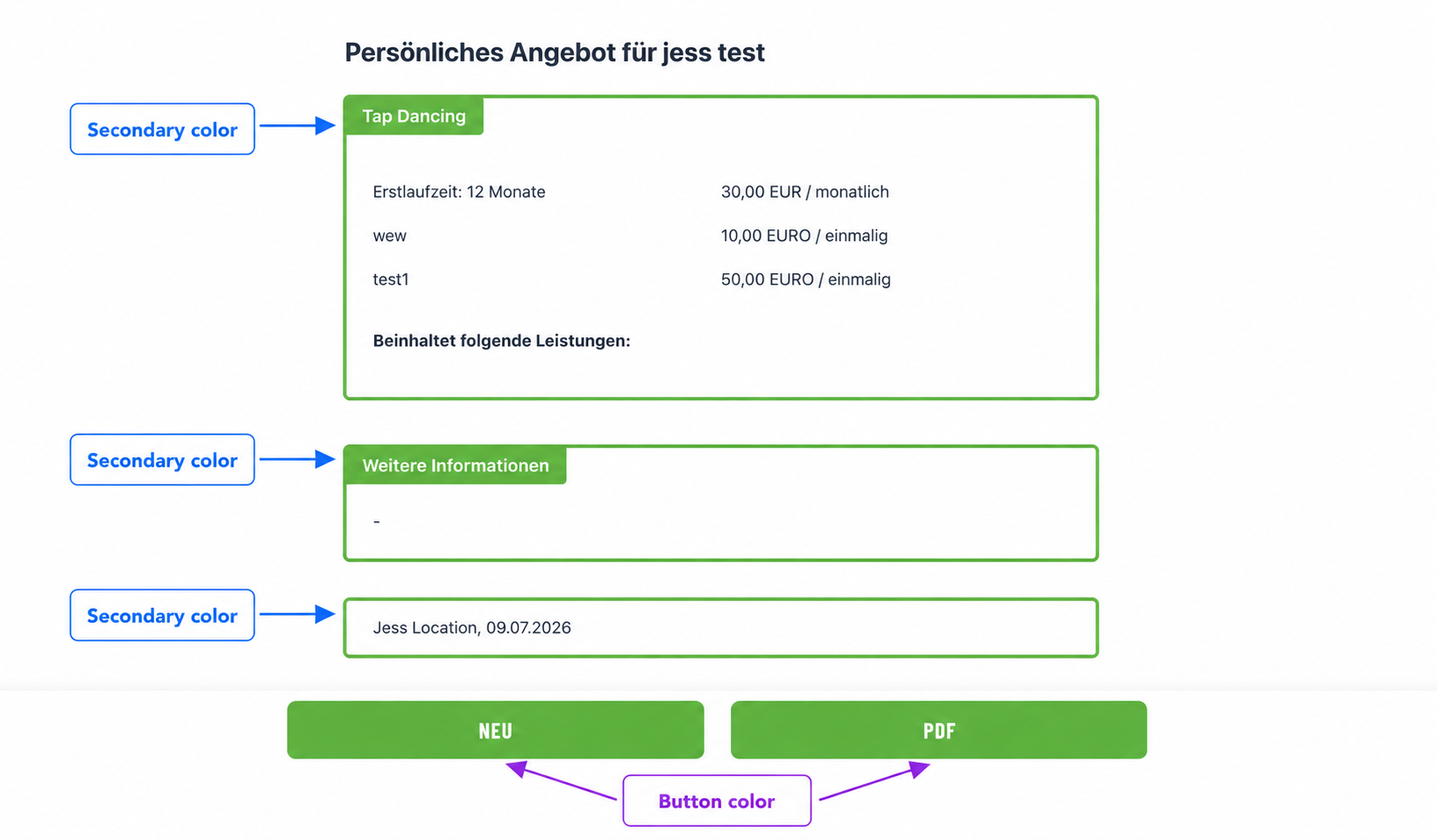
- Color Theme – Configure the primary, secondary, and font colours.
- Button Colors – Configure the default and hover colours for buttons and button text.
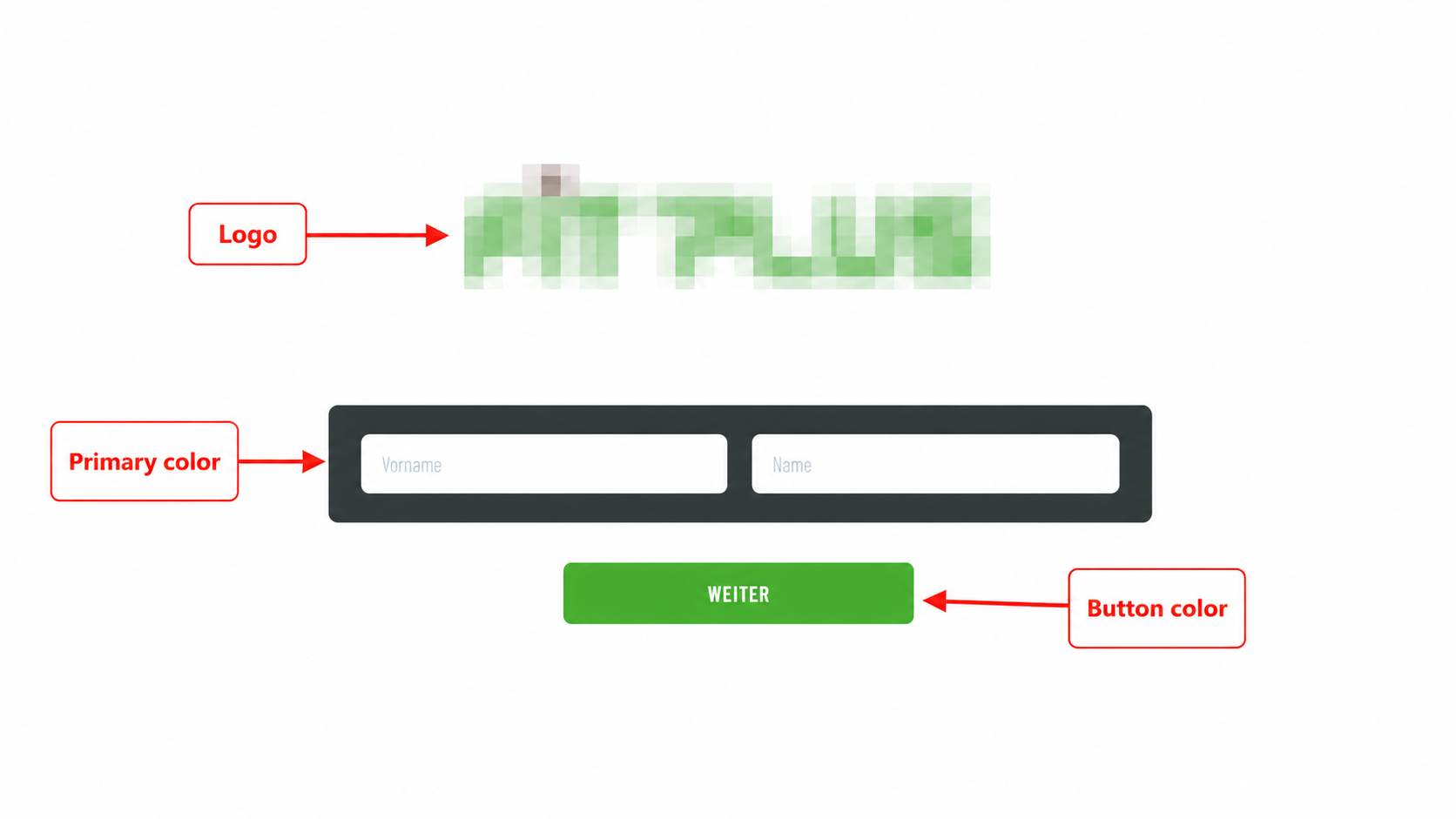
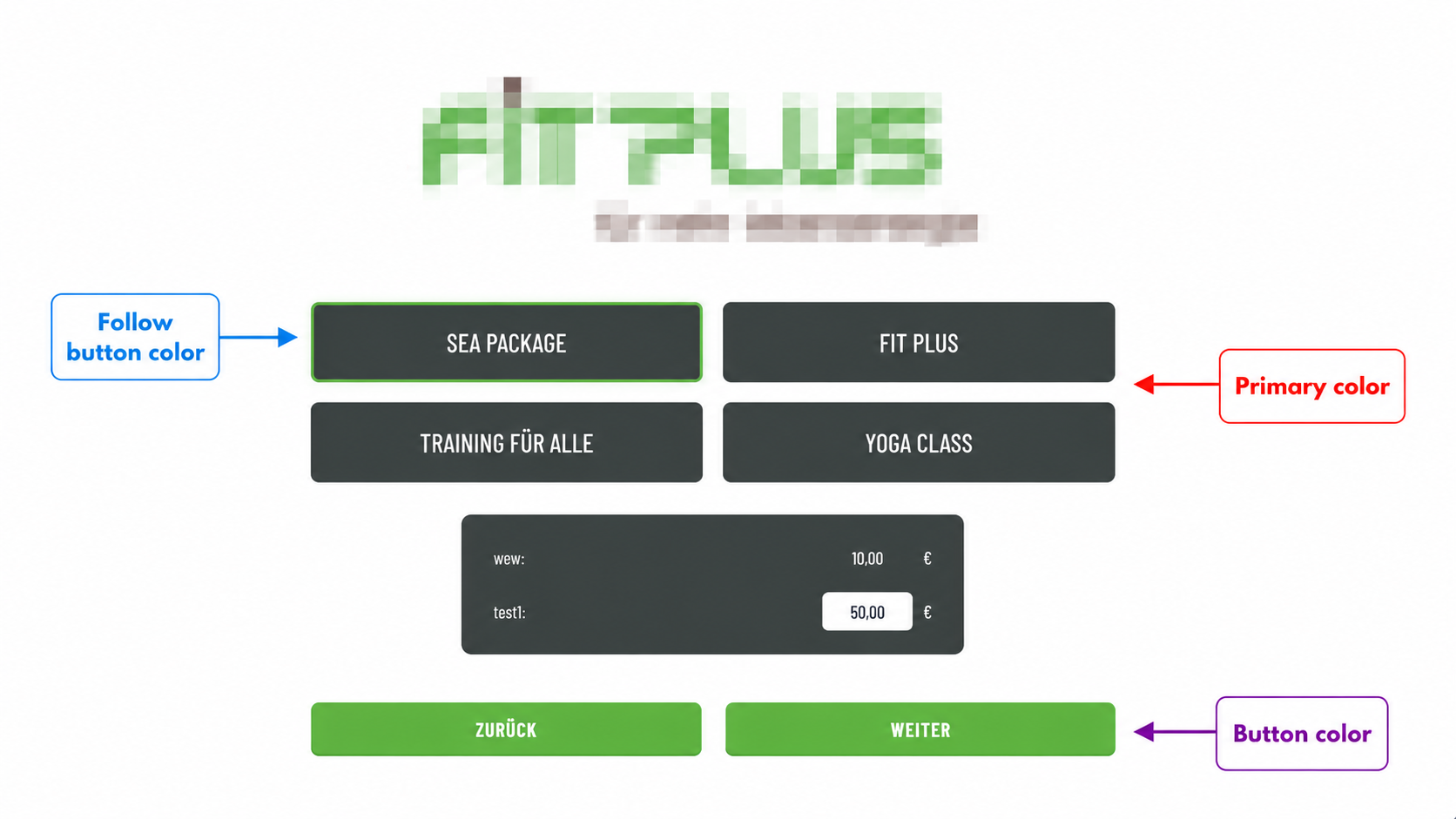
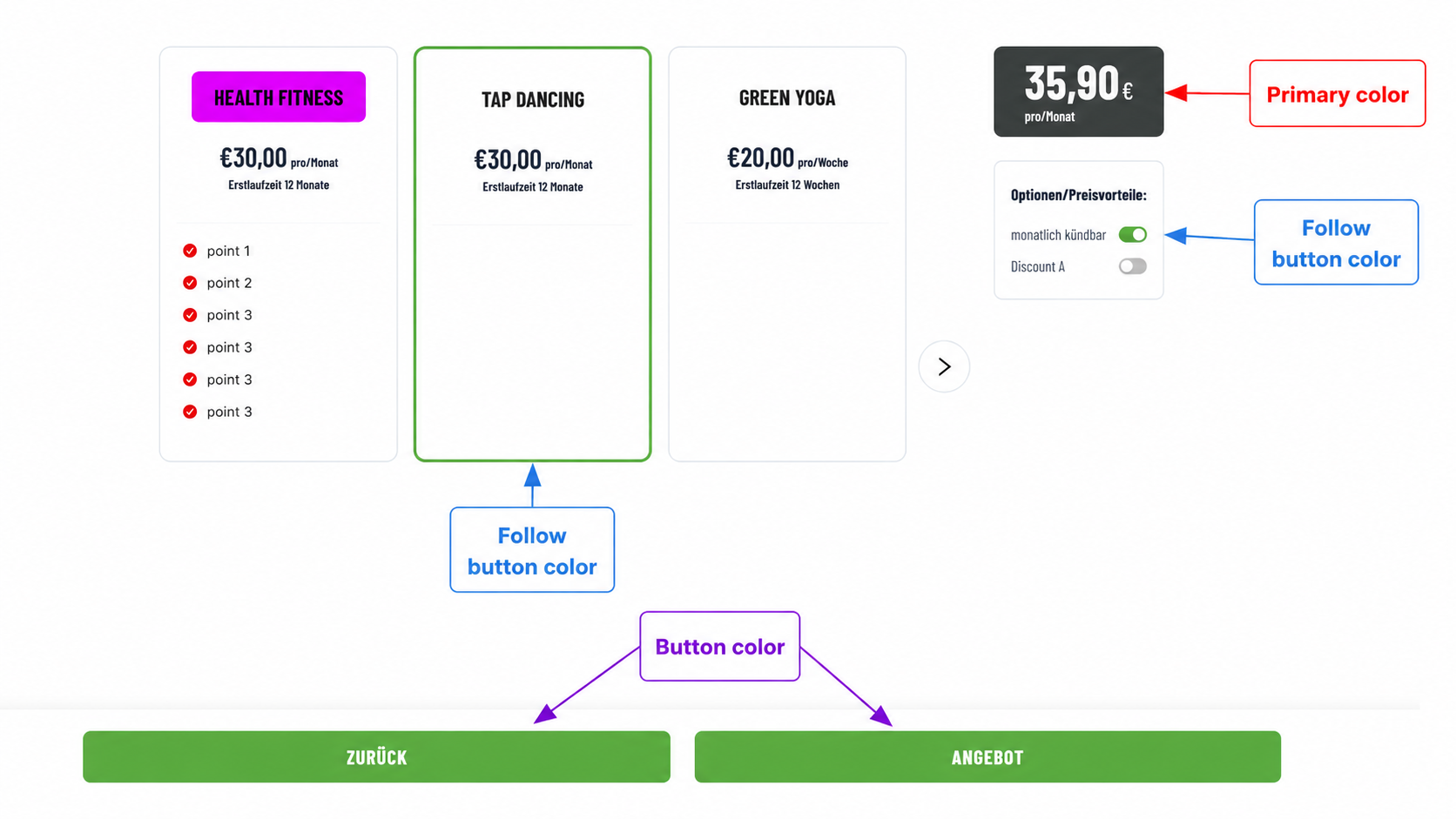
Below are the areas where the colour configurations take effect:
STEP 1 on jSales
STEP 3 on jSales
STEP 4 on jSales
STEP 5 on jSales
2. HTML Page Editor
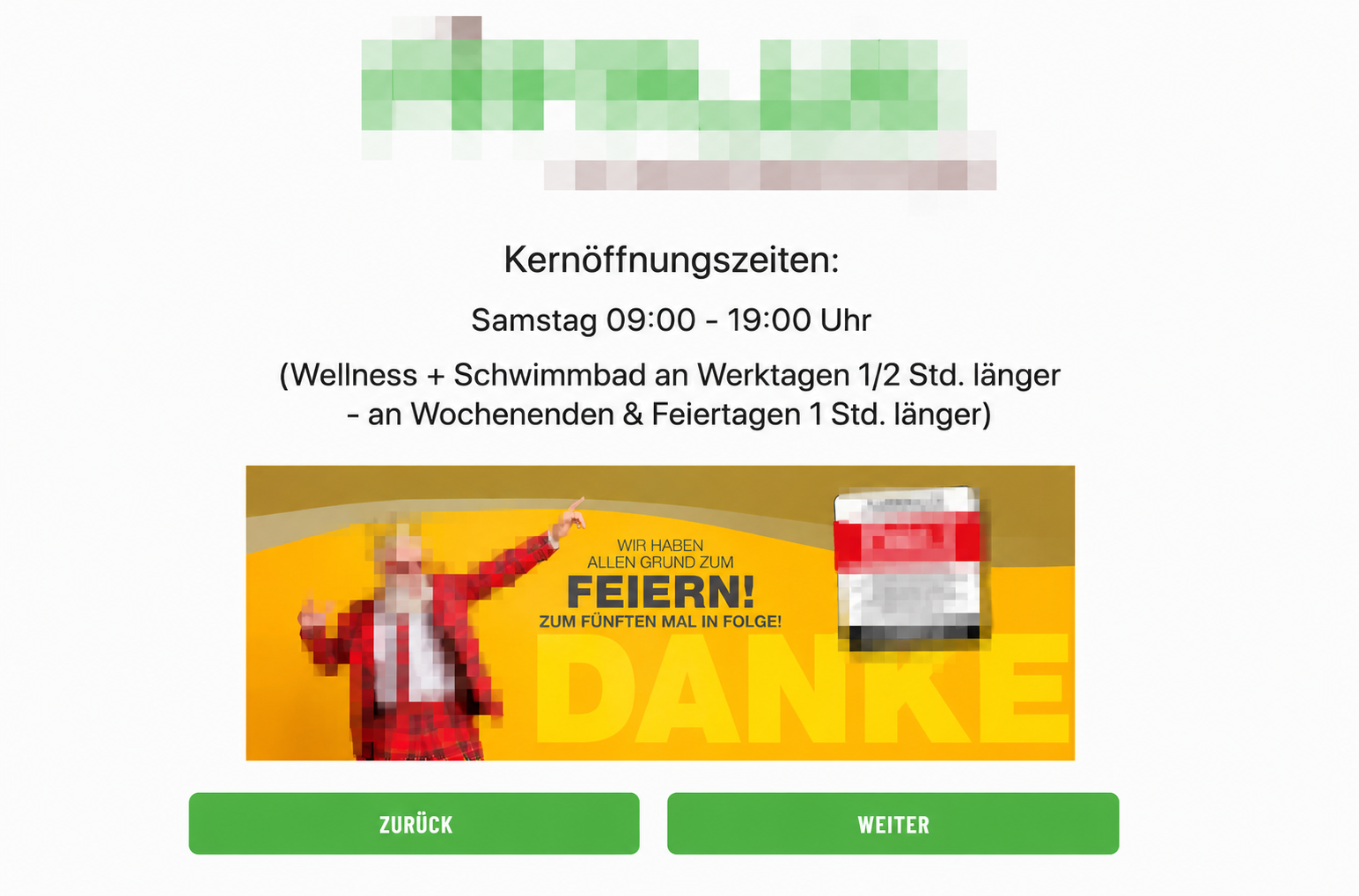
The HTML Page Editor allows Admin to manage the HTML content displayed on JSales Step 2.
This setting is location-based, which means each location can have its own HTML content.
2.1 Create/Edit HTML Content
- Go to HTML Page Editor.
- Locate the desired location and click Edit.
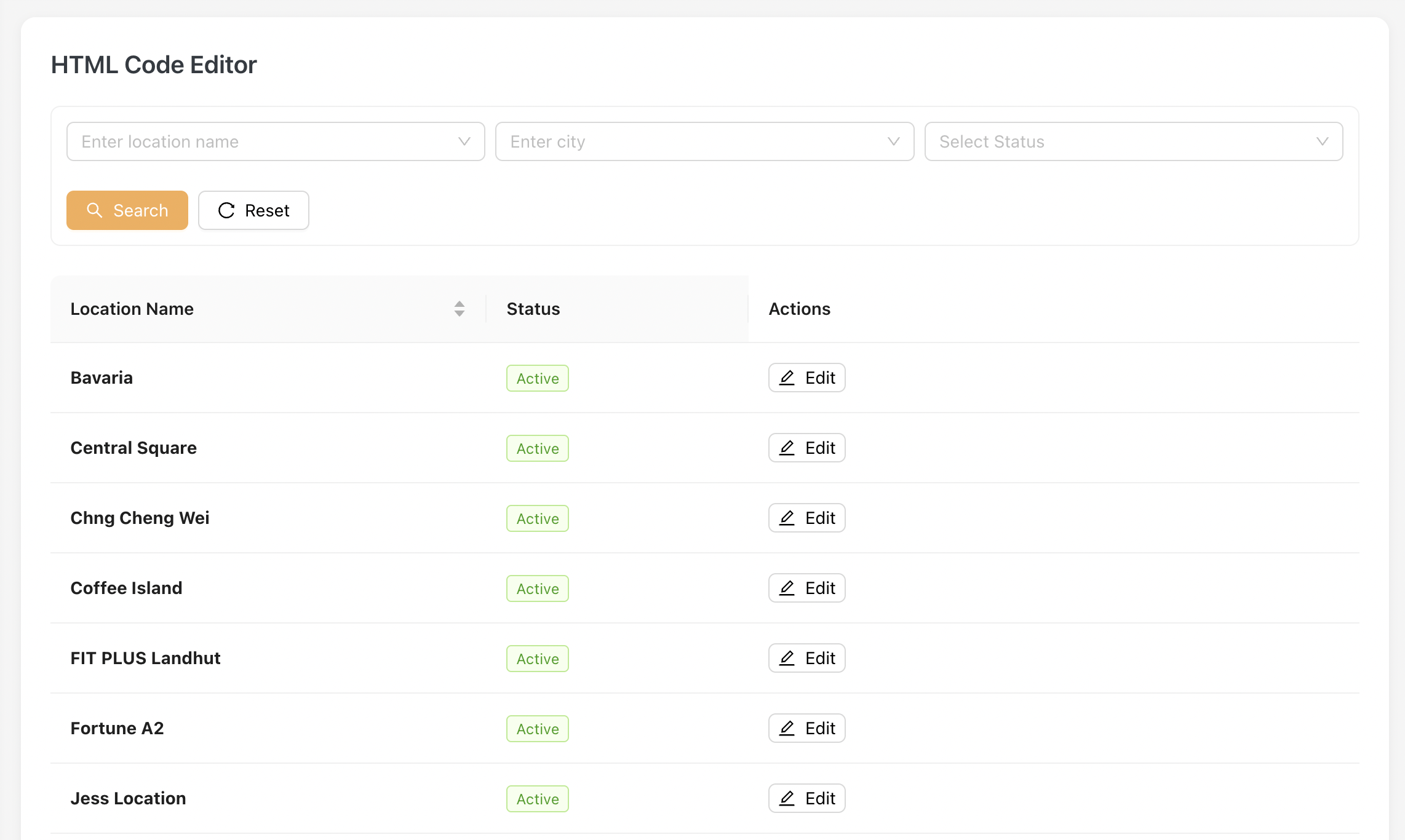
The Edit HTML Code popup will open.
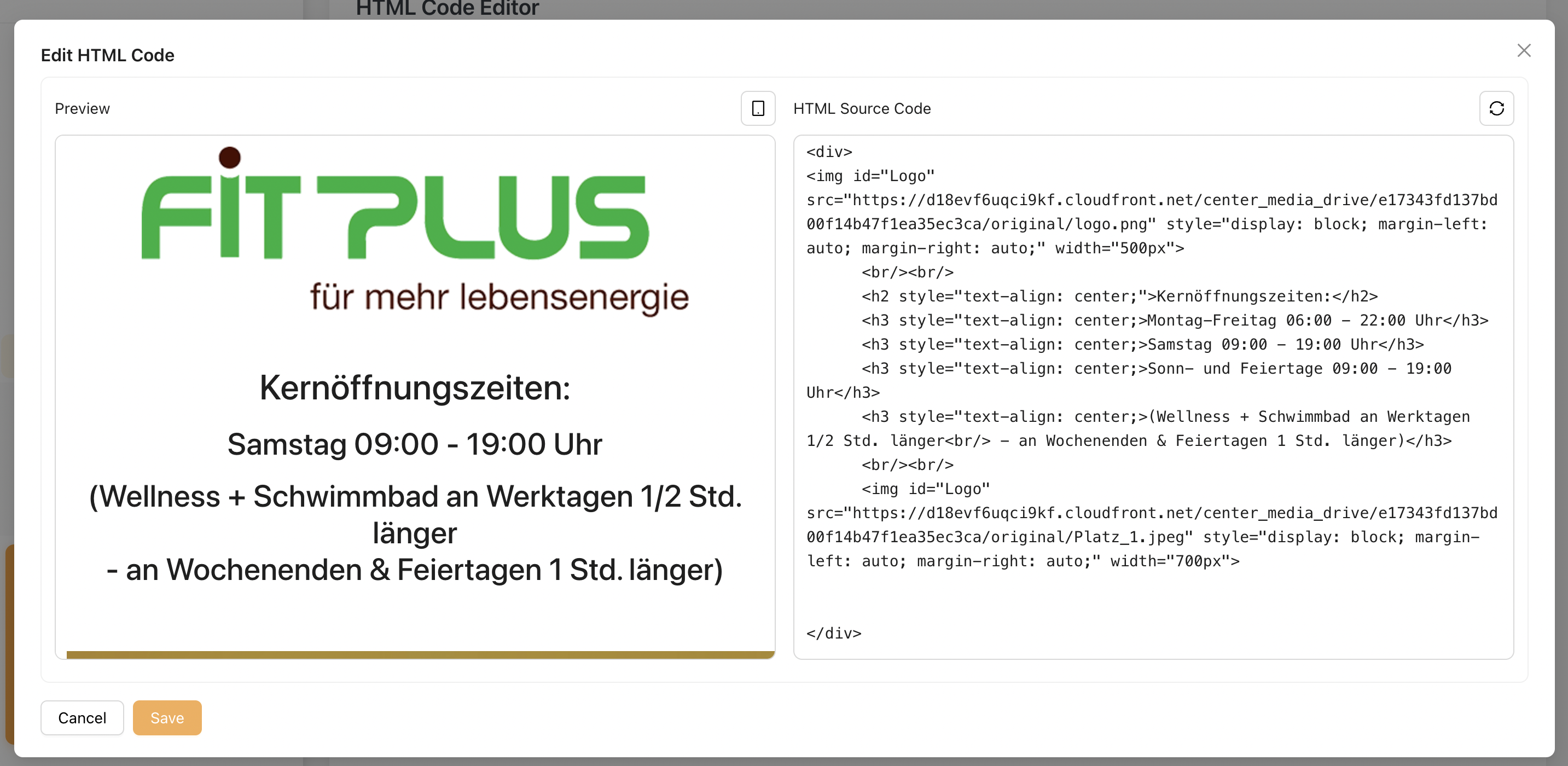
The popup consists of the following sections:
| Section | Description |
|---|---|
| Preview | Displays how the HTML content will appear on JSales. |
| HTML Source Code | Allows Admin to edit the HTML content for the selected location. |
Admin can update the HTML source code directly in the editor. The Preview section is refreshed instantly, allowing Admin to review the changes before saving.
2.2 Saving the Changes
After updating the HTML content:
- Click Save.
- The updated content will be saved for the selected location.
- The changes will be reflected on JSales Step 2 for that location.
Example of the page displayed on JSales Step 2:
3. PDF Template Upload
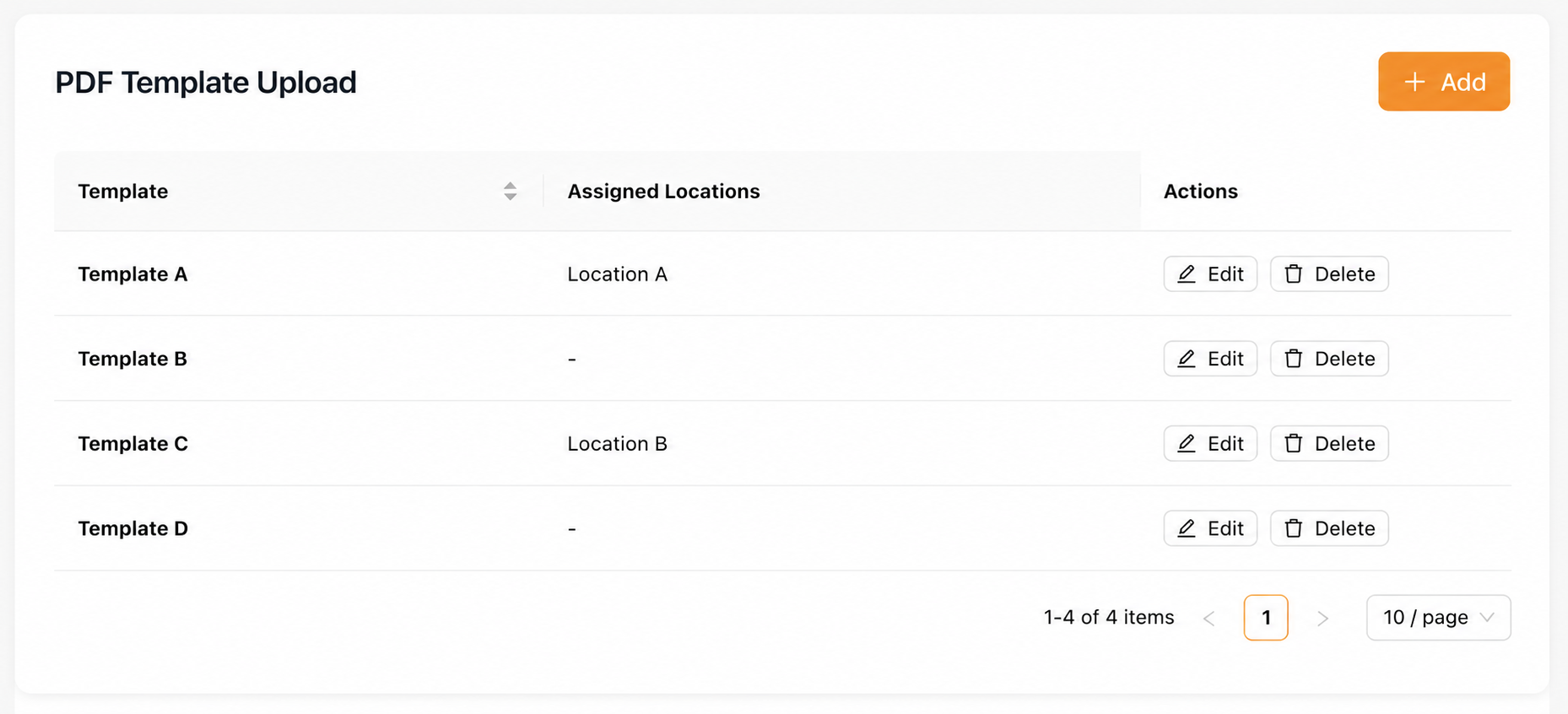
The PDF Template Upload page allows Admin to upload PDF templates to be used for generating the JSales Summary PDF.
Each template can be assigned to one or multiple locations, allowing different locations to use different Summary PDF designs or company letterheads.
3.1 Create/Edit PDF Template
Click Add to create a new PDF template, or click Edit to modify an existing template.
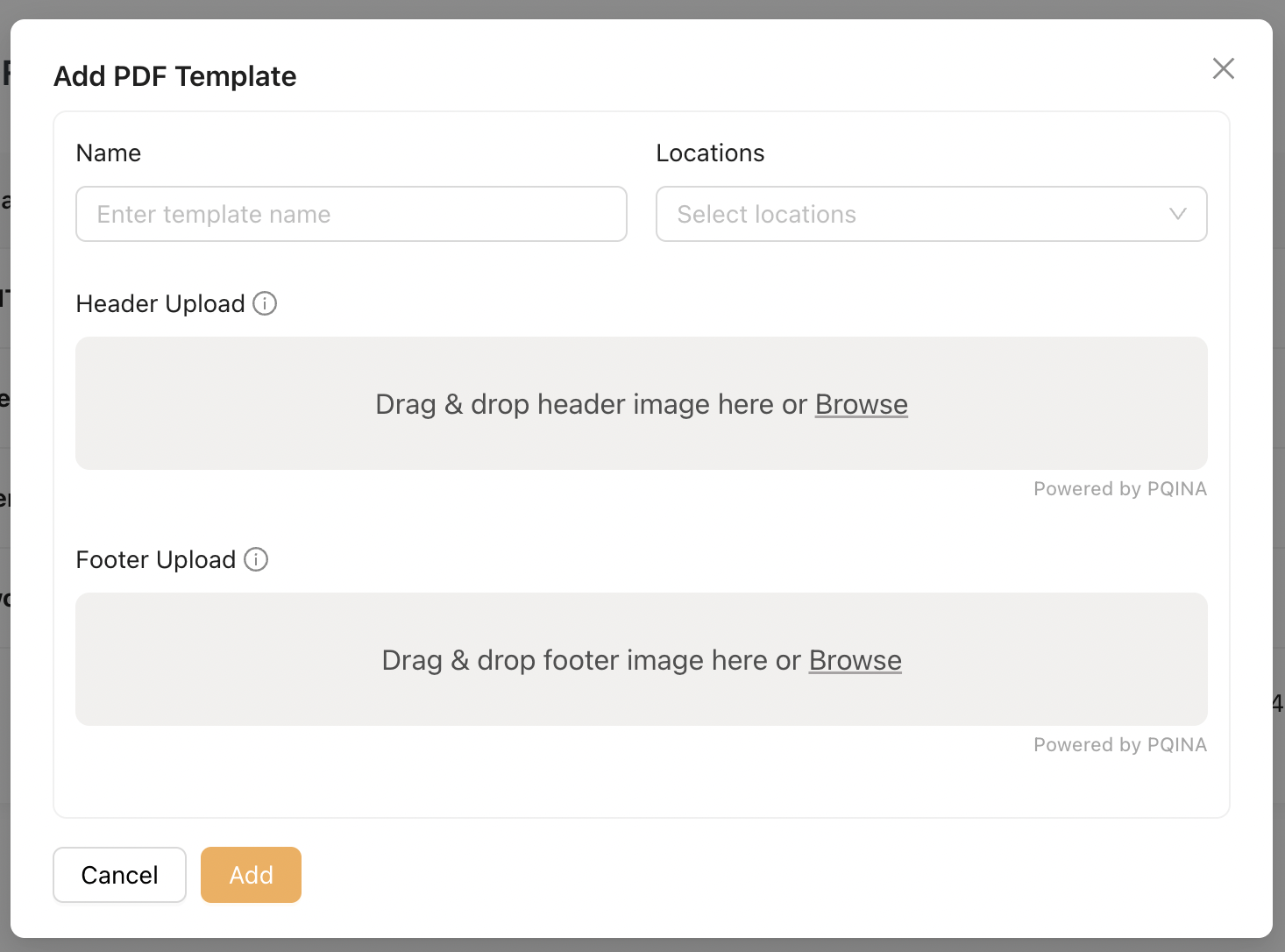
The Add/Edit PDF Template popup allows Admin to configure the following information:
| Field | Description |
|---|---|
| Name | Enter the template name. |
| Locations | Assign one or multiple locations to the template. |
| Header Upload | Upload the header image to be displayed at the top of the Summary PDF. |
| Footer Upload | Upload the footer image to be displayed at the bottom of the Summary PDF. |
3.2 Saving the Template
After completing the configuration, click Save to save the template. The assigned locations will use this template when generating the JSales Summary PDF.
Note
- A location can only be assigned to one PDF template at a time.
- If a selected location has already been assigned to another template, the system will prevent the template from being saved and display the following validation message:
Example Validation Message
Location(s) {Location's name} are already assigned to another PDF Template. Please remove the existing assignment before continuing.
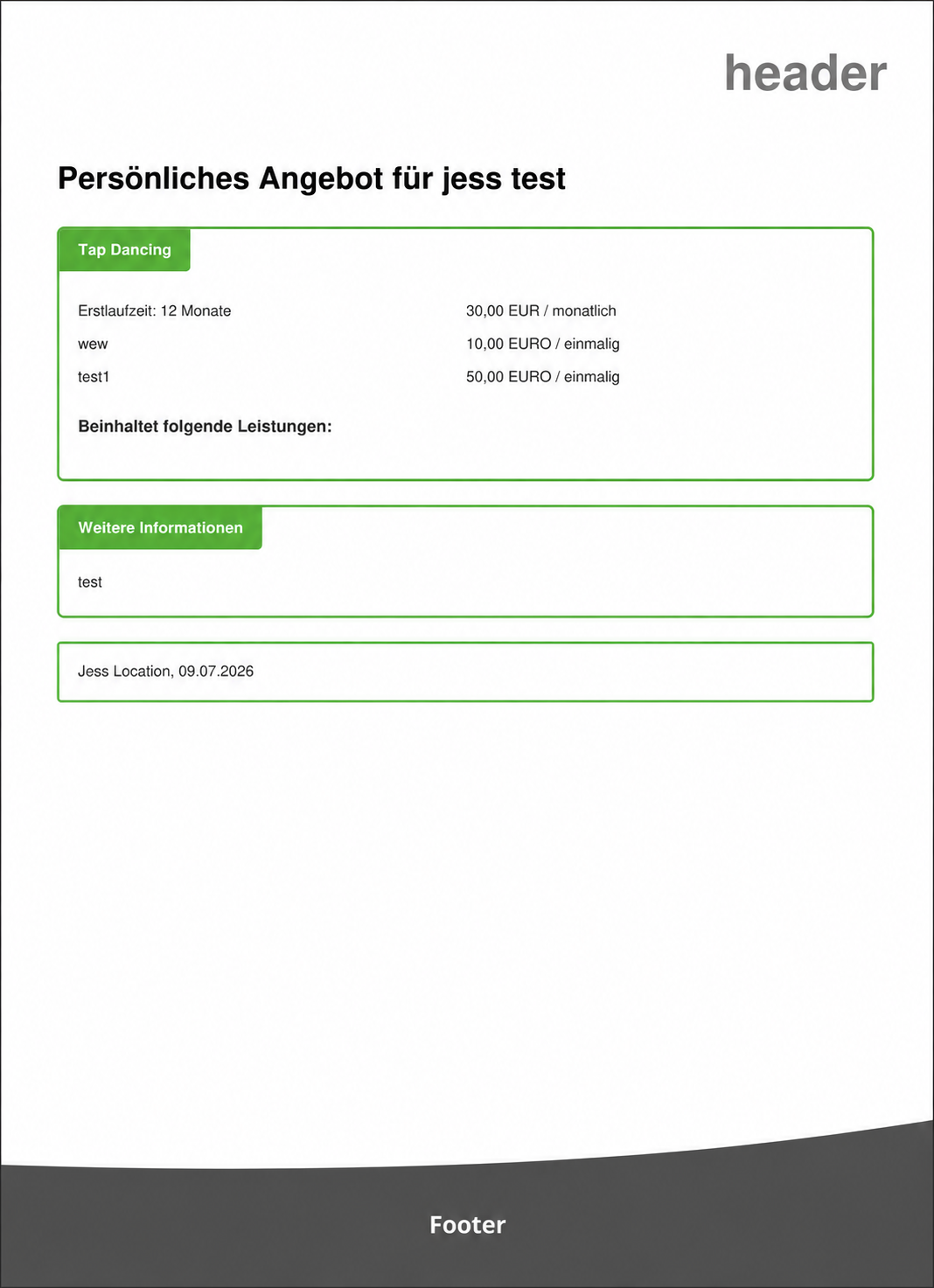
An example of PDF Template generated on jSales
4. Location URL
The Location URL page displays a list of all created locations. Each location has its own unique URL.
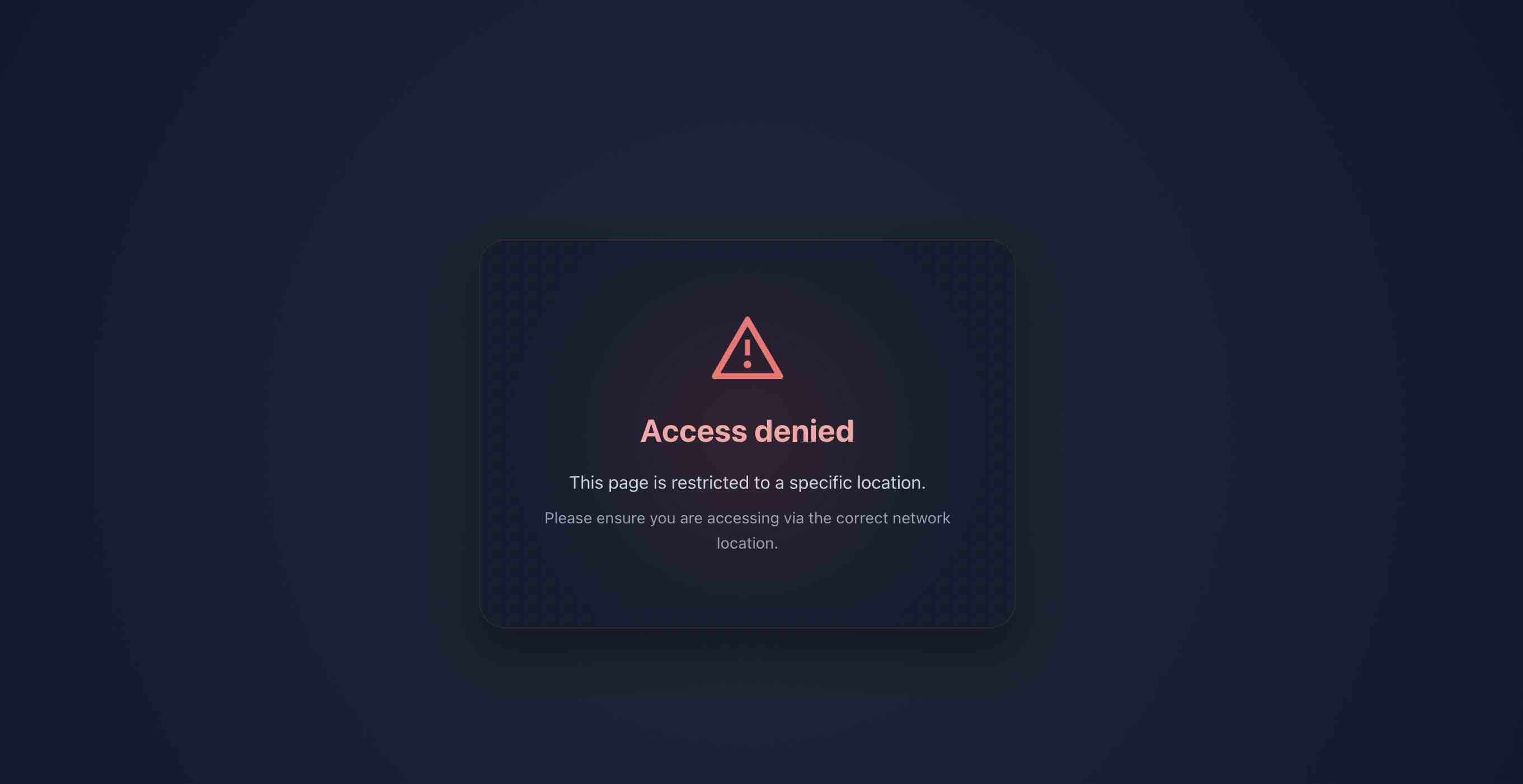
Only Sales physically present at the assigned location can access the corresponding Location URL. If the Sales attempts to access the URL from outside the assigned location, the system will display an error page, as shown below.
4.1 Accessing the Location URL
The Actions column provides the following functions:
| Action | Description |
|---|---|
| Copy URL | Copies the JSales URL for the selected location to the clipboard. |
| Open JSales | Opens the JSales page for the selected location. |
Open JSales is only available when accessing the page from within the selected location.