
Programme
The Programmes feature allows Admin to create and manage online training programmes that are made available through the Member Area.
A programme can run for a defined duration and provide participants with training content such as text, videos and downloadable files. Admin can also configure which Member Area user types can access the programme and whether participation is free or paid.
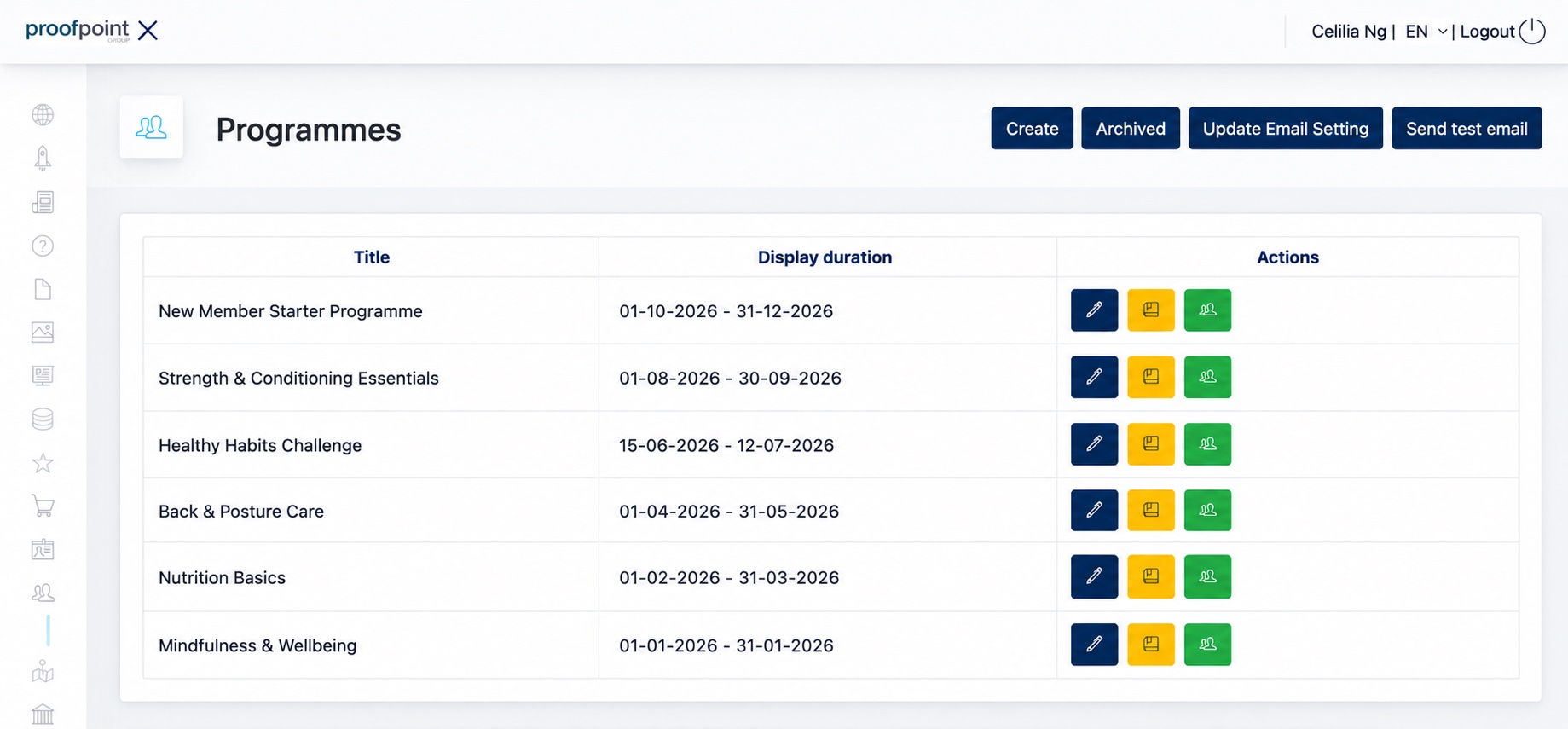
1. Create a Programme
Click Create on the Programmes page to create a new programme.
The Programme editor is organised into three tabs:
| Tab | Description |
|---|---|
| General | Configure the basic programme information, availability, target users, pricing and images. |
| Text | Configure the text content displayed for the programme. |
| Content | Configure the content provided as part of the programme. |
1.1 General Tab
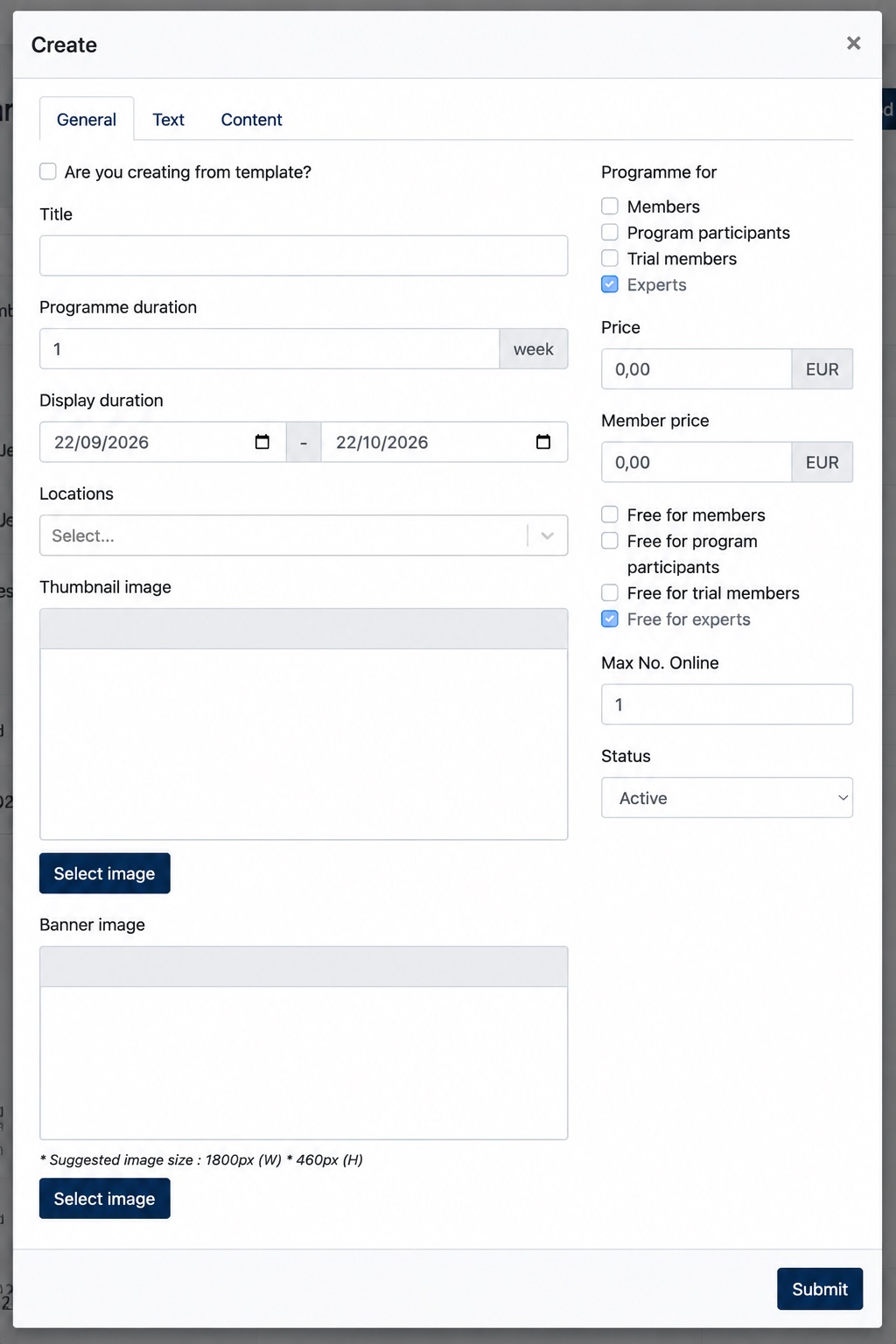
Use the General tab to configure the main settings of the programme.
| Field | Description |
|---|---|
| Are you creating from template? | Select this option to create the programme based on an existing programme template. |
| Title | Enter the title of the programme. |
| Programme duration | Define the duration of the programme in weeks. |
| Display duration | Define the date range during which the programme is available/displayed in the Member Area. |
| Locations | Select the location(s) associated with the programme. |
| Thumbnail image | Select the thumbnail image used to represent the programme in the Member Area. |
| Banner image | Select the banner image displayed for the programme. The suggested image size is 1800 px (W) × 460 px (H). |
| Programme for | Select which Member Area user types can access the programme: Members, Program Participants, Trial Members, and/or Experts. Multiple user types can be selected. |
| Price | Define the standard price of the programme. |
| Member price | Define a separate programme price for Members. |
| Free for members | Allow Members to access the programme free of charge. |
| Free for program participants | Allow Program Participants to access the programme free of charge. |
| Free for trial members | Allow Trial Members to access the programme free of charge. |
| Free for experts | Allow Experts to access the programme free of charge. |
| Max No. Online | Define the maximum number of online participants allowed for the programme. |
| Status | Set the programme as Active or inactive. |
After completing the required configuration, click Submit to create the programme.
1.2 Text Tab
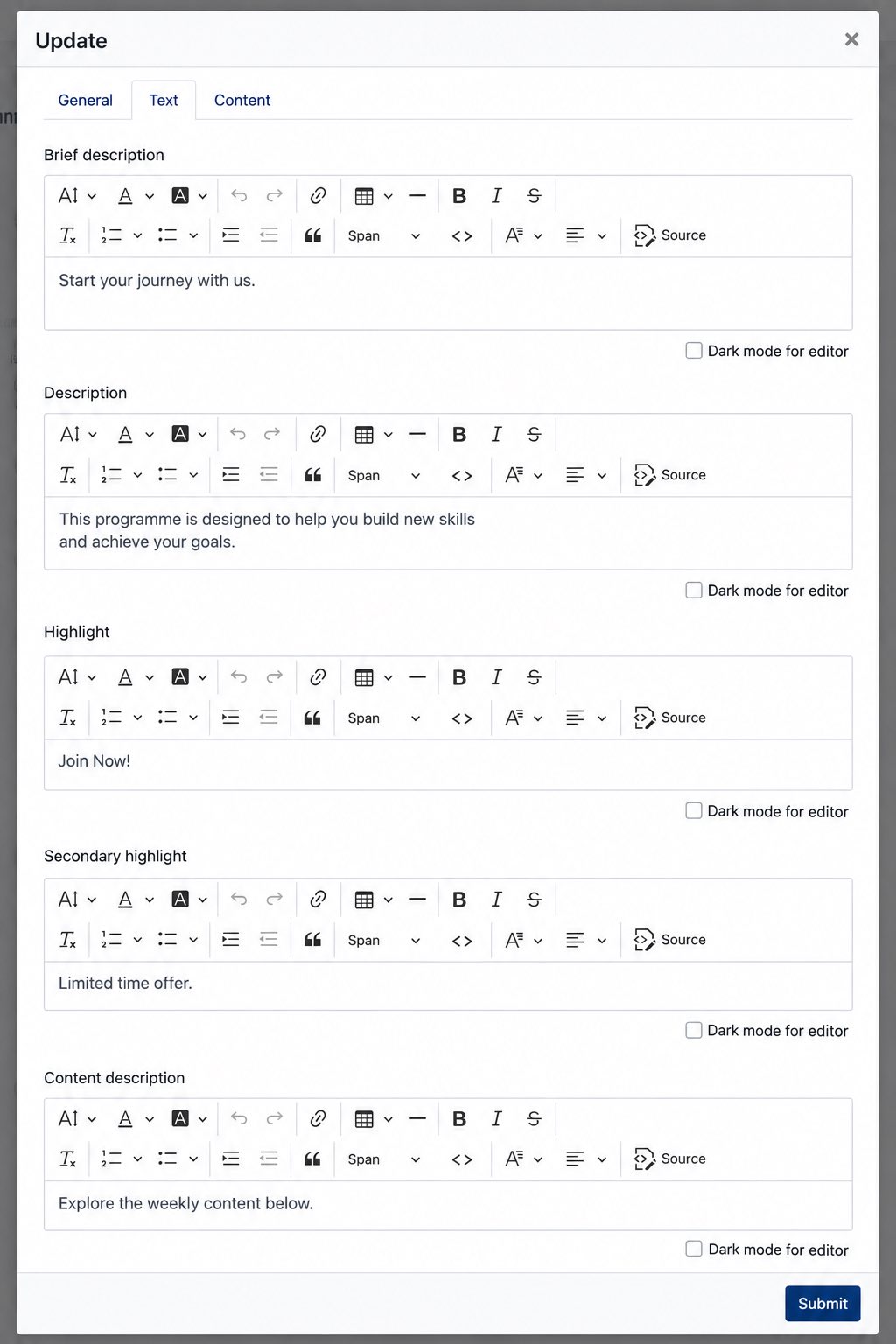
The Text tab allows Admin to configure the text displayed on the Programme page in the Member Area.
Each field provides a rich text editor, allowing the content and basic text formatting to be customised.
| Field | Description |
|---|---|
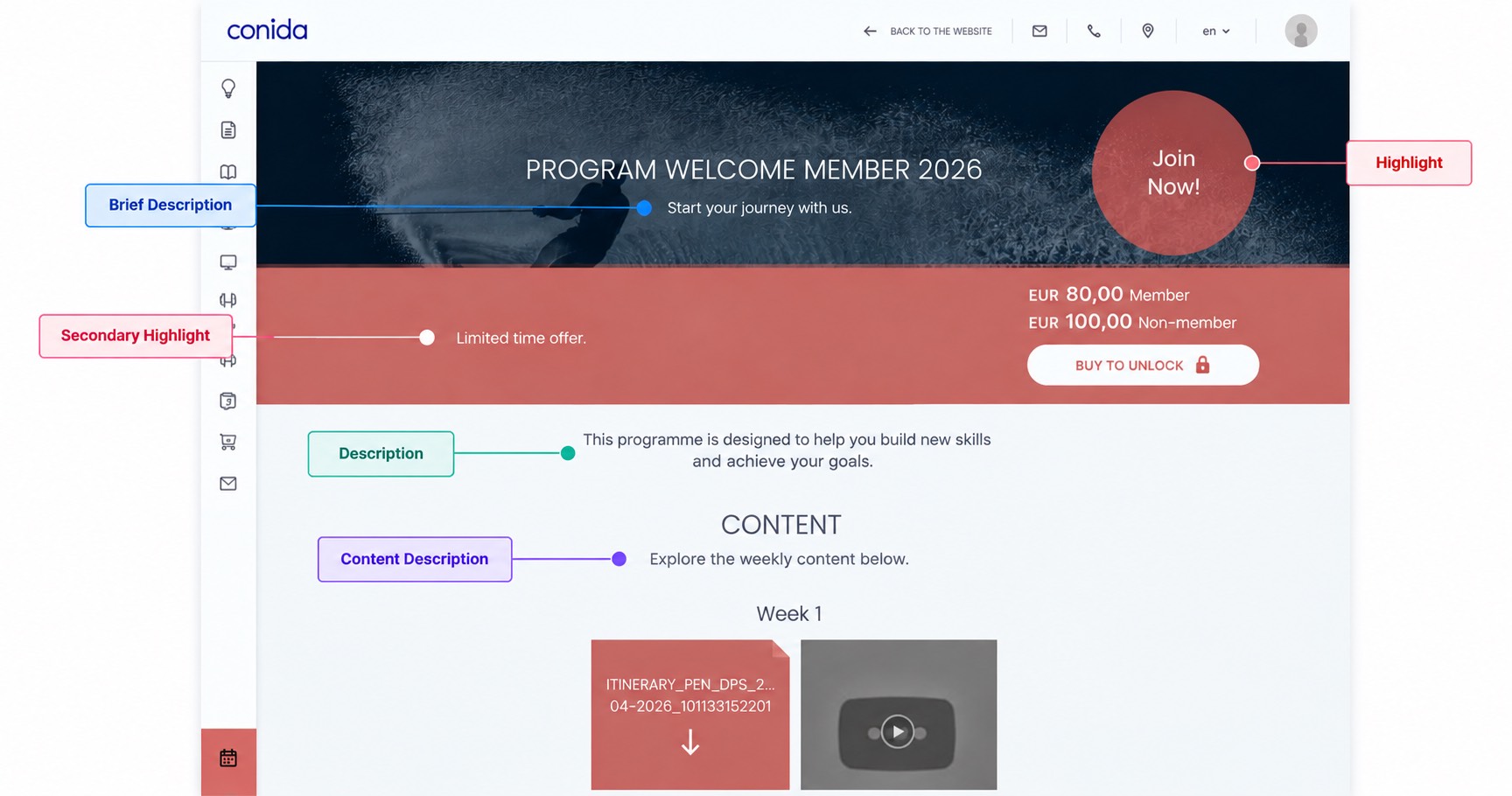
| Brief Description | A short introduction to the programme. It is displayed together with the programme title on the programme banner. |
| Description | The main description of the programme, displayed below the programme banner and introductory section. |
| Highlight | Displays highlighted programme information in the upper section of the Programme page. |
| Secondary Highlight | Displays additional highlighted information in the section below the programme banner. |
| Content Description | Introductory text displayed above the programme's weekly content. |
The configured text is displayed in different sections of the Programme page, as illustrated below:
Text displayed on Programme page:
1.3 Content Tab
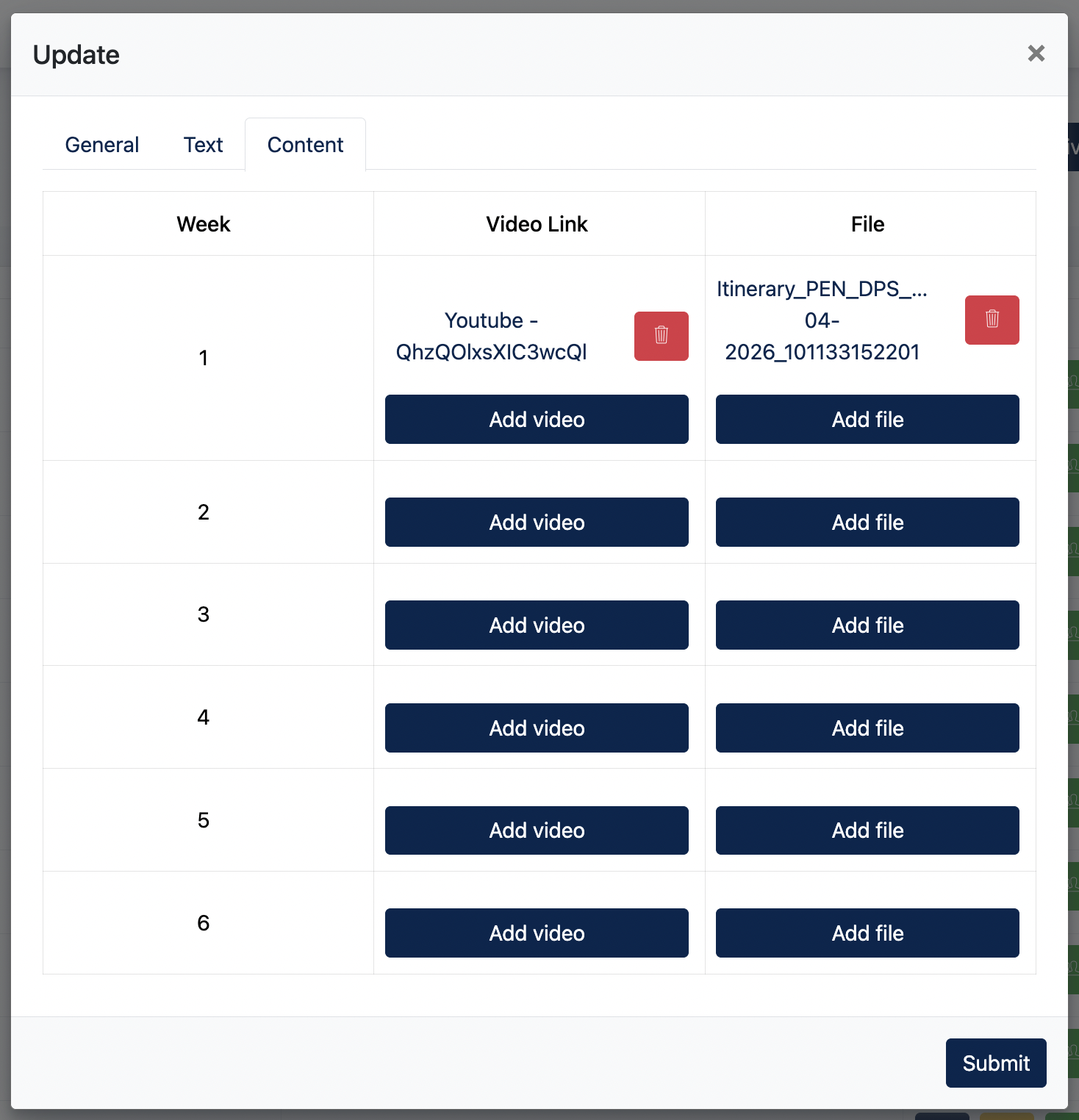
The Content tab allows Admin to add weekly content to the programme. The number of weeks displayed is based on the Programme Duration configured under the General tab.
For each week, Admin can add a video and/or upload a file. The configured content will be displayed under the corresponding week on the Programme page in the Member Area.
| Field / Action | Description |
|---|---|
| Week | Displays each week of the programme according to the configured Programme Duration. |
| Add video | Adds a YouTube or Vimeo video to the selected week. |
| Add file | Uploads a file or document for the selected week. |
| Delete | Removes an existing video or file from the selected week. |
Note: A week does not need to contain both a video and a file. Admin can add the content that is relevant for each week.
Weekly Programme Display Logic
Programme content is released progressively according to the week in which a participant is currently enrolled.
Week 1 content becomes available immediately when the participant clicks Start Now. A programme week follows the calendar week from Monday to Sunday.
The next programme week begins on the following Monday. Week 2 content will then become available, followed by each subsequent week's content on the following Mondays until the programme ends.
Content assigned to future weeks remains unavailable until the corresponding programme week begins.
Example: If a participant starts a 4-week programme on Thursday, the Week 1 content becomes available immediately. Week 2 becomes available on the following Monday, followed by Week 3 and Week 4 on each subsequent Monday.
2. Email Settings
The Email Settings allow Admin to configure automated email notifications related to programme participation and weekly programme content.
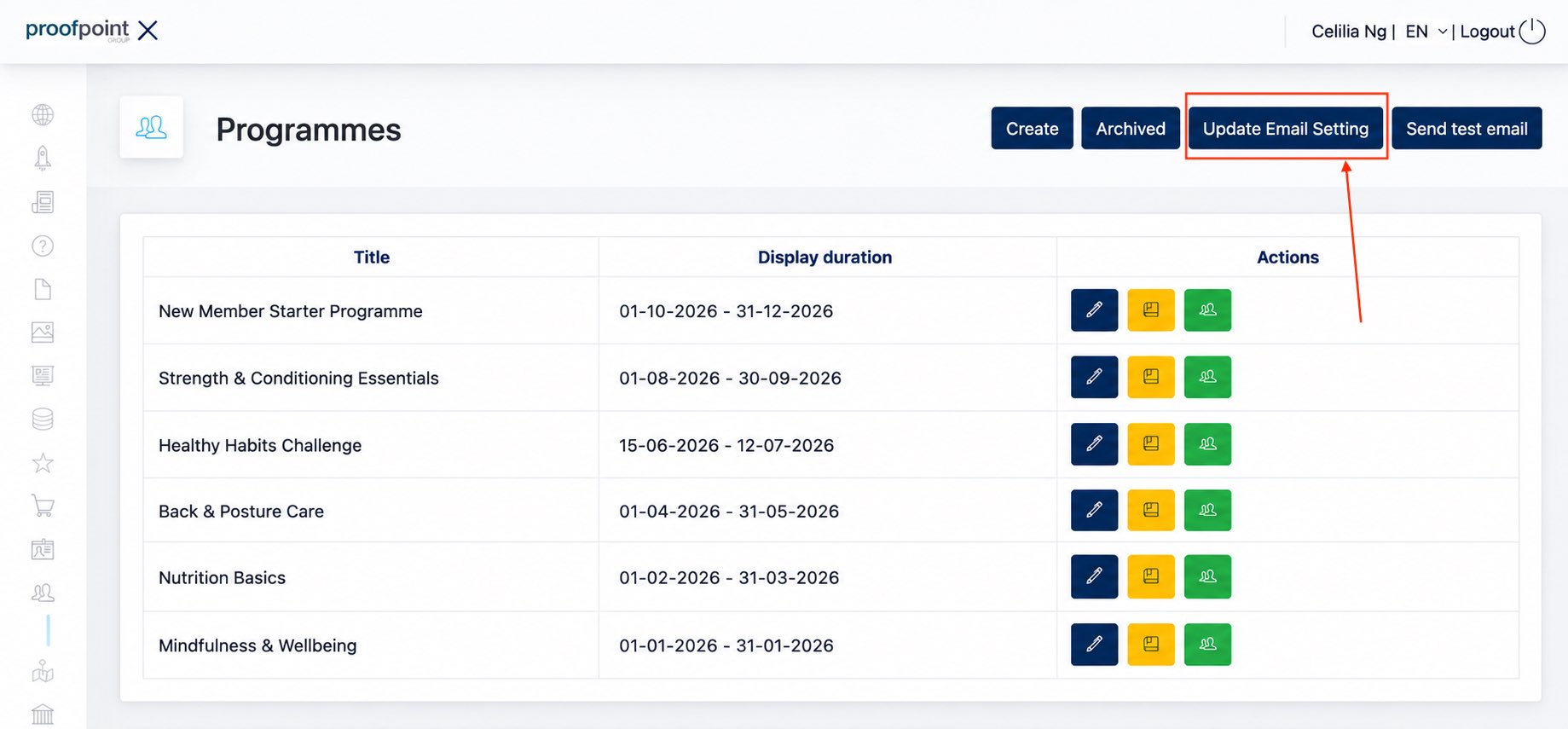
Click Update Email Setting on the Programme listing page to configure the following emails.
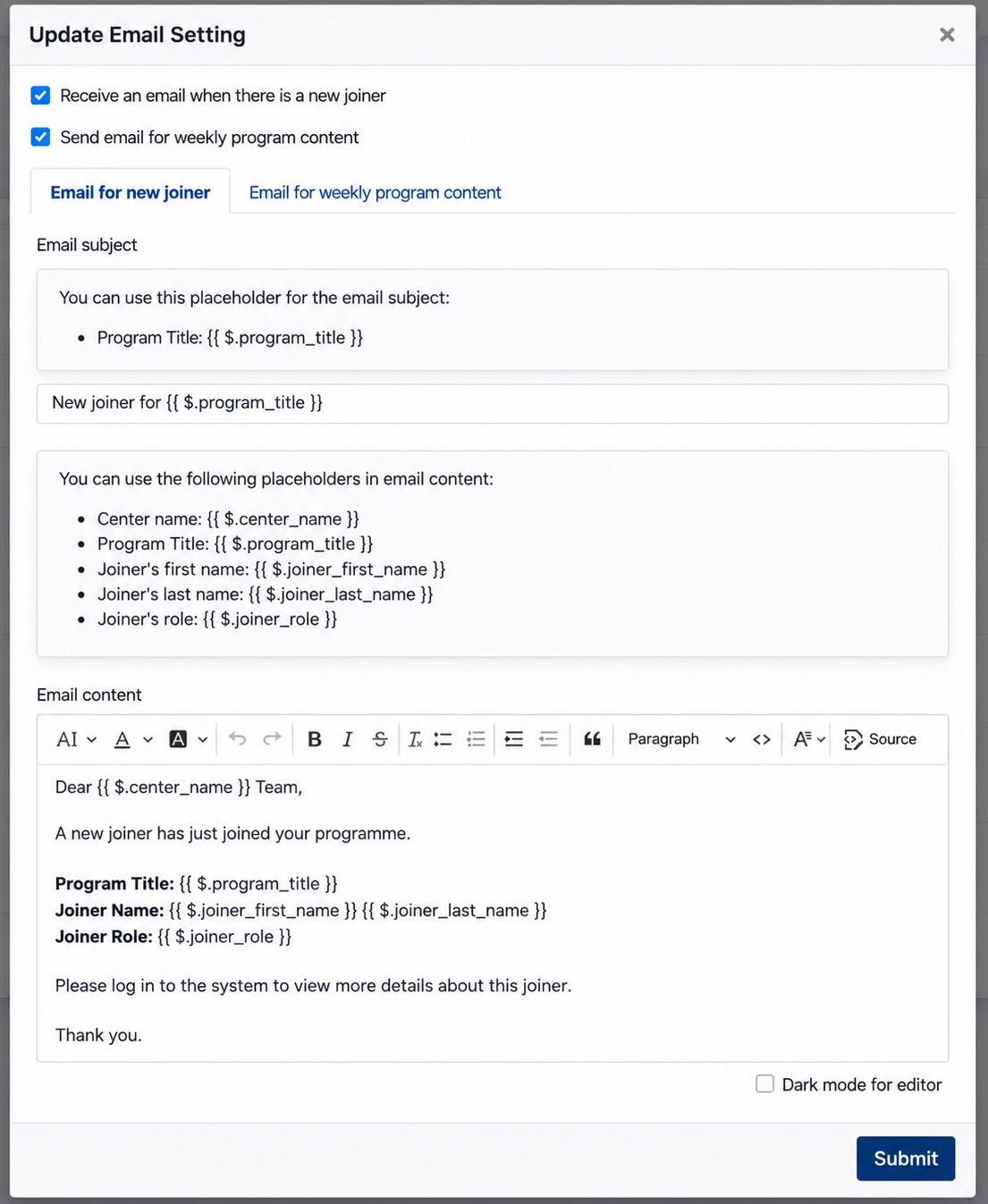
1. Email for New Joiner
Enable Receive an email when there is a new joiner to notify Admin when a user joins the programme.
Under Email for new joiner, Admin can customise the Email Subject and Email Content. The available placeholders can be used to automatically include relevant programme and joiner information in the email.
2. Email for Weekly Programme Content
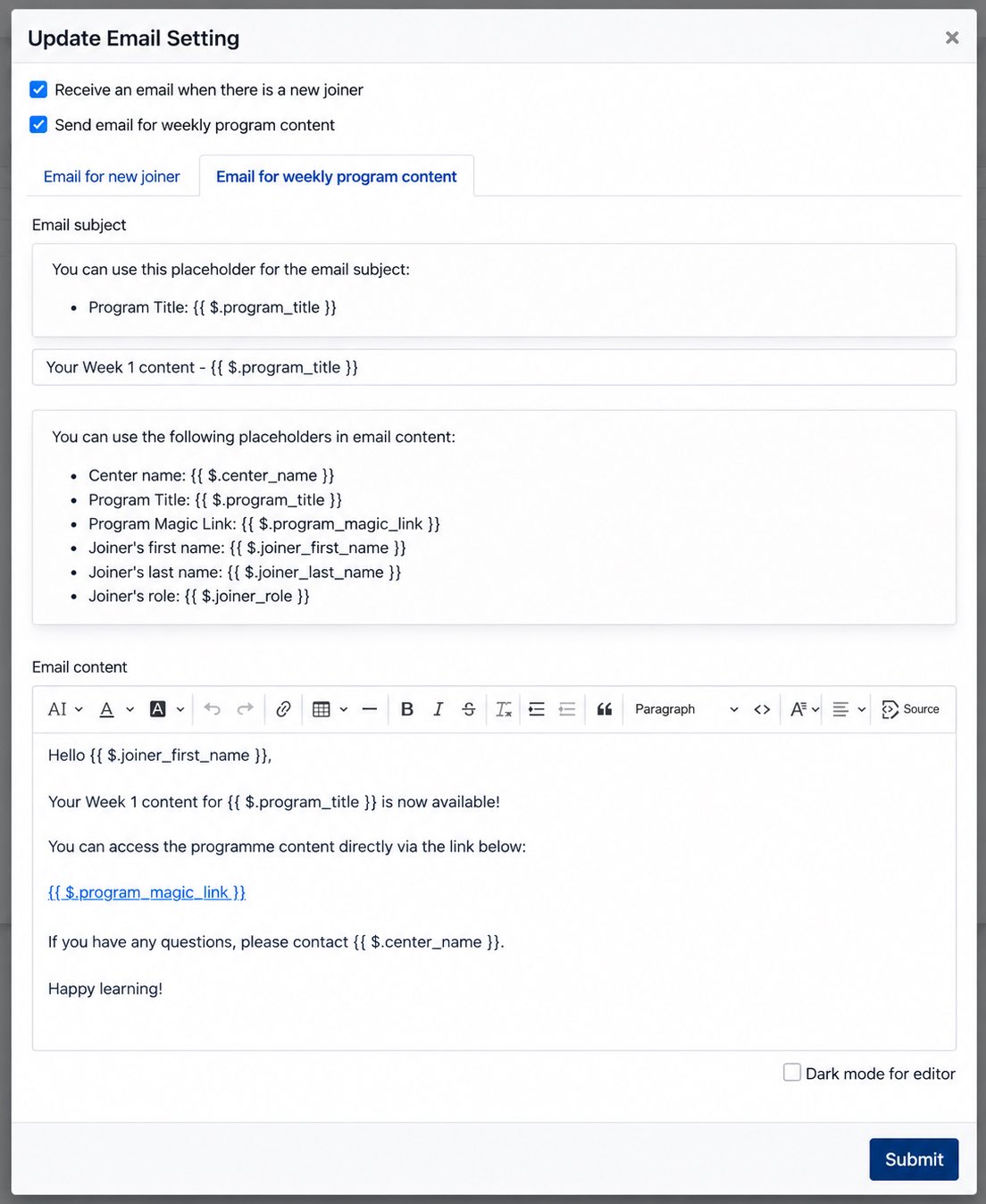
Enable Send email for weekly program content to automatically send an email to the joiner when new weekly programme content becomes available.
Under Email for weekly program content, Admin can customise the Email Subject and Email Content using the available placeholders.
The email can include the Programme Magic Link, allowing the joiner to access the programme content directly from the email.
Weekly programme content emails follow the programme's weekly content release schedule. As each new programme week becomes available, the corresponding email is sent to the joiner.
Note: The Programme Magic Link is valid for 4 weeks.
Magic Link
A Magic Link is a unique access link that allows a user to open specific Member Area content directly without manually logging in. The link is generated by the system and can be included in emails, providing quick access to the relevant content.
Note: A Magic Link expires 4 weeks after it is generated.
- the end -