
Setting up Site Gallery
Overview
The Galleries module allows Admin to create and manage media galleries for display on the website. A gallery can contain multiple media items and can be organized using categories.
Gallery is part of the website's default system pages. The system provides two standard gallery page types:
| System Page | Description |
|---|---|
| /gallery | Displays an overview of the available galleries. |
| /gallery/:id | Displays the content of an individual gallery. A unique ID is automatically generated by the system for each gallery. |
When a gallery is created, Admin can configure its general information, assign categories, add gallery content, select a thumbnail image, and define its display order.
The actual appearance of the gallery on the Live Site depends on the website design and configuration.
Example: Standard Gallery Overview (/gallery)

1. Create a Gallery
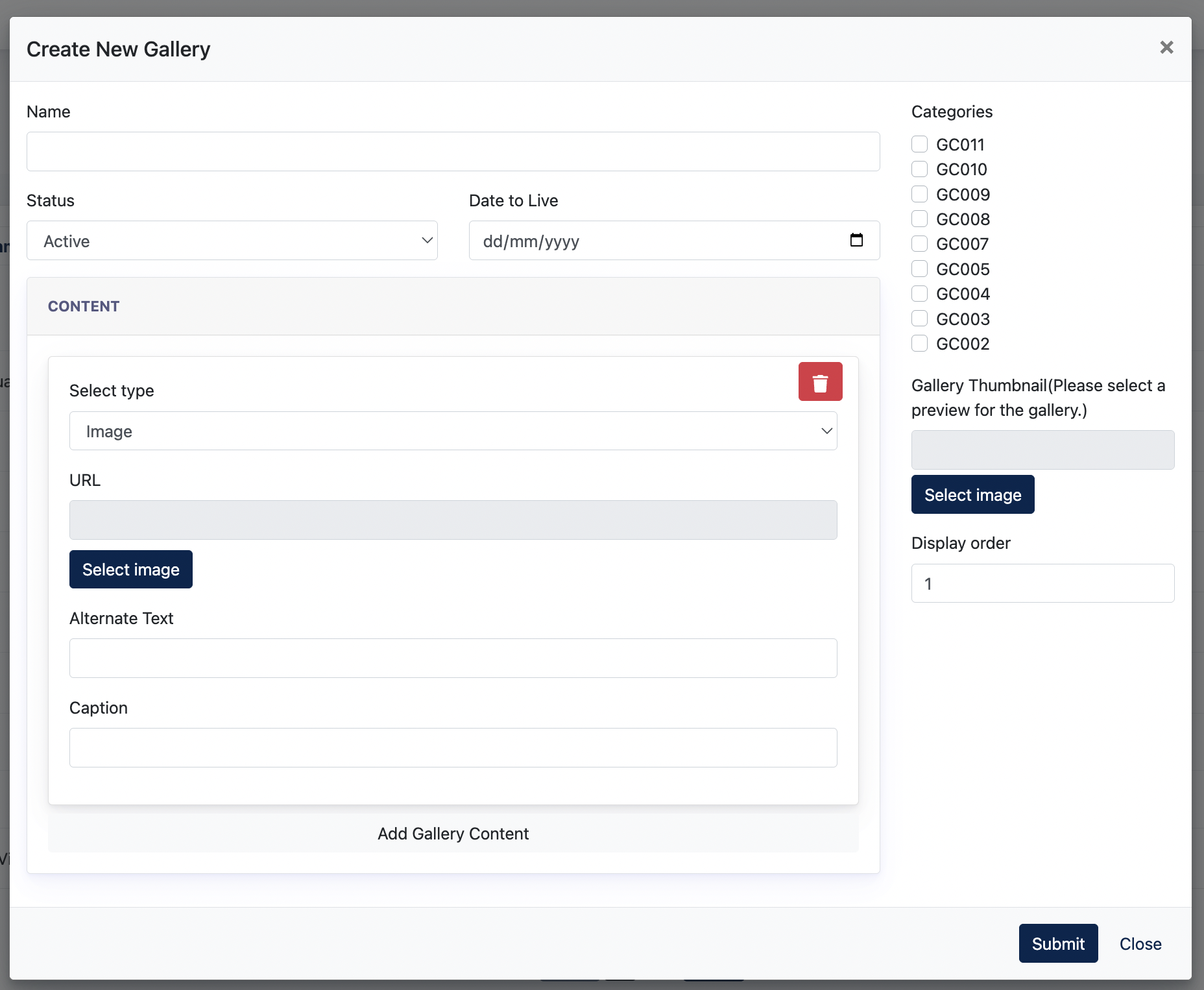
To create a new gallery, navigate to Galleries and click Create New Gallery.
The Create New Gallery window contains the following settings:
| Setting | Description |
|---|---|
| Name | Enter a name for the gallery. |
| Status | Determines whether the gallery is active or inactive. |
| Date to Live | Defines the date from which the gallery should become available. |
| Categories | Assign the gallery to one or more available gallery categories. |
| Gallery Thumbnail | Select an image to be used as the preview/thumbnail image representing the gallery. |
| Display Order | Defines the display position of the gallery in relation to other galleries. |
1.1 Create Gallery Content
Under Content, Admin can add the individual media items that belong to the gallery.
| Setting | Description |
|---|---|
| Select Type | Select the type of content to be added to the gallery. |
| URL / Select Image | Select or provide the media to be used for the gallery item. The available option depends on the selected content type. |
| Alternate Text | Enter alternative text describing the image. This supports accessibility and can also help search engines understand the image content. |
| Caption | Enter an optional caption to be displayed together with the gallery item. |
| Add Gallery Content | Adds another content item to the same gallery. |
| Delete | Removes the respective content item from the gallery. |
After completing the gallery configuration and adding the required content, click Submit to create the gallery.
2. Setting up Catogories
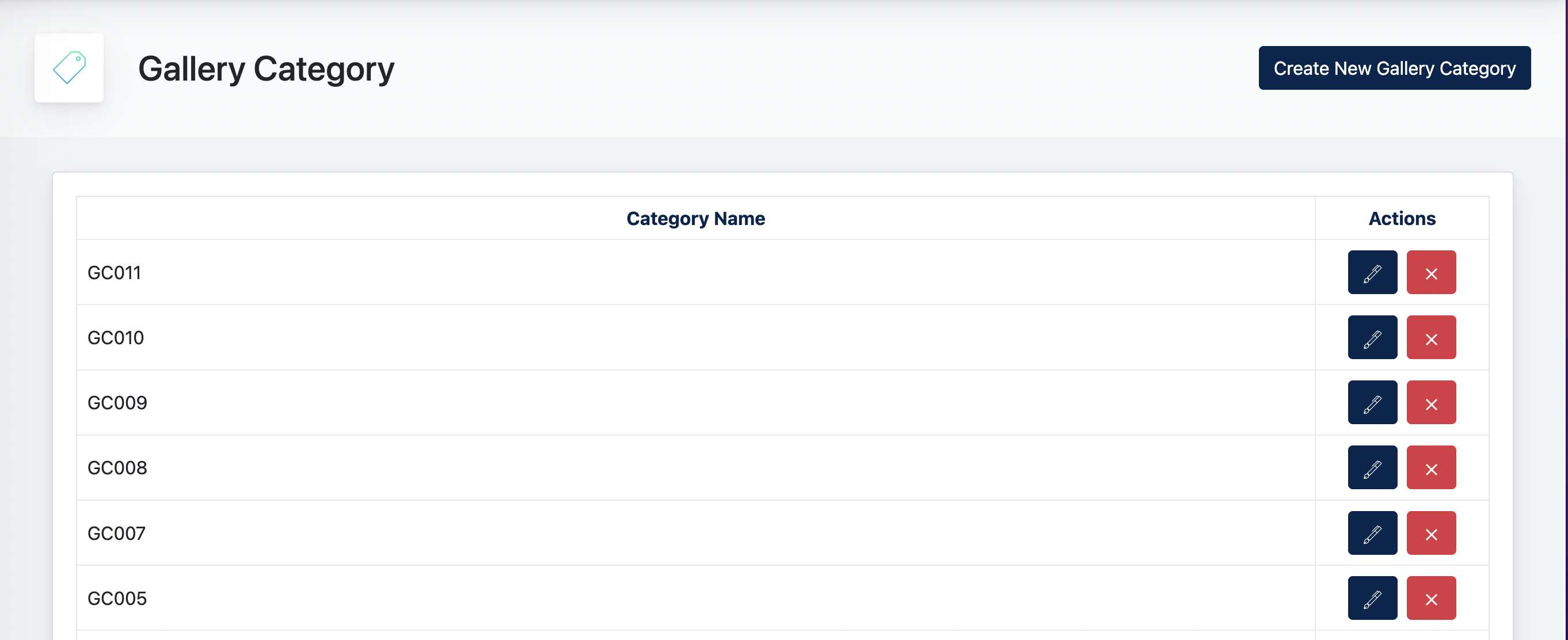
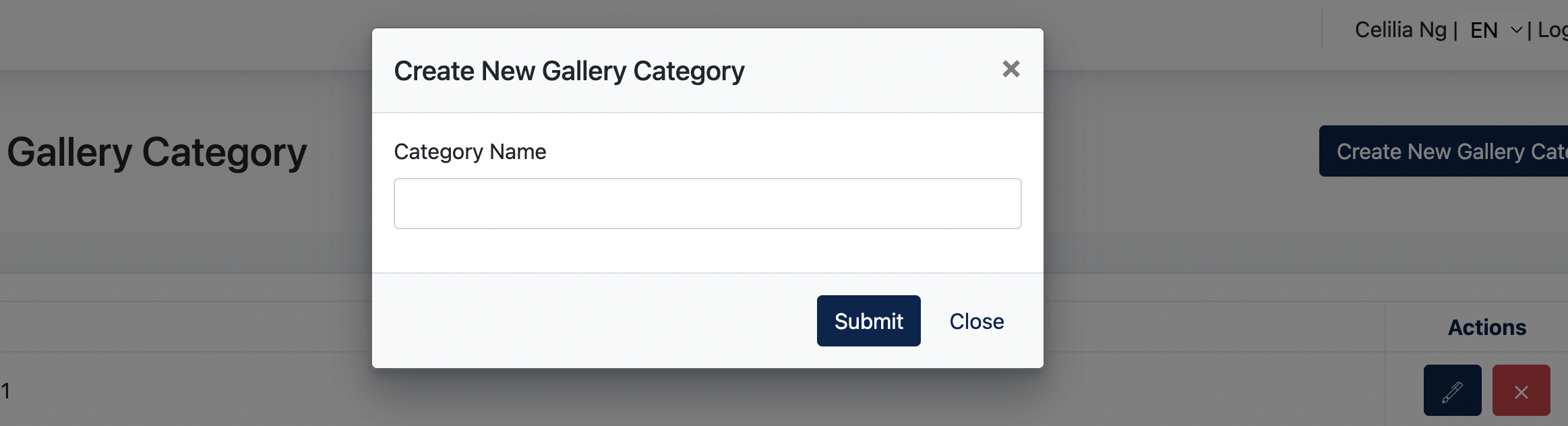
Gallery Categories are used to organize galleries into different groups.
To create a category:
Existing categories can be edited or deleted from the Gallery Category listing.
Once created, the category is available for selection when creating or editing a gallery.
- the end -