
Courseplan
Overview
The Courseplan is a paid Ark module for creating and managing course schedules for a fitness center.
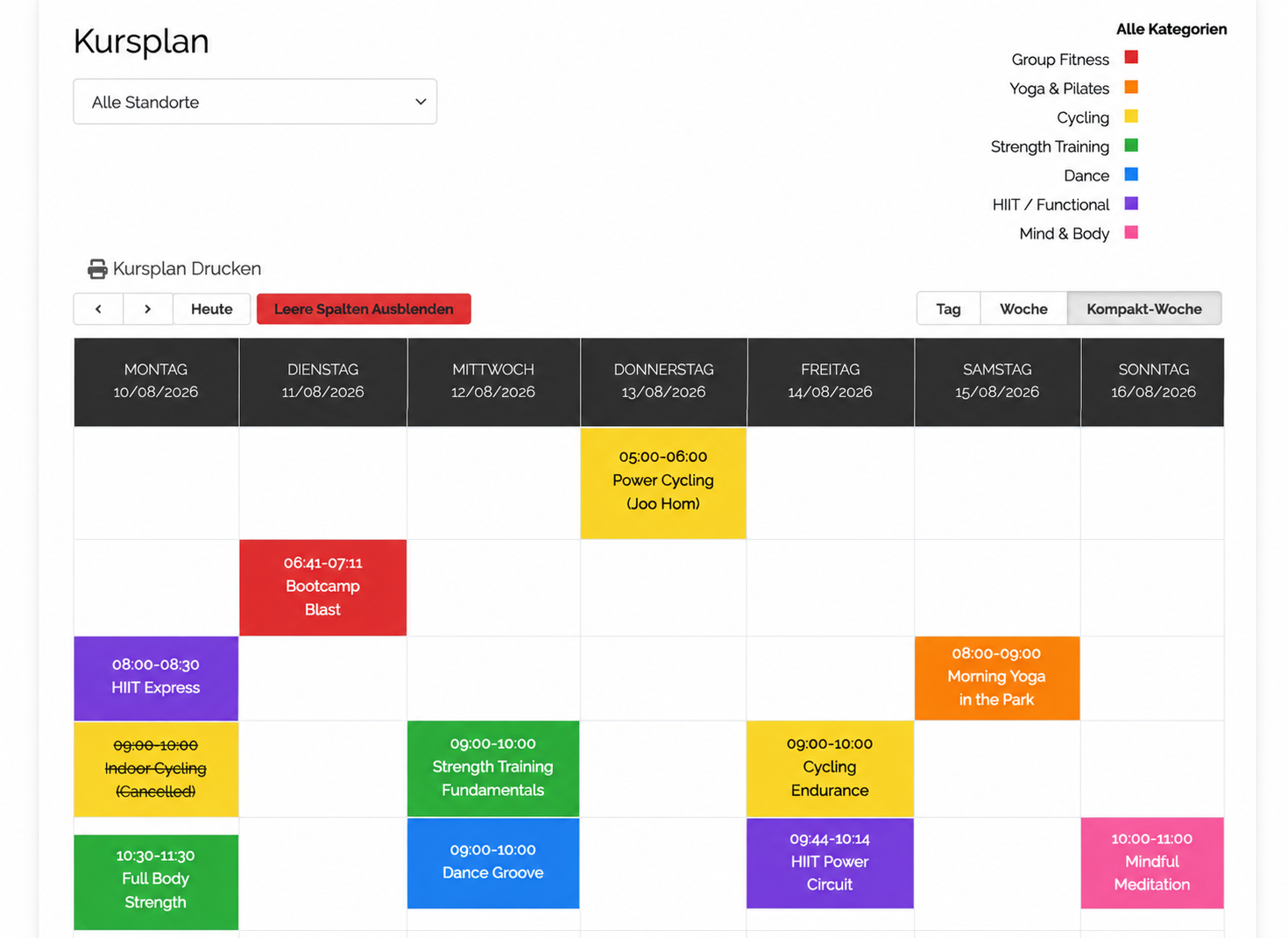
Once activated, Admin can set up courses and manage their schedules through the Courseplan Calendar.
Live View of the Course Calendar
Rooms and Categories
Before creating a course, set up the relevant Rooms and Categories under Setup Calendar.
| Setting | Description |
|---|---|
| Rooms | Defines the room within a fitness center where a course takes place. When creating a room, select the Location it belongs to and enter the room details. |
| Categories | Groups courses by type, such as Cycling, Yoga, or Functional Training. |
1. Creating a Course
Go to Courseplan → Setup Calendar → Courses and click Create course.
Enter the course information and configure its schedule and properties as required.
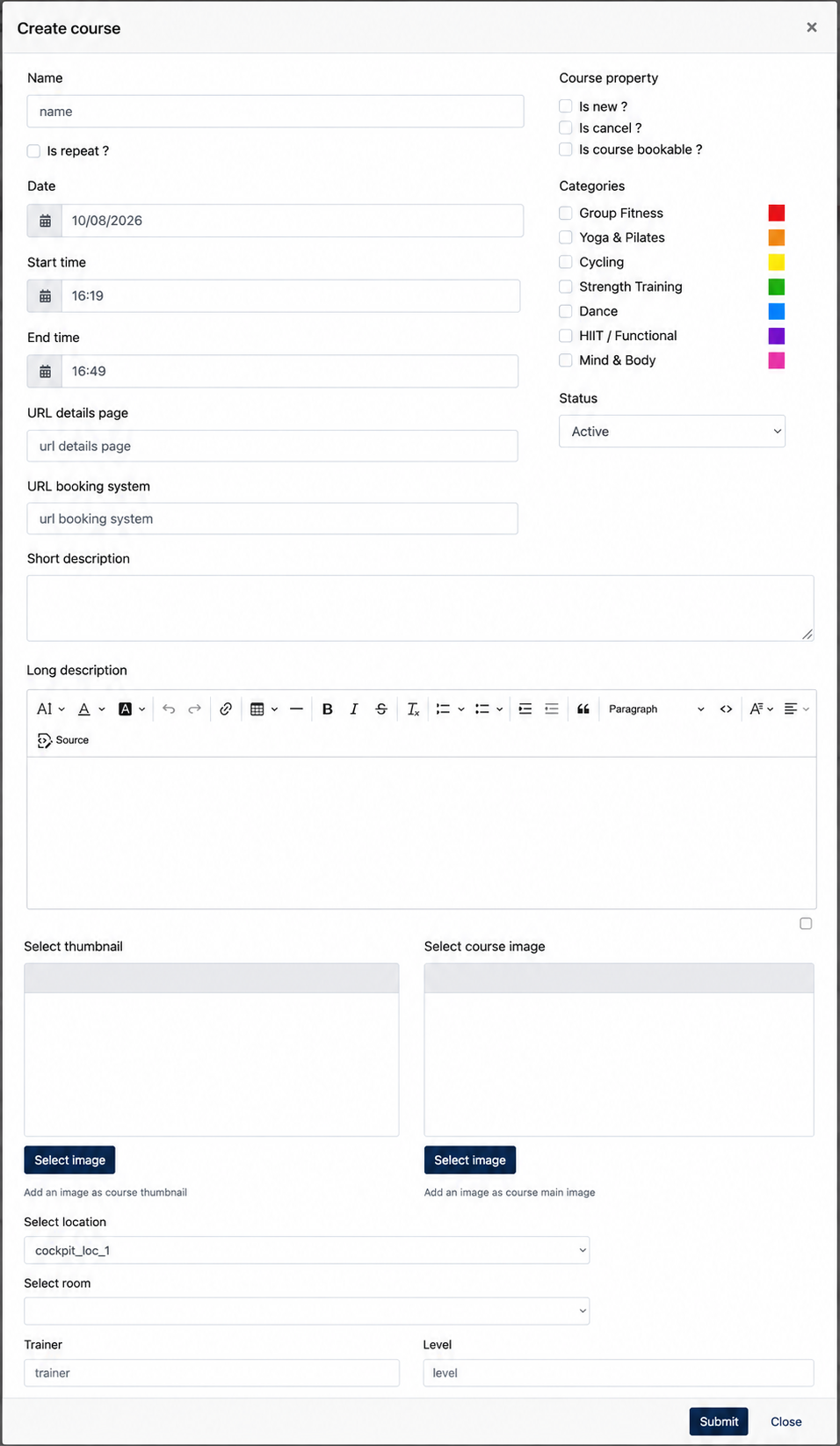
| Field | Description |
|---|---|
| Name | Enter the name of the course. |
| Is repeat? | Enable this option if the course should repeat according to a recurring schedule. |
| Date | Select the date of the course. |
| Start time / End time | Define when the course starts and ends. |
| URL details page | Optional URL linking to a page with additional information about the course. |
| URL booking system | Optional URL to an external booking system for the course. |
| Short description | Enter a brief description of the course. |
| Long description | Enter a detailed description of the course. |
| Select Thumbnail | Add an image as course thumbnail |
| Select Course Image | Add an image to represent the course |
| Course property | Select the applicable properties for the course. See below. |
| Categories | Assign one or more previously configured categories to the course. |
| Status | Set whether the course is Active or Inactive. |
Course Properties
The following properties can be applied where required:
- Is new? – Marks if the course is new.
- Is cancel? – Marks the course as cancelled.
- Is course bookable? – Indicates that booking is available for the course.
After completing the course information, save the course to add it to the Courseplan Calendar.
2. Course Listing
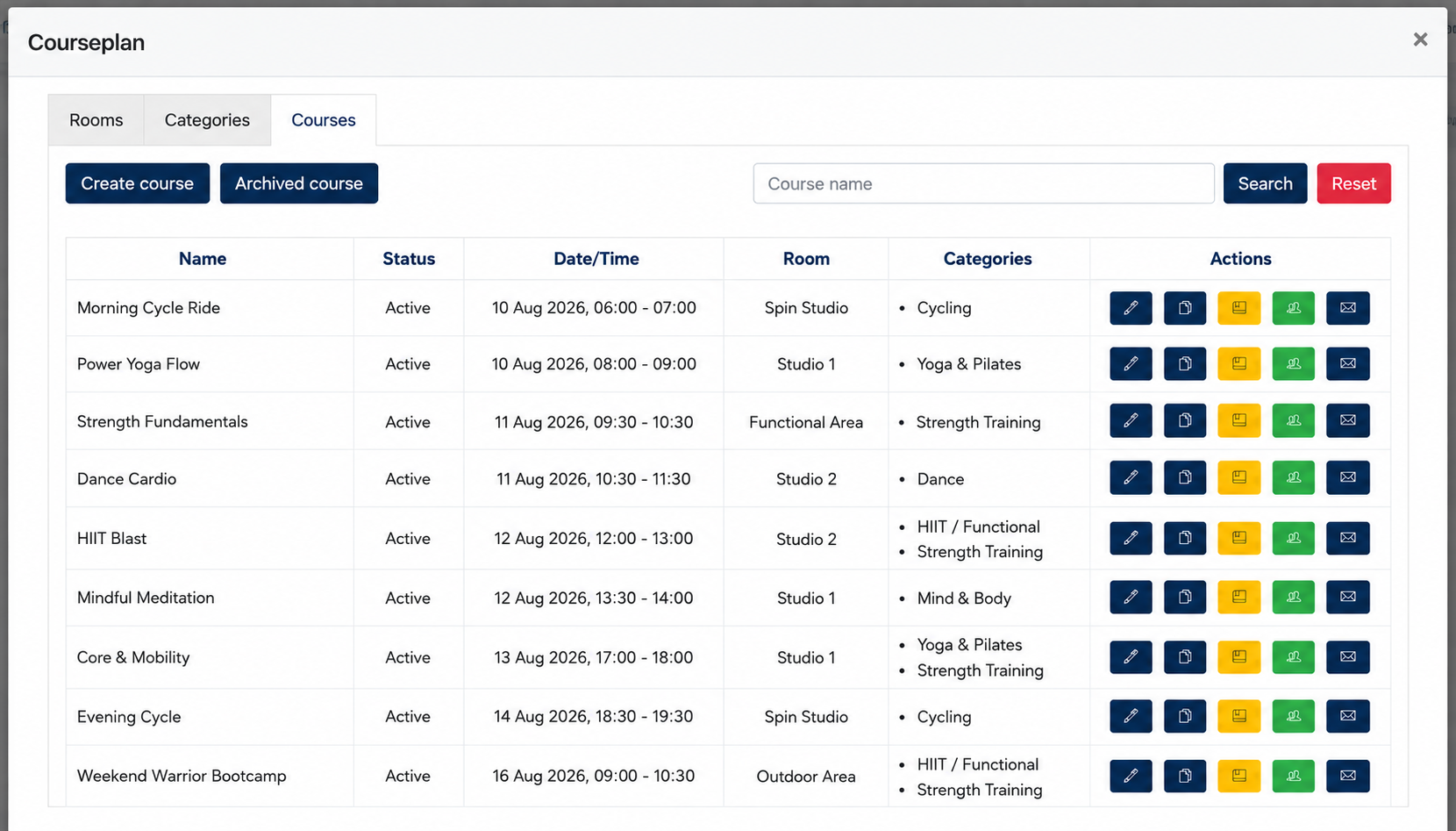
Once a course is created, it will appear in the Courses listing. This page provides an overview of the existing courses and allows Admins to manage each course using the available options under the Actions column.
Under the [ Calendar Setup ], Admin can review and manage the created course via this lisitng.
Waiting List Logic
When a course reaches its maximum capacity, any additional registrations will automatically be placed on the Waiting List. If a confirmed joiner cancels their registration, the first person on the waiting list will automatically take the available seat and become a confirmed joiner.
Joiners Log
The Joiners Log provides a history of registration activities for a course. Admin can use the log to check how a joiner was added to or removed from the course, including registrations or cancellations made through the website, app, email unsubscribe link, or manually through the Admin Panel.
3. Courseplan Setting
The Courseplan Settings allow Center Admin to configure the general registration and cancellation rules for courses, as well as email notifications for course registration activities.
The settings are divided into two tabs:
3.1 General Tab
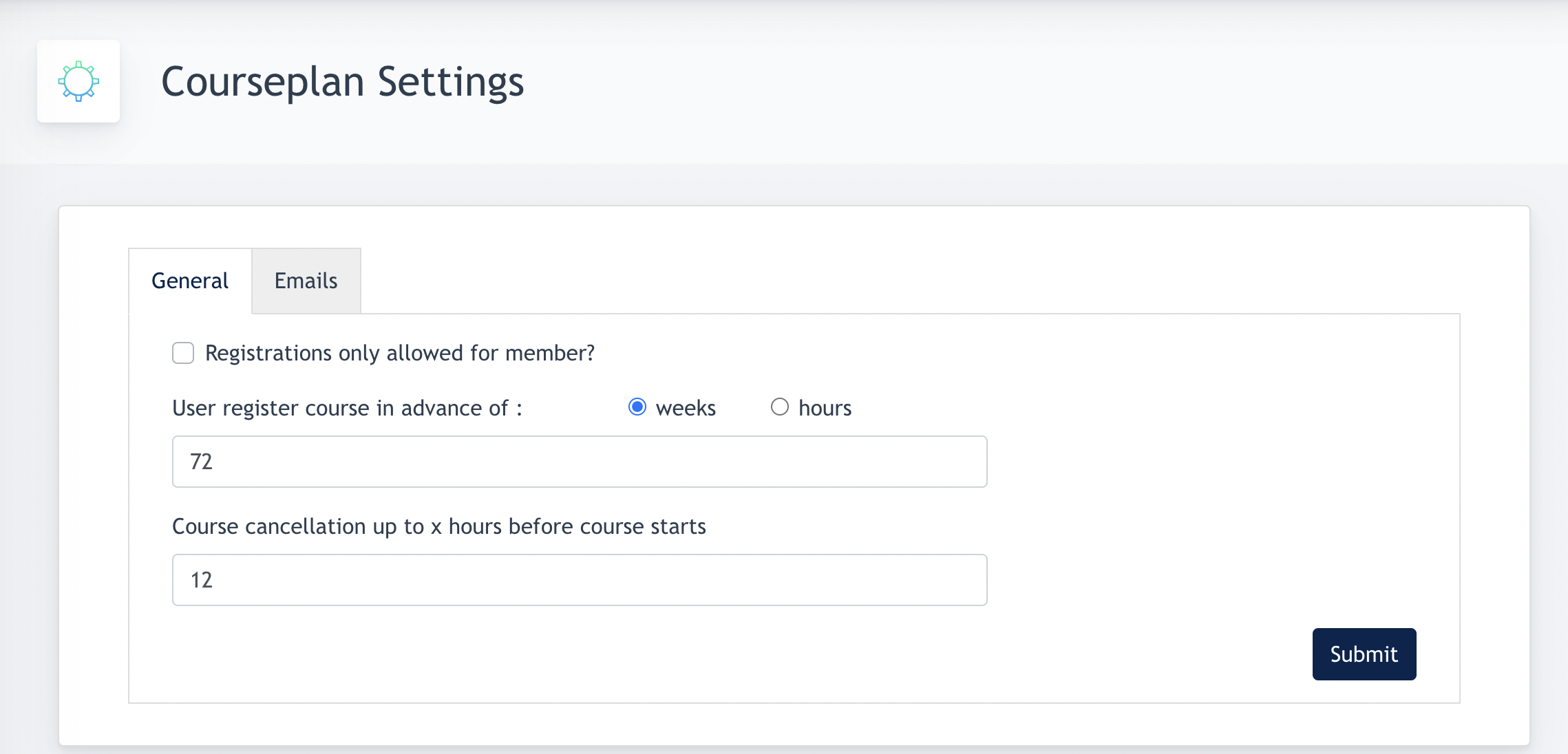
The General tab defines the rules that apply when users register for or cancel a course.
| Setting | Description |
|---|---|
| Registrations only allowed for member? | When enabled, only registered club members are allowed to register for courses. |
| User register course in advance of | Defines how far in advance a course becomes available for registration. Enter a value and select Weeks or Hours as the time unit. |
| Course cancellation up to x hours before course starts | Defines the latest time a joiner is allowed to cancel their registration before the course starts. |
Example: If the cancellation period is set to 12 hours, joiners may cancel their registration until 12 hours before the scheduled course start time.
3.2 Emails Tab
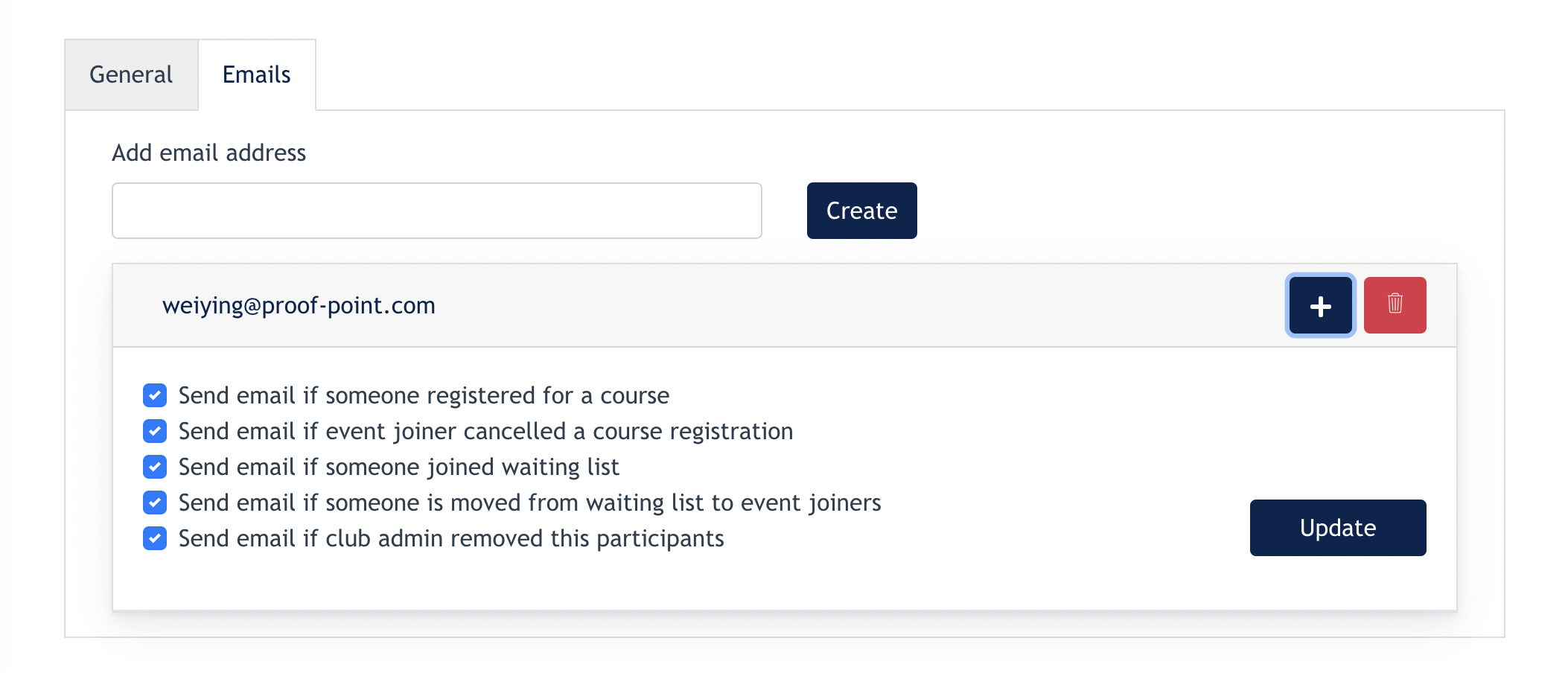
The Emails tab allows Center Admin to configure internal email notifications for course registration activities.
Admin can add one or more email addresses and select which activities should trigger a notification for each recipient, such as when:
- someone registers for a course;
- a joiner cancels a course registration;
- someone joins the waiting list;
- someone is moved from the waiting list to the confirmed joiner list; or
- a participant is manually removed by a Club Admin.
This allows different employees to receive notifications based on the course activities relevant to them.
4. Configuring the Courseplan Calendar View
The Courseplan Calendar display can be configured separately for each available website language.
Go to :/kursplan
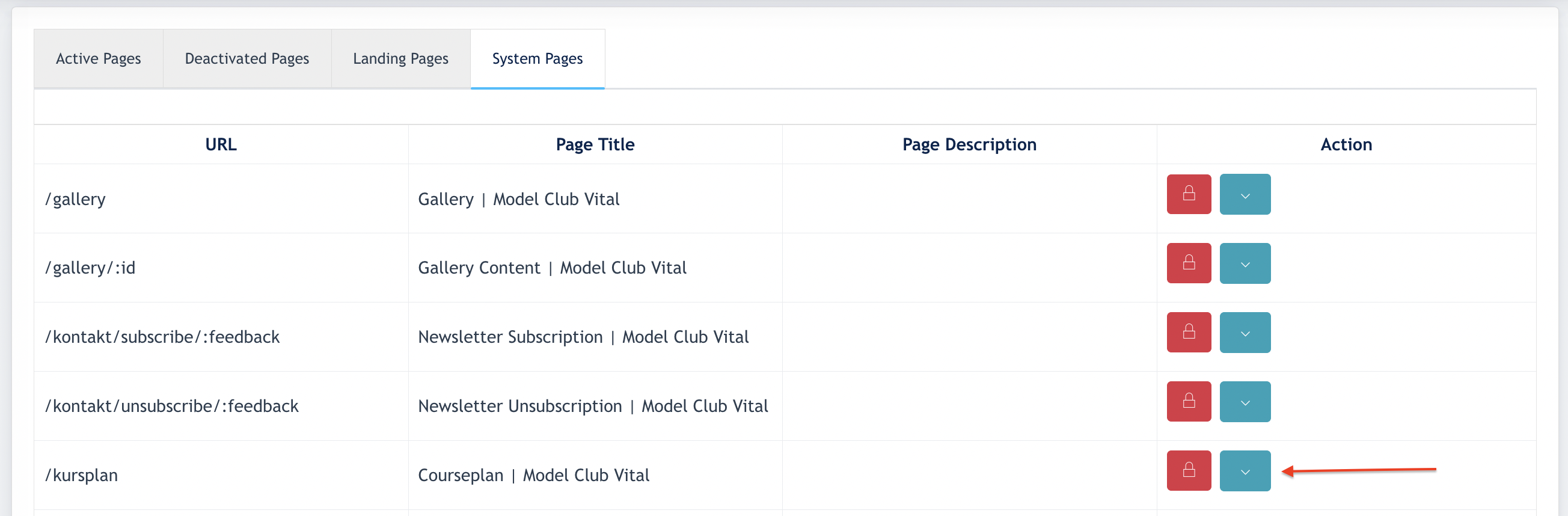
Select any translation page:
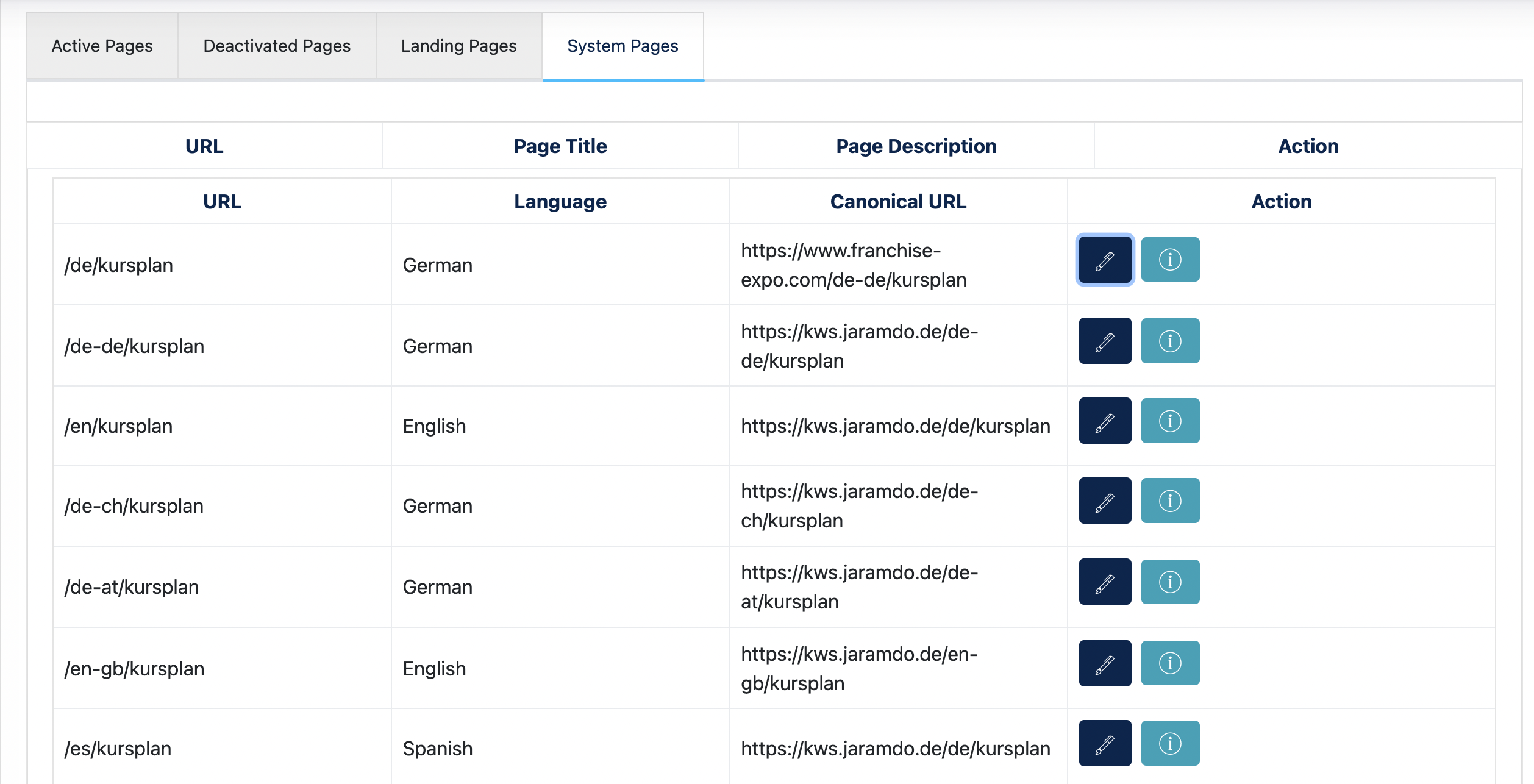
Click "Edit" button
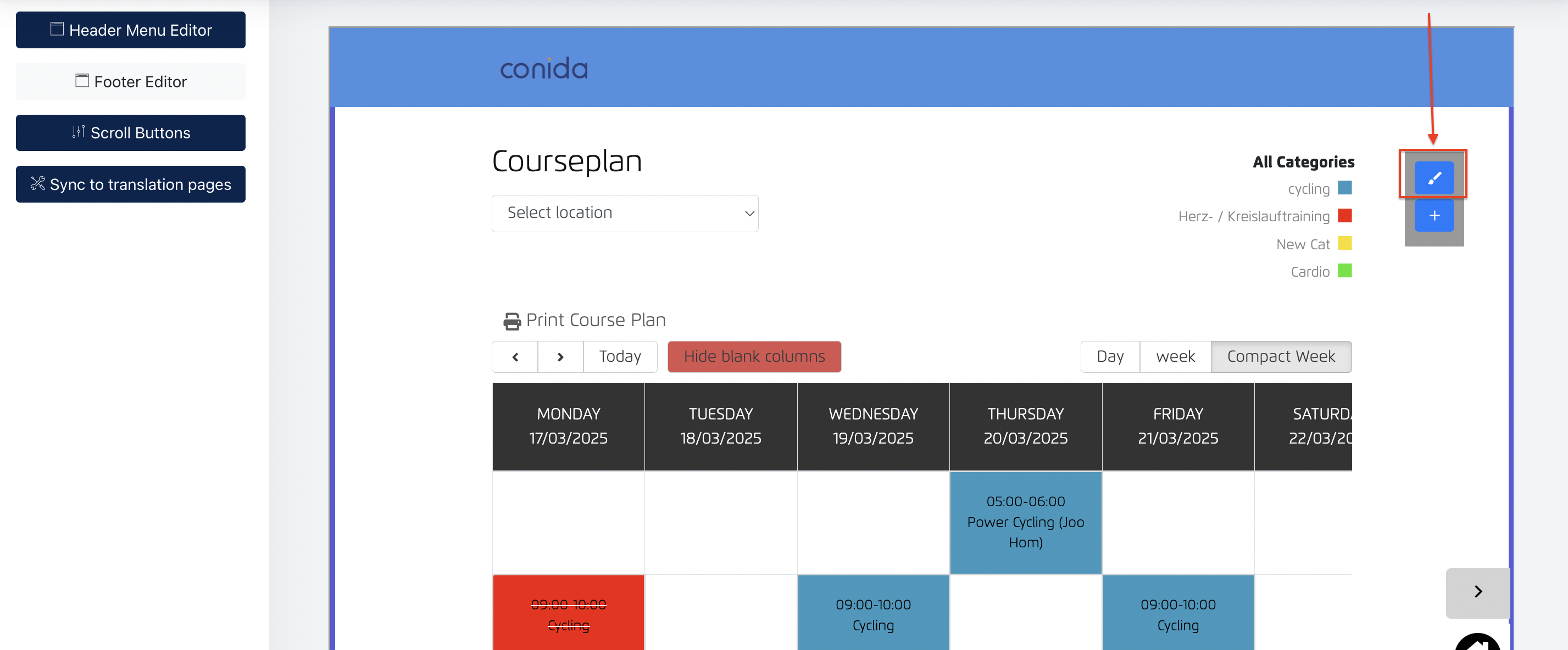
Courseplan Calendar View Configuration Modal :
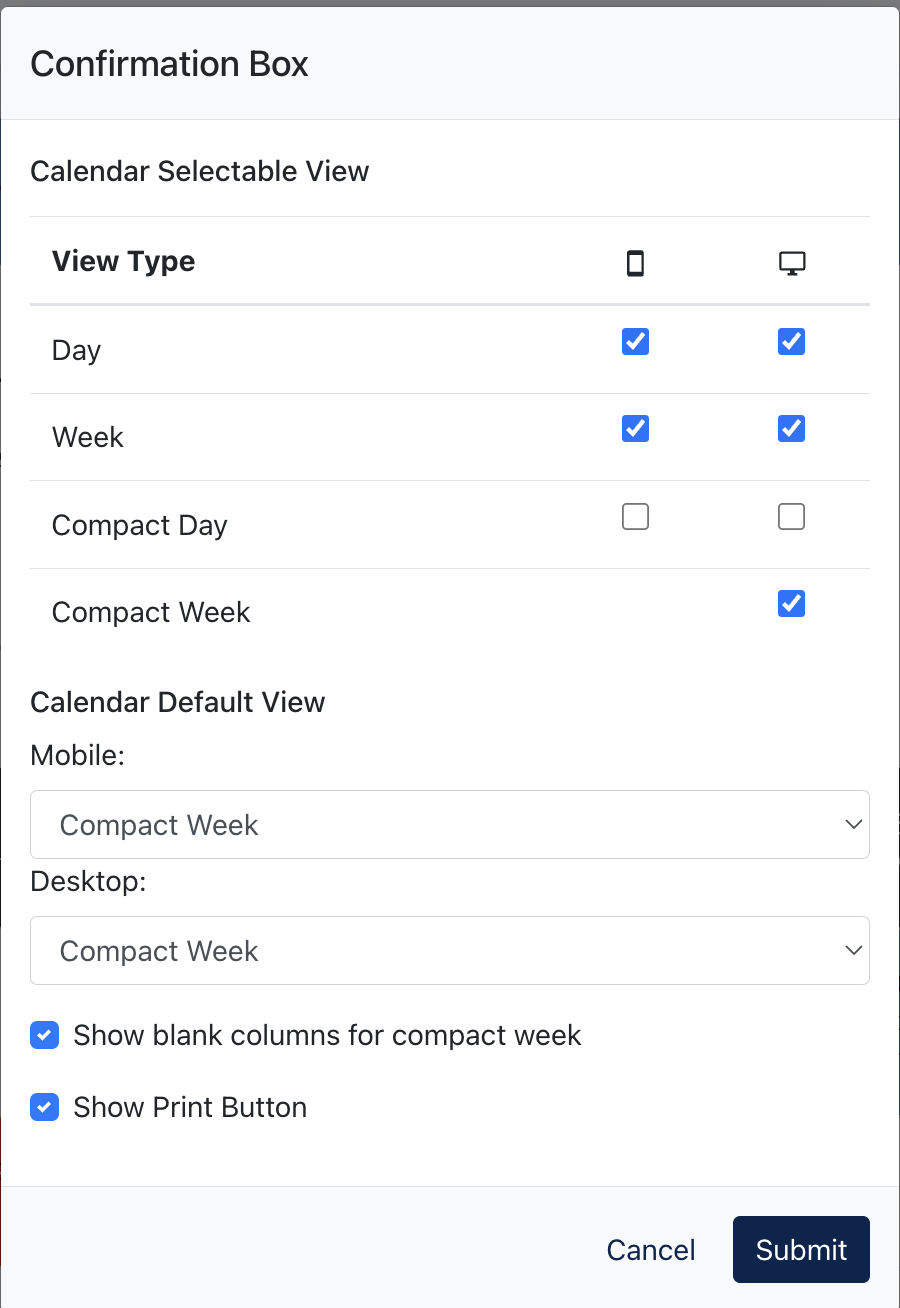
Note: Settings made here apply to the currently selected language. If the website supports multiple languages, configure the Courseplan view for each language as required.
5. Members
The Member Listing allows Admin to manage gym members. Admin can add members individually by entering their member information, or add multiple members at once using the Bulk Upload function.
Once a member is added, the member information will be saved and displayed in the Member Listing.
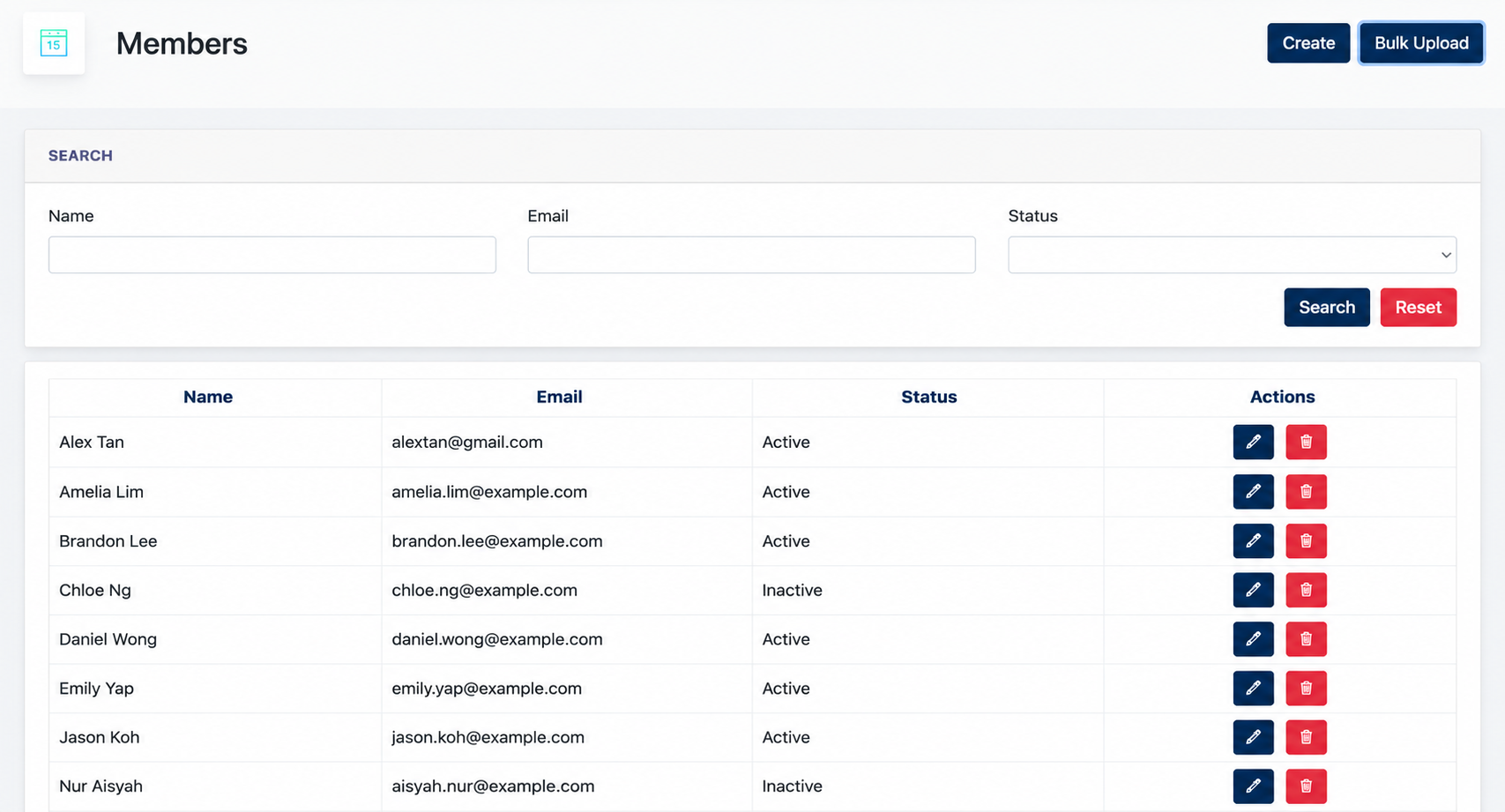
Note: If “Registration only allowed for member” is enabled in the Courseplan Settings, only users included in this Member Listing are considered members and are allowed to register for a course.
- the end -