
Location Finder Module
Overview
The Location Finder is a module designed for centers with multiple locations. It allows Admin to maintain and add their gym locations to the Location Listing, while providing a search function on the frontend for website visitors to find suitable gym locations.
On the Live Site, visitors can search for nearby locations by entering a postcode and specifying a search radius in kilometres (km). Locations that match the search criteria are displayed together with their basic information and distance from the searched postcode.
From the search results, visitors can view further information about a location on its dedicated Location Page or contact the location through a form.
1. Setting up Locations
Before the Location Finder can be used on Ark Site, Admin must first set up the locations that should be available in the system. Each location created will be stored in the Location Listing, where Admin can manage the location information and settings.
To create location, go to Location finder > Locations > Create
1.1 Create a Location
Click Create to open the Create Location form. Enter the relevant location details and click Submit to save the location. Once created, the location will appear in the Location Listing.
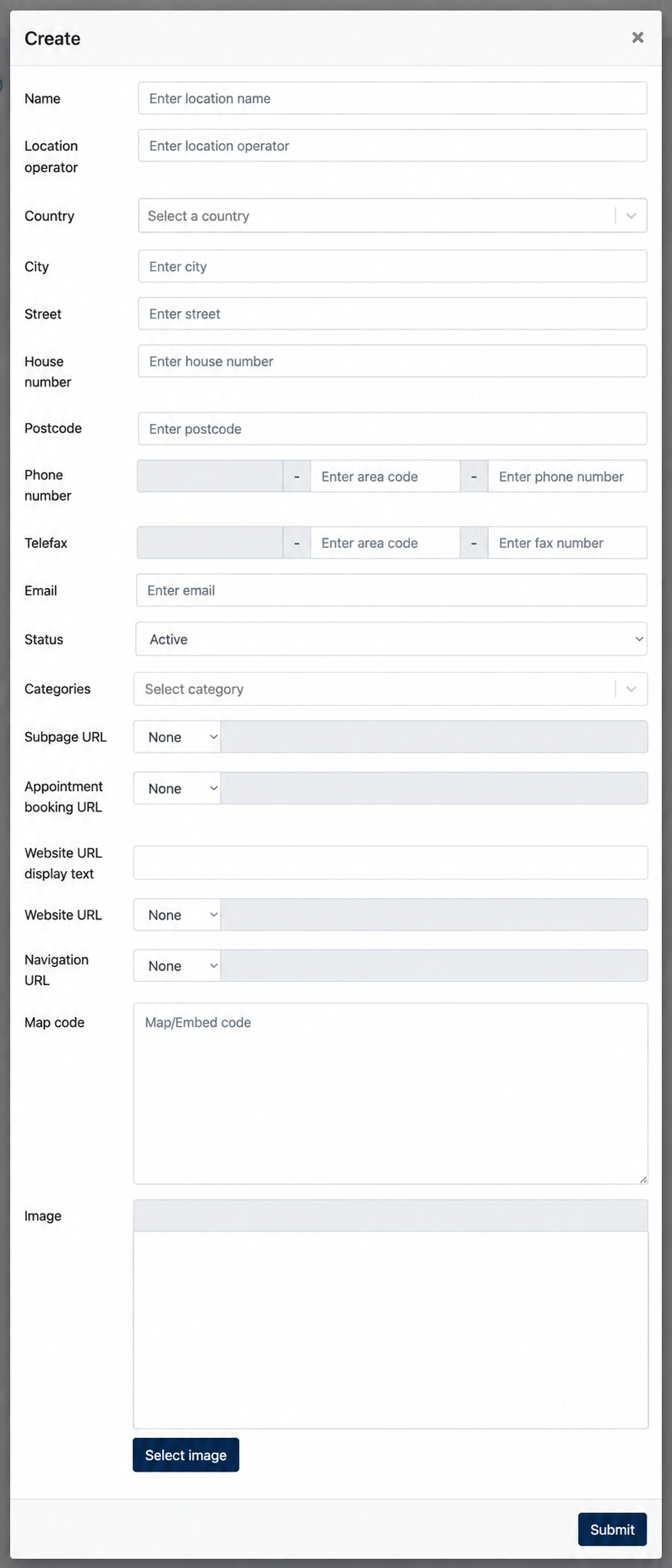
Most fields in the form are self-explanatory. The following fields require additional explanation.
| Field | Description |
|---|---|
| Categories | Assign one or more categories to the location finder. |
| Subpage URL | Defines the page URL that users can access to view further information about the location. |
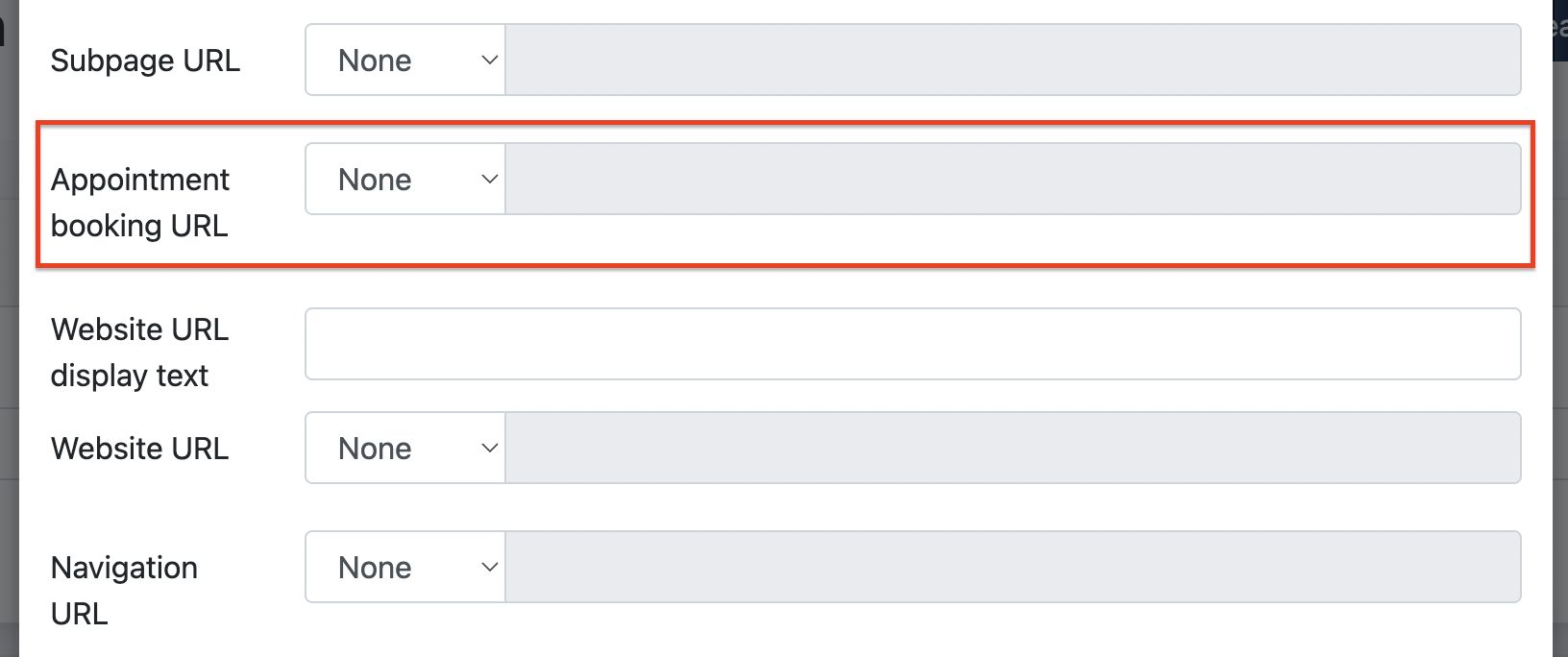
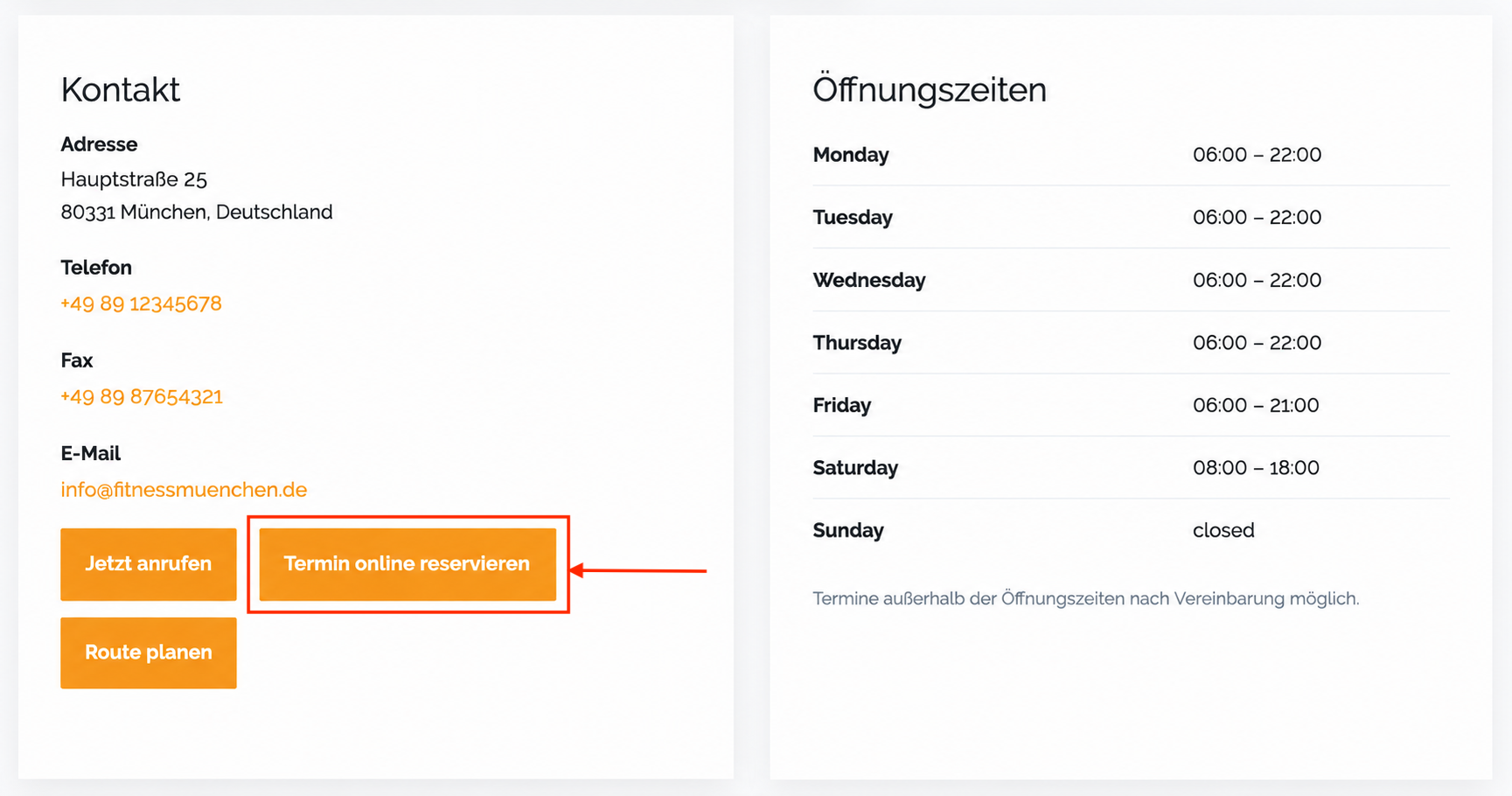
| Appointment Booking URL | (Optional) An appointment booking button will appear on the location content if this is filled |
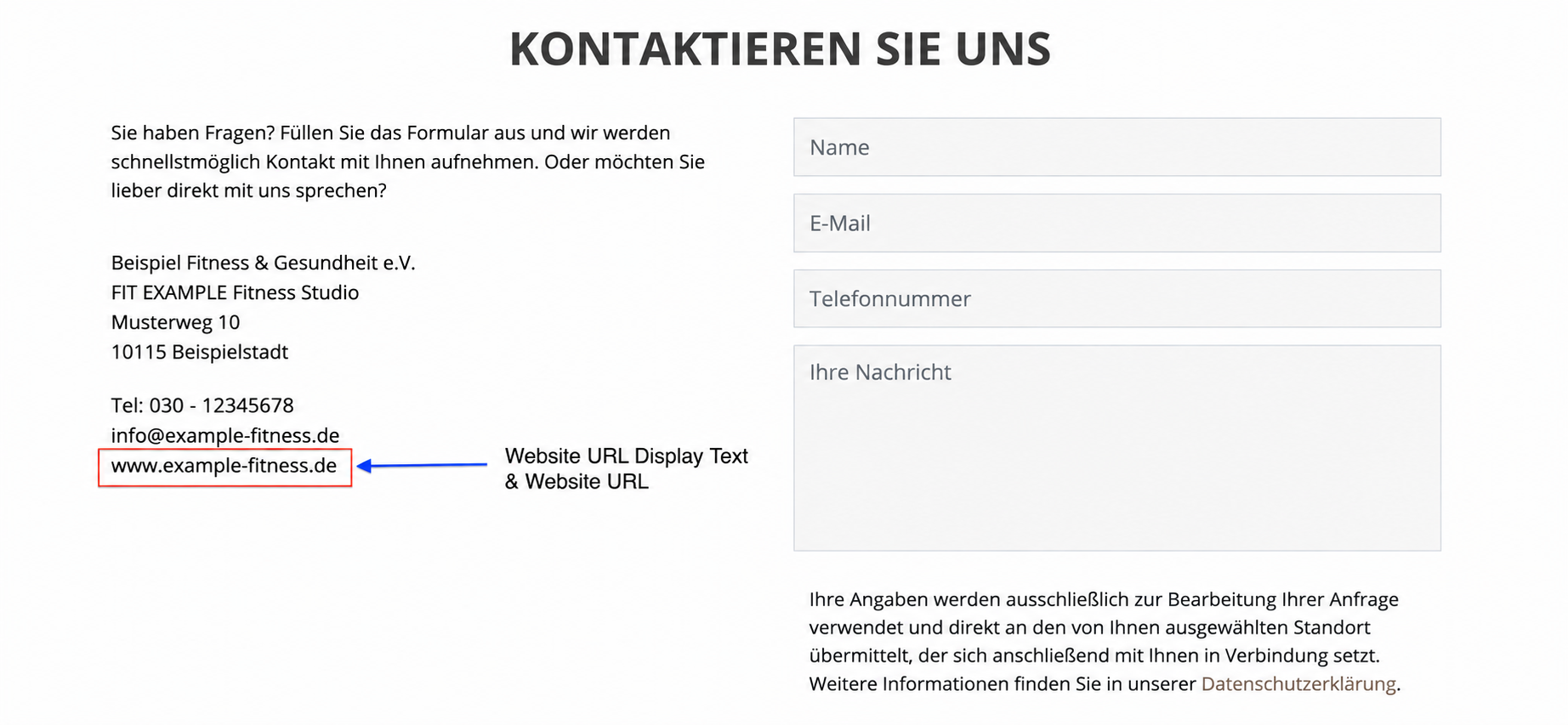
| Website URL Display Text | Defines the clickable text displayed for the Website URL on the Location Subpage. |
| Website URL | Defines the website URL that visitors are directed to when clicking the display text. |
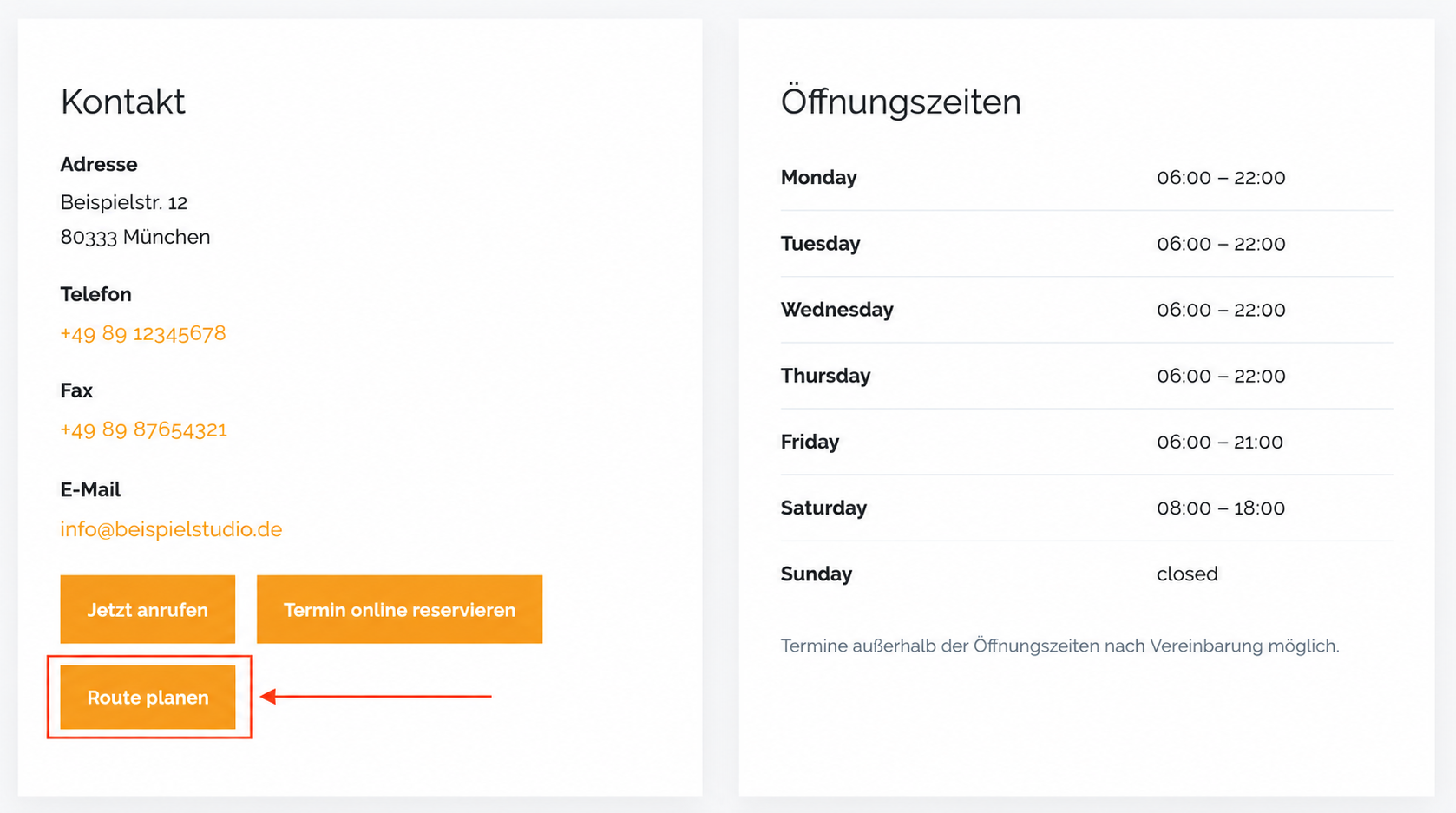
| Navigation URL | A "Get Direction" button will appear if this field is filled. |
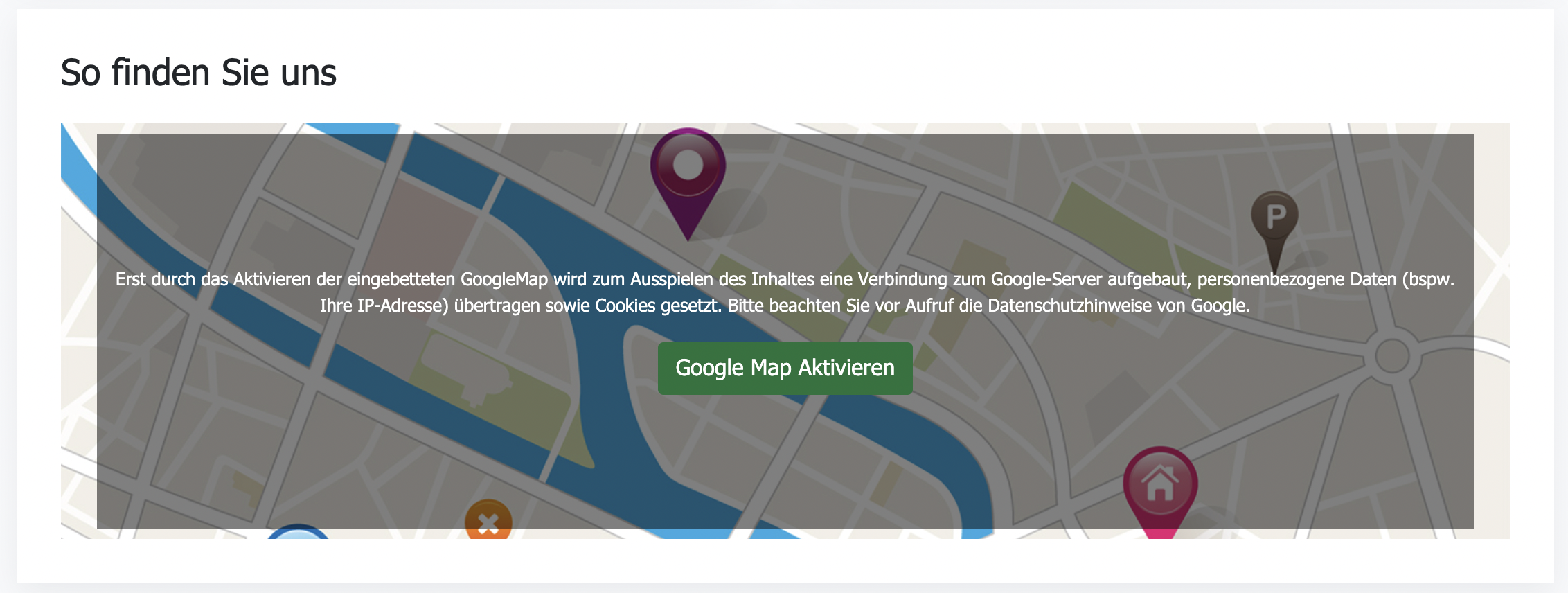
| Map Code | Add the map/embed code used to display the location on a map. |
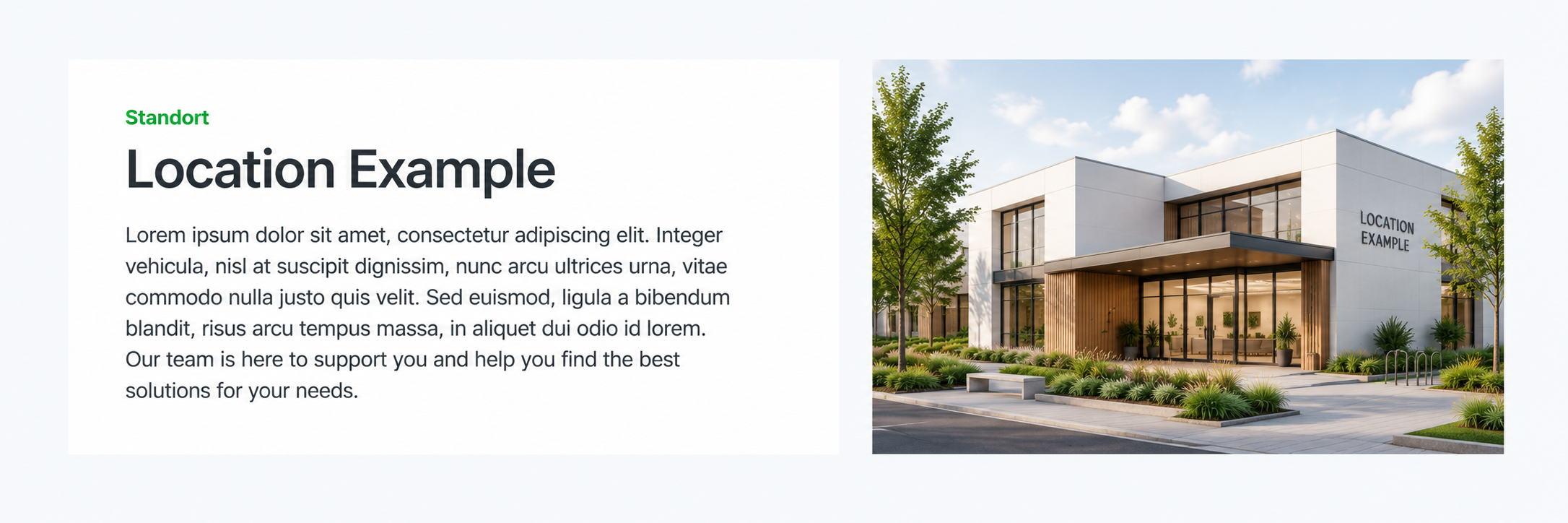
| Image | Upload an image representing the location. |
i) Categories
Here, Admin can assign one or more categories to the location.
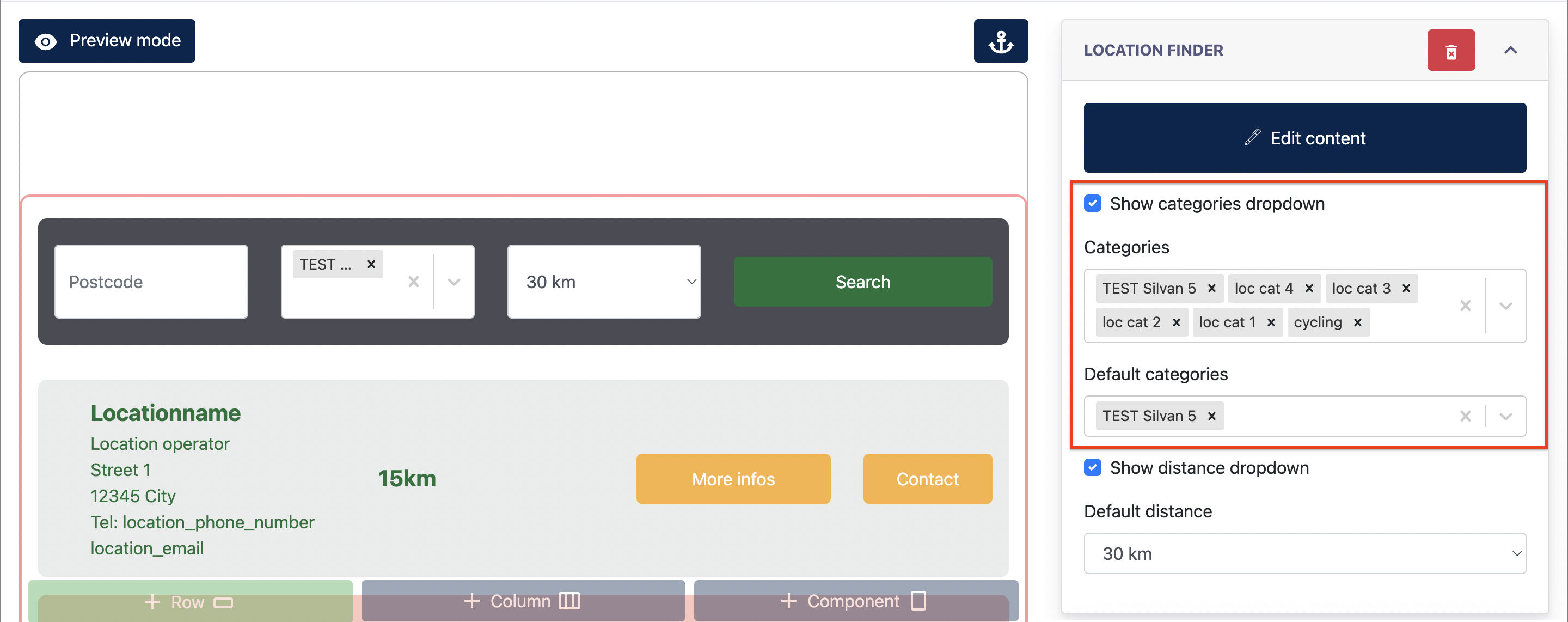
These categories can be used as a search filter in the Location Finder when Categories Search is enabled. The Categories Search function is optional.

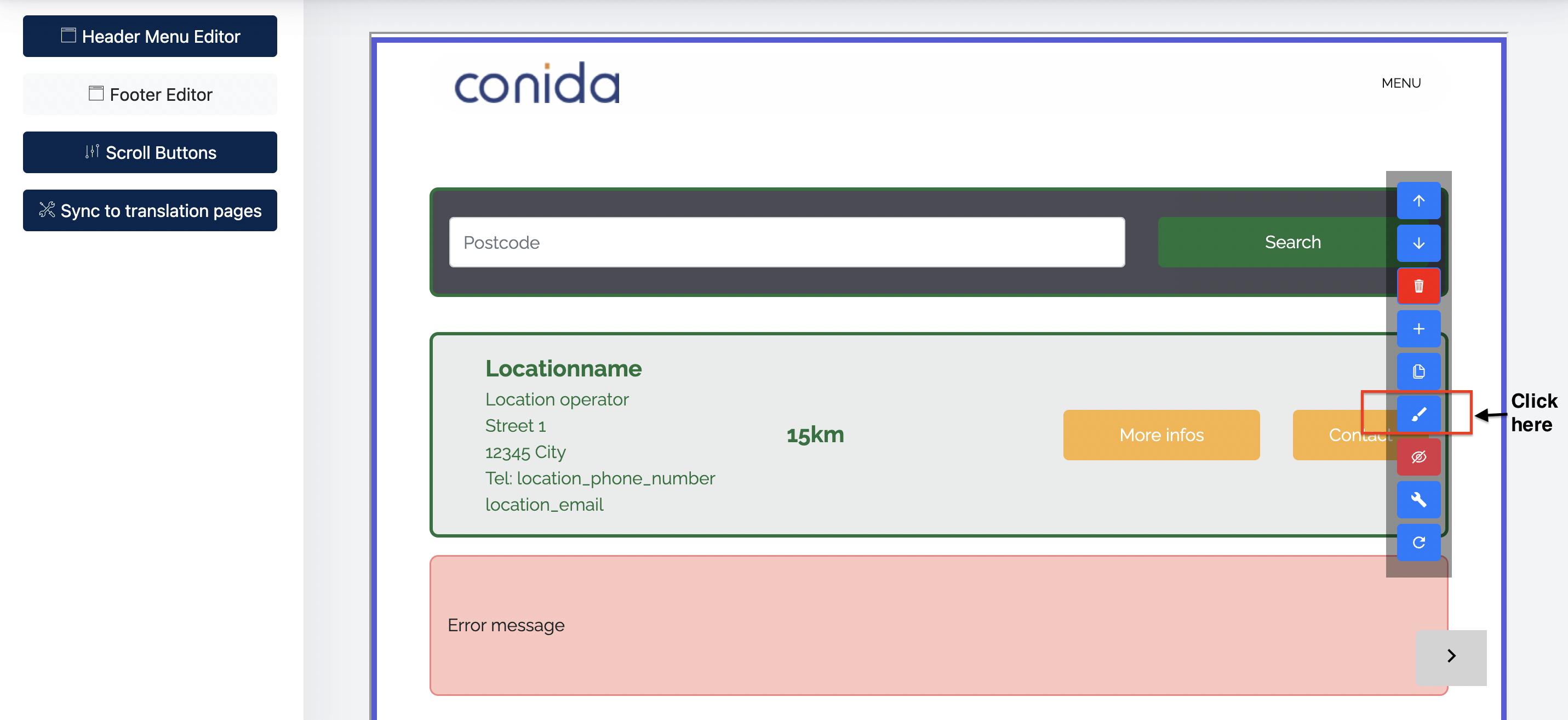
How to enable Categories Search to a Location Finder
- Go to the page where the Location Finder is added.
- Click Edit to enter the Section Editor.
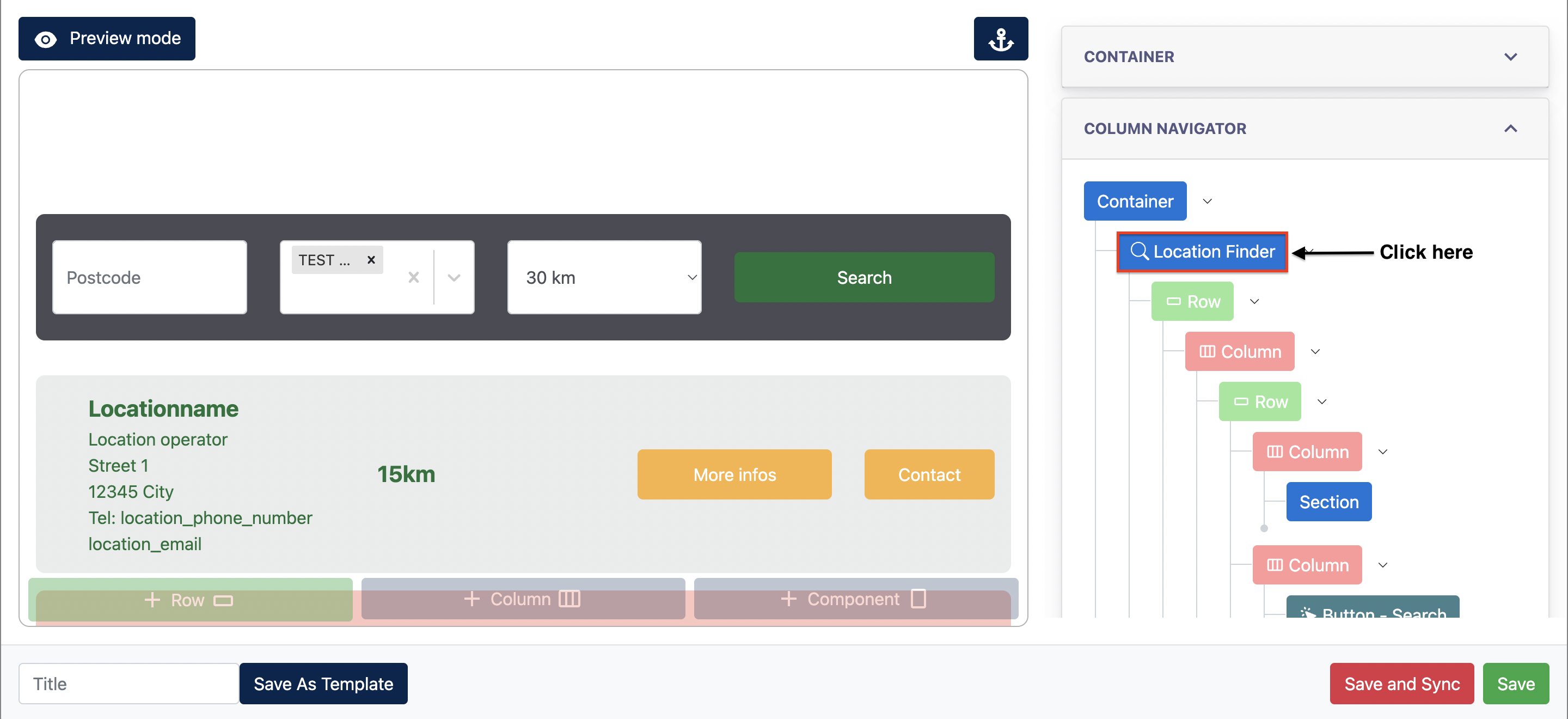
- Under Column Navigator, click the Location Finder component.
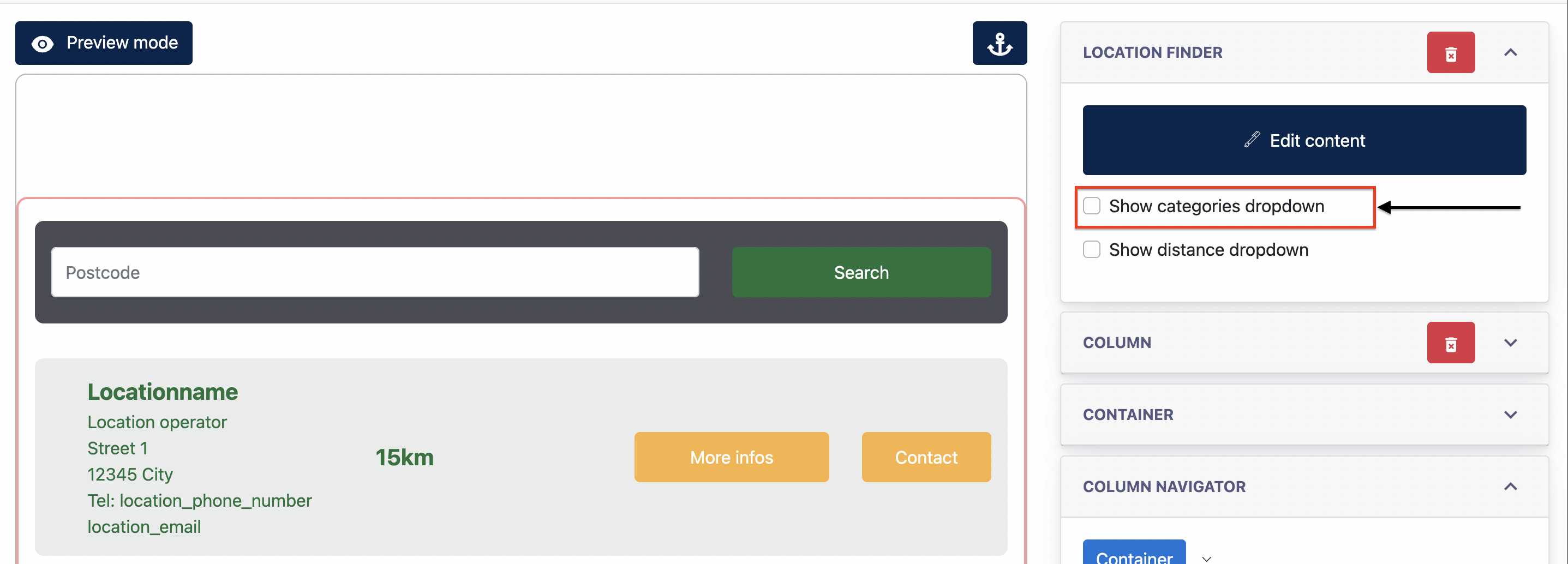
- In the Location Finder configuration, tick the Categories checkbox to enable Categories Search.
- Configure the available categories and, if required, select a Default Category.
Step 1 & 2:
Step 3 :
Step 4 :
Step 5 :
ii) Subpage URL
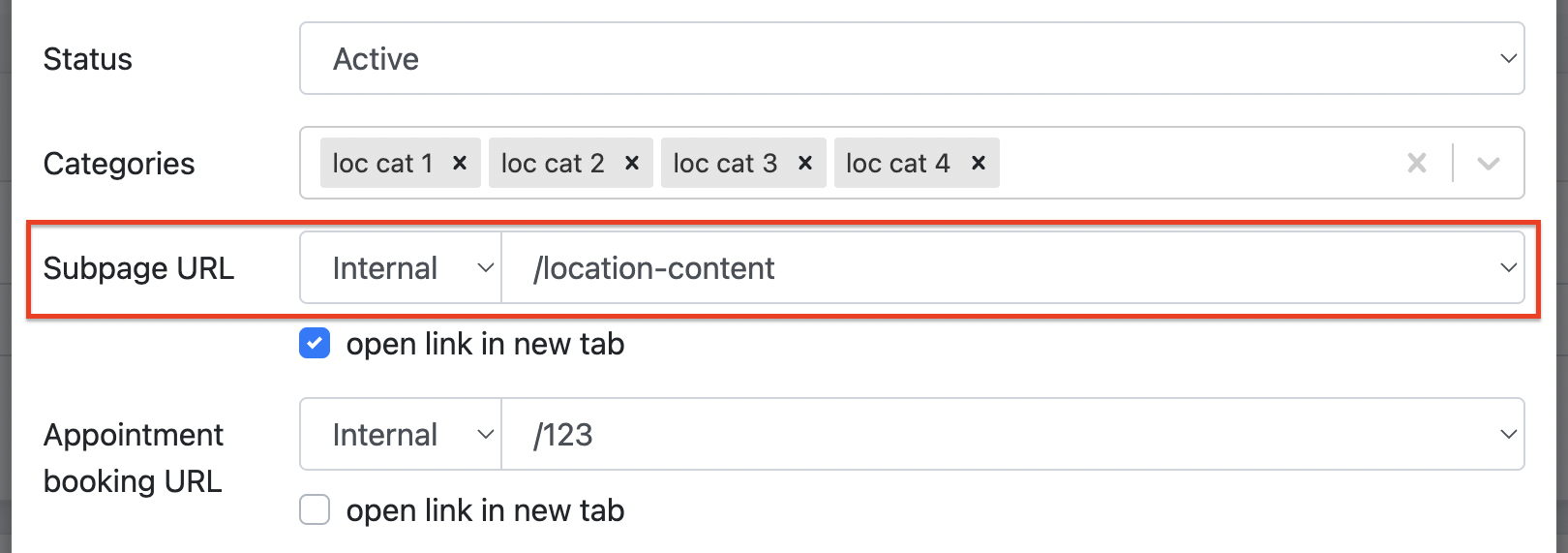
For the Location Finder, Admin can create a dedicated Subpage for each location to provide more detailed location information.
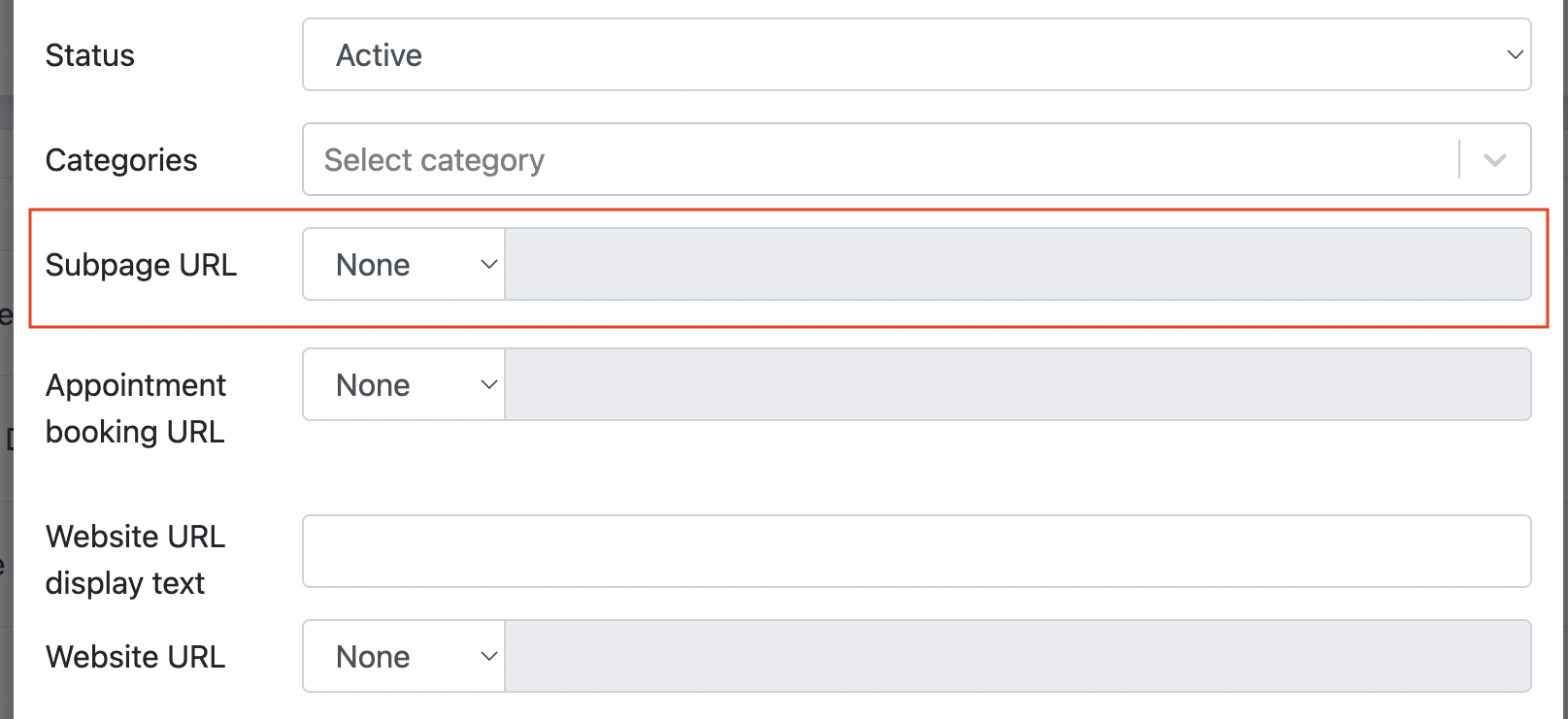
The Subpage is created under Site Pages and its URL is assigned to the corresponding location via the Subpage URL field. Once assigned, visitors can click More Info from the Location Finder search results to access the location's Subpage.
Step 1 : Create a site page via Site Content > Site pages
Step 2: Go to Location Finder, click Edit for the respective location, and select the Site Page created in Step 1 under Subpage URL.
iii) Appointment Booking URL
The Appointment Booking URL is applicable to locations with a Subpage URL configured. It allows Admin to add a third-party booking link for the location.
When configured, an appointment booking button is displayed on the location Subpage. Clicking the button directs visitors to the specified booking URL.
Adding a subpage URL to a location :
iv) Website URL Display Text and Website URL
These fields are available only for Rehavital as part of their customized Location Content.
They allow Admin to add a website link to the Location Subpage, with the Website URL Display Text defining the clickable text and the Website URL defining the destination link.
v) Navigation URL
vi) Map Code
The Map Code allows Admin to display the location directly on a map within the Location Content subpage. Admin can obtain the embed code from a map service, such as Google Maps, and paste the generated code into this field. Once configured, the embedded map will be displayed on the location page, helping visitors easily identify where the location is situated.
vii) Image
The Image field allows Admin to upload an image that represents the location. The uploaded image will be displayed on the Location Content Page, providing visitors with a visual representation of the location.
Summary :
After creating all required locations, Admin can go to the Location Listing and click Edit to configure the relevant fields for each location. These settings determine the information displayed on the respective Location Content Page, allowing each location to have its own individual content and details.
2. General Contact Form
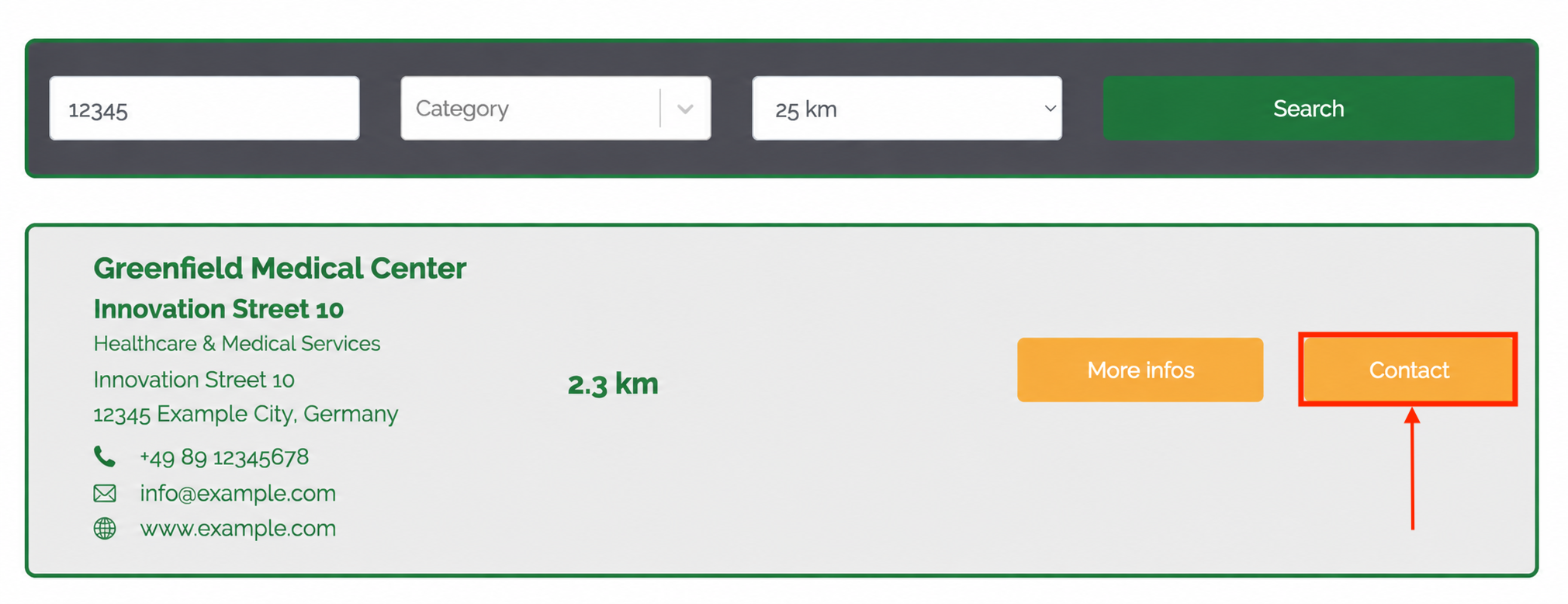
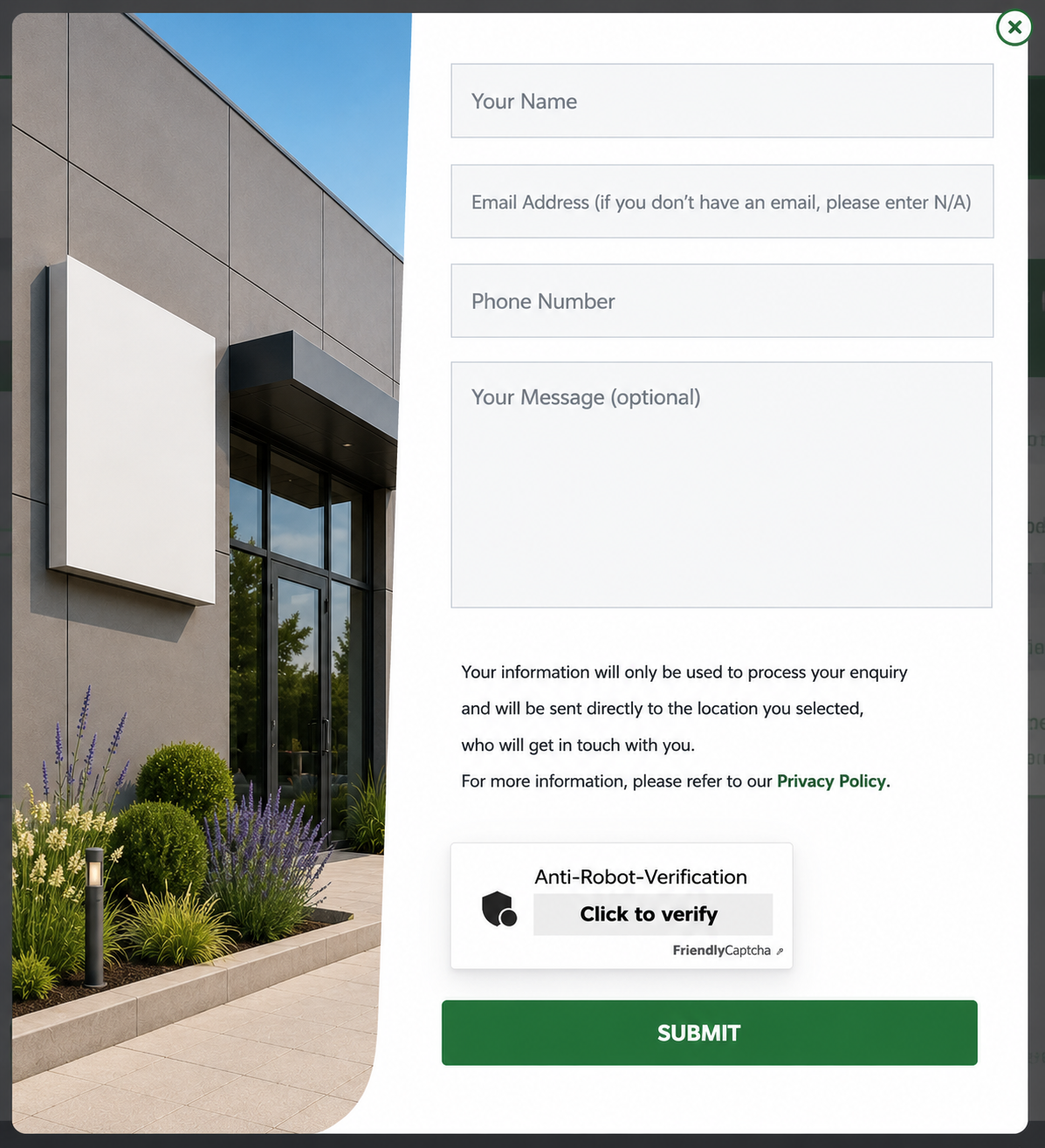
When a location is displayed in the search results, users can click the Contact button to open a contact form. After the user fills in and submits the form, the enquiry will be sent to the Location Email configured for the respective location.
Live View of Search Result:
Live View after clicking "Contact" Button
2.1 Configuration of the general Contact Form
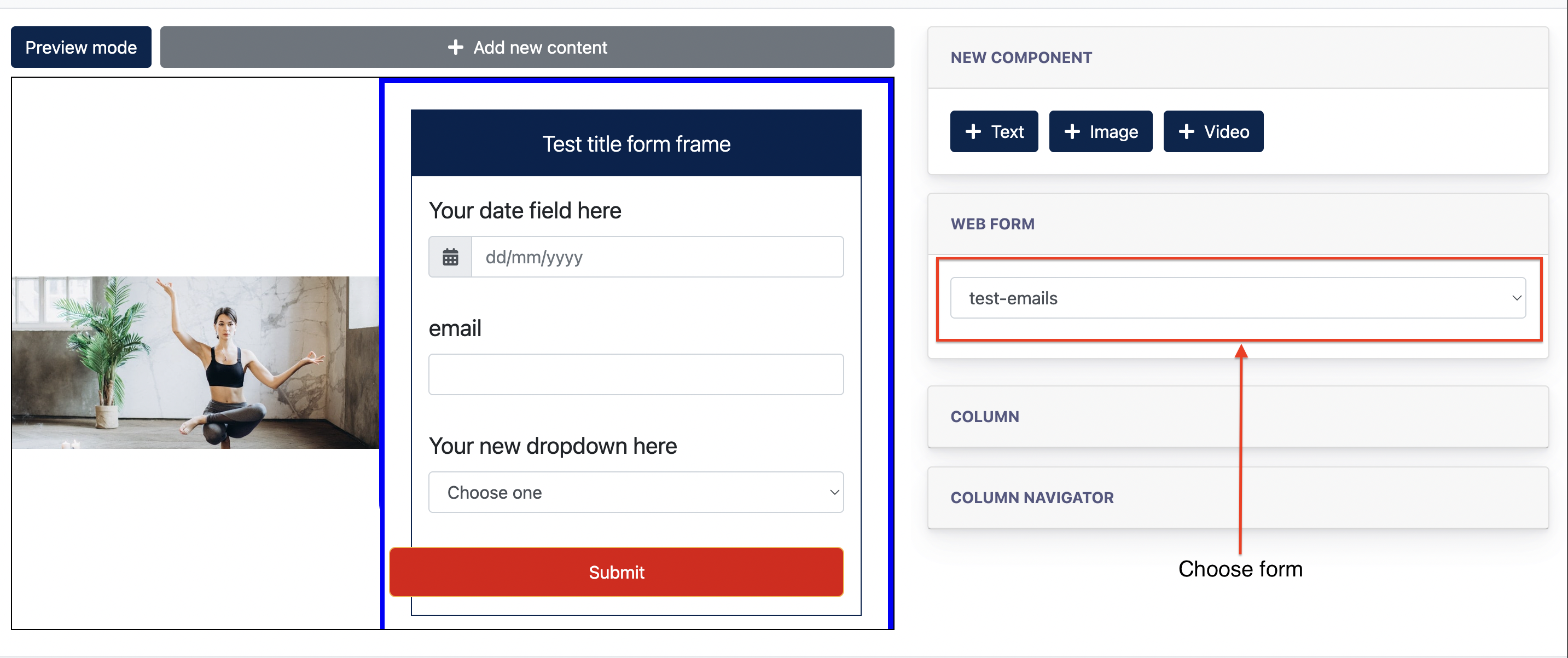
The General Contact Form displayed through the Location Finder can be configured directly within the Location Finder section.
Once configured, the selected form will be used when users click the Call-to-action button through the Location Finder.
Step 1 :
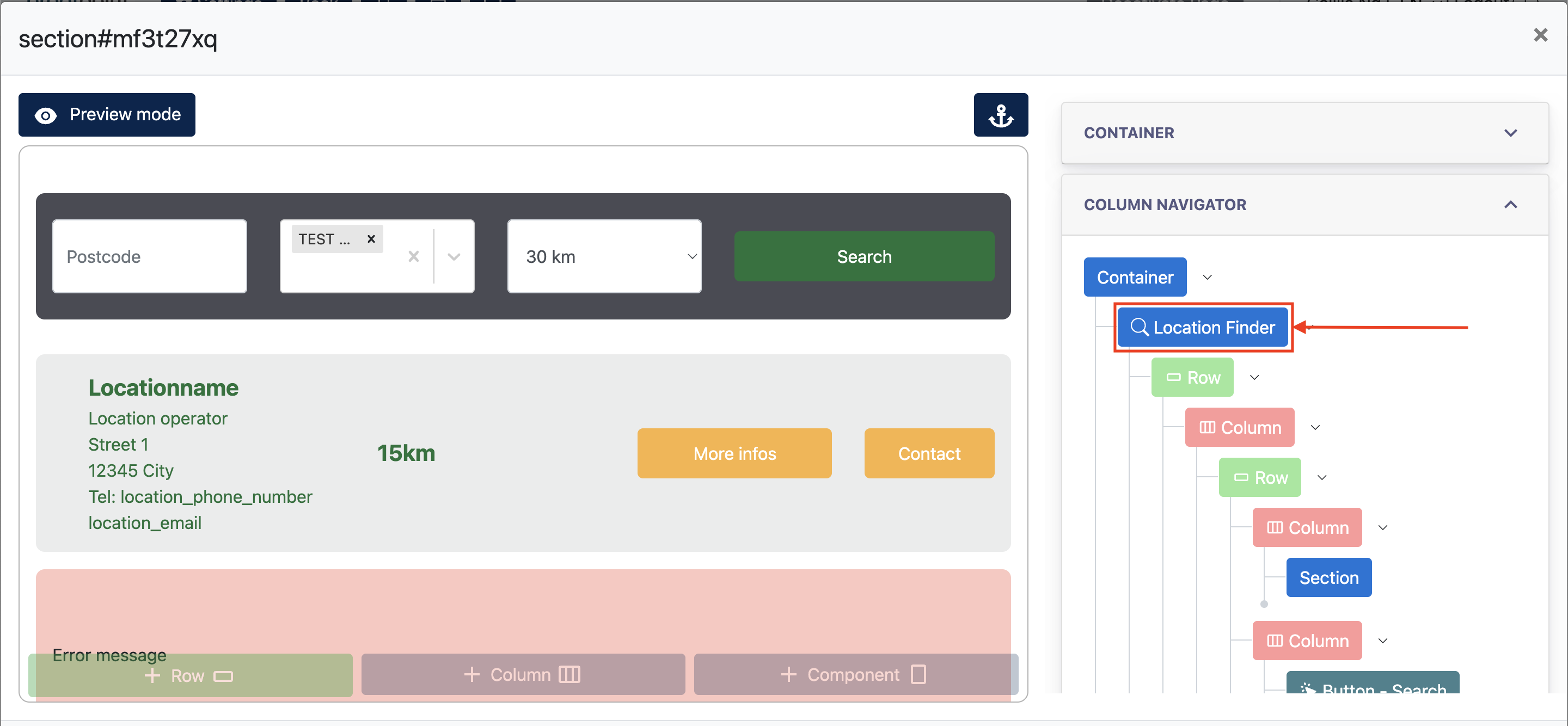
Step 2 :
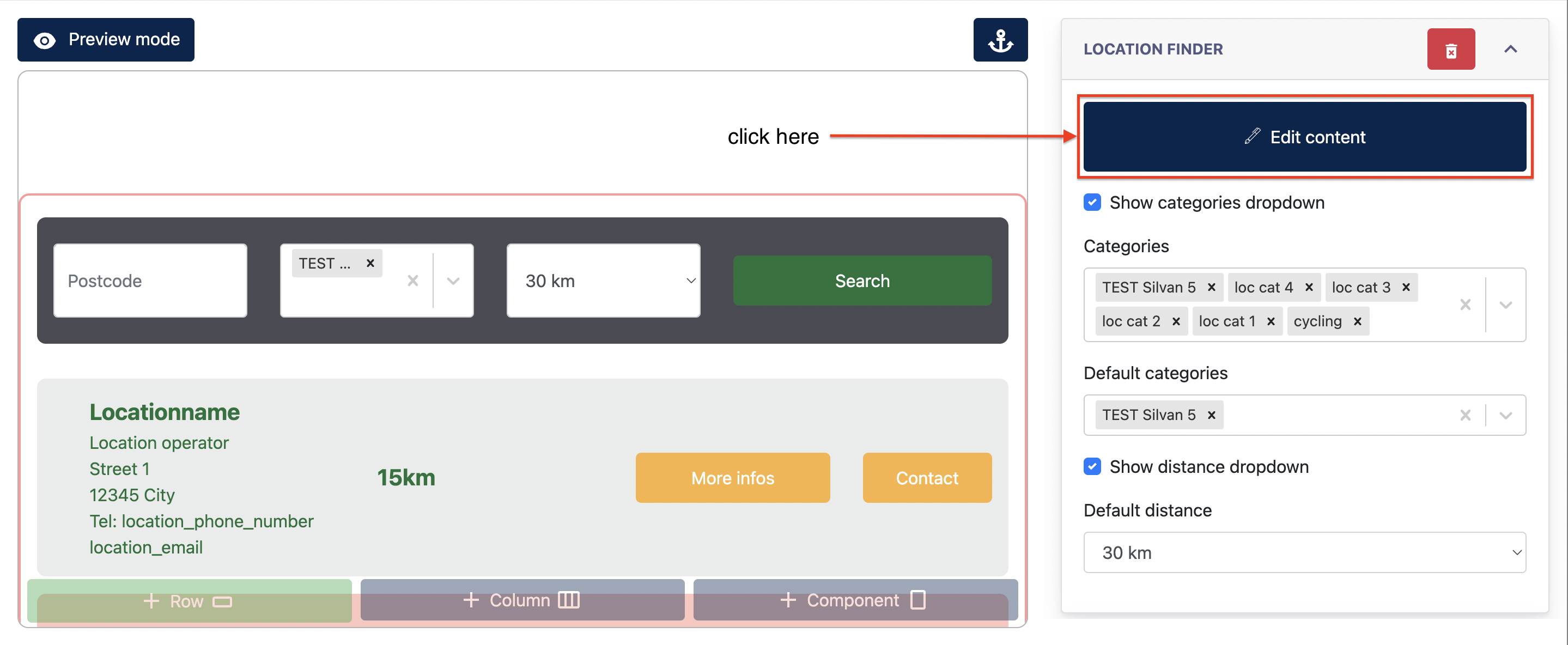
Step 3 & 4 :
3. Location Content Page
Admin can create an individual Location Content Page for each location via Site Content. Once created, the page can be assigned to the respective location under:
Location Finder > Edit > Subpage URL
This allows each location to display its own dedicated content page.
3.1 Location Content Smart Section Template
Under the Location Finder module, Admin can create a Smart Section Template specifically for building Location Content Pages.
The template is available only to the respective Center and is stored under Own Sections in the Site Page Editor.
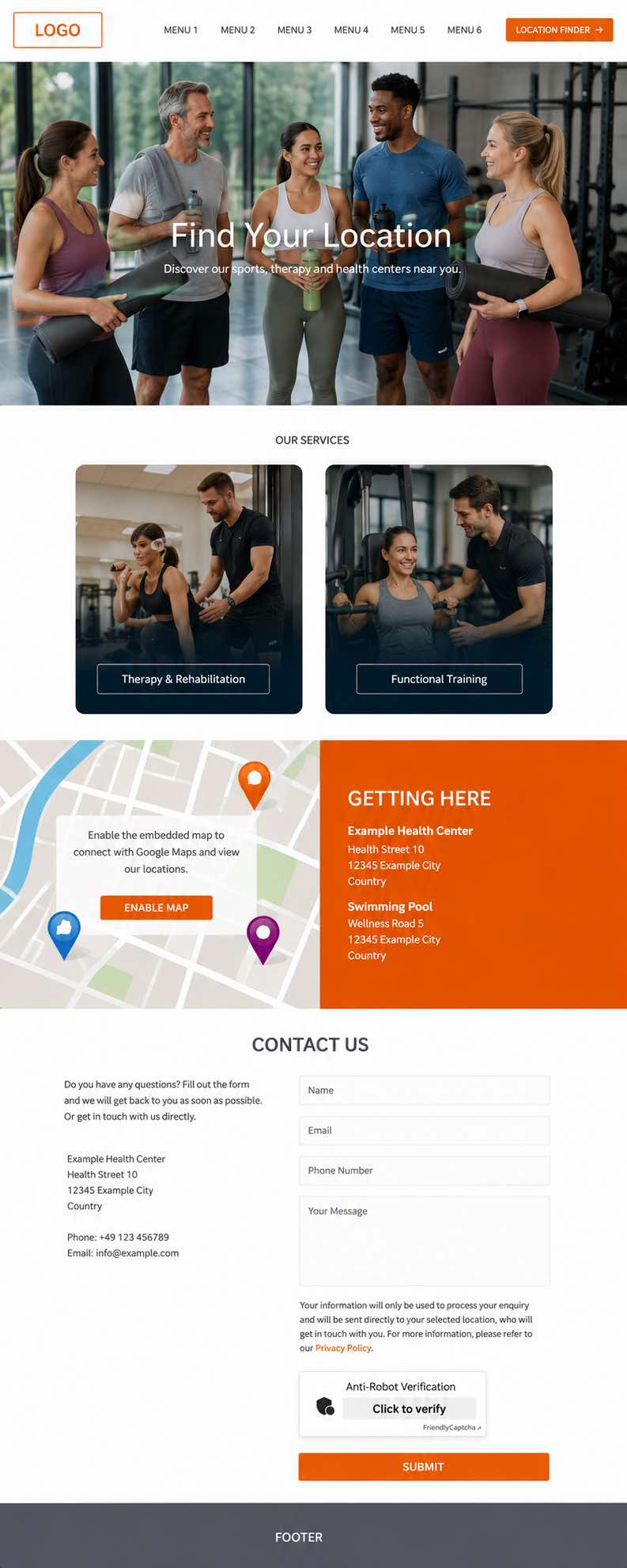
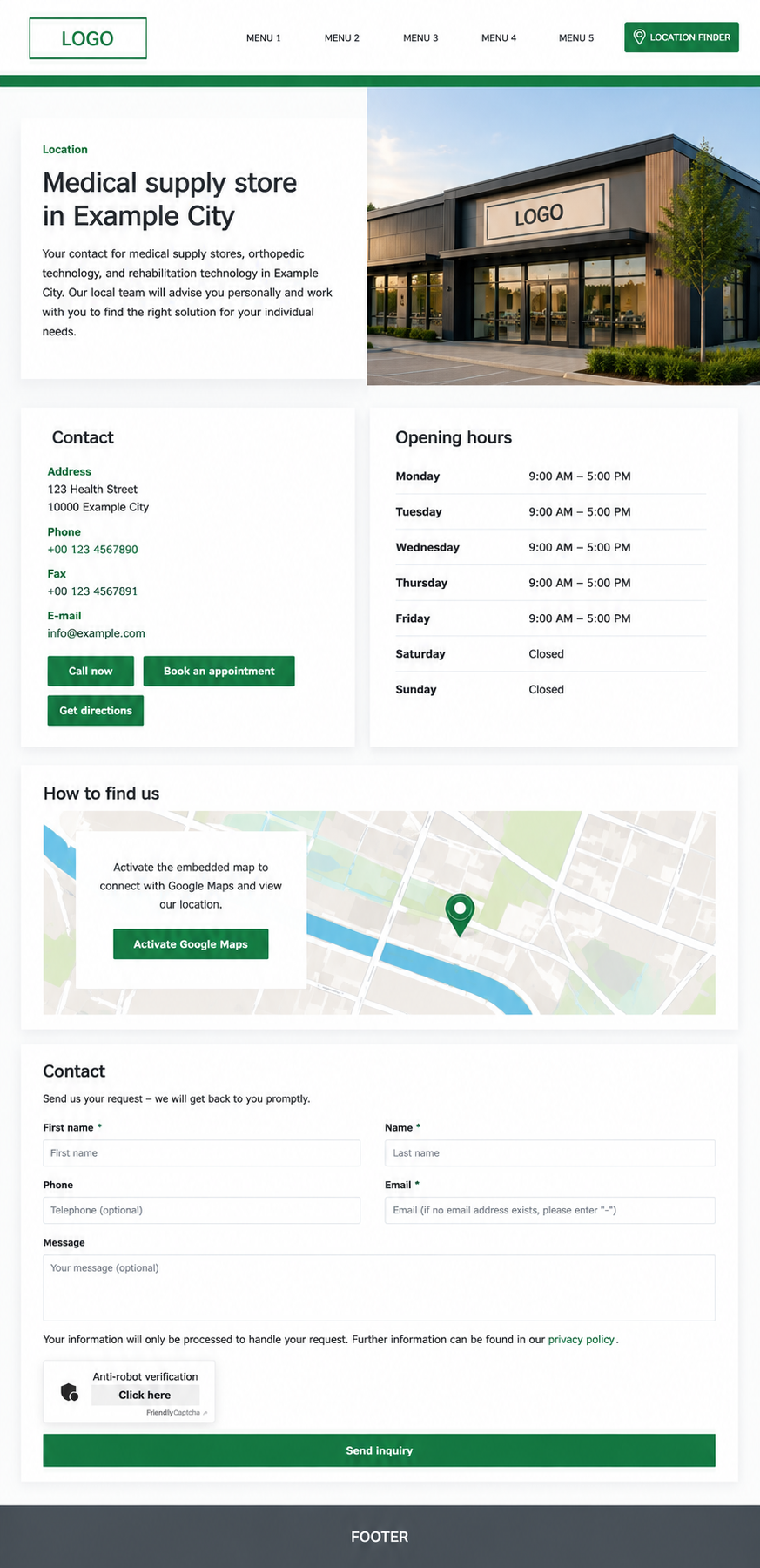
The content displayed in the Smart Section is based on the configuration of the respective location. Information configured under Location Finder > Locations will automatically be reflected in the Smart Section, allowing the same template to display different content for each location.
Example: Location Content Smart Section
Template 1
Template 2
3.2 Locations Opening Hours Configuration
The Opening Hours feature allows Admin to configure operating hours individually for each location.
This feature is optional and is only available when the Opening Hours component is included in the customer's Location Content Smart Section Template. Once configured, the respective opening hours can be displayed dynamically on each Location Content Page.
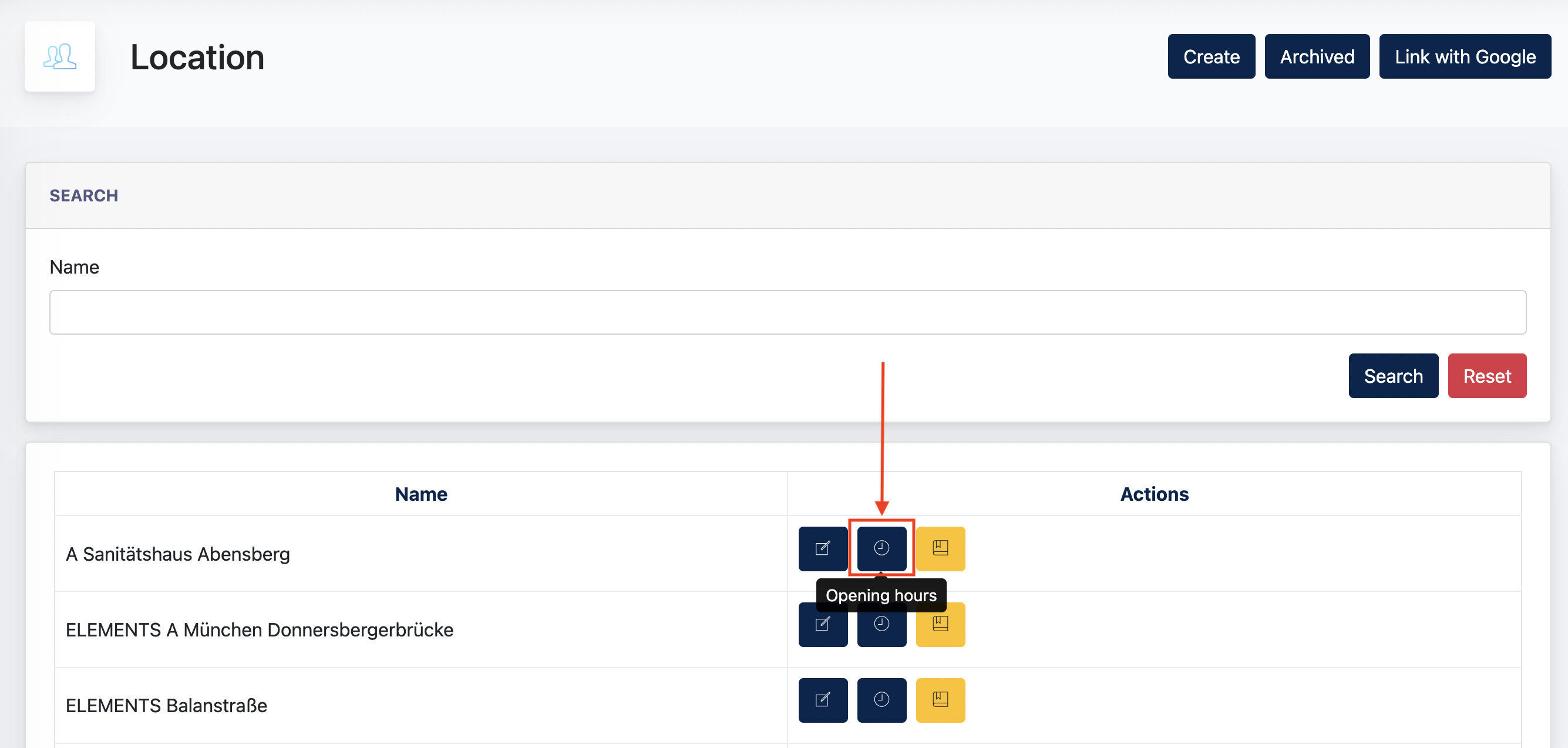
To configure the opening hours, go to Location Finder > Location Listing and click the Opening Hours icon under Actions for the respective location.
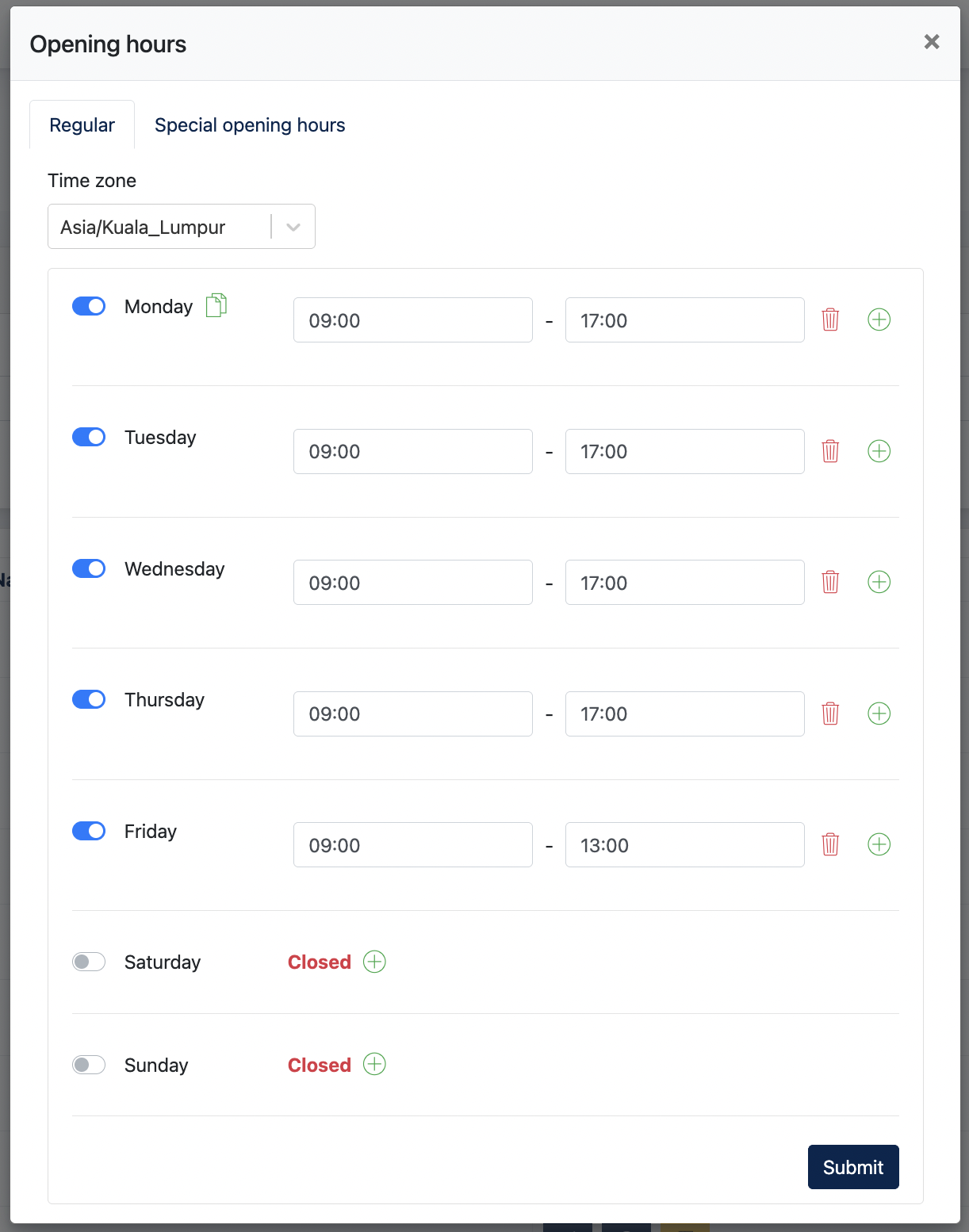
Regular Opening Hours
Under the Regular tab, Admin can configure the standard weekly opening hours of the location.
Select the appropriate Time Zone, then configure the opening and closing time for each day. A day can also be set as Closed, and multiple opening periods can be added where required.
Click Submit to save the configuration.
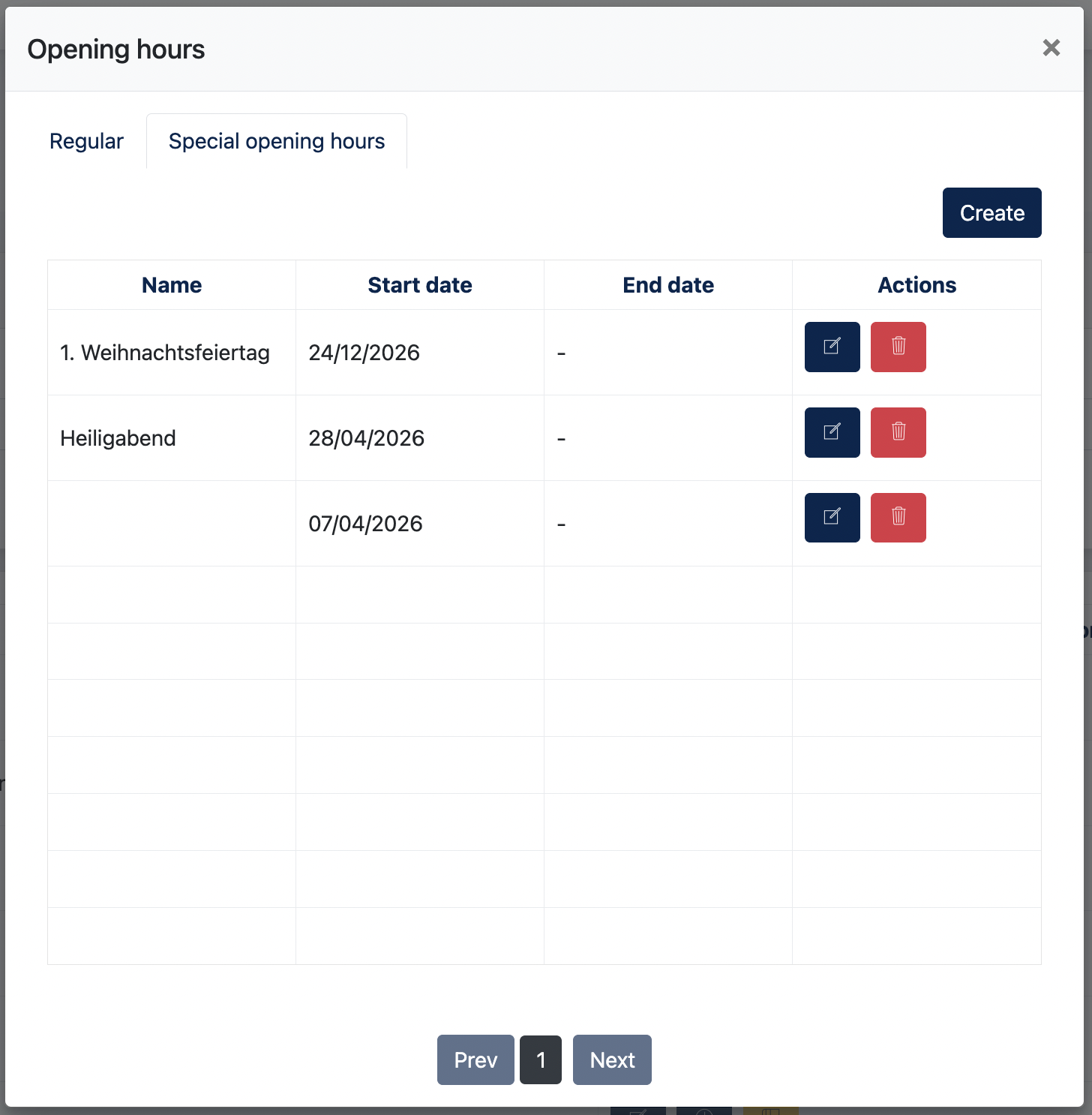
Special Opening Hours
The Special Opening Hours tab is used to configure exceptions to the regular opening hours, such as public holidays, special events, or temporary closures.
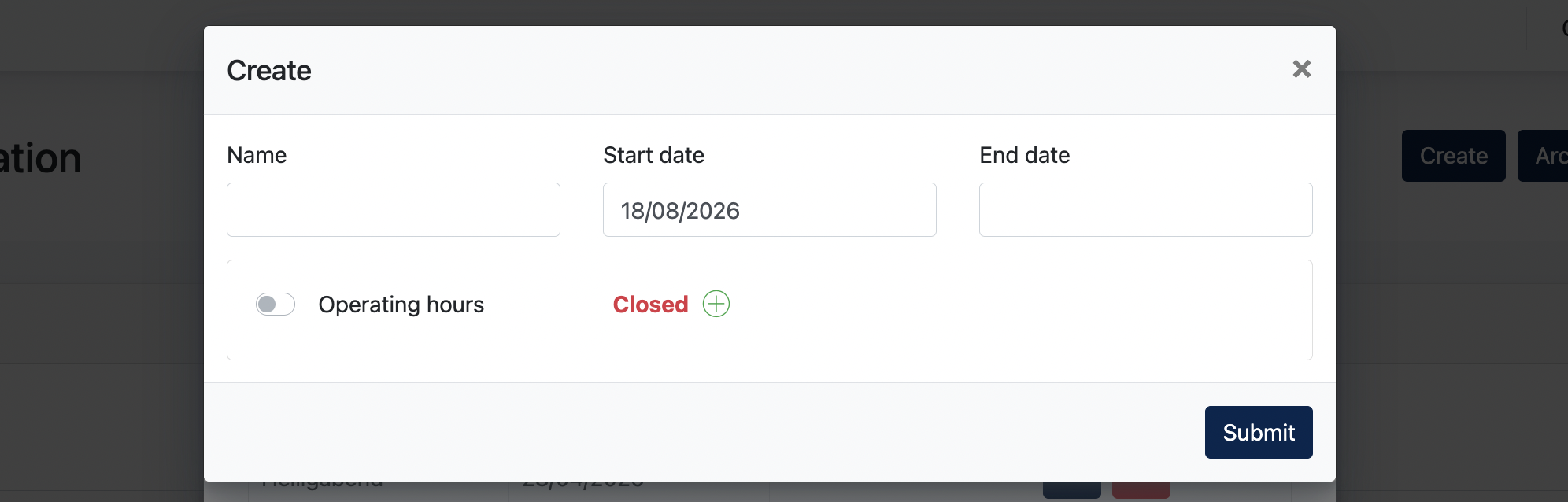
Click Create and define the Name, Start Date, and, where applicable, End Date. Admin can then configure different operating hours or set the location as Closed for the specified period.
Existing special opening hours can be edited or deleted from the listing.
Note: Special Opening Hours override the regular opening hours for the configured date or period.
Google Business Profile Connection
Opening hours can be synchronized with Google Business Profile when the Google integration is enabled for the Center.
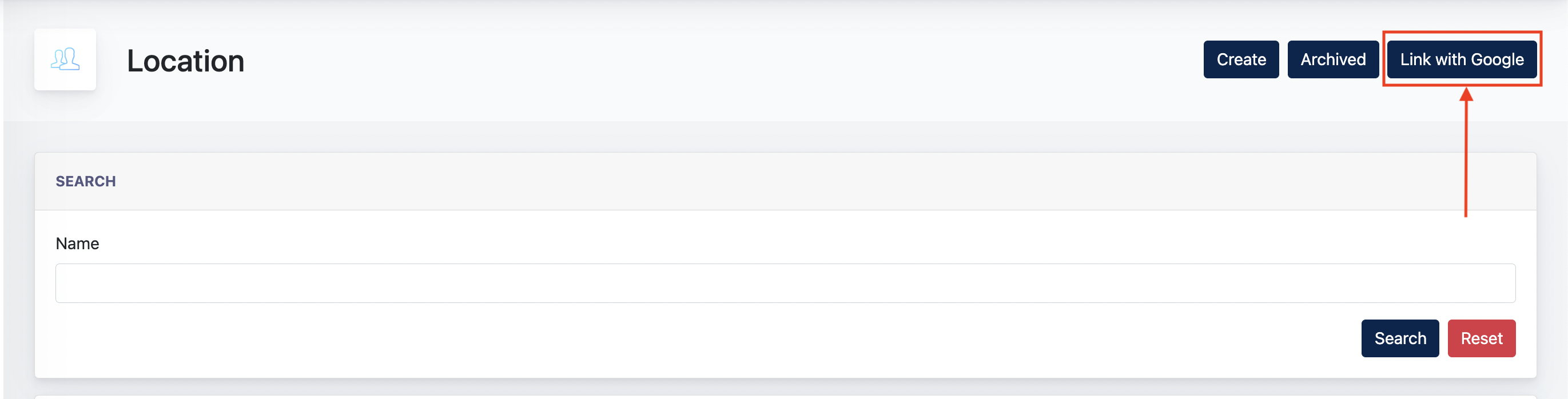
Before assigning a Google location, click Link with Google on the Location page and authorize the Google account that manages the relevant Google Business Profile.
Once connected:
- Open the Opening hours configuration for the required location.
- Select the Google business account.
- Select the corresponding Google location.
- Configure the Regular and/or Special opening hours and save the changes.
The selected Google location is linked to the current Location Finder location. The configured opening hours are synchronized with the corresponding Google Business Profile when the connection is established and whenever the opening hours are subsequently updated.
- the end -